
How to set up Google Ad Reporting
Google Ad reporting provides live reporting and analysis for your clients’ digital ad campaigns. To make sure reporting works correctly, follow the setup guidelines below.
Covered in this article
Section titled “Covered in this article”- Step 1 - Choose the correct Google Ad Account in Integrations
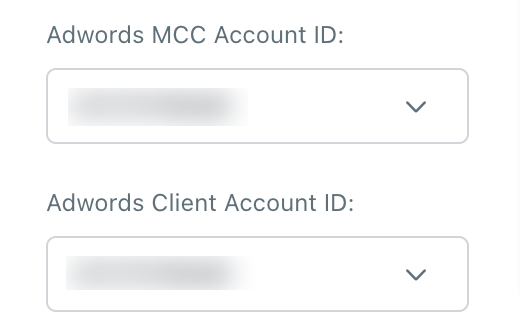
- Step 2 - Select the correct MCC Account Id and Client Account ID
- Step 3 - Add the UTM Template to the Google Ad Account
- Step 4 - Add Script for Precautionary Measures
- Important things to keep in mind
Step 1 - Choose the correct Google Ad Account in Integrations
Section titled “Step 1 - Choose the correct Google Ad Account in Integrations”The user who has the connected Google account should have the highest level of access, such as:
- Administrator access
- Google Ads account manager access
This helps ensure the reporting setup can access the required ad account data.
Step 2 - Select the correct MCC Account Id and Client Account ID
Section titled “Step 2 - Select the correct MCC Account Id and Client Account ID”MCC stands for My Client Centre. It is also commonly known as a Google Ads Manager Account, which is used to manage multiple client Google Ads accounts.
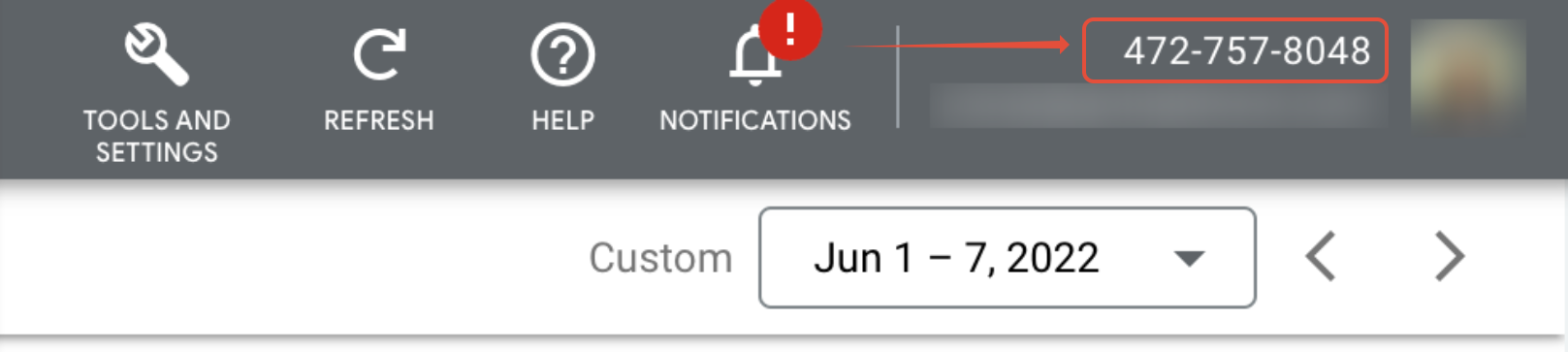
MCC ID
Section titled “MCC ID”The MCC ID is present in the top-right corner.
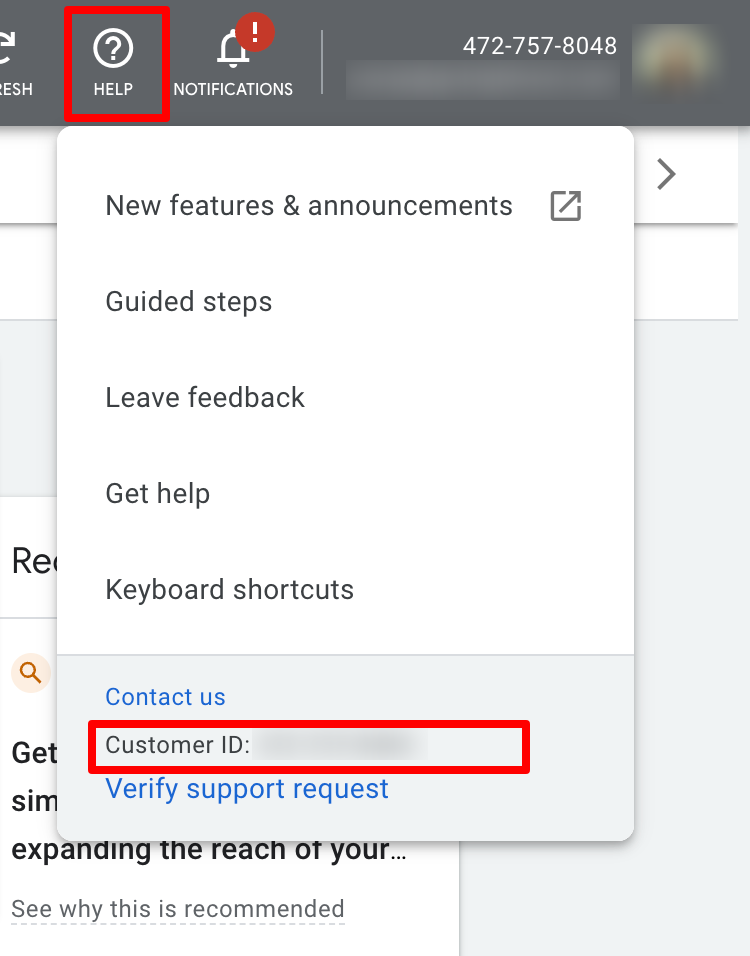
Client Account ID
Section titled “Client Account ID”The Client Account ID is present after clicking the help section.
Step 3 - Add the UTM Template to the Google Ad Account
Section titled “Step 3 - Add the UTM Template to the Google Ad Account”The UTM tracking template can be added in three places:
- Account Settings
- Campaign Settings
- Ad Group level
It is recommended to add the UTM template at the Account level.
UTM Tracking Template
Section titled “UTM Tracking Template”Copy and use this template:
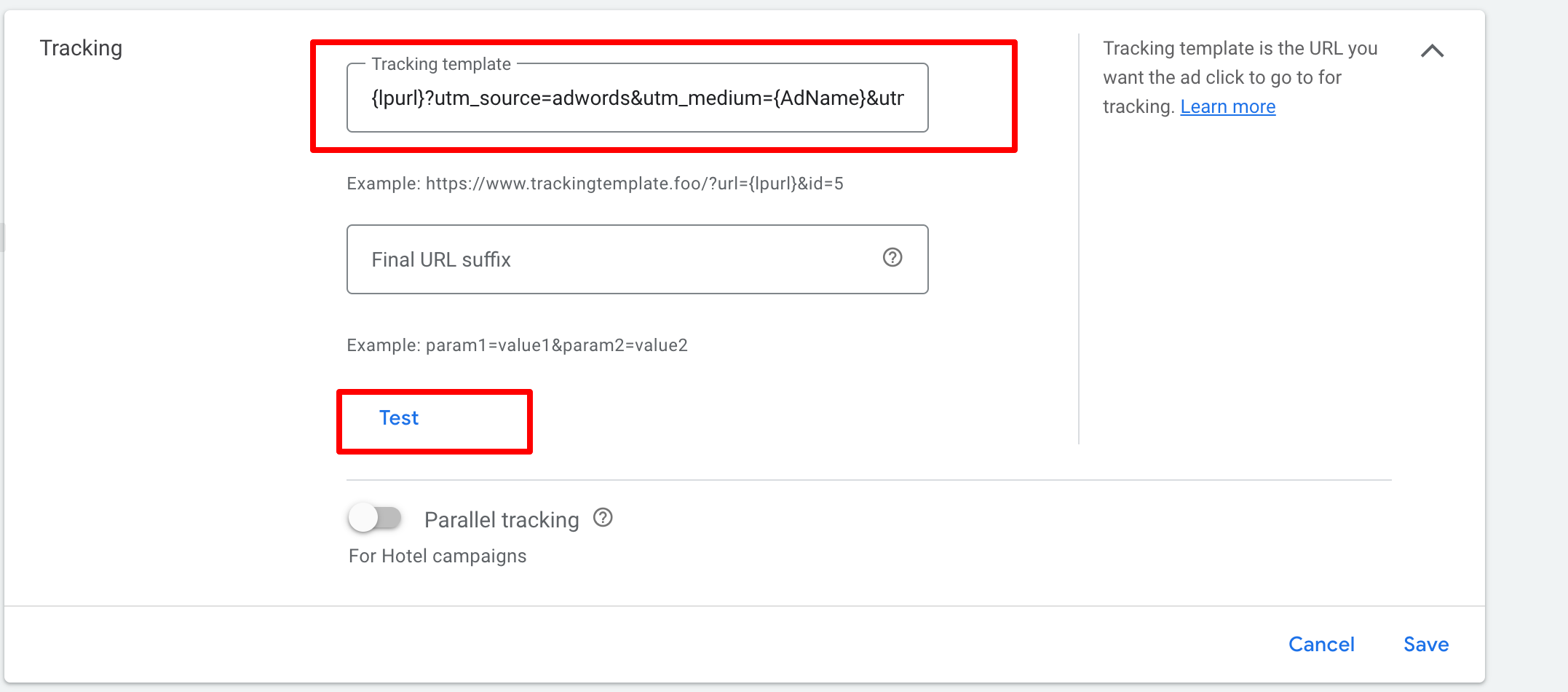
{lpurl}?utm_source=adwords&utm_medium={adname}&utm_campaign={campaignname}&utm_content={adgroupname}&utm_keyword={keyword}&utm_matchtype={matchtype}&campaign_id={campaignid}&ad_group_id={adgroupid}&ad_id={creative}How it works
Section titled “How it works”Tracking templates must include a ValueTrack parameter that inserts your final URL, such as {lpurl}.
Once your ad is clicked, these parameters insert your final URL. If you do not include a URL insertion parameter in your tracking template, your landing page URL may break.
If you want to add more than one ValueTrack parameter to a single URL, append them together using an ampersand (&).
Example:
{lpurl}?matchtype={matchtype}&device={device}You can set up or edit a tracking template with ValueTrack parameters at the campaign, ad group, ads, or extension level.
Example
Section titled “Example”Final URL:
http://example.com
Tracking template:
{lpurl}?utm_source=adwords&utm_medium={adname}&utm_campaign={campaignname}&utm_content={adgroupname}&utm_keyword={keyword}&utm_matchtype={matchtype}&campaign_id={campaignid}&ad_group_id={adgroupid}&ad_id={creative}Landing page URL after clicking ads:
{lpurl}?utm_source=adwords&utm_medium=black_friday&utm_campaign=blackday10&utm_content=marketingbanner&utm_keyword=getdiscounteddeal&utm_matchtype=e&campaign_id=12345&ad_group_id=2394984903&ad_id=93844980940&gclid=84843ewhfb834nedhj4u49Where to add it
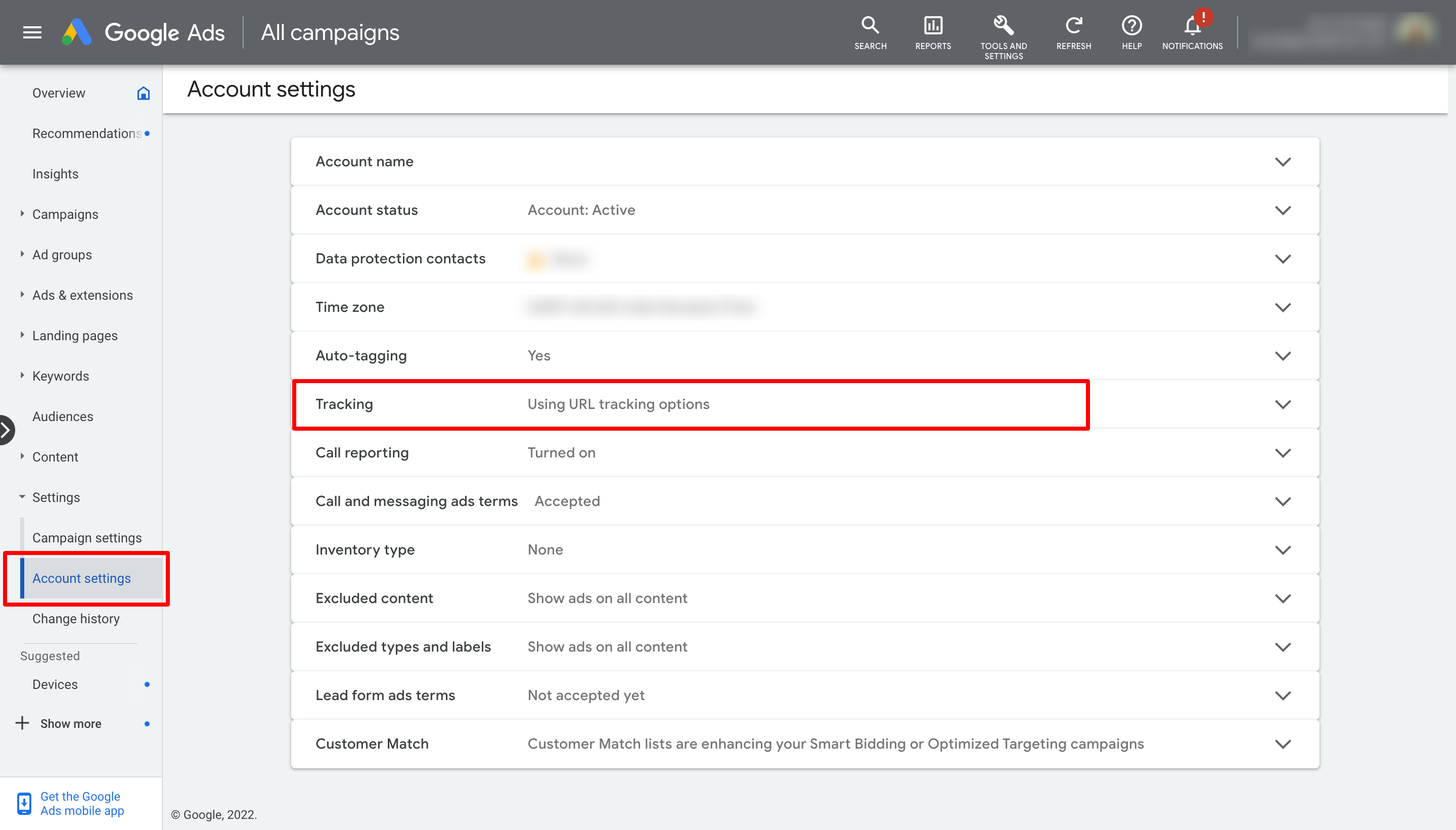
Section titled “Where to add it”Go to:
Google Ads Account > Account Settings > Tracking
Paste the tracking template URL into the Tracking template field.
Please Note
Section titled “Please Note”- After adding the tracking template, run a test.
- Most campaigns should show that the landing page is found.
- If there are any errors, fix them for active campaigns.
- Earlier,
utm_source=googlewas used as the source value. Although this has been deprecated, it could be stripped by ad blockers and may affect URL attribution.
Step 4 - Add Script for Precautionary Measures
Section titled “Step 4 - Add Script for Precautionary Measures”A precautionary tracking script can be used as a fail-safe if the UTM template does not capture attribution data properly.
This script tracks clicks on a particular link and sends them to Google Analytics.
The only part that usually needs to be updated is the tracking page URL so it matches the one used by your website.
You can place this in a separate help article or implementation guide as:
How to set up Google Ad Precautionary Tracking Script
Important things to keep in mind
Section titled “Important things to keep in mind”- Campaign names, ads, and ad sets need to be unique.
- Name parameters should not be changed during the lifetime of the campaign, ad set, or ad.
- If a name must be changed, create a new campaign, ad set, or ad to avoid reporting issues.
- If you change the name and do not create a new campaign, ad set, or ad, the CRM may continue referring to the original campaign, which can skew reporting.
- You will find an Objectives dropdown on the top-left. Its purpose is to help define the objective of the ad campaign when creating it.
Frequently Asked Questions
Section titled “Frequently Asked Questions”Q: Where should I add the UTM tracking template? A: It can be added at the account, campaign, or ad group level, but account-level setup is recommended.
Q: Why is {lpurl} required in the tracking template?
A: It inserts the final URL. Without it, the landing page URL may break.
Q: What should I do after adding the tracking template? A: Run a test and fix any errors found for active campaigns.
Q: Can I rename campaigns, ad sets, or ads later? A: It is best not to. If changes are needed, create a new campaign, ad set, or ad to avoid attribution and reporting issues.
If you want, I can also regenerate the **Facebook Ad Reporting** one in this same tighter format so both match properly.::contentReference[oaicite:1]{index=1}