
Template Library for Custom Reports
The Template Library for Custom Reports gives you access to ready-made report layouts so you can create polished reports faster without rebuilding page structure, widgets, and themes from scratch.
Table of Contents
Section titled “Table of Contents”- What is the Template Library
- Key Benefits
- Adding a Custom Report to the Template Library
- How to Use the Template Library
- Frequently Asked Questions
What is the Template Library
Section titled “What is the Template Library”The Template Library is an in-app gallery of pre-built report layouts available in Reporting > Custom Reports. Instead of starting from scratch, you can choose a template, update branding, and schedule or share the report.
When you create a new custom report, the library allows you to browse, preview, and apply templates with pages, widgets, and themes already configured.
Key Benefits
Section titled “Key Benefits”Using templates helps improve speed, consistency, and standardization.
Benefits include:
- Brand consistency across reports
- Faster report creation
- Proven layouts designed to reduce setup errors
- Ongoing access to new templates
- Flexible customization of metrics, filters, visuals, and layouts
- Easier onboarding for new users
- Less repetitive formatting work
Adding a Custom Report to the Template Library
Section titled “Adding a Custom Report to the Template Library”You can convert an existing completed report into a reusable template.
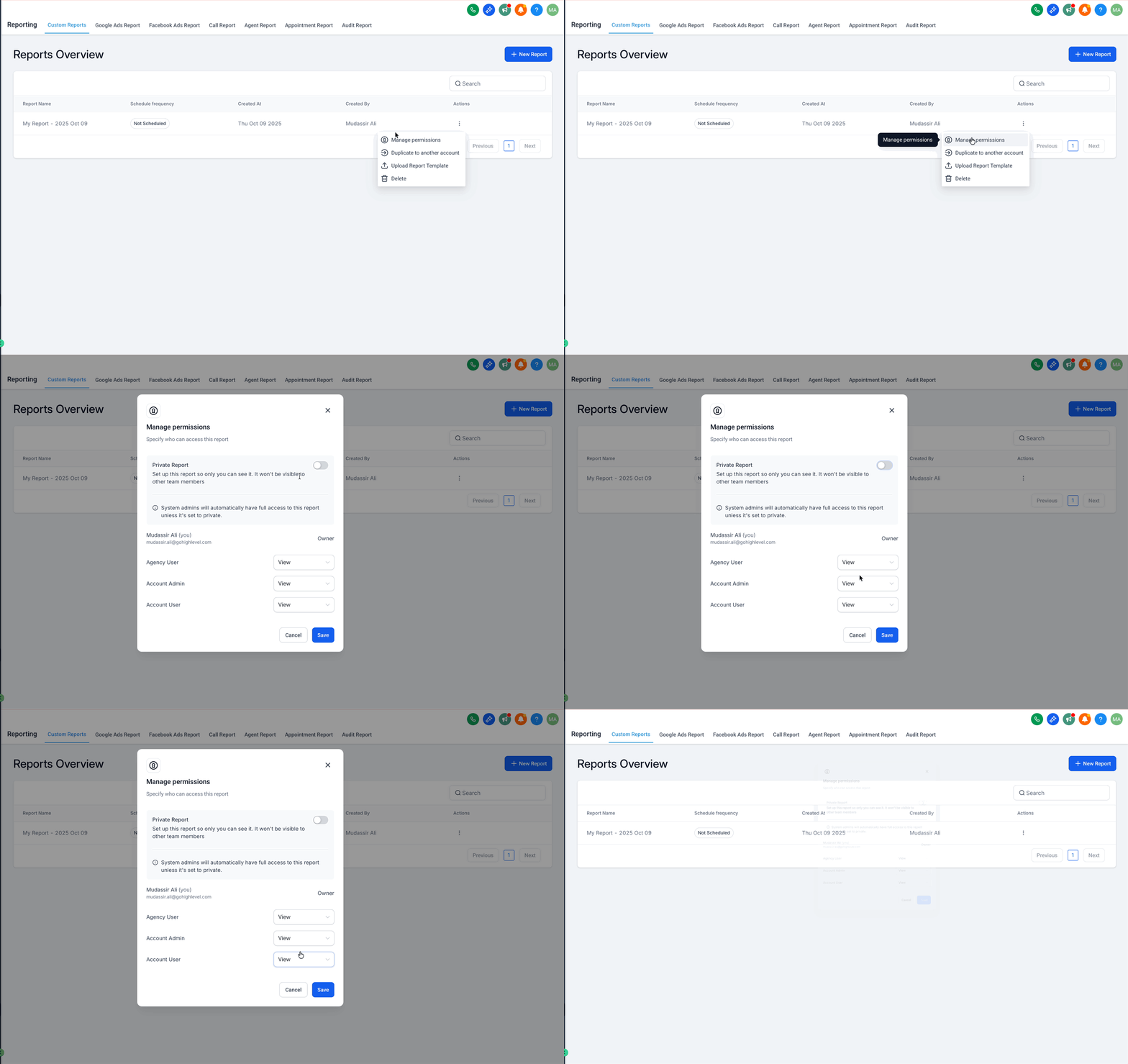
Set minimum access permissions
Section titled “Set minimum access permissions”- Go to Reporting > Custom Reports
- Find the completed report in Reports Overview
- Click the three-dot menu next to the report name
- Select Manage permissions
- Grant at least Read access to:
- Agency User
- Account Admin
- Account User
Prepare the report before upload
Section titled “Prepare the report before upload”Before uploading the report as a template:
- Finalize the layout, branding, and page order
- Replace any client-specific text or screenshots with generic content
- Normalize date ranges and widget settings you want reused
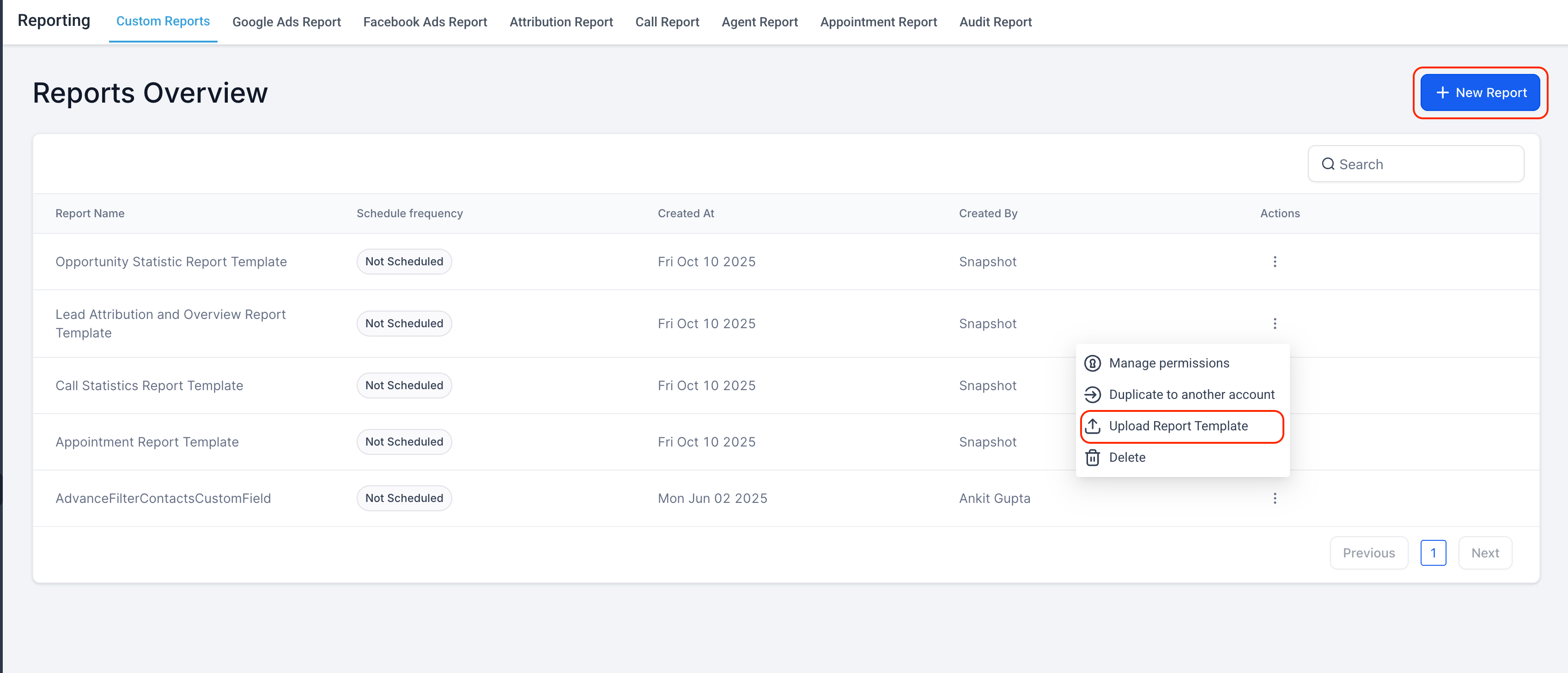
- Open the three-dot menu
- Select Upload Report Template
How to Use the Template Library
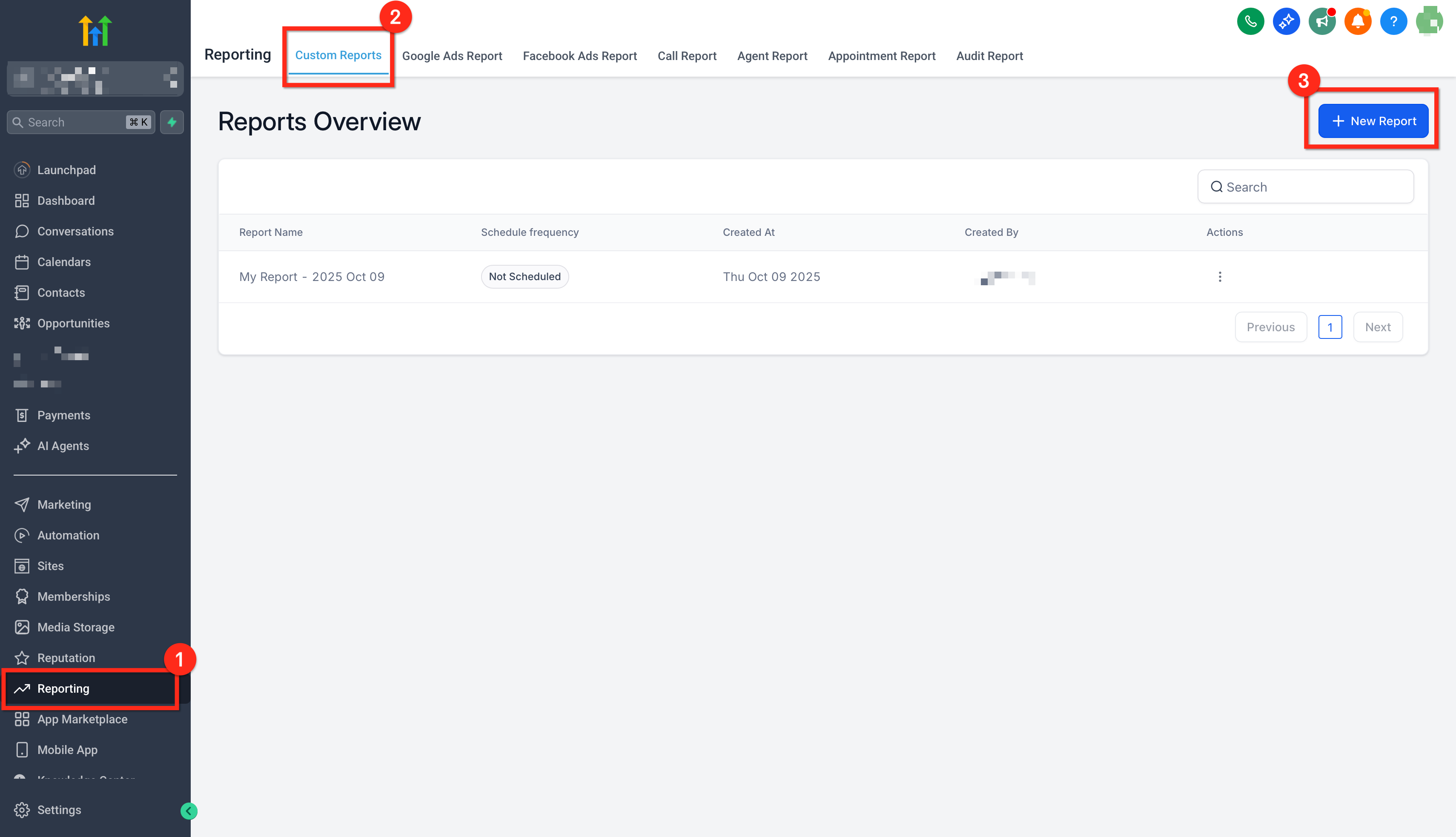
Section titled “How to Use the Template Library”Step 1: Open Custom Reports
Section titled “Step 1: Open Custom Reports”Go to Reporting > Custom Reports and click New Report.
Step 2: Choose Your Starting Point
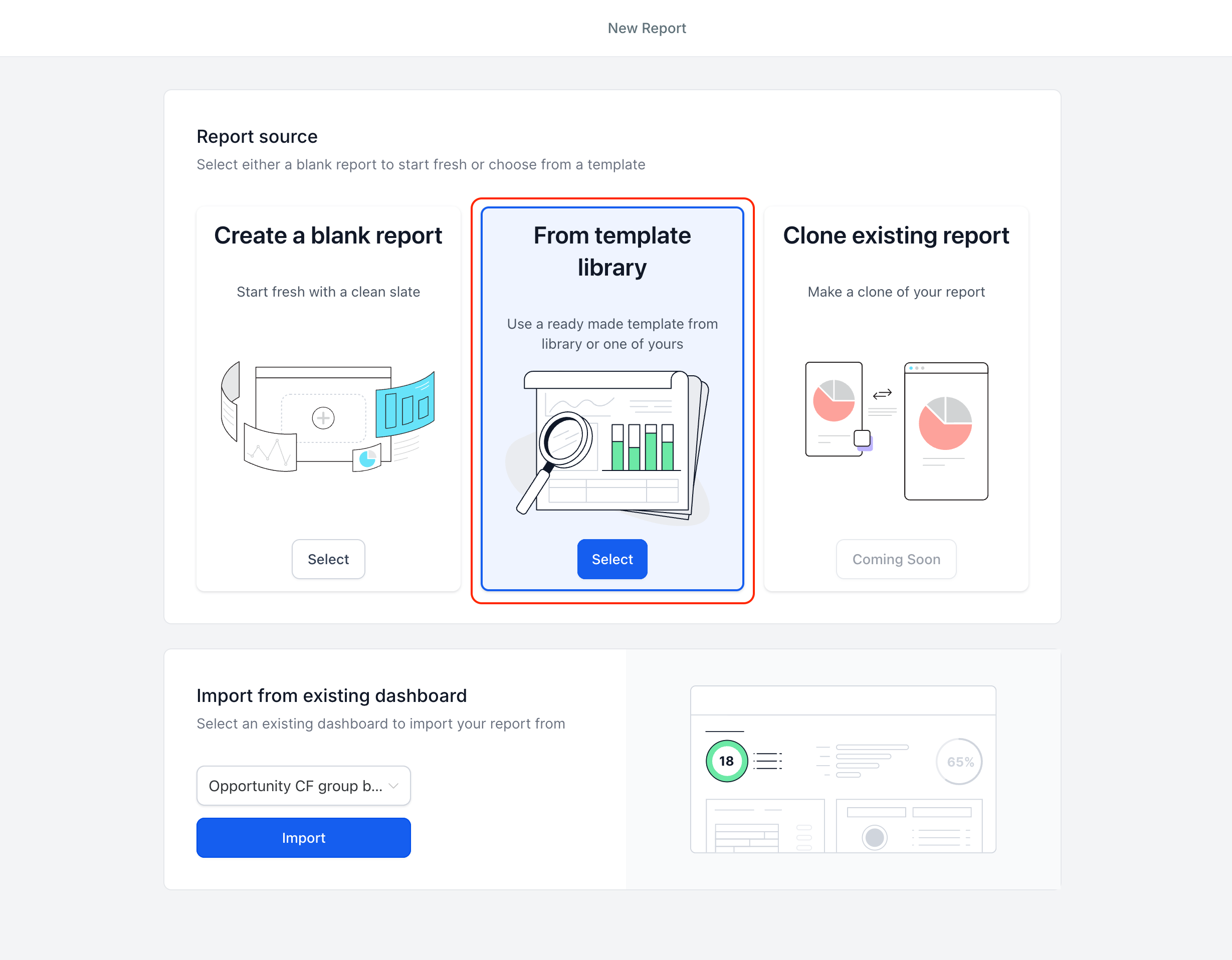
Section titled “Step 2: Choose Your Starting Point”Select one of the available starting points:
- From Dashboard
- From Scratch
- From Template Library
Choose From Template Library to browse templates.
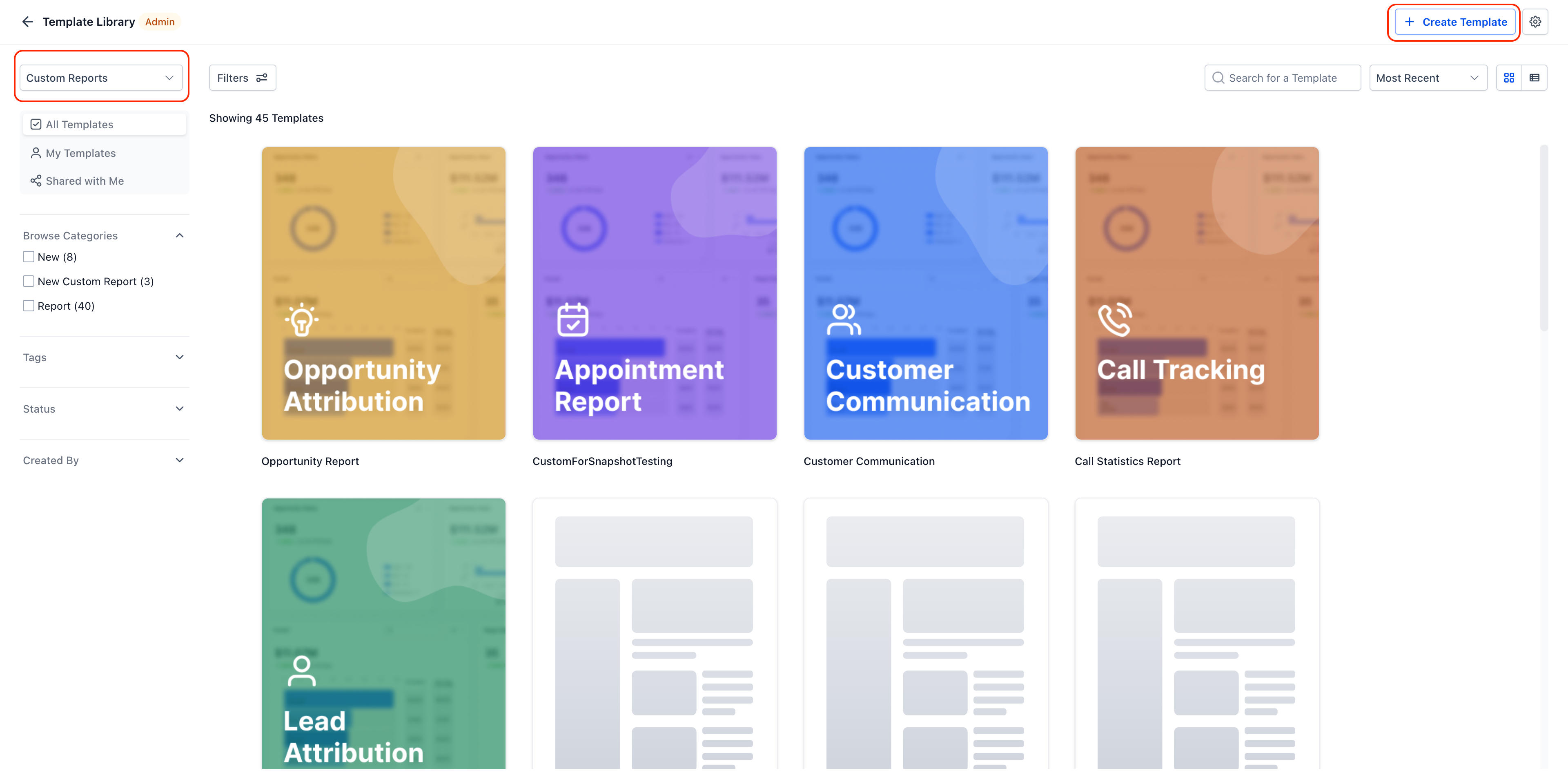
Step 3: Filter and Select a Template
Section titled “Step 3: Filter and Select a Template”In the template library:
- Filter by niche or tags
- Preview the template
- Click Use Template to apply it
Step 4: Preview with Real Data and Schedule Delivery
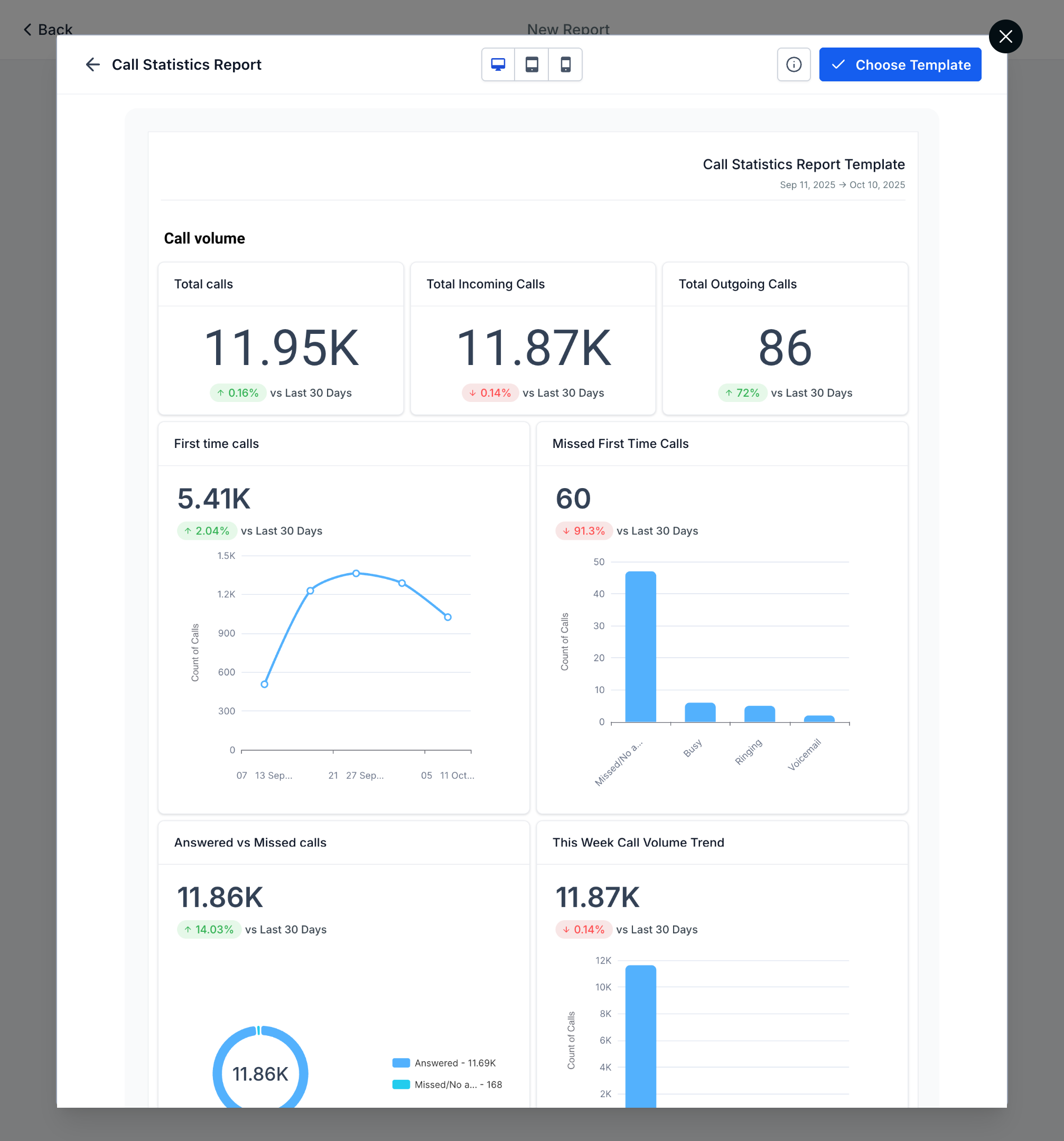
Section titled “Step 4: Preview with Real Data and Schedule Delivery”After applying the template:
- Review the live data preview
- Click Save
- Choose Schedule to define delivery timing
- You can also Send the report immediately or Download it as a PDF
Frequently Asked Questions
Section titled “Frequently Asked Questions”Q: If I edit a template later, will it update reports already created from it?
A: No. Template changes apply only to future reports created from that template.
Q: Can I hide specific templates from certain sub-accounts?
A: Not individually. A common approach is to use a hidden category and keep those templates out of visible categories.
Q: Can templates still be customized after they are applied?
A: Yes. After applying a template, you can edit widgets, layouts, themes, and report content.