
Email Statistics
Email Statistics help you reliably track how recipients interact with your emails across standalone campaigns, automated workflows, and bulk actions. These insights are crucial to optimizing deliverability, improving your overarching content strategy, and maintaining a healthy sender reputation.
Key Benefits of Email Statistics
Section titled “Key Benefits of Email Statistics”Gain actionable insights across the platform to monitor and improve email performance:
- View open, click, bounce, and spam metrics in real time.
- Track independent stats at the individual campaign, workflow, and bulk email action levels.
- Identify top-performing subject lines and design templates.
- Access contact-level insights for deeper, localized troubleshooting.
- Use analytics to segment smart lists and drive future automation.
- Rapidly pinpoint negative issues like unsubscribes or failed deliveries.
Email Marketing Statistics
Section titled “Email Marketing Statistics”Gain granular insight into your one-time and scheduled email performance. To view your core marketing statistics, navigate to Marketing > Emails.
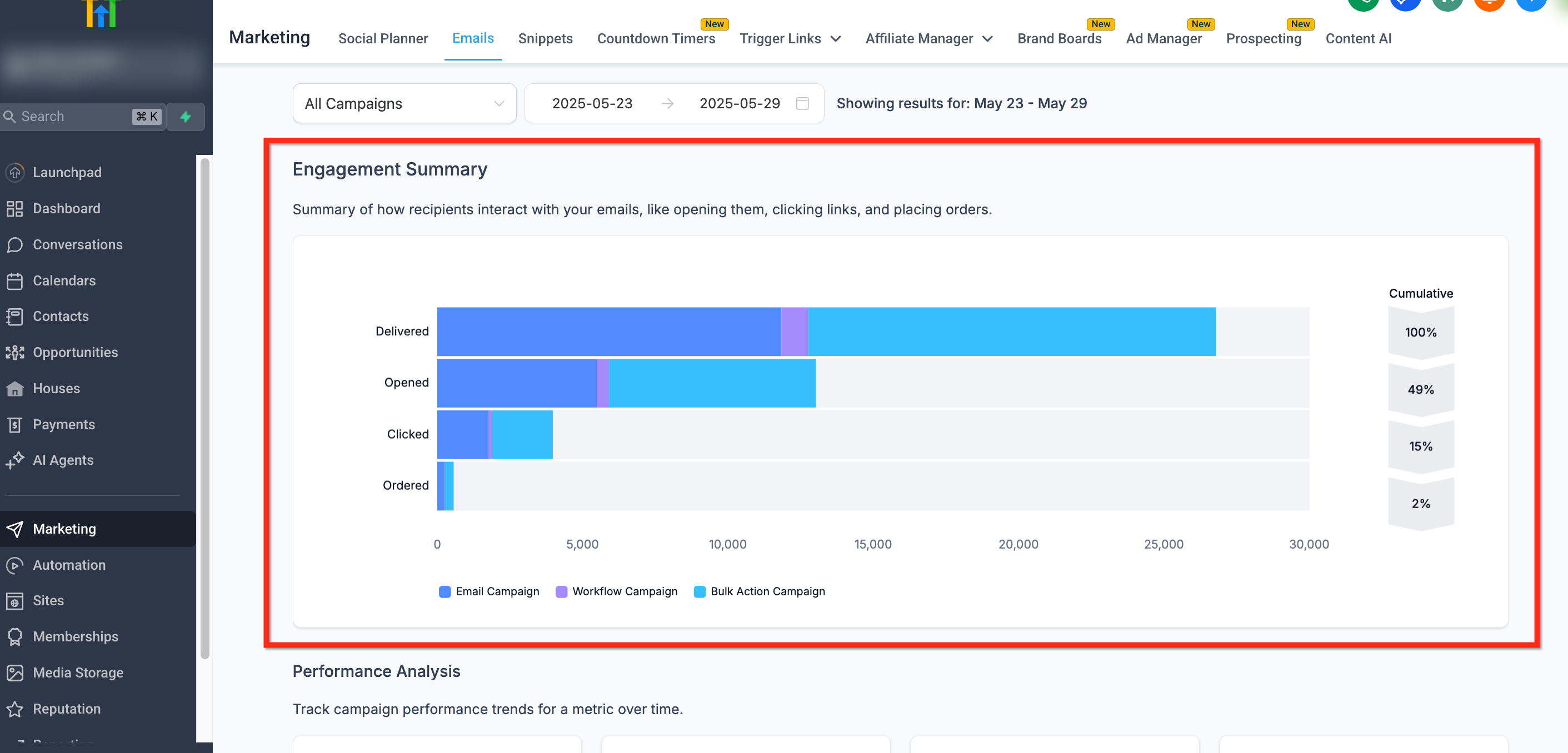
Engagement Summary
Section titled “Engagement Summary”Use the top-level graph to quickly gauge how your overall email ecosystem is performing regarding total delivery, engagement volume, and conversion metrics.
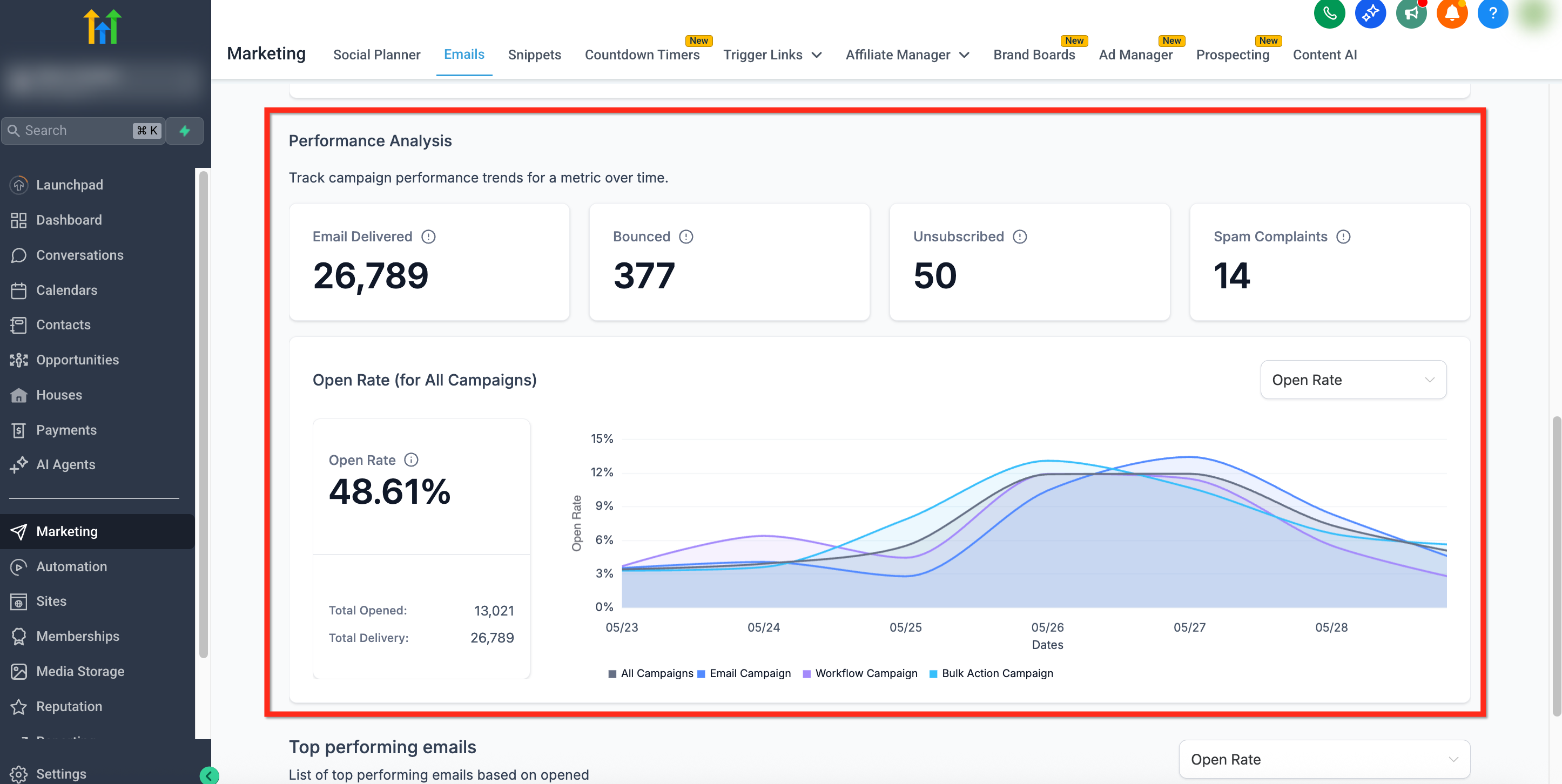
Performance Analysis
Section titled “Performance Analysis”Track long-term email performance trends using visual metrics like delivery rate, bounce rate, global unsubscribes, and spam complaints. You can use the localized dropdown to smoothly switch between engagement variables and visualize how different campaign types perform over selected date ranges.
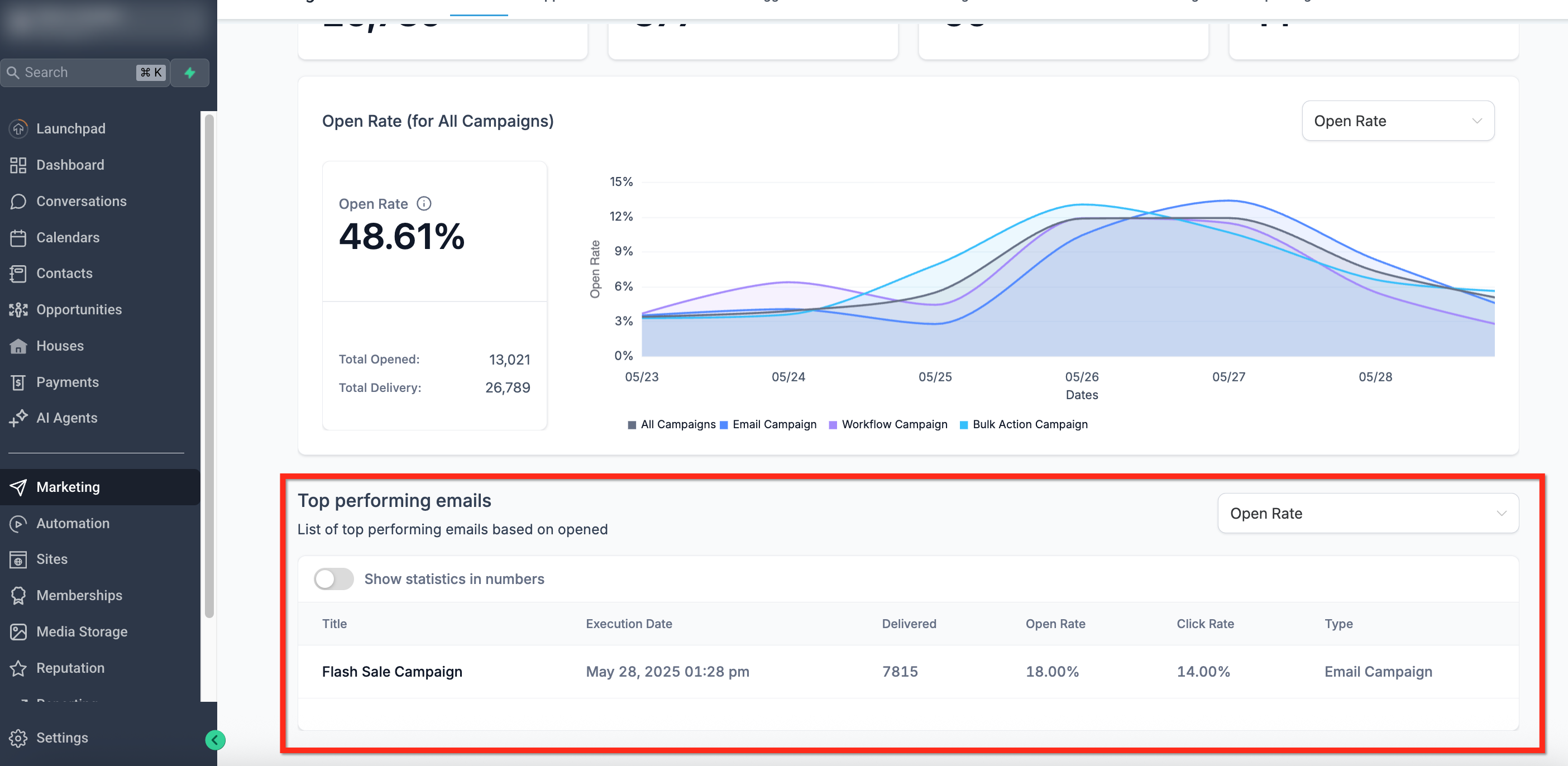
Top Performing Emails
Section titled “Top Performing Emails”View a definitively ranked list of your most successful email outputs based exclusively on open or click rates. This section explicitly helps you identify which subjects, structures, or send times resonate best with your audience.
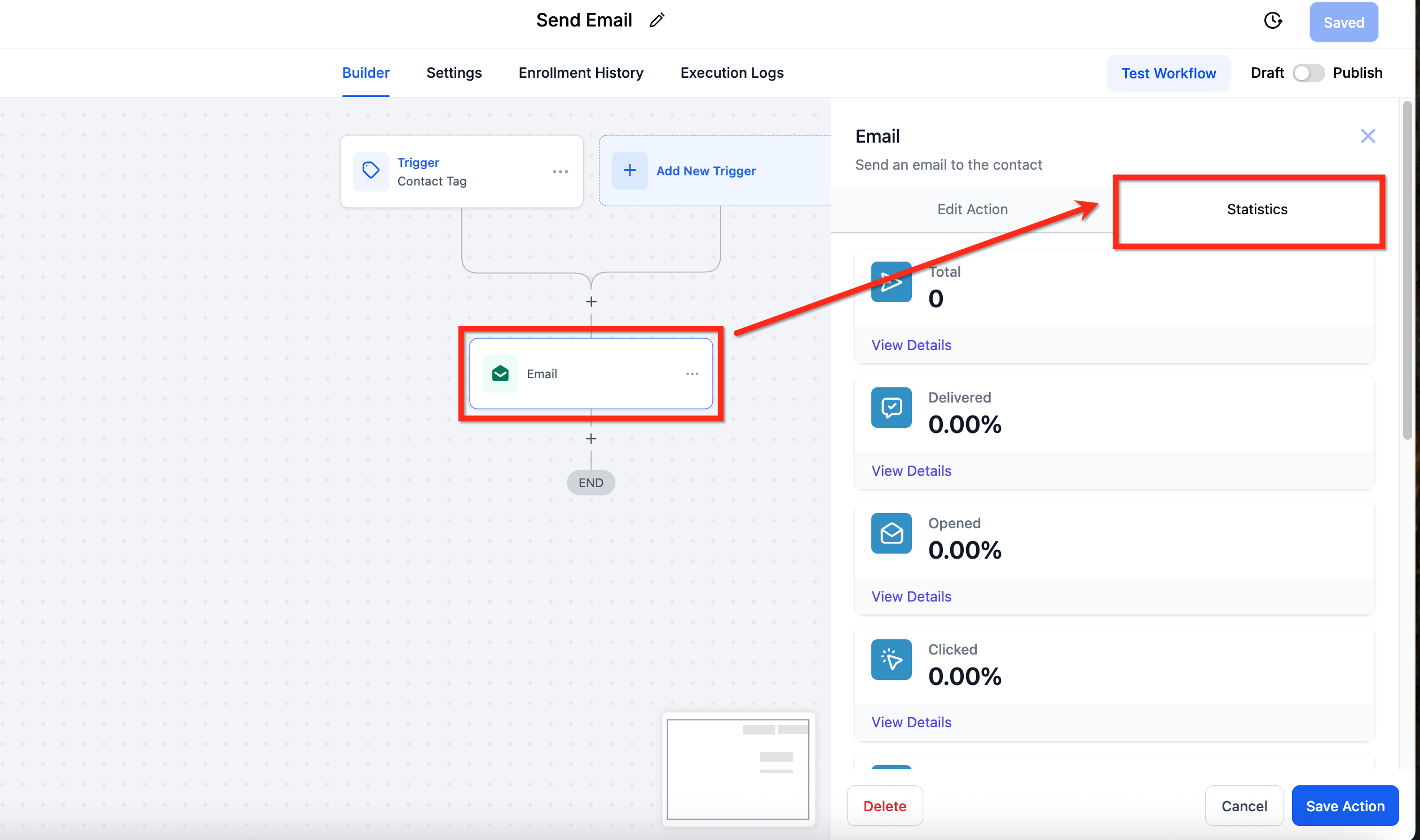
Workflow Email Statistics
Section titled “Workflow Email Statistics”You can monitor the performance of each individual automated email step directly inside your active workflows. This isolated view helps you understand exactly how well your automated sequences are reaching and engaging users.
To view stats for a workflow email:
- Go to Automation > Workflows.
- Click into the specific workflow and select an Email action step.
- In the right-hand properties panel, click the Statistics tab.
Available metrics include:
- Delivered
- Opened
- Clicked
- Replied
- Bounced
- Unsubscribed
- Complained
- Accepted
- Rejected
[!NOTE] Workflow email statistics default to a strict Last 30 days window to keep reporting results visually consistent with the main summary view.
Bulk Email Statistics
Section titled “Bulk Email Statistics”View the performance of specific one-time bulk email sends directly from the Contacts > Bulk Actions tab. This view is ideal for reviewing wide-scale blasts running outside of structural automations or campaigns, as it allows you to see performance by individual recipient. This makes it substantially easier to troubleshoot delivery issues or target follow-up actions.
To access stats:
- Navigate to Contacts > Bulk Actions.
- Locate the specific email send batch in your activity list.
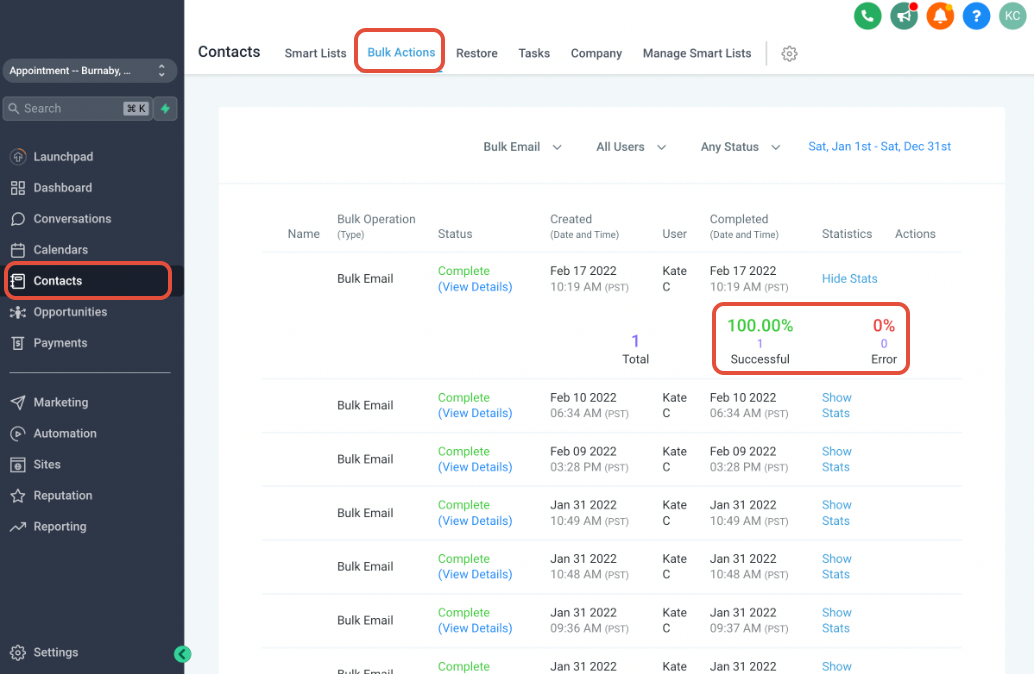
Available metrics include:
- Total Attempts
- Delivered
- Opened
- Clicked
- Replied
- Bounced
- Unsubscribed
Email Metric Definitions
Section titled “Email Metric Definitions”| Metric | Meaning |
|---|---|
| Recipients | The total number of unique contacts targeted. |
| Delivered | Successfully accepted by the recipient servers. |
| Opened | One or more active views of the email. |
| Clicked | The recipient clicked an embedded hyperlink. |
| Soft Bounce | Temporary localized issue (e.g., recipient inbox is full). |
| Hard Bounce | Permanent delivery failure (e.g., the email doesn’t exist). |
| Unsubscribed | Formally chose to opt-out via the standard footer. |
| Failed | Delivery prevented (e.g. invalid emails, bad API keys). |
| Spam Complaints | Explicitly marked as spam by the recipient. |
| Replied | The contact successfully responded to the mail structure. |
| Accepted / Rejected | The raw SMTP-level server acceptance outcome. |
Frequently Asked Questions
Section titled “Frequently Asked Questions”Q: What’s the difference between soft and hard bounces?
Soft bounces are temporary blocks (e.g., a full inbox or out-of-office autoreply). Hard bounces indicate a permanent failure (e.g., an invalid or completely deleted email address) and can critically harm your sender reputation if repeatedly targeted.
Q: How long do email statistics take to update?
Most standard email stats update in near real-time. However, distinct events (like active clicks, unsubscribes, or recipient spam complaints) may take a few minutes to accurately appear depending on external recipient activity and generic provider API delays.
Q: Do I need to use the default Mailgun system to see full email stats?
Yes. For complete native tracking visibility, our core integrations (like Mailgun) support absolute metrics including delivered, bounced, unsubscribed, and spam complaints. Alternate external SMTP providers may only support basic tracking metrics such as opens and clicks due to their API limits.