
How to send data to Google Analytics within a Workflow
You can send event data to Google Analytics from a workflow when you want to track actions beyond simple page views, such as form submissions, opt-ins, or support-related actions.
Table of Contents
Section titled “Table of Contents”- Overview
- How to Find the Tracking ID or Property ID
- How Workflow Event Tracking Works
- Source and Traffic Rules
- Frequently Asked Questions
Overview
Section titled “Overview”The Google Analytics workflow trigger or action allows you to send event data directly from automation workflows. This is useful when you want to track meaningful actions like form submissions, opt-ins, or custom events.
How to Find the Tracking ID or Property ID
Section titled “How to Find the Tracking ID or Property ID”For Universal Analytics
Section titled “For Universal Analytics”- Open Google Analytics
- Click Admin
- In the left column, click Tracking Info
- Click Tracking Code
- Copy the tracking code that starts with
UA
For GA4
Section titled “For GA4”- Open Google Analytics
- Click Admin
- In the left column, click Property Settings
- Click Property ID
- Copy the numeric property ID
How Workflow Event Tracking Works
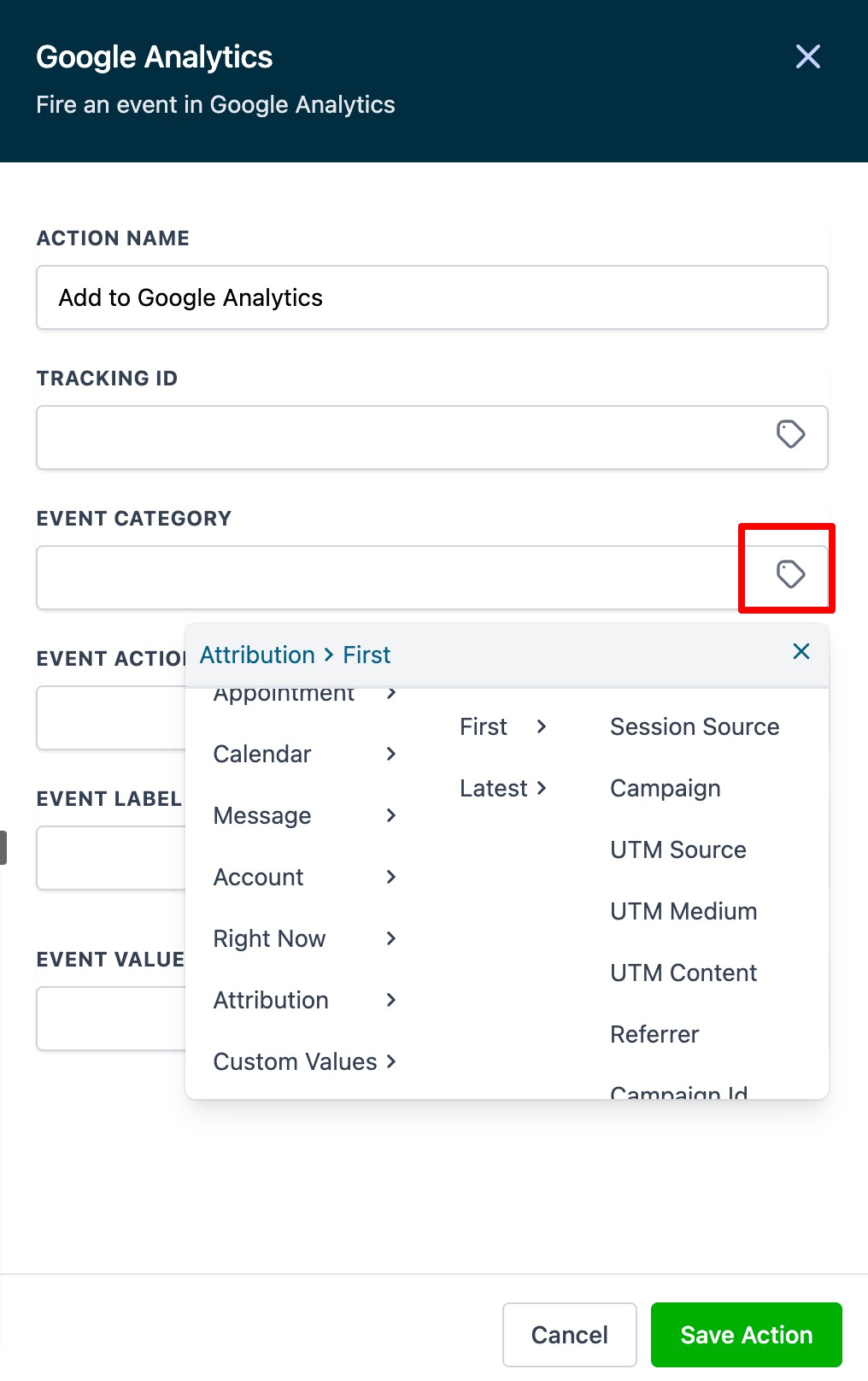
Section titled “How Workflow Event Tracking Works”When you select the Google Analytics option inside a workflow, these fields are available:
- Tracking ID / Property ID
- Event Category
- Event Action
- Event Label
- Event Value
You can also use dynamic values to populate these fields.
Example:
- Event Category: Form Submission
- Event Action: Exit Form Opt In
- Event Label: Black Friday Form Submission
Source and Traffic Rules
Section titled “Source and Traffic Rules”Traffic is categorized based on available UTM parameters, page URL, and referring domain.
Important notes:
- If both
utm_mediumandutm_sourceare present, those values are used - If one is missing, categorization falls back to source rules
gclidis passed to help identify unique clicks
Examples of traffic categorization include:
- Google Organic: Referring domain is Google search
- Paid Search:
utm_source=googleand referring domain is Google - Facebook Referral: Referring domain is Facebook
- Paid Social:
utm_mediumcontainscpcand source is Facebook - Direct Traffic: No referring domain or tracking URL is present
- Referral: Referring domain comes from another website
- Social Media: Referrer comes from social platforms
- Display Traffic: Traffic includes values such as
cmp,banner, ordisplay
Frequently Asked Questions
Section titled “Frequently Asked Questions”Q: What is the difference between Universal Analytics and Google Analytics 4?
A: Universal Analytics uses tracking IDs that start with UA, while GA4 uses a numeric property ID and a different event model.
Q: Does GA4 use Category, Action, and Label the same way Universal Analytics does?
A: No. GA4 does not use the same Category, Action, and Label structure in reporting the way Universal Analytics does.
Q: How can I verify whether the setup is working in GA4?
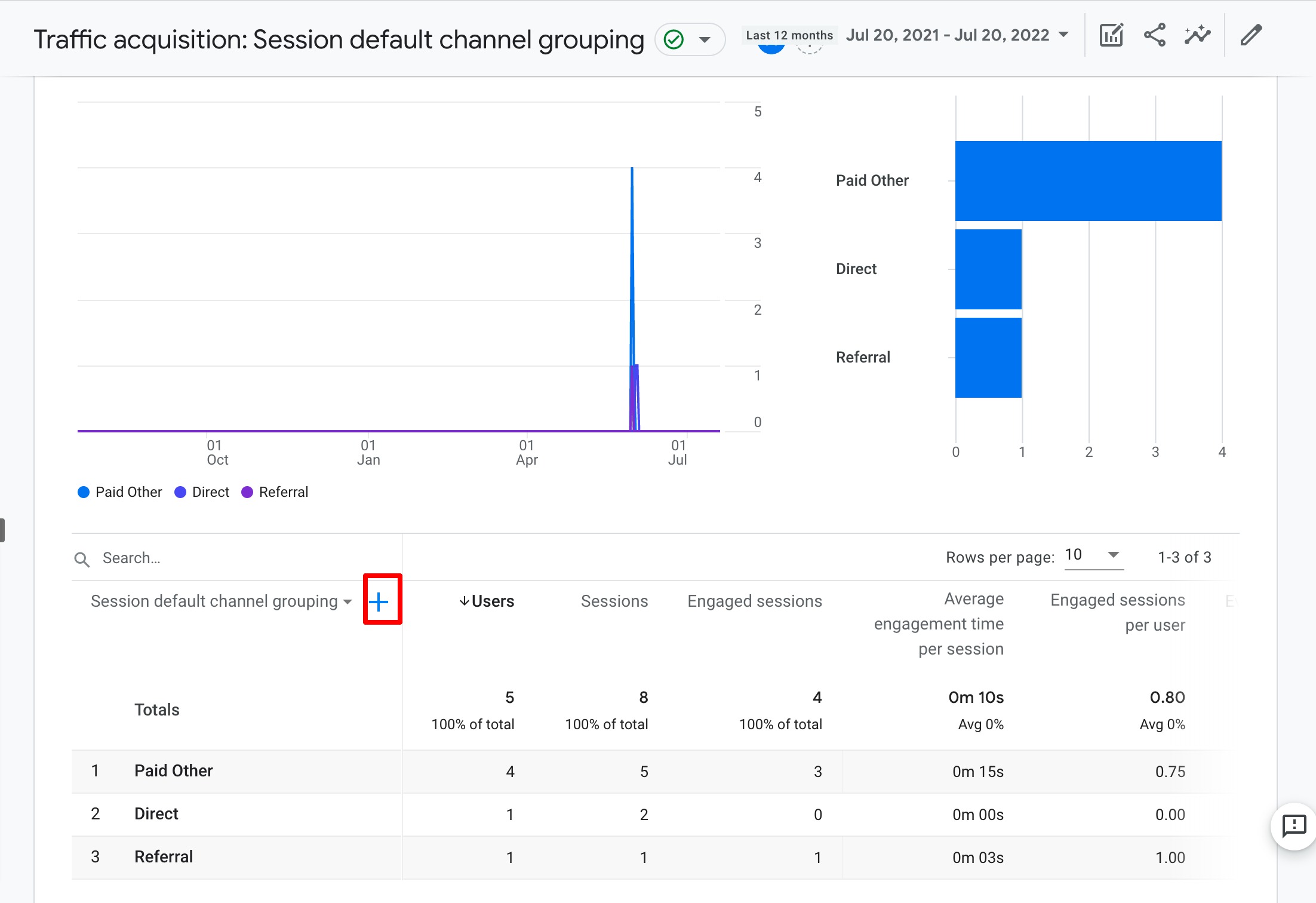
A: Go to Google Analytics > Reporting > Acquisition Reports and check the relevant source and medium filters.
Q: When should I use this workflow action?
A: Use it when you want to send custom event data such as form submissions, opt-ins, or similar actions to Google Analytics.