
View Calendar & Appointments in User Timezone
You can choose a preferred timezone for viewing appointments across the platform. This setting changes how appointment times are displayed for the logged-in user, without changing availability, booking links, or scheduling behavior.
Table of Contents
Section titled “Table of Contents”- Overview
- Where This Setting Applies
- How to Change Your Appointment Viewing Timezone
- Timezone Indicators in the Platform
- Backward Compatibility
- Availability and Timezone Settings
- Example Scenario
- Frequently Asked Questions
Overview
Section titled “Overview”The View Appointments In setting allows each user to choose their preferred timezone for appointment display.
This setting:
- Applies only to the logged-in user
- Controls how appointment times are displayed
- Does not affect availability settings
- Does not impact booking links or confirmations
- Does not change scheduling logic
You are not limited to only user timezone or business timezone. Any available timezone can be selected.
Where This Setting Applies
Section titled “Where This Setting Applies”The selected timezone affects appointment display in:
- Calendar View
- Appointment List
- Contacts (Appointments section)
- Conversations
How to Change Your Appointment Viewing Timezone
Section titled “How to Change Your Appointment Viewing Timezone”To update the timezone used for viewing appointments:
- Go to Calendar Settings
- Open Preferences
- Locate View Appointments In
- Select your preferred timezone
- Click Save Preferences
You can update this preference at any time.
Timezone Indicators in the Platform
Section titled “Timezone Indicators in the Platform”Calendar View
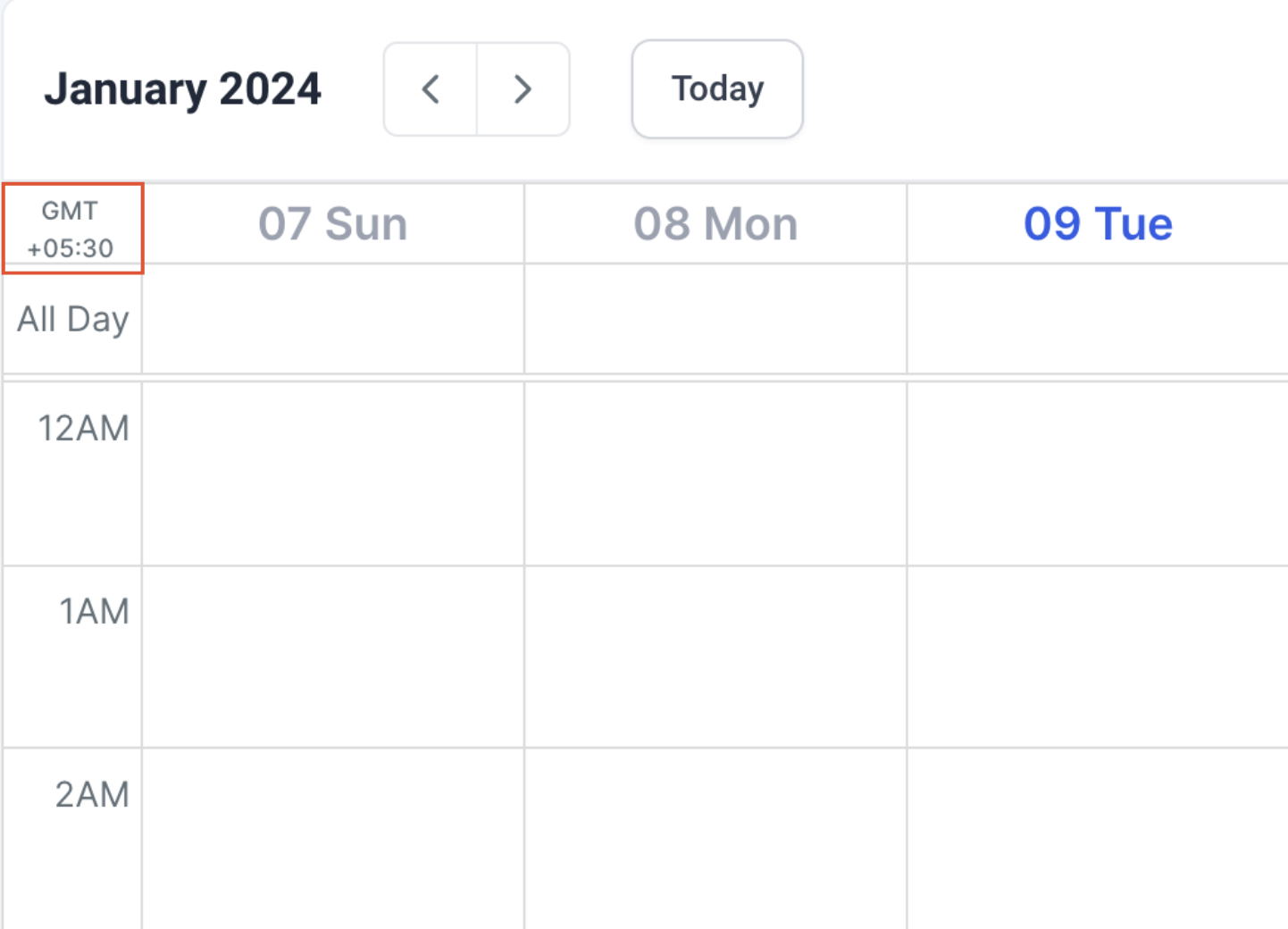
Section titled “Calendar View”The currently selected timezone appears within the calendar interface so you can confirm which timezone is active.
Appointment List
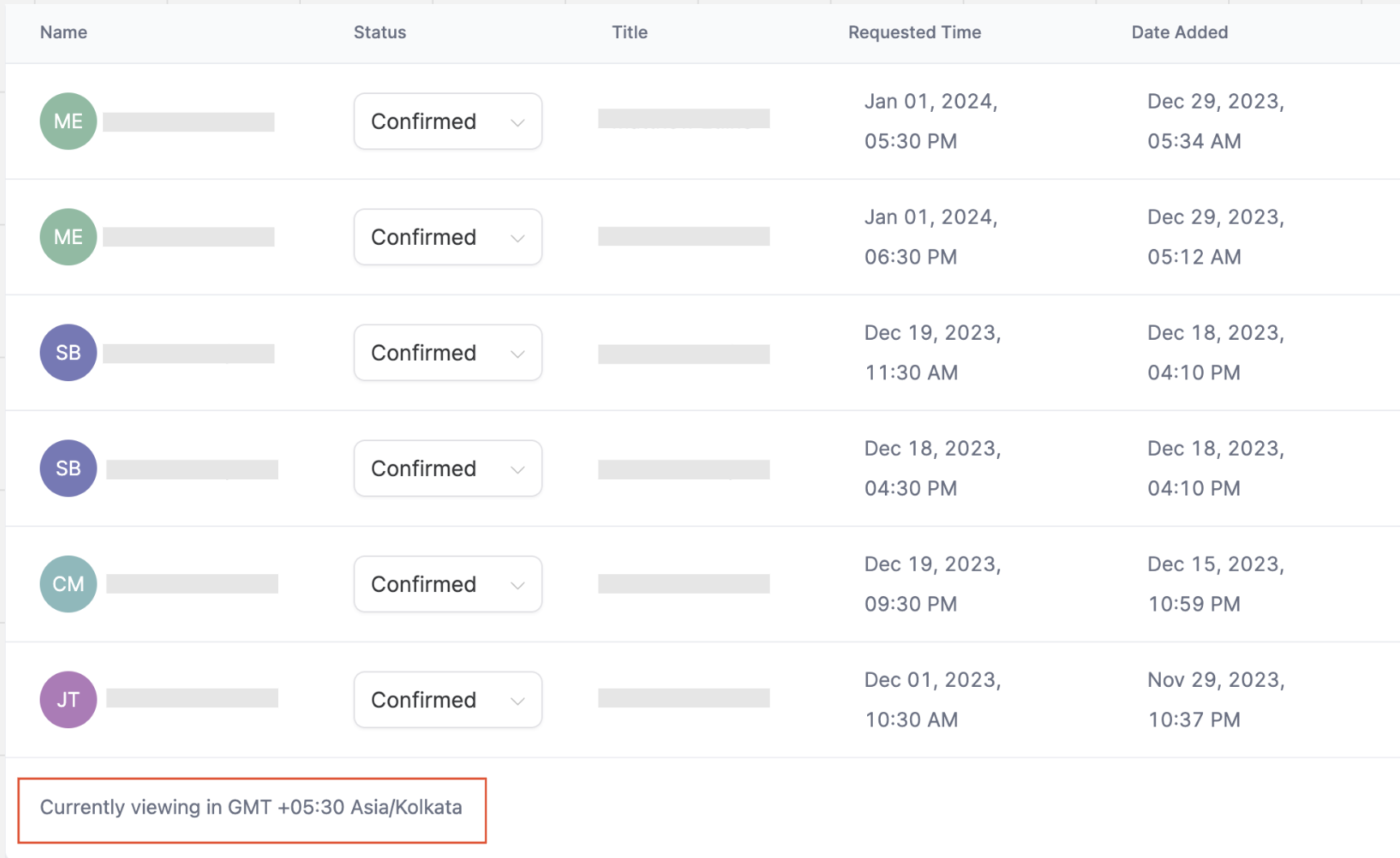
Section titled “Appointment List”The active timezone also appears in the appointment list.
Backward Compatibility
Section titled “Backward Compatibility”Previously, a Labs setting controlled whether appointments were shown in either user timezone or business timezone.
That Labs setting has been removed and replaced with View Appointments In.
For backward compatibility:
- If the previous setting was enabled, the current value is set to User Timezone
- If the previous setting was disabled, the current value is set to Business Timezone
You can change this preference whenever needed.
Availability and Timezone Settings
Section titled “Availability and Timezone Settings”This feature only changes how appointments are displayed. It does not change:
- User availability hours
- Meeting duration
- Scheduling rules
- Booking links
- Confirmation logic
- Reminder logic
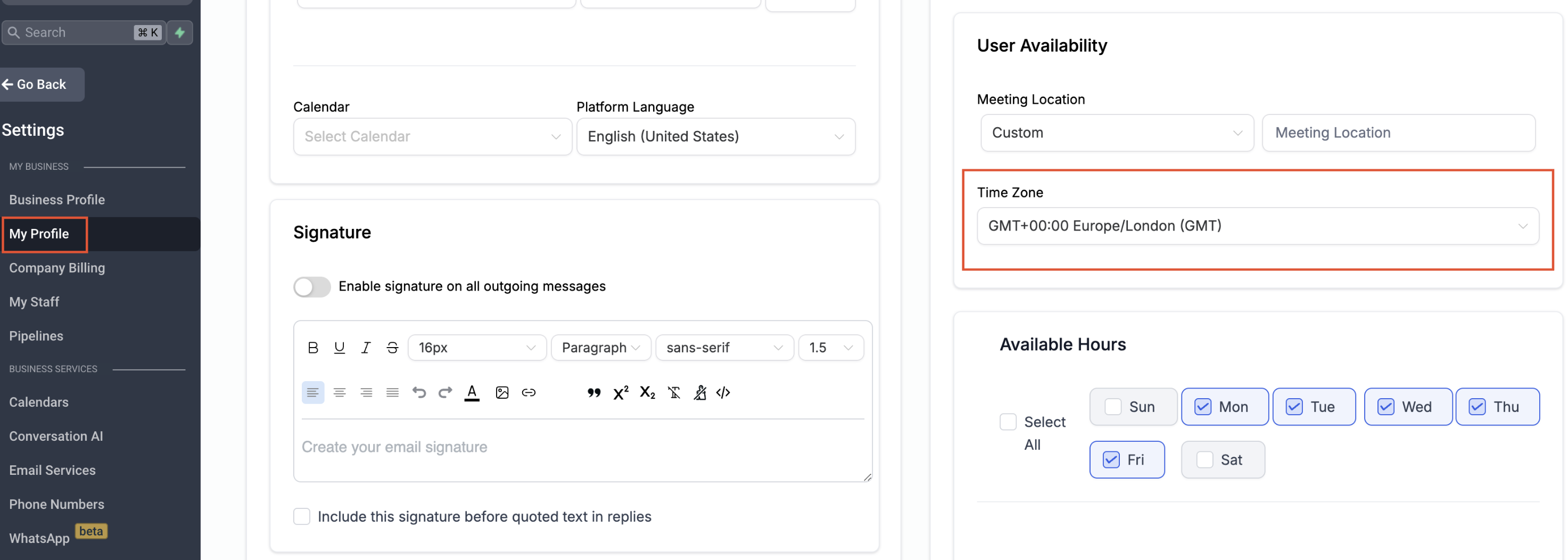
Availability continues to be managed under:
Settings > My Profile > User Availability
Example Scenario
Section titled “Example Scenario”If your business operates in one timezone and you work in another, each user can choose the timezone that makes the most sense for them.
For example:
- One user may prefer to view appointments in local time
- Another user may prefer to view appointments in business time
Appointment times will display according to each user’s selected timezone.
Frequently Asked Questions
Section titled “Frequently Asked Questions”Q: Does changing the viewing timezone affect my availability?
A: No. It only changes how appointment times are displayed.
Q: Will other users see appointments in my selected timezone?
A: No. This setting is user-specific.
Q: Can I select any timezone?
A: Yes. You can choose any available timezone.
Q: I want to view appointments in the business timezone. What should I do?
A: Go to Calendar Settings > Preferences > View Appointments In and select the business timezone configured for your account.