
Bulk Actions For Contacts & SmartLists
The Bulk Actions page is a central dashboard that lists mass operations initiated from your Contacts view (e.g., imports, tag updates, bulk messaging, and deletions). It provides live status updates, outcome metrics, and secure access to detailed error logs so your team can verify results and correct issues quickly.
The page displays each bulk job in an interactive table with columns such as Action Name, Action Type, Created By, Created At, and Status. From here, you can open Show Stats for detailed results or use the row’s action menu for management options (e.g., pause/cancel for eligible jobs, and restore for supported deletion jobs).
Key Benefits of the Bulk Actions Page
Section titled “Key Benefits of the Bulk Actions Page”Understanding what this page does helps you use it for optimal speed, accuracy, and accountability across your CRM workflows.
- Unified UX: A consistent interface featuring clean tables, readable spacing, and predictable controls.
- Faster troubleshooting: Open Show Stats to easily compare successes vs. errors and download granular error logs to fix issues.
- Operational safety: For supported deletion jobs, queue a Restore task within the allowed recovery window to recover deleted contacts natively.
- Team accountability: Sort and filter by Status, Action Type, User, and Date to see explicitly who did what and when.
- Traceability: Maintain an auditable trail by cleanly exporting detailed error logs from the Stats view.
Viewing the Bulk Actions Table
Section titled “Viewing the Bulk Actions Table”Learn how to read the native table and reliably interpret status indicators so you can naturally prioritize jobs that need attention.
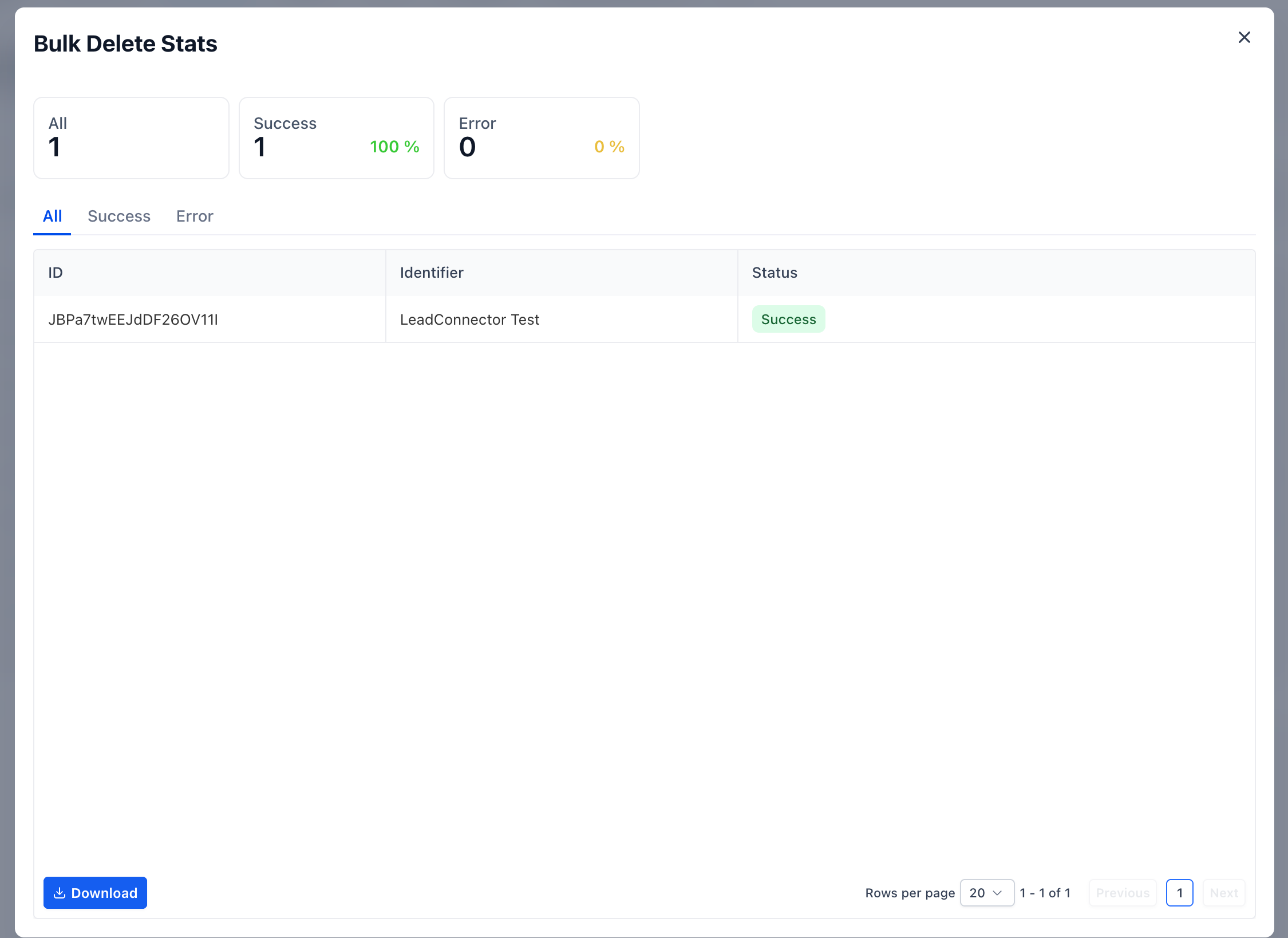
- Each job securely appears as a dedicated row with a clear, bold Status (for example, In Progress, Completed, or Canceled).
- Status badges are strictly color-coded, and hovering tooltips reveal longer action names or granular operational counts.
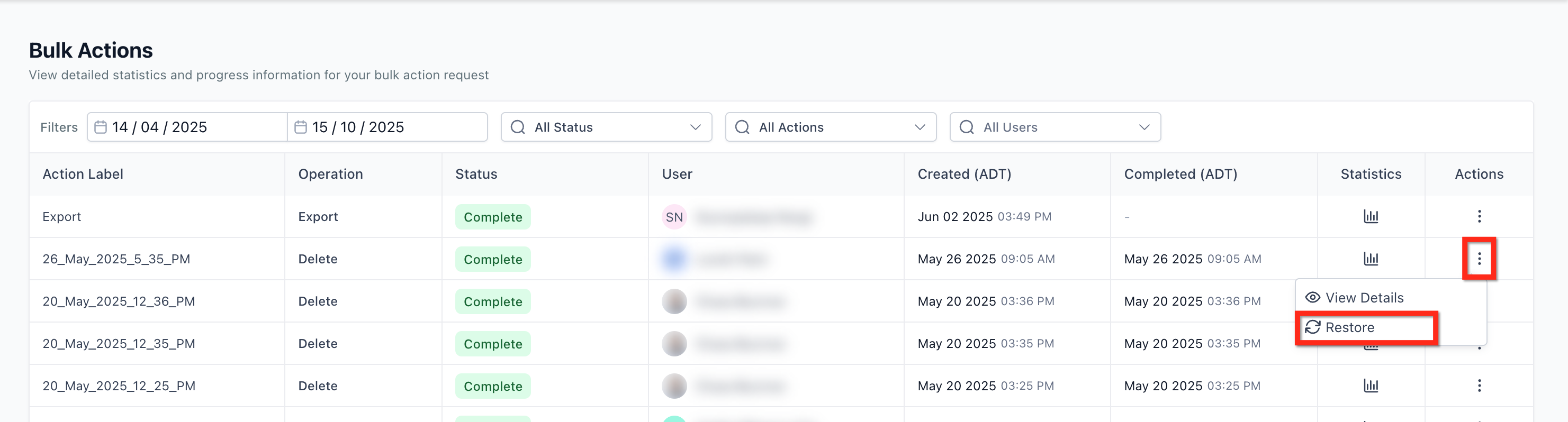
- Use the row’s ellipsis (three‑dot) menu for available active controls (e.g., pause/cancel for bulk outbound sends; restore where strictly applicable).

Using Filters to Find Bulk Actions Fast
Section titled “Using Filters to Find Bulk Actions Fast”Filters natively help you zero in on exactly the jobs you care about—especially helpful for strict audits or when multiple aggressive team members actively run actions daily.
- Status: Narrow results exclusively to jobs that are In Processing, Complete, Paused, Queued, or Cancelled.
- Action Type: Focus intensely on specific isolated operations like Import, Delete Contacts, Add Tag, Remove Tag, Bulk SMS, or Bulk Email.
- User: Instantly review jobs formally initiated by a specific team member.
- Date Range: Use customized granular dates to constrain results.
Viewing Job Stats & Downloading Error Logs
Section titled “Viewing Job Stats & Downloading Error Logs”Stats grant you an at‑a‑glance read on what exactly happened during a bulk job, and downloadable logs make it effortlessly easy to fix formatting issues and cleanly re‑run failed rows.
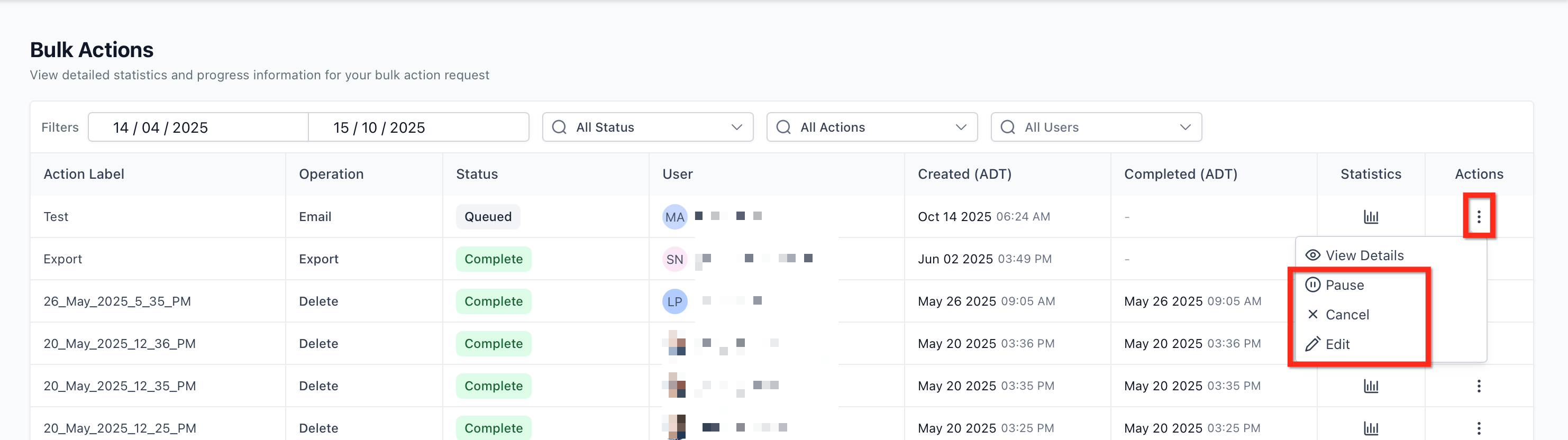
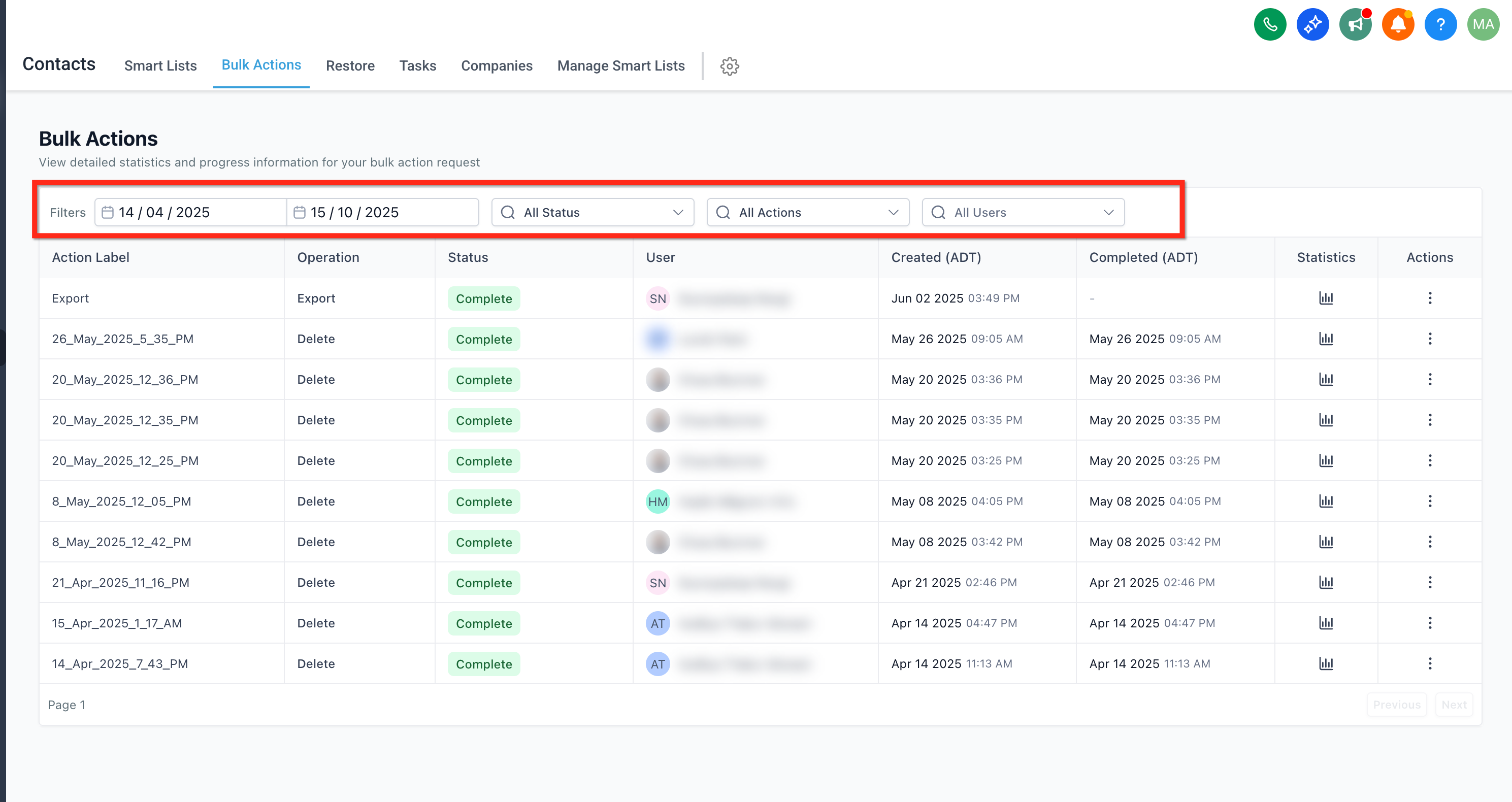
- Click Show Stats on any row explicitly to securely open a sliding details drawer with high‑level outcome metrics (totals, success/error counts, and relevant delivery outcomes exclusively for messaging jobs).
- Use the Download hyperlink option locally in the Stats view to seamlessly export a CSV error log for manual troubleshooting. The log critically includes identifiers for failed records and a literal reason why, so you can act on them immediately.
Restoring Deleted Contacts
Section titled “Restoring Deleted Contacts”The native Restore feature is exclusively designed for recovering accidentally deleted contacts—it is absolutely not meant for globally undoing other types of bulk actions (like removing tags).
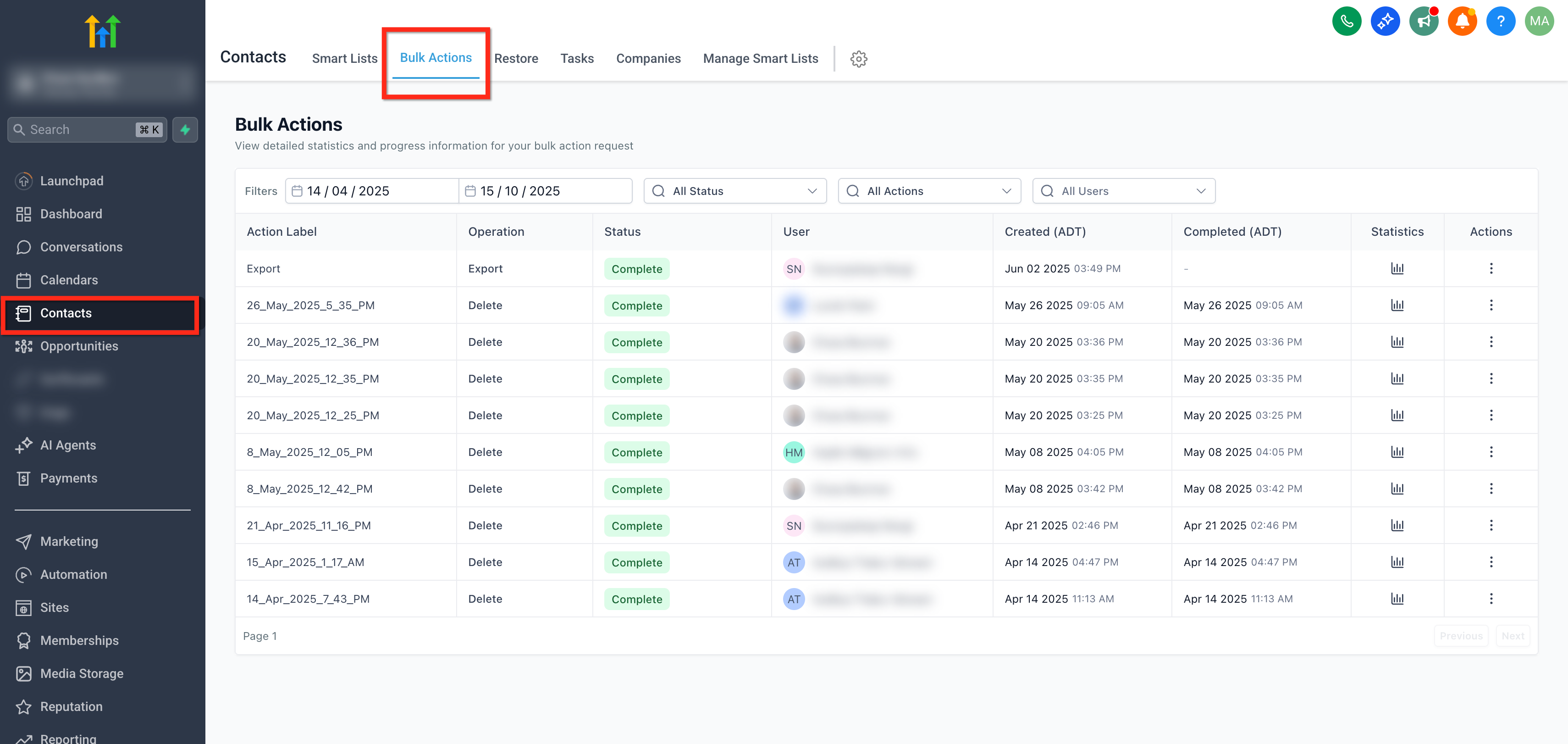
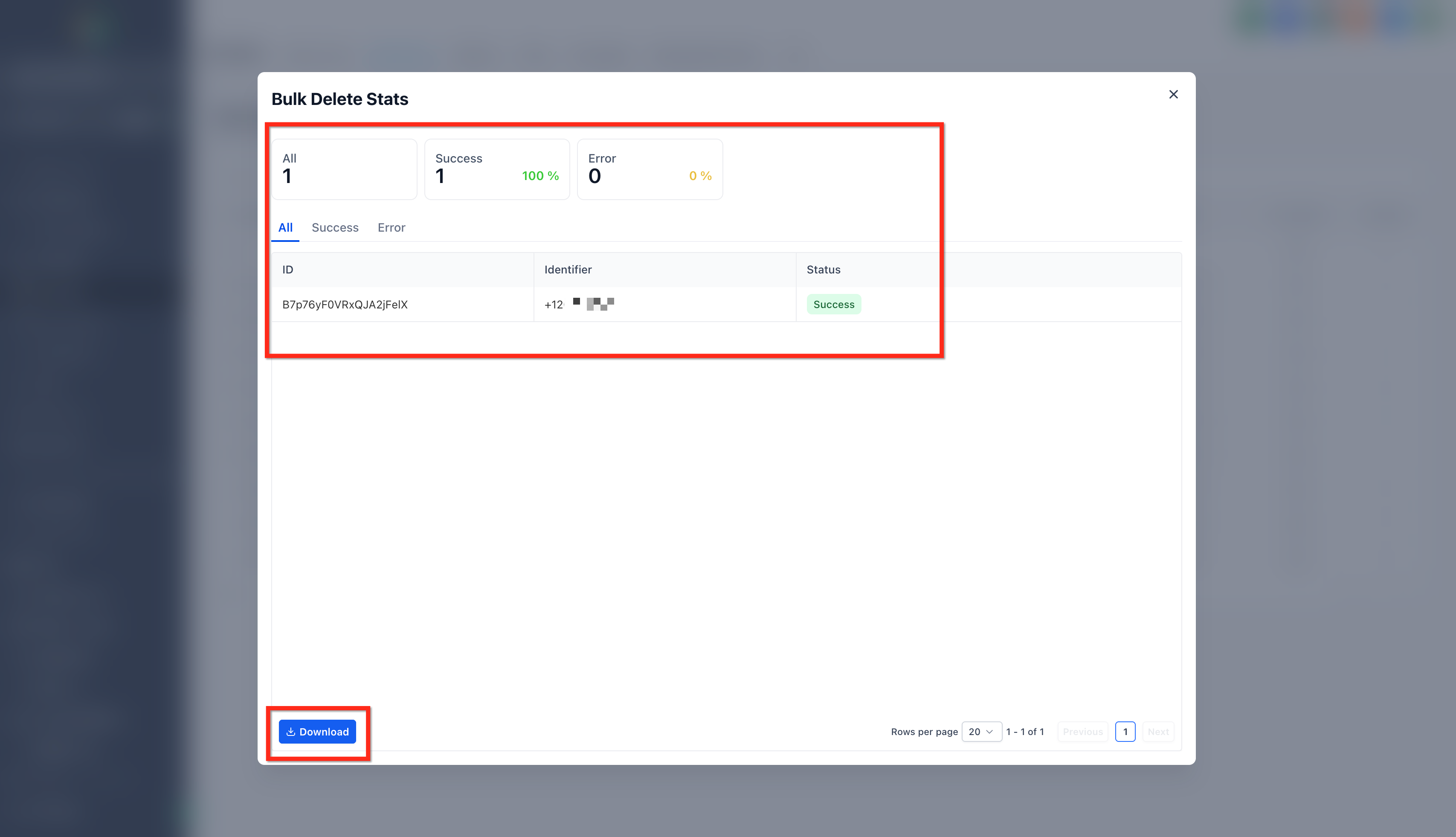
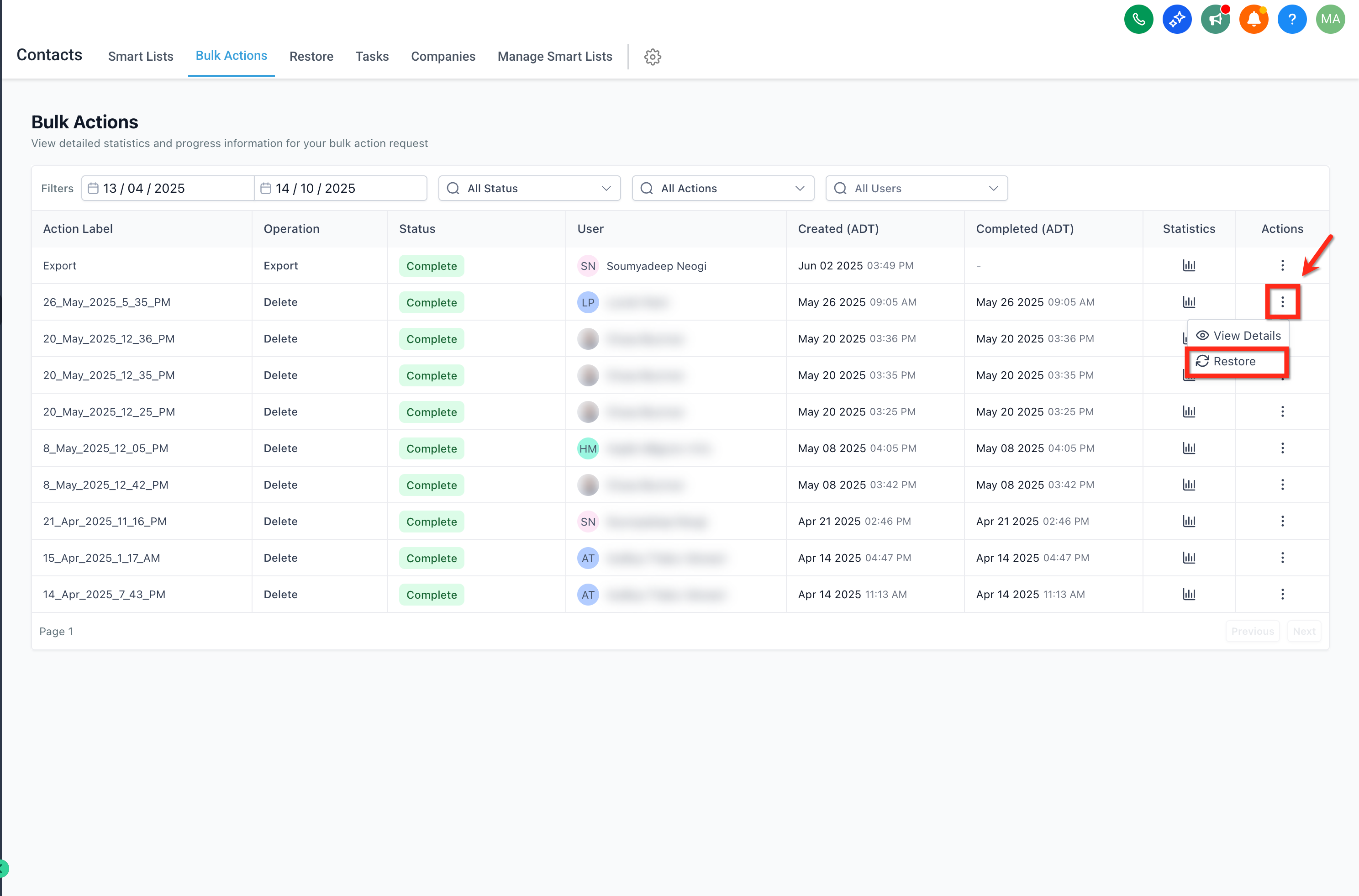
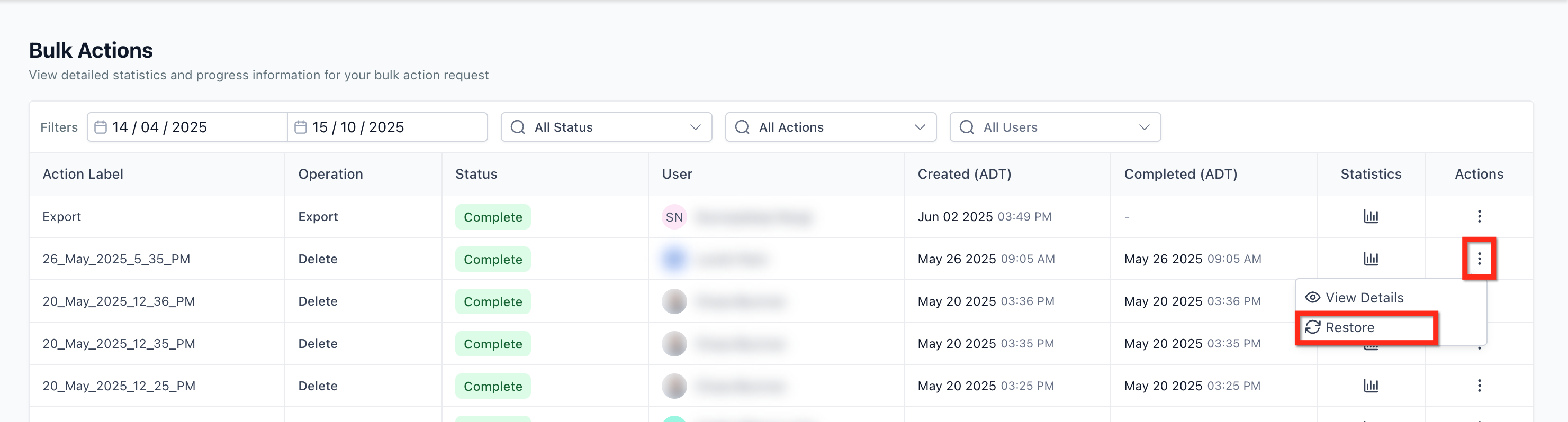
- When a Delete Contacts bulk job is actually eligible for recovery, you’ll explicitly see a Restore option in the actions menu. Selecting it triggers a clear confirmation dialog that explains exactly what records will be systematically reinstated.
- Timing Constraint: Systematically deleted contacts can typically only be forcefully restored strictly within about 60 days of the initial deletion. Exactly after that retention period, permanent active recovery strictly isn’t available.
- Securely submitting the formal confirmation queues up a brand new dedicated restore job, which automatically safely appears at the top of the Bulk Actions table and runs persistently to completion.
Managing Running Jobs
Section titled “Managing Running Jobs”Some active lengthy bulk sends—like sprawling layered SMS messaging campaigns—can actually be paused or canceled globally completely after they’ve been forcefully queued, giving you absolute manual control when marketing plans change abruptly.
- Open the three‑dot menu for an actively running, eligible dynamic job to securely see Pause, Edit, or Cancel controls.
- Pause seamlessly temporarily stops active processing. Cancel definitively stops all remaining processing. Edit reliably enables a user to securely change the native schedule execution time of that dynamic bulk action. Items already securely processed remain strictly as-is permanently.
- After forcefully adjusting, immediately refresh the Bulk Actions table completely and formally open Show Stats to officially verify exactly what was effectively completed securely before the manual change.
How To Set Up and Use the Bulk Actions Page
Section titled “How To Set Up and Use the Bulk Actions Page”There is absolutely nothing to pre-configure locally, but a few quick repetitive steps will help you consistently navigate confidently, regularly confirm results, and strictly keep a clean audit trail natively.
- Go to Contacts → Bulk Actions securely in your workspace.
- Apply active Filters (Status, Action Type, User, Date) aggressively to narrow down dynamically to the jobs you need.
- Click securely on Show Stats on a specific job to formally review isolated totals and error details; use Download locally to forcefully export the error log natively.
- For isolated Delete Contacts jobs falling strictly within the strictly allowed recovery window, safely use Restore (when visually available) to seamlessly re‑create accidentally deleted contacts automatically.
- For fully eligible tightly queued native sends (e.g., massive outbound SMS campaigns), safely utilize the nested three‑dot menu successfully to reliably Pause, Edit, or Cancel.
Frequently Asked Questions
Section titled “Frequently Asked Questions”Q: Which explicit actions explicitly appear on the Bulk Actions tracking page? Most mass targeted operations effectively initiated natively from Contacts—such as massive Imports, Delete Contacts, bulk targeted SMS/Email outbound sends, and Add/Remove Tags—are officially listed heavily with their live status logs and a dynamic link pointing functionally to the Show Stats dashboard.
Q: Exactly how long do I have securely to effectively restore accidentally deleted contacts? Approximately 60 days accurately from the initial date of explicit deletion. After that rigid absolute retention period actively passes, targeted contacts are totally permanently removed locally.
Q: Can I manually cancel a native job after it starts? For natively eligible explicit job types exclusively (such as strictly queued outbound bulk SMS), actively use the localized row’s native three‑dot menu precisely to securely Pause, Edit or Cancel. Granular items already individually securely processed efficiently before formally initiating canceling inherently confidently remain fully completed permanently.
Q: Where do I securely download exact detailed granular results? Actively open securely the Show Stats localized sliding panel for the target job and natively use the distinct Download text option to formally export the explicit detailed error log completely populated strictly with exact granular per‑record explicit failure reasons locally.
Q: Is the global Bulk Actions dashboard strictly natively scoped per localized generic sub‑account entirely? Yes. You simply must carefully navigate directly entirely into exactly the isolated sub‑account purely that you essentially want individually to exclusively natively manage, then natively open exactly Contacts → Bulk Actions.
Q: Why do I need to explicitly confirm my contacts have consented to hear from me while importing contacts? There are two main reasons why securing opt-in explicit consent from mass contacts is required while actively importing huge bulk contacts:
- Protect Your Own Internal Sending Reputation: Importing bulk contacts without active opt-in consent can dramatically rapidly inherently effectively genuinely directly cause higher spam bounce logs and aggressive global spam rejection delivery rates.
- Prevent Issues with Purchased or Rented Lists: Even if some lists technically claim to have robust opt-in consent, they may not be dynamically suitable for your marketing communication tools. Contacts exclusively generated from completely purchased or heavily rented sources securely are highly likely to instantly bounce, aggressively unsubscribe, mark inbound emails aggressively as explicit spam, and organically cause brutal domain blocklistings dynamically correctly.
Q: What are the different bulk actions that absolutely cannot be successfully restored? The following bulk actions absolutely confidently cannot be restored:
- Bulk Email
- Bulk Email Verification
- Bulk Update Contacts to Company
- Bulk Tag Add
- Bulk SMS