
Click Performance in Email Statistics
The Click Performance report gives you a detailed breakdown of all link interactions within a sent email. Each embedded link’s performance is tracked individually, allowing you to carefully measure engagement, actively identify which URLs drive the most clicks, and safely optimize your future campaigns for better business results.
This section essentially helps marketers analyze aggregate user behavior, dynamically refine link placements, and quickly improve call-to-action (CTA) effectiveness across the platform.
[!NOTE] Click tracking data only natively applies to emails that have actively been processed and sent. Draft or scheduled emails will legitimately not display statistics until after they are officially delivered.
Key Benefits of Click Performance Tracking
Section titled “Key Benefits of Click Performance Tracking”- Gain robust visibility into which specific links attract the most engagement.
- Quickly identify high-performing CTAs, HTML buttons, or click-through images.
- Systematically track audience interaction patterns over broad periods of time.
- Smoothly measure click-to-open ratios to mathematically evaluate content effectiveness.
- Use data-driven insights to structurally optimize future email design and precise link placement.
How to Enable Click Performance Tracking
Section titled “How to Enable Click Performance Tracking”Before advanced Click Performance data can be natively tracked by the system, you must actively enable the “Track Clicks” option when first setting up your email campaign.
-
Go to Marketing → Emails → Campaigns.
-
Thoughtfully choose or create your new campaign.
-
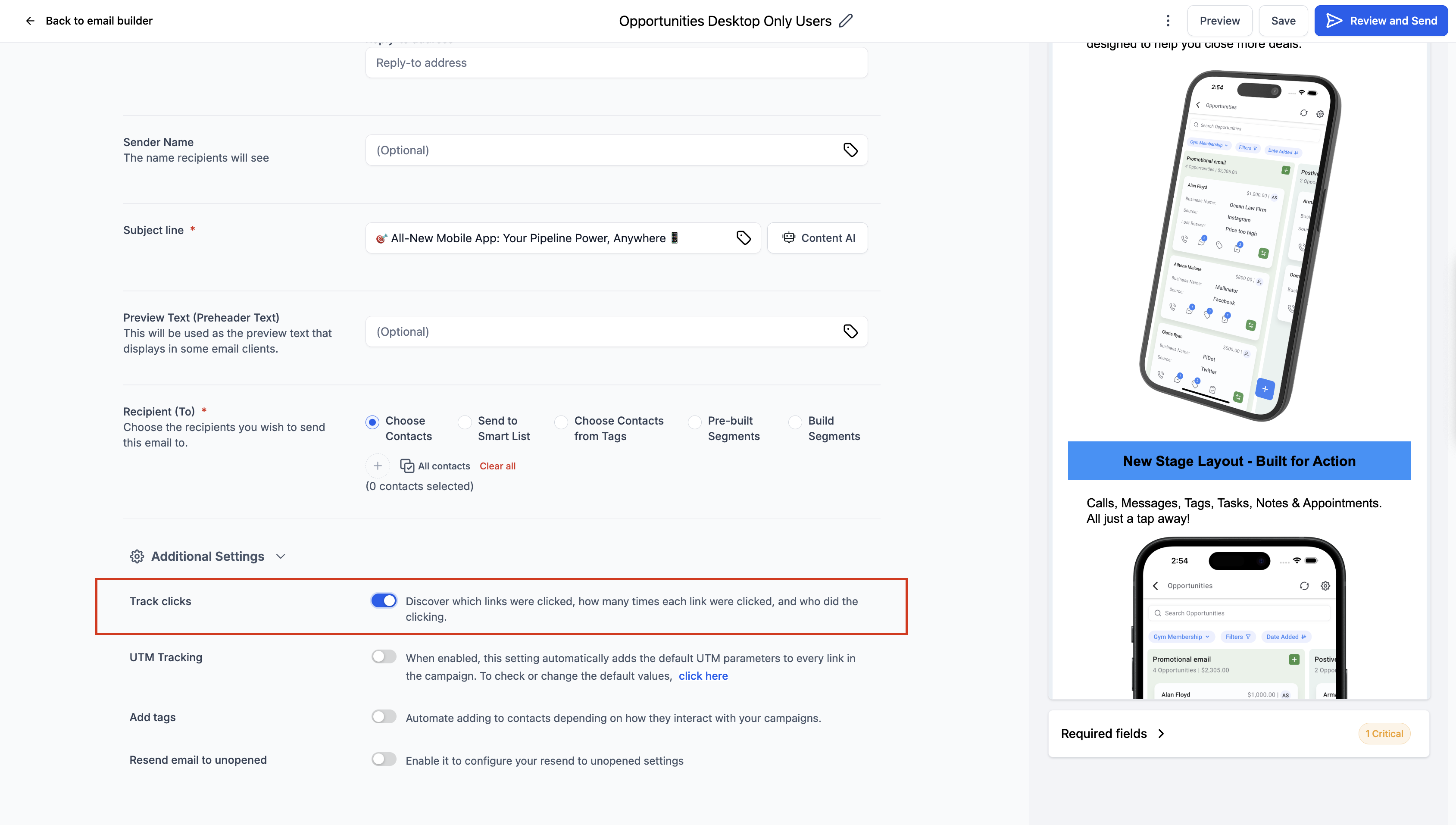
In the final Send and Schedule configuration page, scroll down to Additional Settings.
-
Turn ON the toggle labeled Track Clicks.
- This vital feature will aggressively record which exact links were clicked, exactly how many times each unique link was clicked, and by whom.
-
(Optional) Enable UTM Tracking closely alongside this to automatically tag all destination links with campaign data for external analytics tools.
-
Simply complete the setup and send your campaign.
-
Once the email is technically sent and logically delivered, the resulting click activity will appear directly under the Click Performance tab in your campaign statistics.
[!WARNING] If you unfortunately forget to turn on “Track Clicks” manually before sending, click data will ultimately not be collected for that campaign pass. Always routinely enable it before officially scheduling or pushing a send.
When to Use Click Performance Reports
Section titled “When to Use Click Performance Reports”Use advanced Click Performance overviews exclusively when you need to evaluate real functional engagement and physical interaction—not just passive visibility.
- ✅ To analyze CTA or link effectiveness: See which literal links drive the most tangible engagement.
- ✅ To evaluate promotional success: Track direct clicks exclusively on “Shop Now” or “Claim Offer” buttons.
- ✅ To identify audience preferences: Learn which content sections or product links natively attract the most attention.
- ✅ To securely compare campaigns: Measure engagement differences explicitly between multiple distinct sends.
- ✅ To structurally improve future designs: Adjust your block layout, text weight, and button placement strictly based on objective click data.
How to Access Click Performance Data
Section titled “How to Access Click Performance Data”To cleanly view localized Click Performance results after successfully sending a campaign:
-
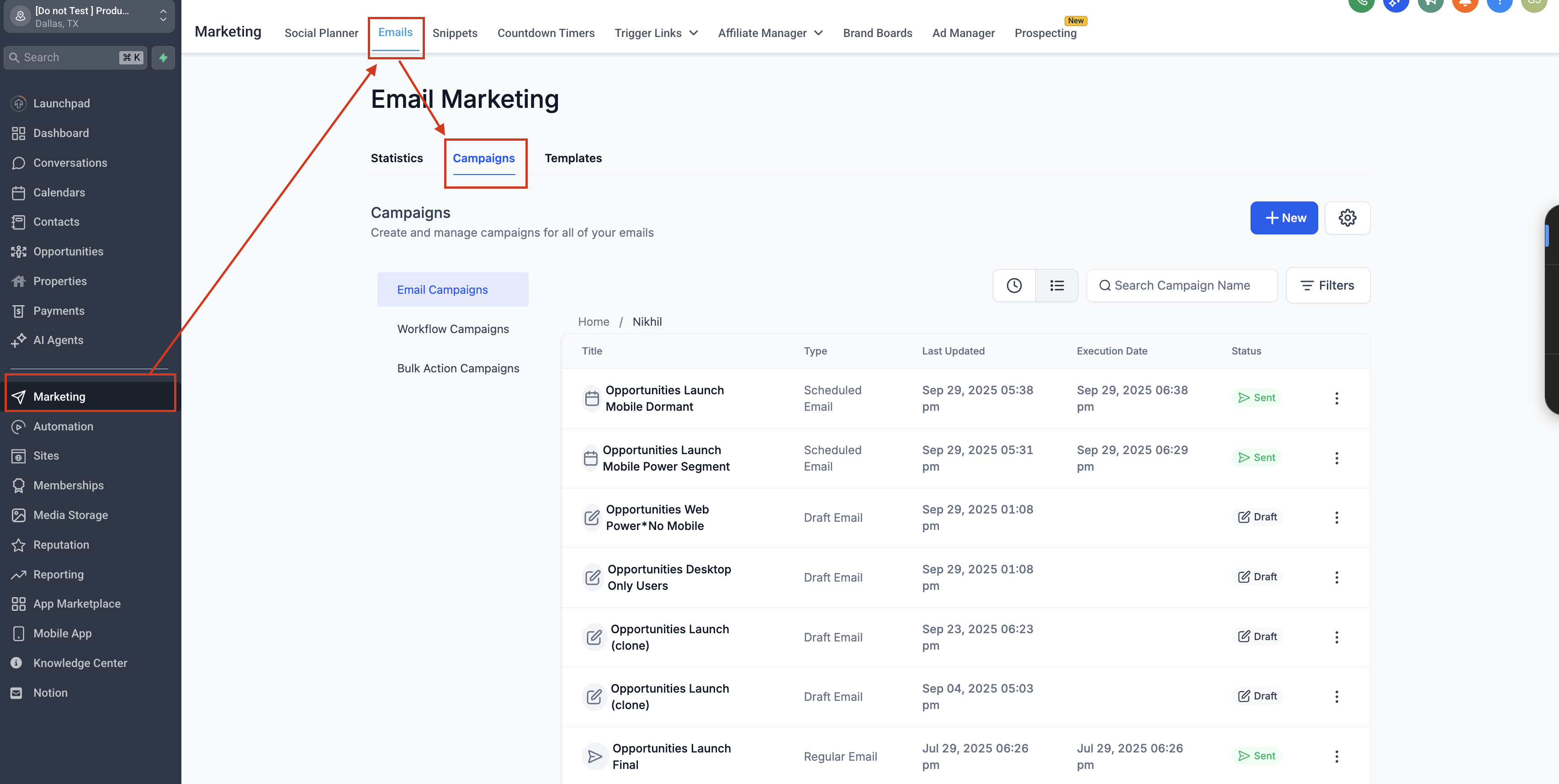
Navigate to Marketing → Emails from your main dashboard view.
-
Go straight to the Campaigns tab.
-
Locate your successfully sent email campaign.
-
Click on the three-dot action menu (⋮) beside the primary campaign name.
-
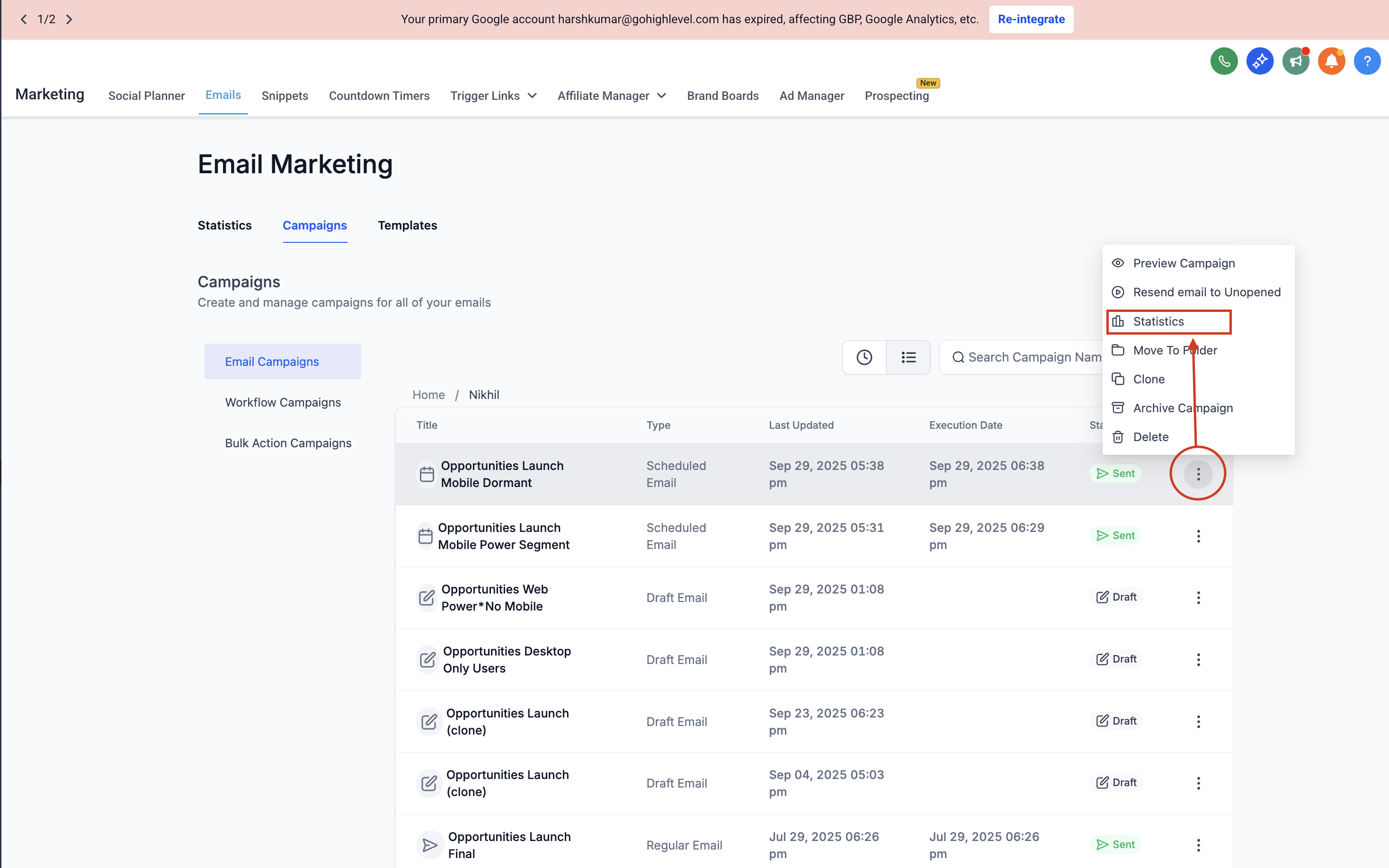
Select “Statistics.”
-
In the resulting mini-stats side panel that cleanly opens, click “Load More Statistics.”
-
On the newly expanded master statistics page, selectively click the Click Performance tab positioned at the top.
-
Safely review the granular data cleanly displayed under the Summary and Links in this email sections.
[!TIP] If the Click Performance tab frustratingly doesn’t visually show any data, verify that the initial Track Clicks toggle was appropriately enabled before actively sending your campaign.
Understanding Click Metrics
Section titled “Understanding Click Metrics”The central Click Performance report cleanly includes several critical macro metrics to help you thoroughly evaluate campaign engagement:
1. Total Clicks
Section titled “1. Total Clicks”The absolute total number of chronological times all combined links in your email were clicked — entirely including multiple repetitive clicks from the exact same recipient.
2. Total Unique Clicks
Section titled “2. Total Unique Clicks”The literal total number of individual, unique recipients who interactively clicked at least one embedded link in your email (meaning each discrete recipient is categorically counted only once).
3. Unique Engagements
Section titled “3. Unique Engagements”This fundamentally represents the absolute total number of recipients who physically interacted (clicked) with at least one root link in your email body.
4. Clicks per Unique Open
Section titled “4. Clicks per Unique Open”This vital generated percentage shows exactly how many unique recorded opens ultimately resulted in at least one link click. This is a primary key indicator of precisely how functionally engaging your email content and CTAs are to audiences.
5. Links in This Email
Section titled “5. Links in This Email”Sensibly displays a scalable table of all explicitly used links parsed in your email, strictly including:
- URL – The literal HTTPS link destination.
- Source – The functional type of element where the exact link was physically placed (e.g., standard text, UI button, or active image).
- Total Clicks – The raw total number of times the exact link string was clicked.
- Total Unique Clicks – The number of strictly distinct recipients who individually clicked that specific link string.
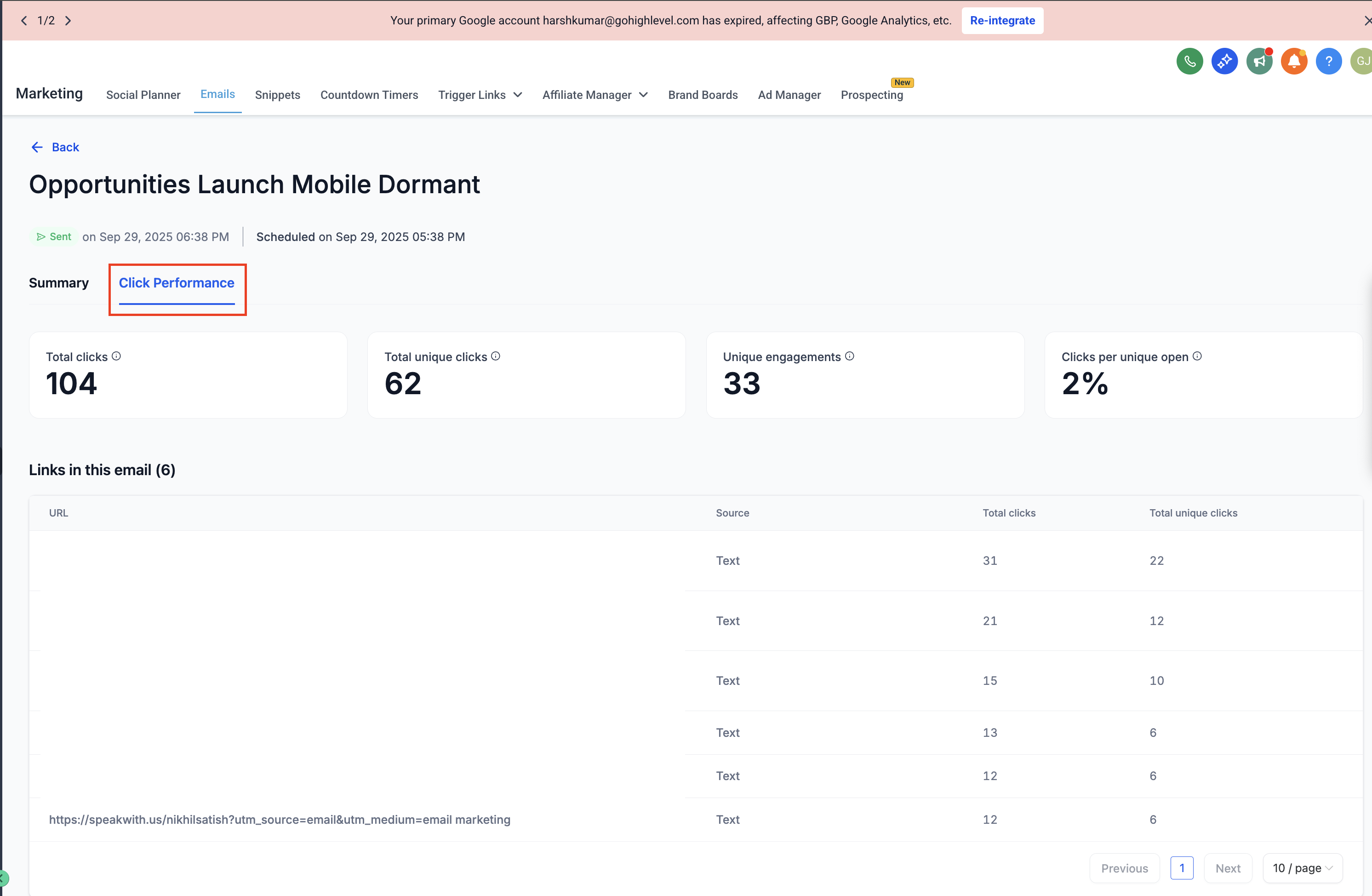
[!TIP] Periodically review this raw data table to cleanly identify which specific link classes explicitly perform best — such as visual buttons versus standard product links — and manually adjust your structural templates moving forward accordingly.
Frequently Asked Questions
Section titled “Frequently Asked Questions”Q: Why don’t I magically see Click Performance data for my previously sent campaign?
Please rigidly make sure the functional Track Clicks option was actually turned on internally under Additional Settings strictly before actively sending the email. Without this internal flag, clicks simply aren’t recorded by the server.
Q: How quickly after sending will I literally start to see functional data populate?
Active click data natively begins appearing almost instantly as soon as active recipients actually start engaging securely with your email.