Mention or Tag Profile in Posts from Social Planner
The Social Planner allows you to add @Mentions in your social media posts to increase visibility and engagement. Mentions work by searching for public profiles and pages across supported networks.
Currently, @Mentions are supported on:
- LinkedIn (for Company Pages only)
For Instagram, TikTok, and Google Business Profile, mentions will post as plain text instead of hyperlinked tags.
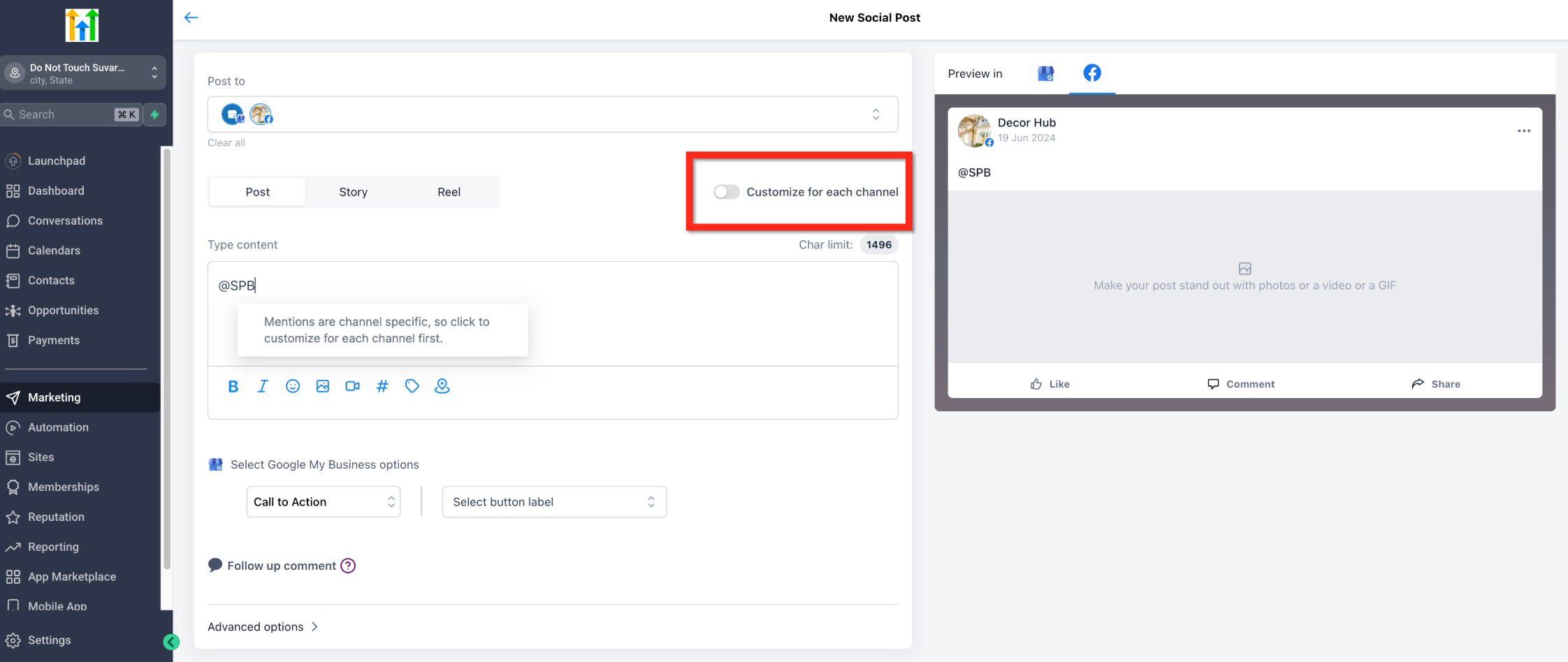
If you are publishing a post to multiple social channels simultaneously, the system will prompt you to customize the post for each channel. This ensures you can properly search by name and follower count for the platform that supports native tagging.
Key Benefits of Tagging and Mentions
Section titled “Key Benefits of Tagging and Mentions”- Improves Post Engagement: Mentions notify the tagged party, encouraging them to interact with or share your post.
- Cross-Promotion: Brands, partners, and influencers use mentions strategically to cross-promote each other’s content and share audiences.
- Enhanced Searchability: On certain platforms, mentions contribute directly to how searchable your content is within the network’s algorithms.
Important Information
Section titled “Important Information”- Unsupported Methods: Mentions will not work when uploading posts via CSV, Review Posting, or RSS Posting.
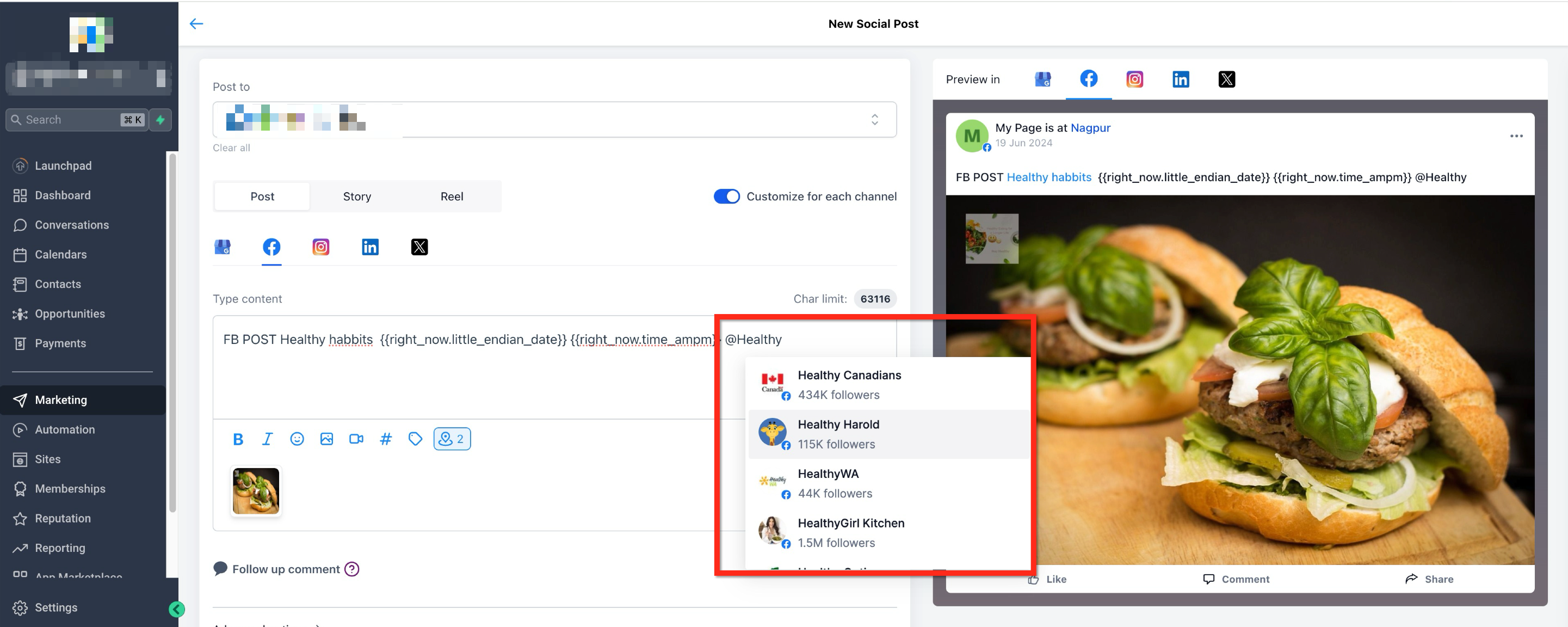
- Visual Confirmation: When a tag is entered correctly and recognized by the system, it will appear highlighted (in blue) in the post preview.
- Instagram Limitations: Auto-suggestions for mentions are not available for Instagram. You must type the exact
@usernamemanually. Additionally, the person or page being tagged must have their privacy settings configured to allow mentions.
How to Add a Mention or Tag to Posts
Section titled “How to Add a Mention or Tag to Posts”Follow these steps to successfully tag a profile in your upcoming social post:
Step 1: Navigate to the Social Planner
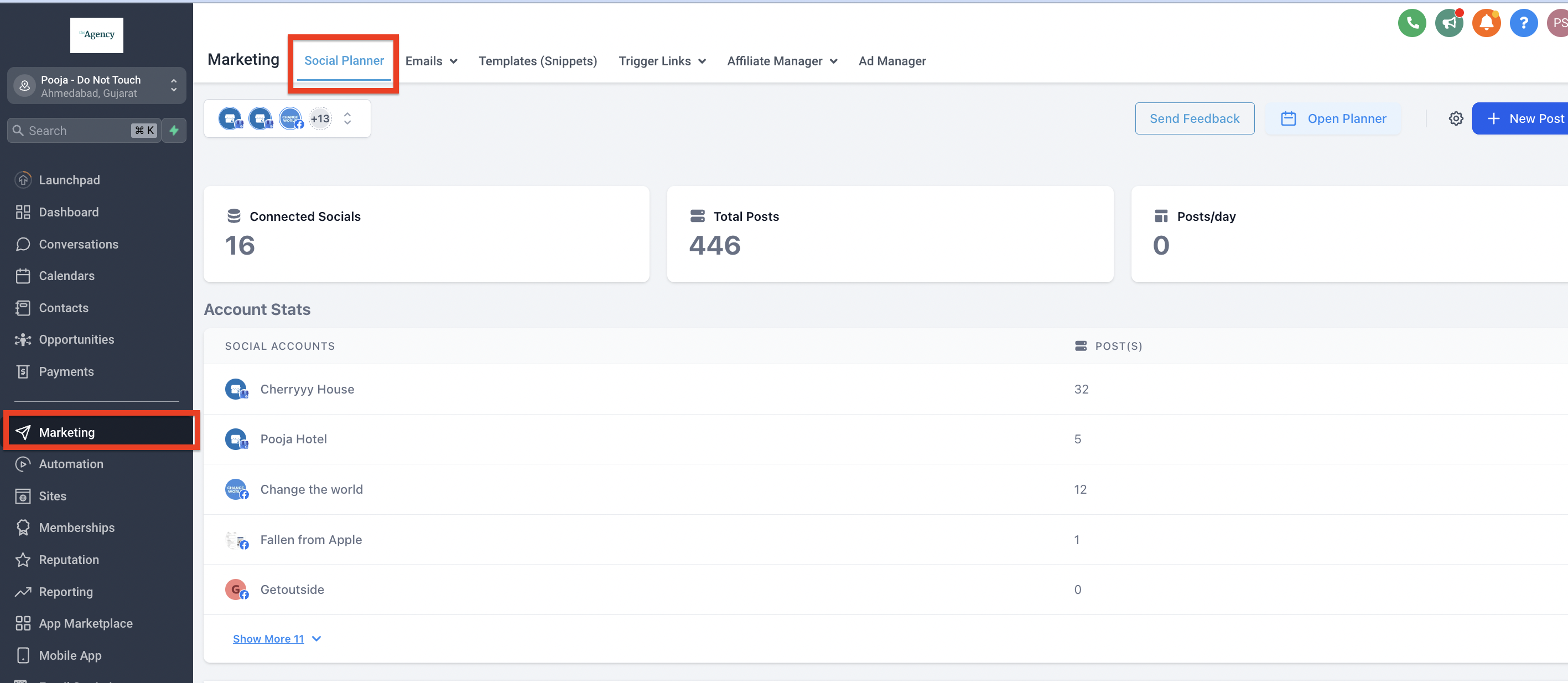
Section titled “Step 1: Navigate to the Social Planner”- On the left-side navigation bar, select Marketing.
- Click the Social Planner tab located on the top navigation ribbon.
Step 2: Create a New Post
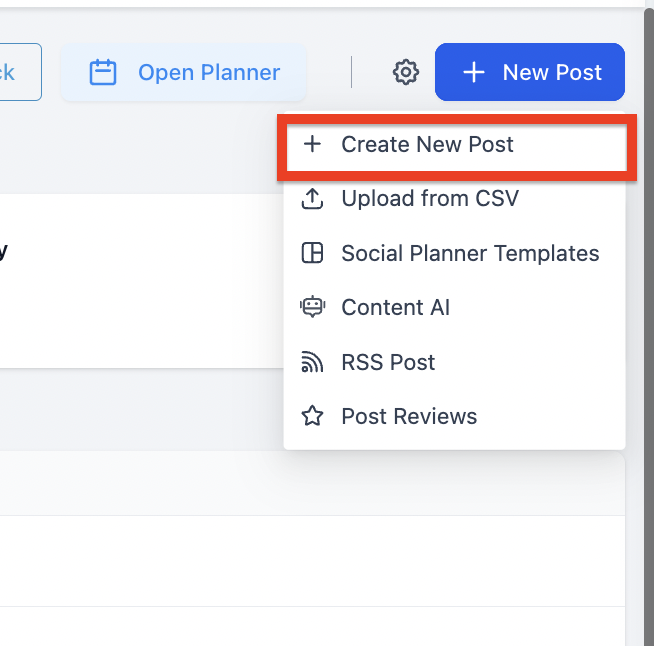
Section titled “Step 2: Create a New Post”- Click the blue + New Post button.
- From the dropdown menu, select + Create New Post.
Step 3: Select Social Channels
Section titled “Step 3: Select Social Channels”- While creating your new post, select the social channels you want to publish to.
- If more than one social channel is selected, you will be prompted to enable the Customize for each channel option.
Step 4: Write Your Post and Mention
Section titled “Step 4: Write Your Post and Mention”- Draft the content of your post for each specific channel.
- To mention a profile, type the
@symbol followed immediately by the username or page name of the profile you would like to tag. - After typing the first few letters, a list of recommended matching options will populate. Select the correct profile from the list to hyperlink it.