
How To Duplicate A Calendar
Duplicating a calendar lets you create a new calendar based on an existing one. This helps save time, maintain consistency, and avoid rebuilding settings from scratch.
Table of Contents
Section titled “Table of Contents”- Overview of Duplicating Calendars
- Key Benefits of Duplicating a Calendar
- What Settings Get Duplicated
- What Settings Do Not Get Duplicated
- How To Duplicate a Calendar
- Frequently Asked Questions
Overview of Duplicating Calendars
Section titled “Overview of Duplicating Calendars”Duplicating a calendar creates a new calendar that mirrors the configuration of an existing one. This is useful when you want to reuse a setup for another team member, service, location, or booking flow.
Key Benefits of Duplicating a Calendar
Section titled “Key Benefits of Duplicating a Calendar”- Save time by starting from an existing setup
- Maintain a consistent booking experience across calendars
- Reduce setup errors
- Scale faster when creating similar calendars
What Settings Get Duplicated
Section titled “What Settings Get Duplicated”The following settings are copied when a calendar is duplicated:
- Meeting Details: Calendar logo, calendar name, description, group, invite title, assigned team member and meeting location, meeting color
- Availability: Weekly hours, look busy settings, recurring options, slot interval, meeting duration, minimum scheduling notice, date range restrictions, maximum bookings per day, maximum bookings per slot, pre-buffer time, post-buffer time
- Forms & Payments: Selected form, widget order, pre-populate fields, consent checkbox, guest settings, confirmation page settings, pixel settings, auto-confirm settings, payment settings
- Notifications & Additional Options: Email and in-app notifications, calendar invites, contact assignment options, rescheduling, cancellation, invite notes
- Customizations: Cover image, widget style, colors, button text, calendar title, description, details, and custom code
What Settings Do Not Get Duplicated
Section titled “What Settings Do Not Get Duplicated”Some elements are not copied exactly and must be reviewed:
- Calendar Name: The new calendar is named Copy of [Original Name]
- Calendar ID: A new unique calendar ID is created
- Calendar URL: A new booking URL is generated
- Workflow Automations: Workflows tied to the original calendar are not duplicated and must be recreated or reassigned manually
How To Duplicate a Calendar
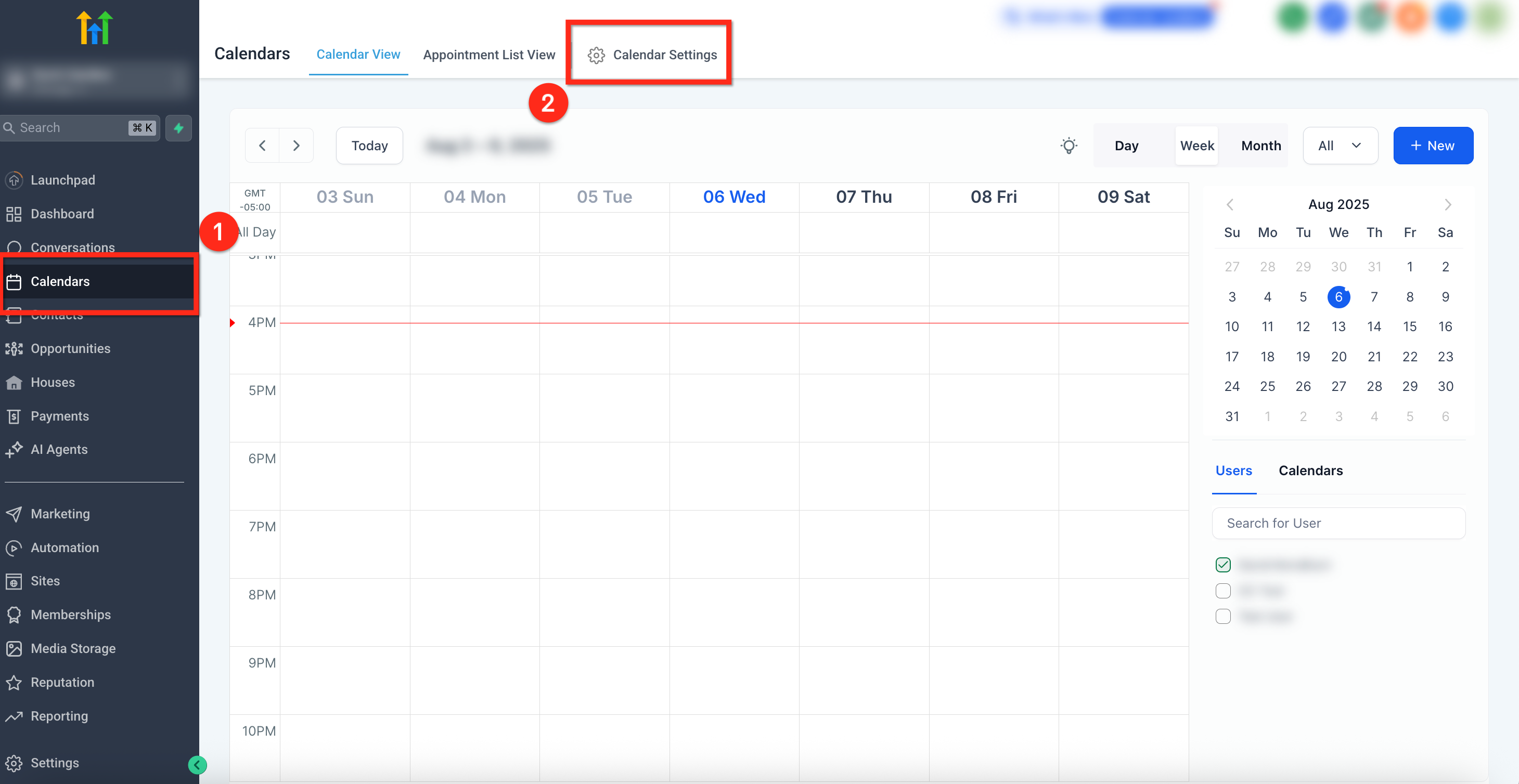
Section titled “How To Duplicate a Calendar”Step 1: Navigate to Calendar Settings
Section titled “Step 1: Navigate to Calendar Settings”- Open Calendars from the left-hand menu
- Click Calendar Settings from the top navigation area
Step 2: Select the Calendar
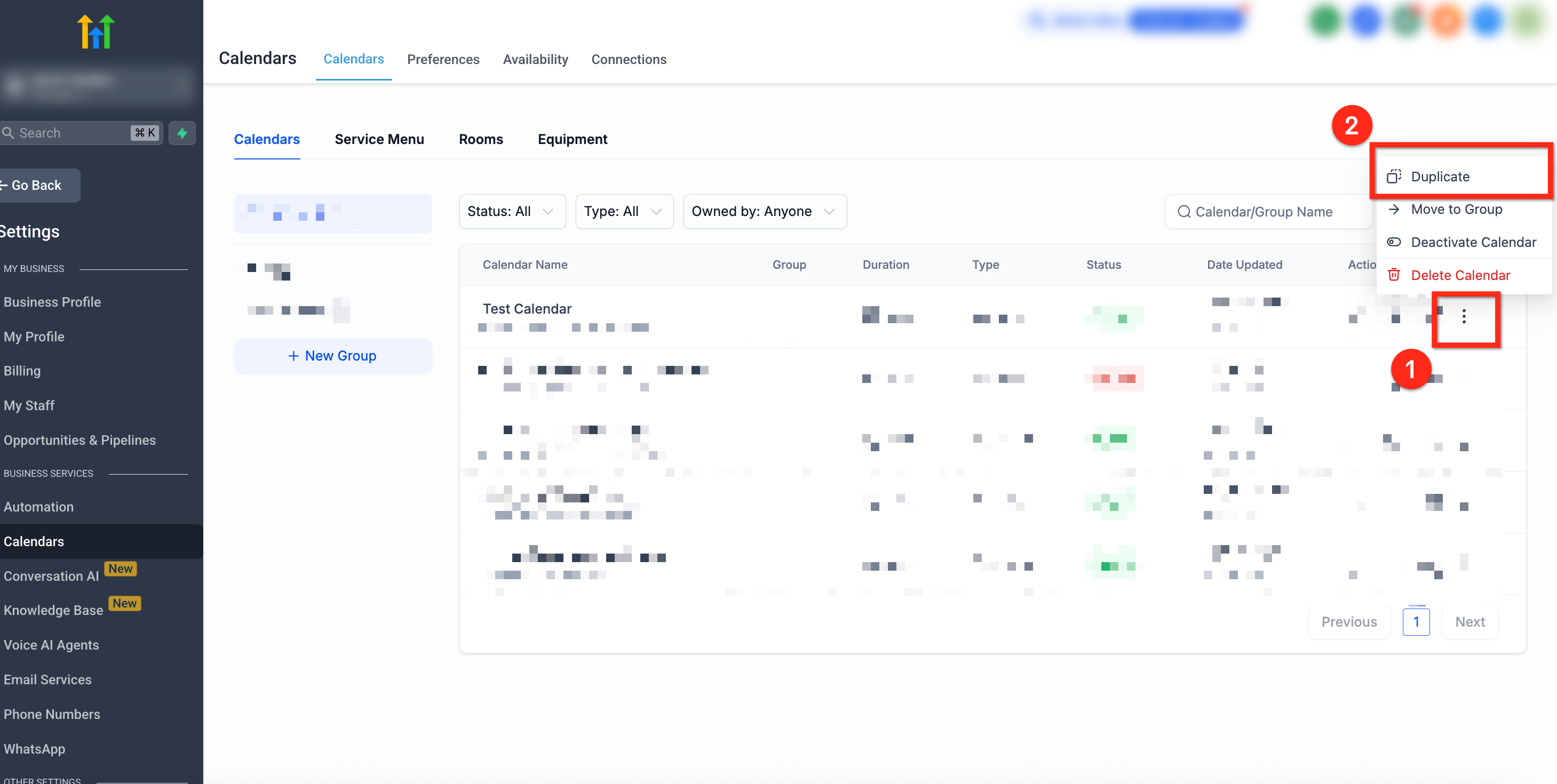
Section titled “Step 2: Select the Calendar”- Click the 3-dot menu next to the calendar you want to duplicate
- Select Duplicate
- Confirm the action in the popup
Step 3: Review the New Calendar
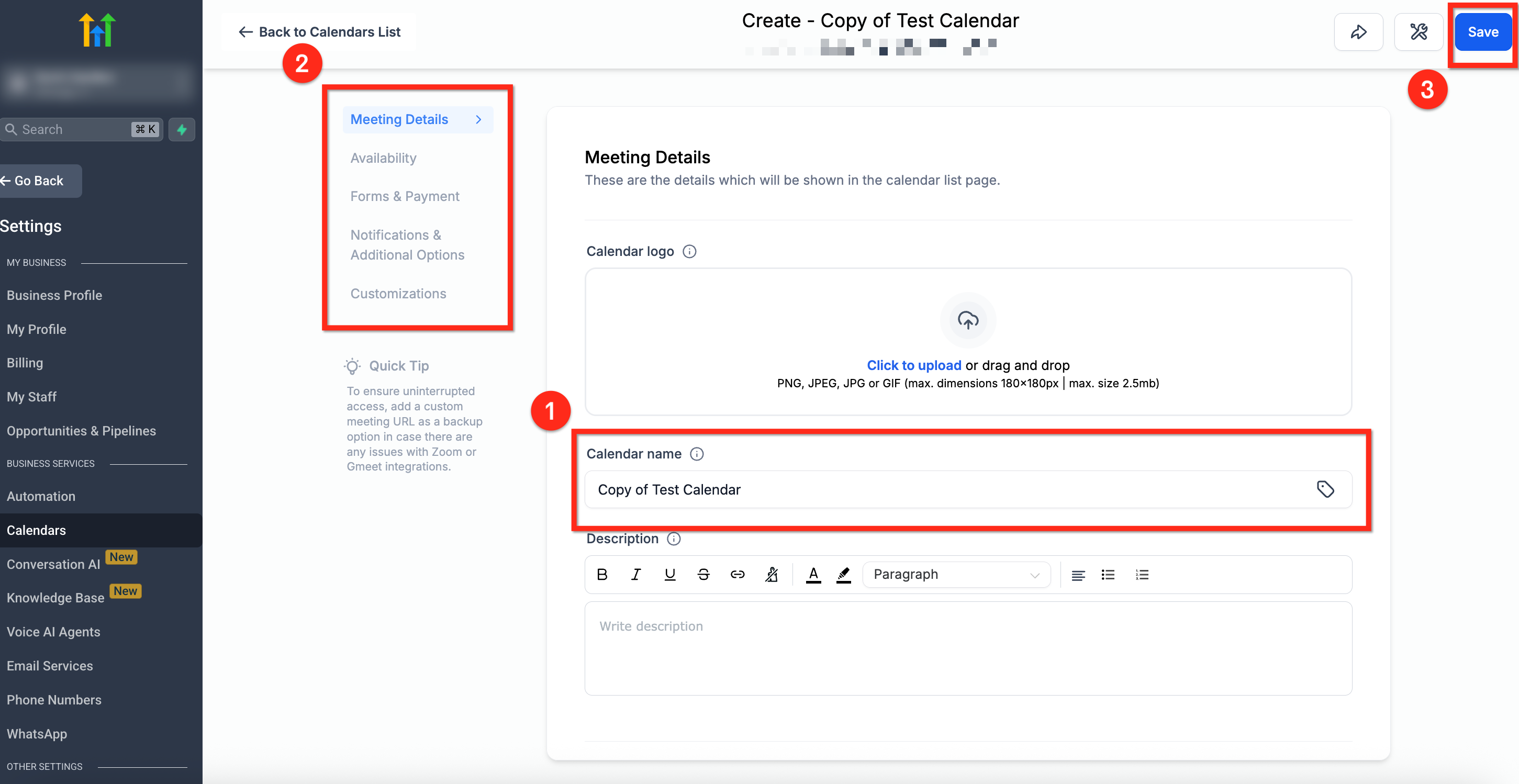
Section titled “Step 3: Review the New Calendar”- The new calendar is automatically named Copy of [Original Name]
- Update the name to avoid confusion
- Review all settings, including availability, meeting locations, and notifications
- Click Save once everything looks correct
Frequently Asked Questions
Section titled “Frequently Asked Questions”Q: Can I duplicate any calendar type?
A: Yes. All calendar types support duplication and carry over their relevant settings.
Q: Are workflows or automations duplicated too?
A: No. Workflows must be recreated or reassigned manually.
Q: Will existing booking links redirect to the new calendar?
A: No. The original calendar keeps its own booking link, and the duplicate receives a separate one.
Q: Will the timezone settings carry over?
A: Yes. The duplicated calendar keeps the same timezone configuration as the original.