
How to Create Subscriptions & Invoices from Contact's Profile
Creating billing items directly from the contact record lets you act at the moment of conversation, without needing to navigate to the global Payments list. This optimized workflow pre-fills the customer data and keeps all billing history visible in one place, improving operational speed, accuracy, and overall customer experience.
Key Benefits
Section titled “Key Benefits”- Speed: Create and send a bill without leaving the active conversation window.
- Fewer errors: Contact details auto-fill, significantly reducing manual data entry.
- Context: View past invoices, active subscriptions, and payment methods right alongside active CRM activity.
- Lifecycle visibility: See the new subscription or invoice instantly on the contact timeline and natively in the Payments module.
- Team efficiency: Front-line teams can charge or schedule billing during support ticketing or sales calls seamlessly.
Prerequisites
Section titled “Prerequisites”Before generating bills directly from a profile, ensure the following are completed:
- Connect a supported external payment provider (for example, Stripe) in your platform Settings.
- Ensure generic payment methods are enabled for your product areas.
- Have at least one Recurring Product configured for selling if creating subscriptions.
- Confirm your tax and discount settings align with your internal accounting rules.
- Confirm your user permissions for Payments allow for creating subscriptions and invoices natively.
- Optional but recommended: Add a card on file for the contact to enable AutoPay and reduce failure occurrences.
Note: If you use a custom payment provider integration app, that provider must explicitly support subscription schedules using saved payment methods in order to manually create subscriptions via AutoPay.
How to Create Subscriptions in Contact’s Profile
Section titled “How to Create Subscriptions in Contact’s Profile”Important: The subscription’s billing cycle is inherited rigidly from the recurring product you select. Whatever cycle you set on that fundamental product (e.g., weekly, monthly, annually) becomes the new generated subscription’s cycle.
-
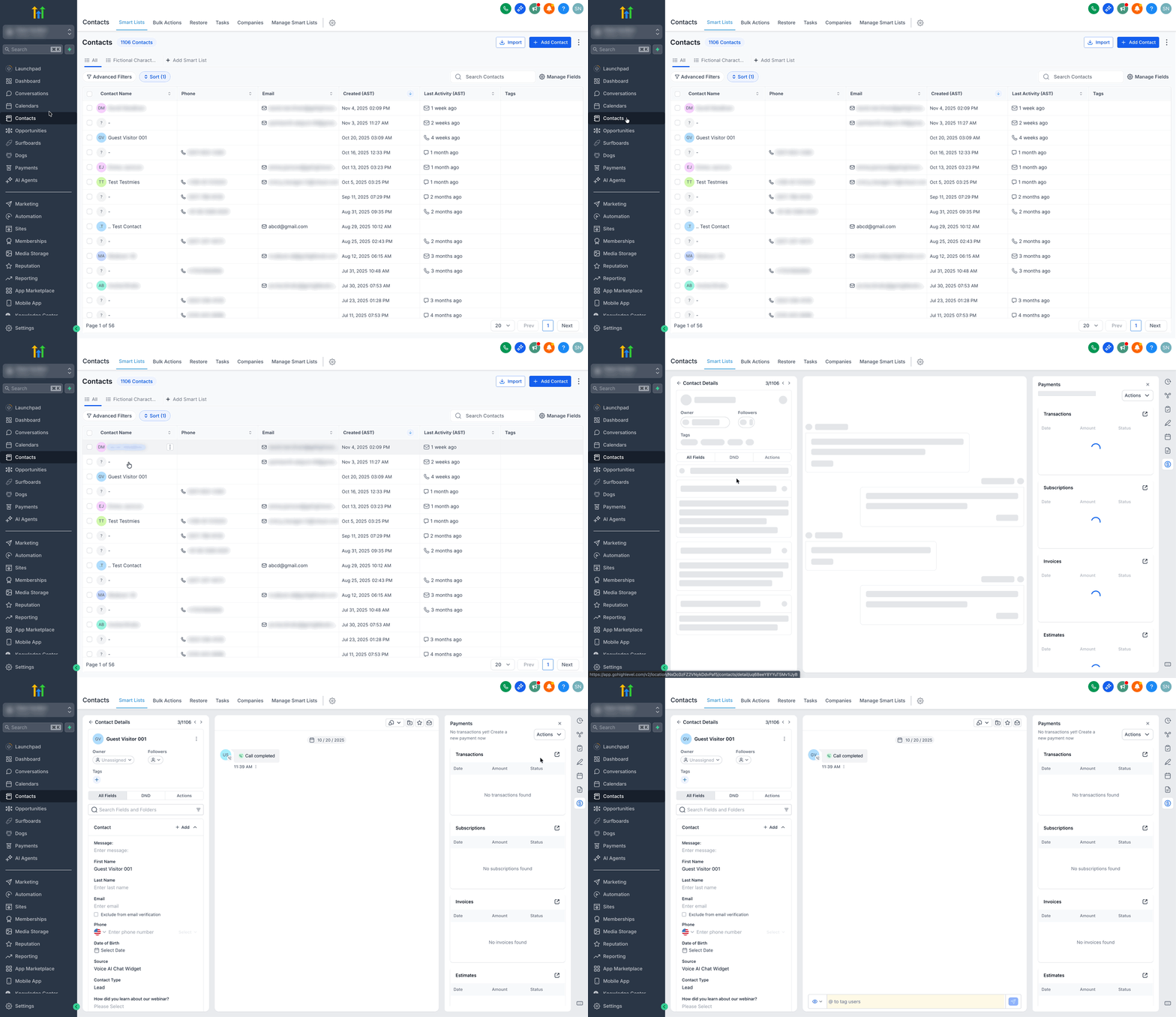
Go to Contacts and open the specific contact’s profile.
-
Select the Payments tab inside the details panel > Actions > Create Subscription.
-
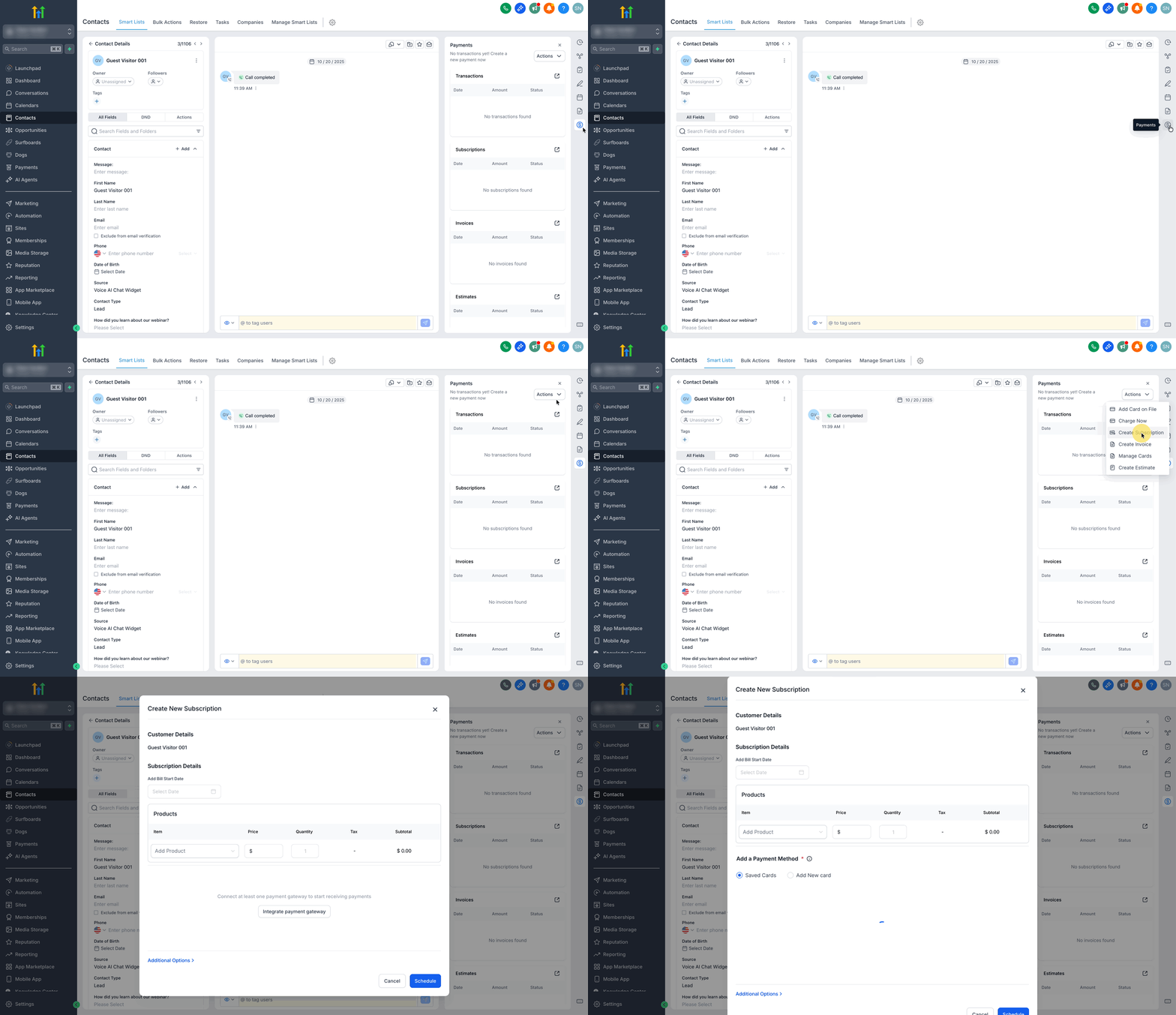
Choose a Recurring Product, and intelligently configure the start date, quantity, and apply any necessary coupons.
-
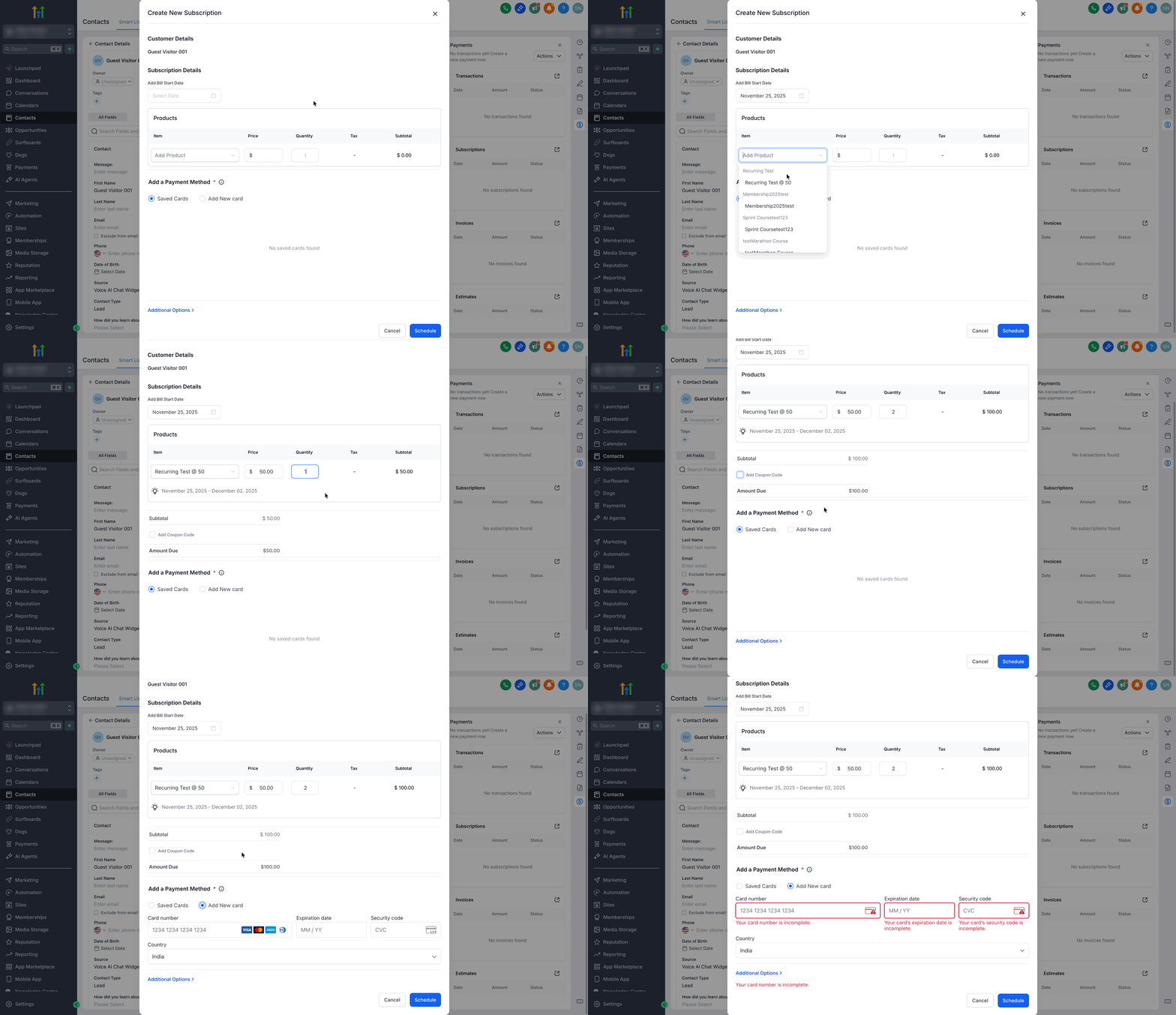
Select or add a payment method on file to trigger AutoPay, if available. (Note: If your payment provider integration app does not support saved payment methods for rolling schedules, the AutoPay selection may not be available for manual creation).
-
Review the first charge amount and the ongoing schedule, then save to activate the subscription securely.
How to Create Invoices in Contact’s Profile
Section titled “How to Create Invoices in Contact’s Profile”-
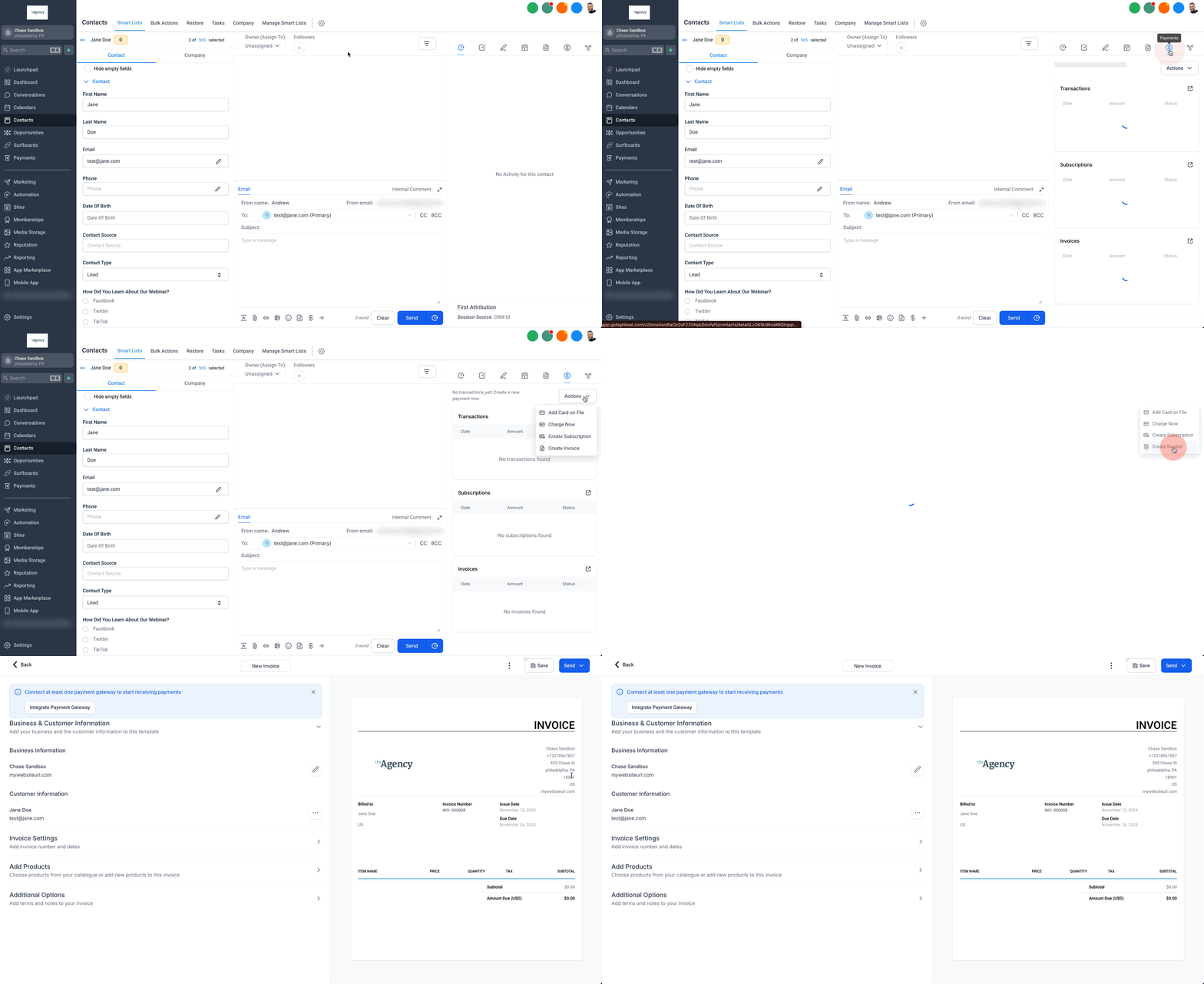
Navigate to Contacts and open a profile’s Contact Details.
-
Go to the Payments tab > Actions > Create Invoice.
-
You will be actively redirected to the invoice creation page with the customer details completely pre-filled for convenience.
-
Add the necessary invoice line-items, taxes, and secondary details.
-
Save and officially send the invoice to the customer.
Frequently Asked Questions
Section titled “Frequently Asked Questions”Q: How do I set the billing cycle for subscriptions? The subscription’s billing cycle is strictly inherited from the recurring product you select to sell. Whatever cycle you set on that parent product (e.g., monthly, weekly, annually) automatically becomes this active subscription’s cycle.
Q: What happens if a customer’s payment method fails during subscription setup? If a targeted payment method forcefully fails, the system will prompt you immediately to select an alternate card or add a new one. The subscription will not be activated or saved until a valid, successful payment method is securely linked.
Q: Can I create multiple subscriptions for the exact same customer? Yes! You can theoretically create multiple subscriptions for a single customer. Each uniquely named subscription can independently maintain its own specific products, billing dates, and payment methods.