
Importing Contacts and Opportunities via CSV
Importing records natively via a CSV file allows you to quickly migrate bulk databases into your CRM structure. This core functionality is critical when transitioning from legacy systems, migrating data sets, or running massive outbound campaigns.
Prerequisites for Importing Contacts and Opportunities
Section titled “Prerequisites for Importing Contacts and Opportunities”Before starting the active batch import process, make sure your underlying file meets the exact following strict requirements:
- User Permissions: Only users with confirmed Admin-level access can perform system-level imports.
- File Format: The file must explicitly be saved in Comma Separated Values (.csv) format.
- File Size Limit: The total CSV file payload must be under 30MB. If your list is immense, split it cleanly into smaller batches.
- Single Sheet Requirement: Multi-sheet workbooks (like standard Excel files) are prohibited. Your CSV file must contain only a single flat sheet.
- CSV Requirement: The vital first row must NOT be totally blank! It must be populated with a definitive header row in which at least one column clearly corresponds to a recognized system field (e.g., “First Name” or “Email”).
Common Mistakes to Avoid
Section titled “Common Mistakes to Avoid”Avoiding crucial errors saves enormous amounts of time and protects your active CRM data hygiene.
- ❌ Mismatched headers: Ensure your CSV headers align realistically with native system fields during the mapping phase.
- ❌ Blank required fields: Every single record row should have at least one valid anchor identifier (Name, Email, or Phone).
- ❌ Using special characters in phone numbers: Aggressively remove stray parenthesis, dashes, or letters from all phone numbers before importing (e.g., rewrite
(555) 555-5555to5555555555). - ❌ Duplicate records within CSV: Pre-clean and aggressively deduplicate your actual CSV file entirely before executing the upload.
Accessing the Import Tool
Section titled “Accessing the Import Tool”There are two primary hubs to naturally access the exact same Import feature engine:
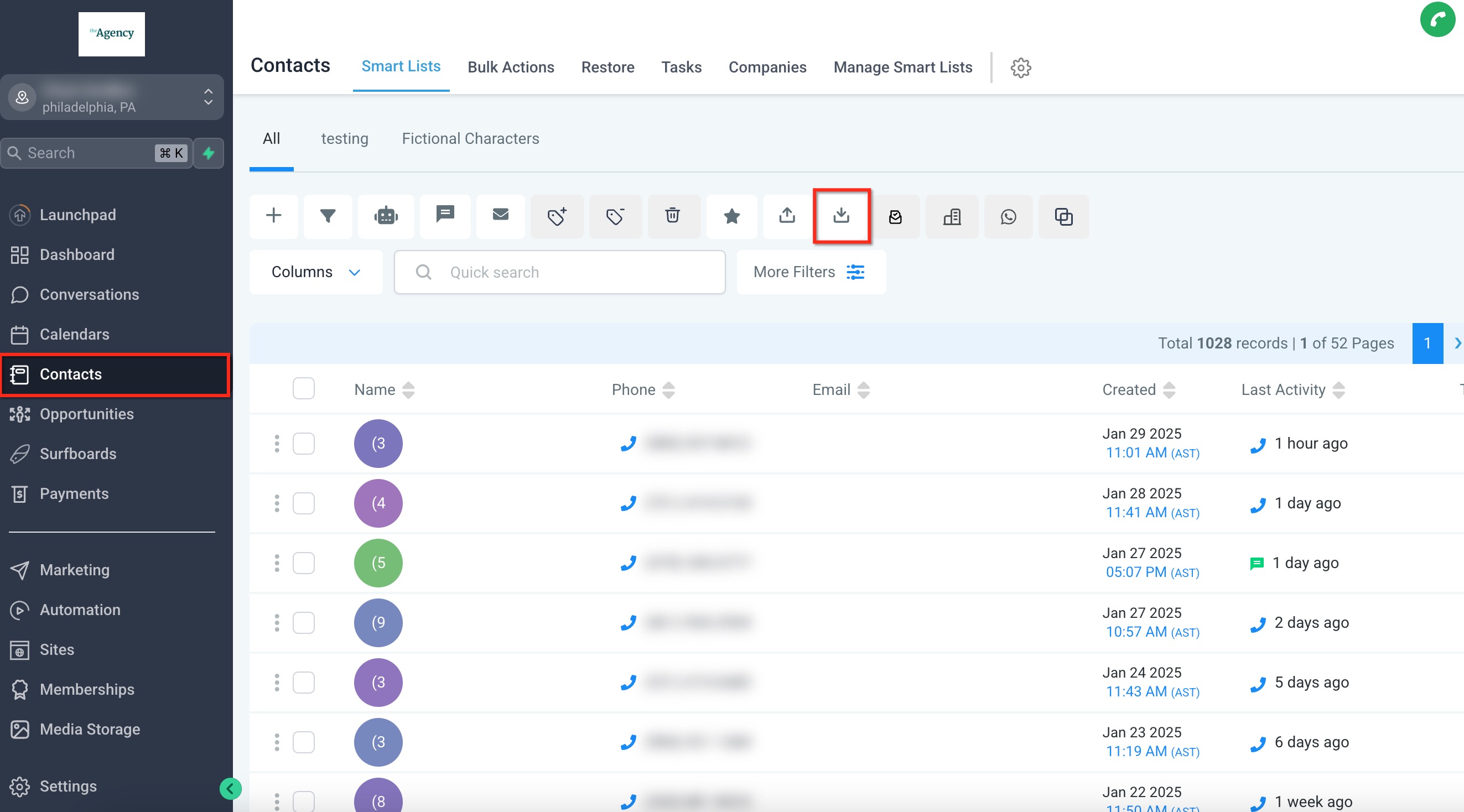
From within the Contacts Tab Navigate to the native Contacts module from the left-hand menu, click on the master active list tab, and click the Import Contacts button from the top right.
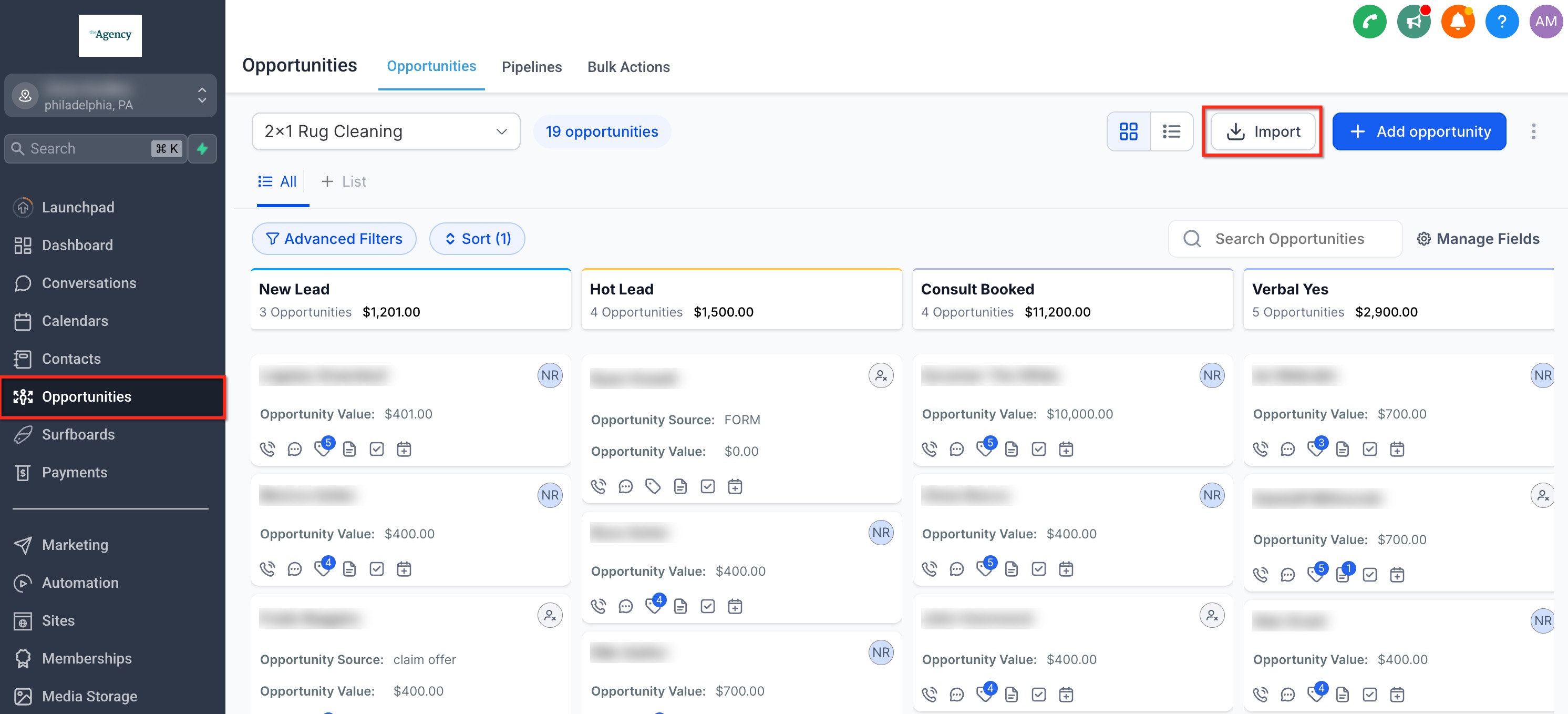
From within the Opportunities Tab Navigate to active Opportunities from the left-hand menu, then simply click the Import button embedded in the top-right corner.
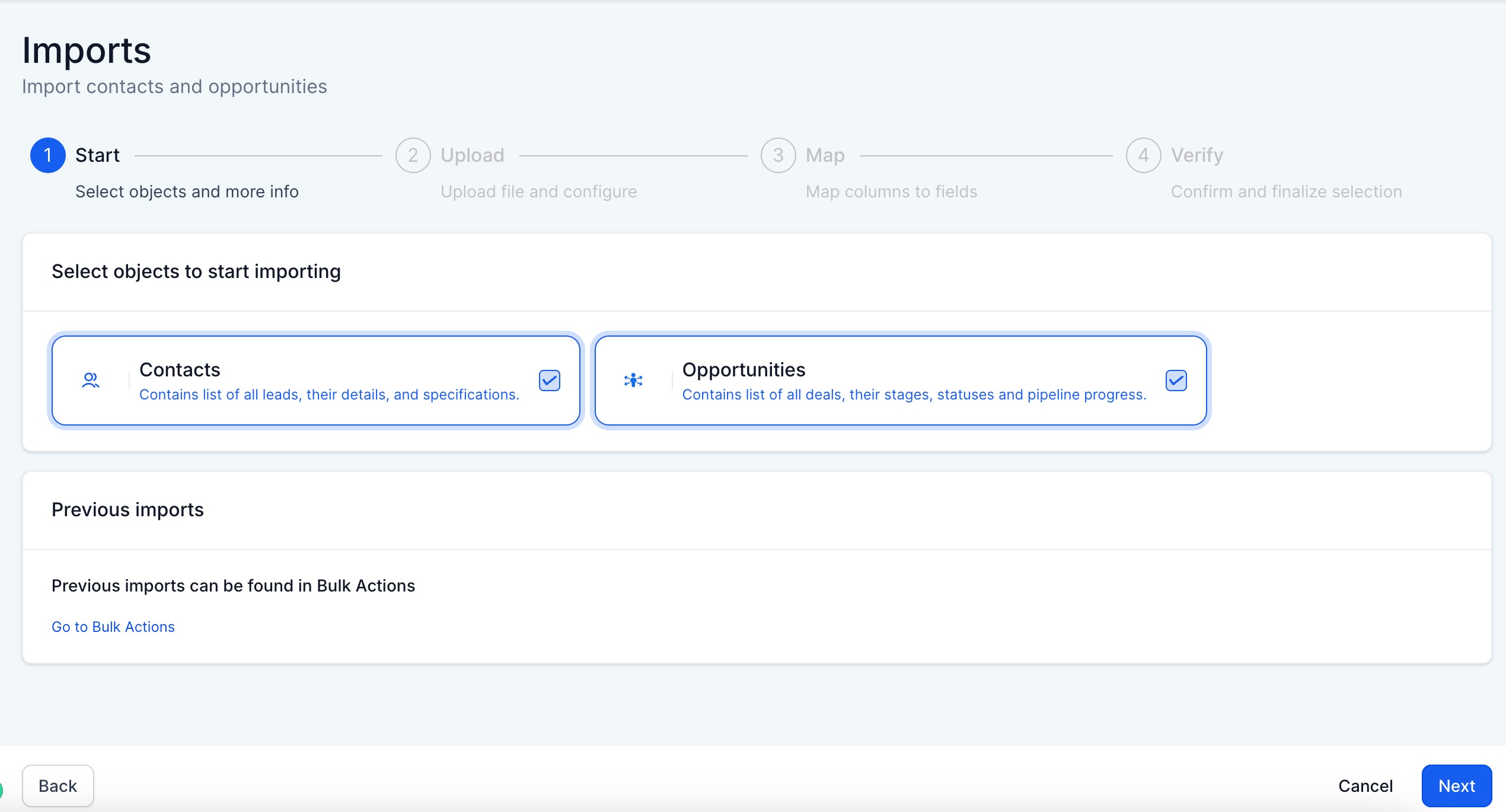
Both entry points natively lead to the exact same global import wizard, where you can elect to import:
- Only Contacts
- Only Opportunities
- Both Contacts & Opportunities simultaneously
Step 1: Upload Your CSV File
Section titled “Step 1: Upload Your CSV File”After confirming whether you are targeting Contacts, Opportunities, or both, click Next.
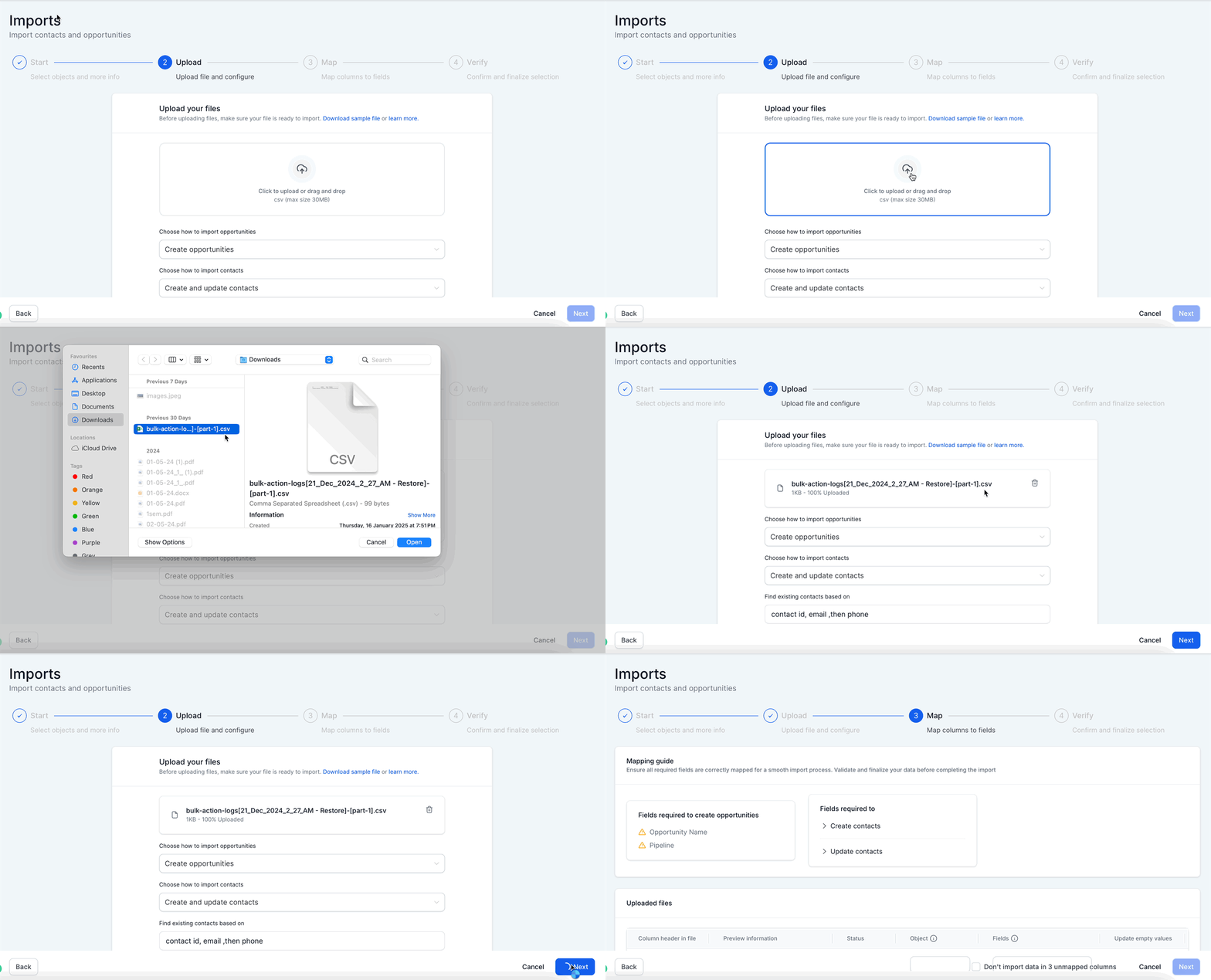
Click Upload File and natively choose your pre-cleaned CSV file from your local hard drive.
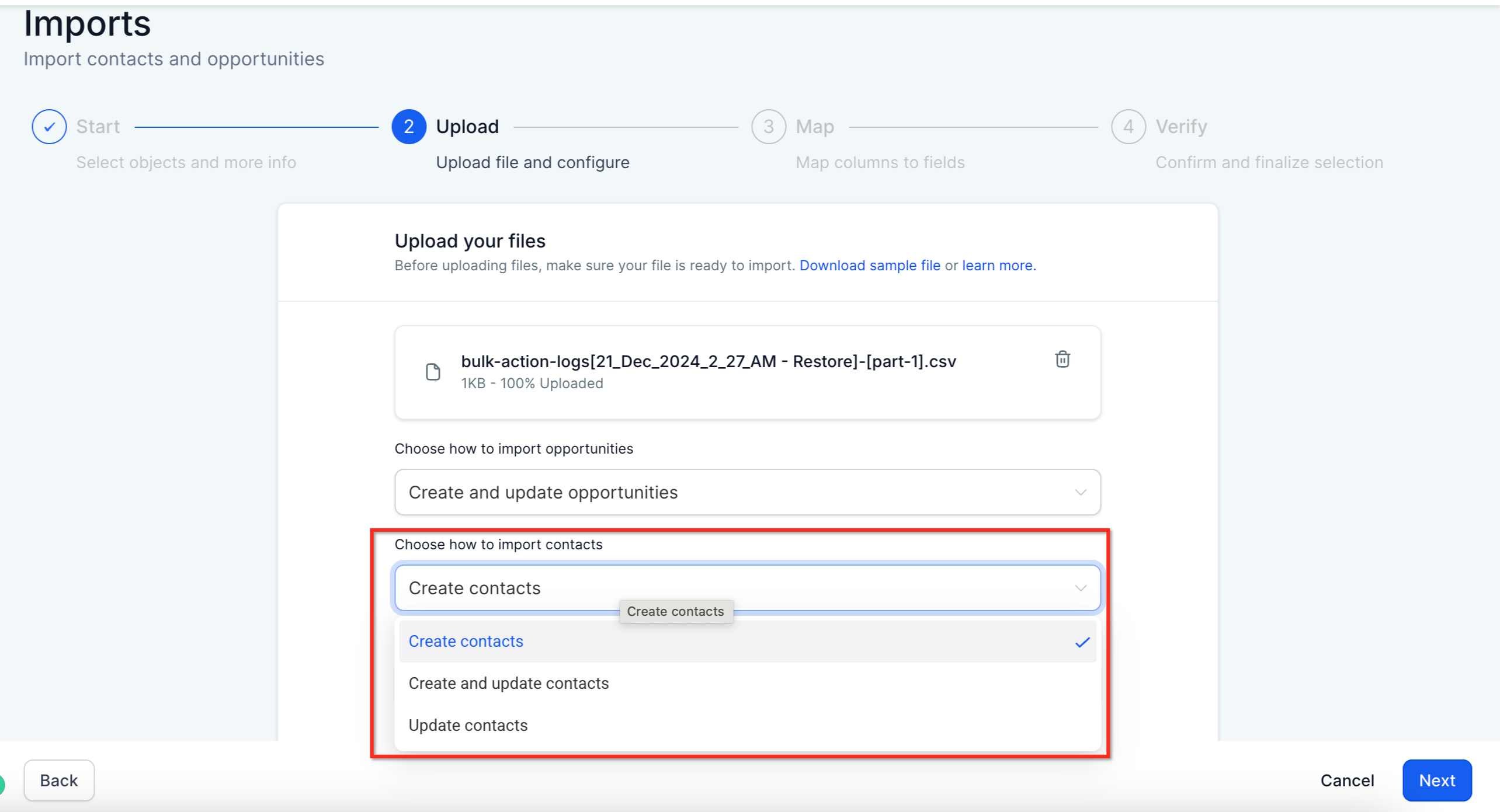
After the raw file attaches successfully, click “Choose how to import…” to decide the core routing logic: whether you explicitly want the system to forcefully Create new records, Update existing records, or process both adaptively.
Important Routing Note: The internal mechanism “Find existing contacts based on Filter” is firmly set to Email by default, followed gracefully by Phone. This means your system attempts to filter existing duplicate records actively by Email anchor first. If an email is completely missing, it falls back to parsing Phone arrays.
Step 2: Mapping Columns to Fields
Section titled “Step 2: Mapping Columns to Fields”This is arguably the most critical junction. You must ensure every single incoming column on your local CSV file correctly maps visually to the exact corresponding attribute field in the CRM system.
Important Rules to Note:
- Checking the “Don’t update Empty Values” checkbox forces the system to completely ignore empty cells on your CSV. This ensures you do not accidentally wipe out rich existing profile data with a blank upload string.
- If you categorically decide not to import a certain miscellaneous field, you can choose to explicitly keep its header unmapped and formally check the confirmation box on the bottom to safely proceed: “Please ensure all mandatory fields are mapped. To proceed, either map all fields or choose Don’t import data for unmapped columns”.
- If active Contacts and active Opportunities effectively exist on the exact same row line within the initial CSV, they will inherently map securely to each other seamlessly.
- Multiple Channels: This robust feature inherently allows the smart creation of active contacts with multiple secondary email addresses and nested phone numbers. Those additional robust details will append automatically behind the scenes.
Step 3: Reviewing and Completing the Import
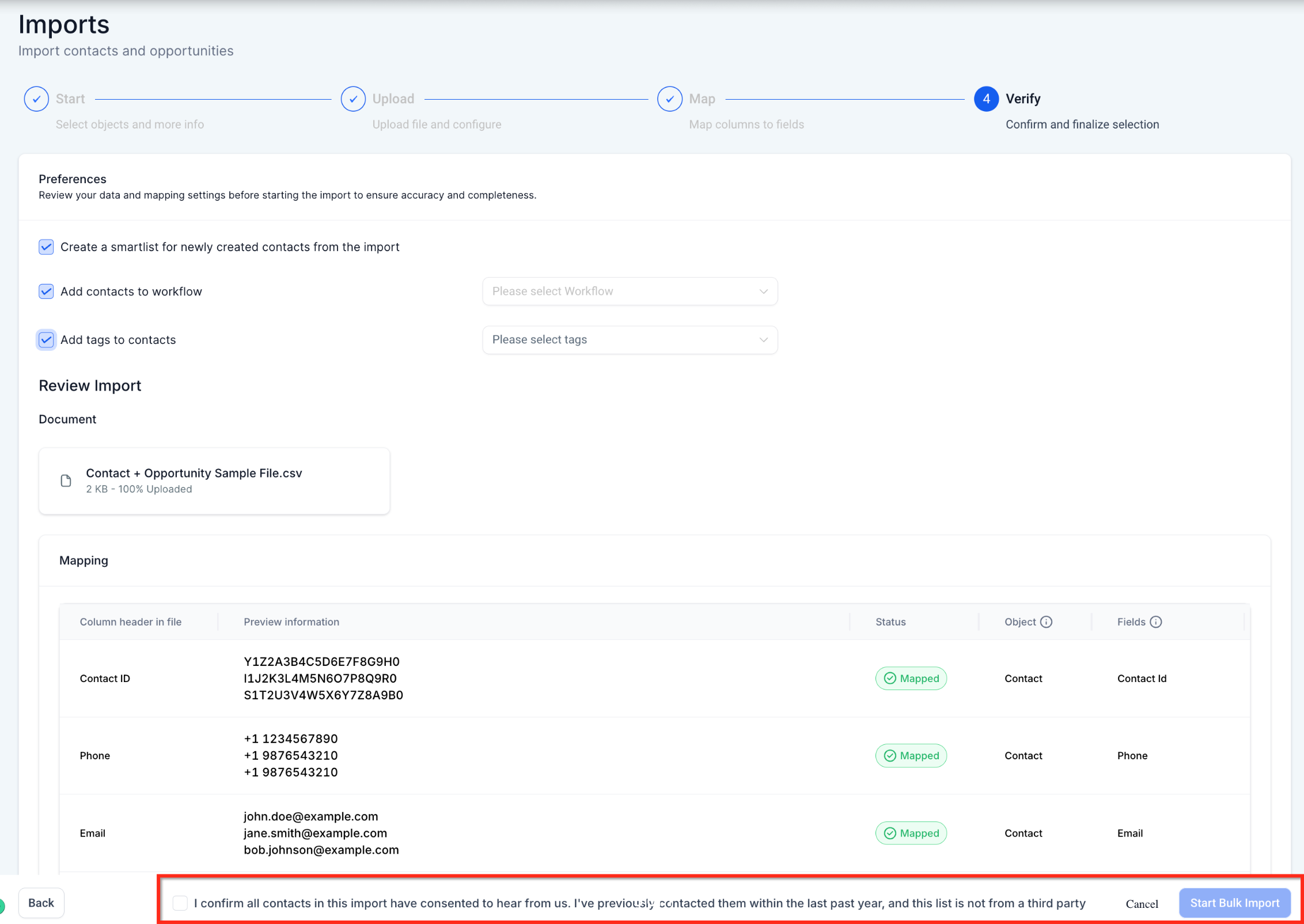
Section titled “Step 3: Reviewing and Completing the Import”Carefully review your final array mappings. Then boldly confirm and forcefully proceed with the execution.
During the final sign-off phase, you can also effortlessly opt to:
- Instantly create an active nested Smart List targeting just these new imports.
- Forcefully add the fresh contacts into an active Workflow automation chain.
- Add an associative Tag strictly to the localized imported batch.
(Note: It is strictly mandatory to click the acknowledgement checkbox explicitly confirming all the targets for formal import execution).
Step 4: Monitor Import Status
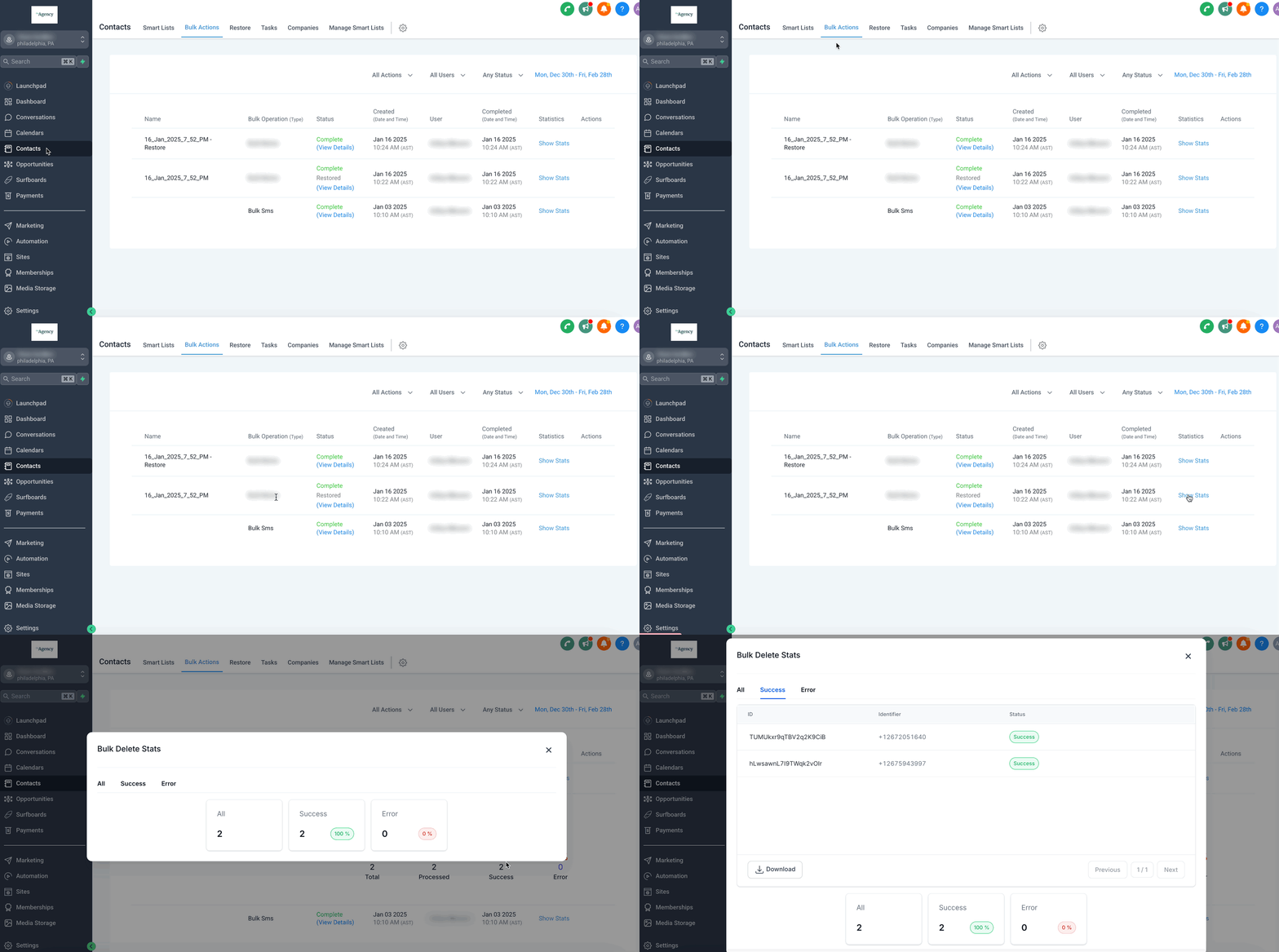
Section titled “Step 4: Monitor Import Status”Since bulk imports inherently run asynchronously in the system background, you can formally monitor the global progress directly from the master Bulk Actions page logs. Everything elegantly appears securely under that unified tab.
Click on the “Show Stats” hyperlink block to visually review the granular final stats. Importantly, if records dramatically fail, you can securely heavily download the isolated Error Log array and intensely review exactly how to fix those isolated casualties from the “Error” operational tab without needing to redo the entire correct batch!
Pro Tip on Errors: The absolute most common error when pulling files from legacy external processors is phone field formatting incompatibilities. Errant parentheses
()and random string dashes-commonly force total corruption. Always explicitly scrub the entire phone column format to pure raw string numbers before ever executing the initial import.
Frequently Asked Questions
Section titled “Frequently Asked Questions”Q. What happens natively if my localized CSV file is somehow over 30MB? You must manually split the file intelligently into natively smaller batch sections (strictly constrained under the limit) and strategically import them in consecutive sequences.
Q. Can I import singular contacts equipped with multiple nested emails or phone numbers? Yes! All additional arrays of emails and arrays of phone numbers are safely stored securely as pure secondary fields entirely instead of brutally replacing your core primary data anchor.
Q. How does the CRM logic natively handle massive duplicate contacts? The CRM system gracefully and automatically merges duplicate contacts actively based securely upon matching phone strings or matching email sequences. In the event a solid match evaluates successfully, the platform elegantly updates the existing live records proactively instead of pointlessly creating nested duplicate phantoms.
Q. Can I actively update existing core contacts via a CSV bulk import? Yes! Natively select exactly Update Only or smartly pick Create & Update iteratively during the initial core import pathway sequence.
Q. What exactly should I proactively do if my critical import fails horribly? Quickly check the precise isolated error warning messages natively stored in the Bulk Action Import Status Page tracking board. Download the pure localized error log, quickly execute a fix on just those rows externally, and re-import purely the corrected mini-CSV batch.
Q: Why are all my newly imported massive contact lists forcefully set to DND uniformly for ALL connected channels? How can I gracefully apply DND rules purely for specific customized channels only? When directly importing targeted contacts wielding a uniform binary “DND (Do Not Disturb)” column actively within your core CSV file, the platform architecture automatically strictly asserts a global DND blanket broadly spanning across all outbound system communication channels (SMS, native Email, Calls, automated Voicemail, etc.). If you meticulously want to gracefully constrain DND limits tightly onto uniquely specific channels actively only (such as only blocking localized SMS), you critically need to utilize a dynamic background Workflow routing mixed with custom Tags instead of forcefully using the blunt global DND column override directly.
Q. I’m dynamically trying to bulk import a massive CRM CSV flooded with distinct textual Notes, and I categorically cannot reliably generate more than precisely one active note per unified contact profile record? When importing contact notes from standard CSV configurations, universally you may absolutely natively rely on only a single nested note structure strictly bound to one contact profile, explicitly constrained with a maximum ceiling limit of strictly exactly 5000 textual characters.