
Adding Files To Contacts using a Custom Field
Adding files to contacts allows you to store important documents directly within a contact’s profile, such as contracts, invoices, and notes. This feature streamlines client management by keeping all essential files organized and easily accessible.
There are two primary methods to upload files to a contact:
- Directly via the contact profile.
- Using a custom field for file uploads.
Key Considerations Before Creating a Custom Field
Section titled “Key Considerations Before Creating a Custom Field”When setting up a custom file upload field, you have several options to configure for better organization and functionality. These determine how the field behaves, where it appears, and what type of files it can handle.
| Field | What It Does | Details and Examples |
|---|---|---|
| File Type | Specifies the types of files users can upload through this custom field. | Supported formats: PDF, DOC/DOCX, JPG/JPEG, PNG, GIF, XLS/CSV. This ensures only compatible files are accepted. |
| File Restriction | Sets the maximum file size allowed for uploads. | Maximum size per file: 250MB. Ensure users are aware of this limit to avoid errors during uploads. |
| Allow Multiple Files | Defines whether users can upload a single file or multiple files. | Single File: Restrict to one file for simplicity. Multiple Files: Specify the maximum number of files (e.g., 3 or 5). |
| Object Type | Determines the category where the custom field will be applied. | Contact: Attach files to individual contact profiles. Opportunity: Link files to deals or leads. Company: Associate files with company profiles. Custom: Customize for your unique business needs. |
| Group Tab | Organizes the custom field within a specific section or grouping in the system for better visibility and usability. | Examples: - Contact Information: Core details like personal documents. - General Info: Miscellaneous files. - Additional Info: Supplementary or secondary documents. |
| Save the Field | Finalizes the creation process, making the field available for use. | Once saved, this field will appear in the Custom Fields Section of the selected object (e.g., contact profile). |
Upload Files to a Contact Using a Custom Field
Section titled “Upload Files to a Contact Using a Custom Field”The ability to upload files to a contact is available after creating a custom field of the File Upload type. Once created, you can navigate to the contact’s profile to upload, view, or delete files directly within the designated field.
Step 1: Create a Custom Field Called “File Upload”
Section titled “Step 1: Create a Custom Field Called “File Upload””A custom field must be created as this field type is not available by default.
- Go to Settings from the left-hand menu and select Custom Fields, then click the Add Custom Field button.
- Choose the File Upload field type from the available options.
- Give the field a descriptive name (e.g., “Contract Upload” or “Client Document”) and save the custom field.

Step 2: Add a File to a Contact
Section titled “Step 2: Add a File to a Contact”Follow these steps to upload a file to a contact using the new field.
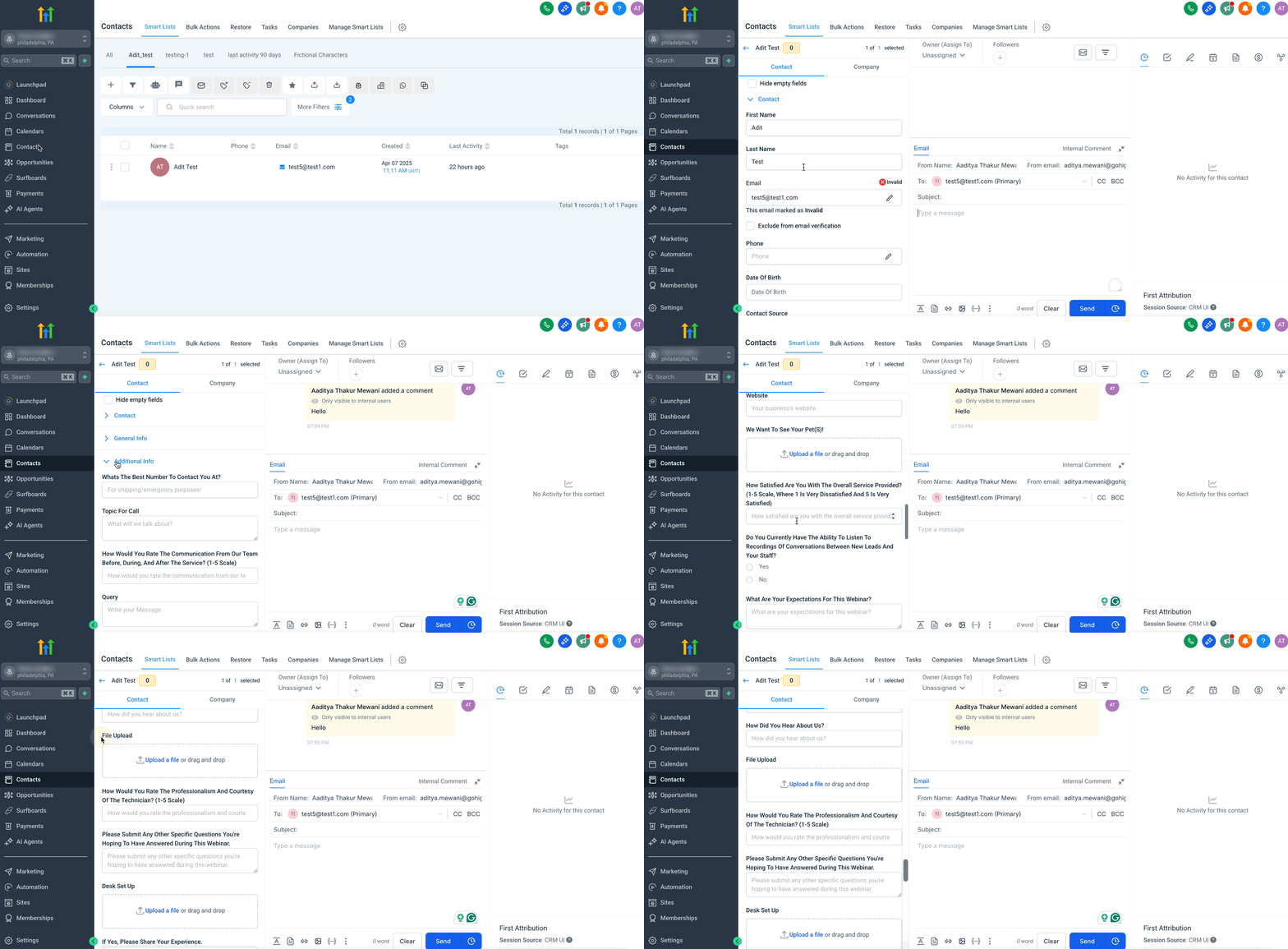
- Go to the Contacts section from the left-hand menu and select the contact you want to update.
- In the Custom Fields Section of the contact’s profile, locate the file upload field you created. If you have multiple custom fields, you can search for it inside the relevant Group Tab.
Step 3: Upload a File
Section titled “Step 3: Upload a File”Now that the custom field is visible in the Contact’s profile, you can upload your file.
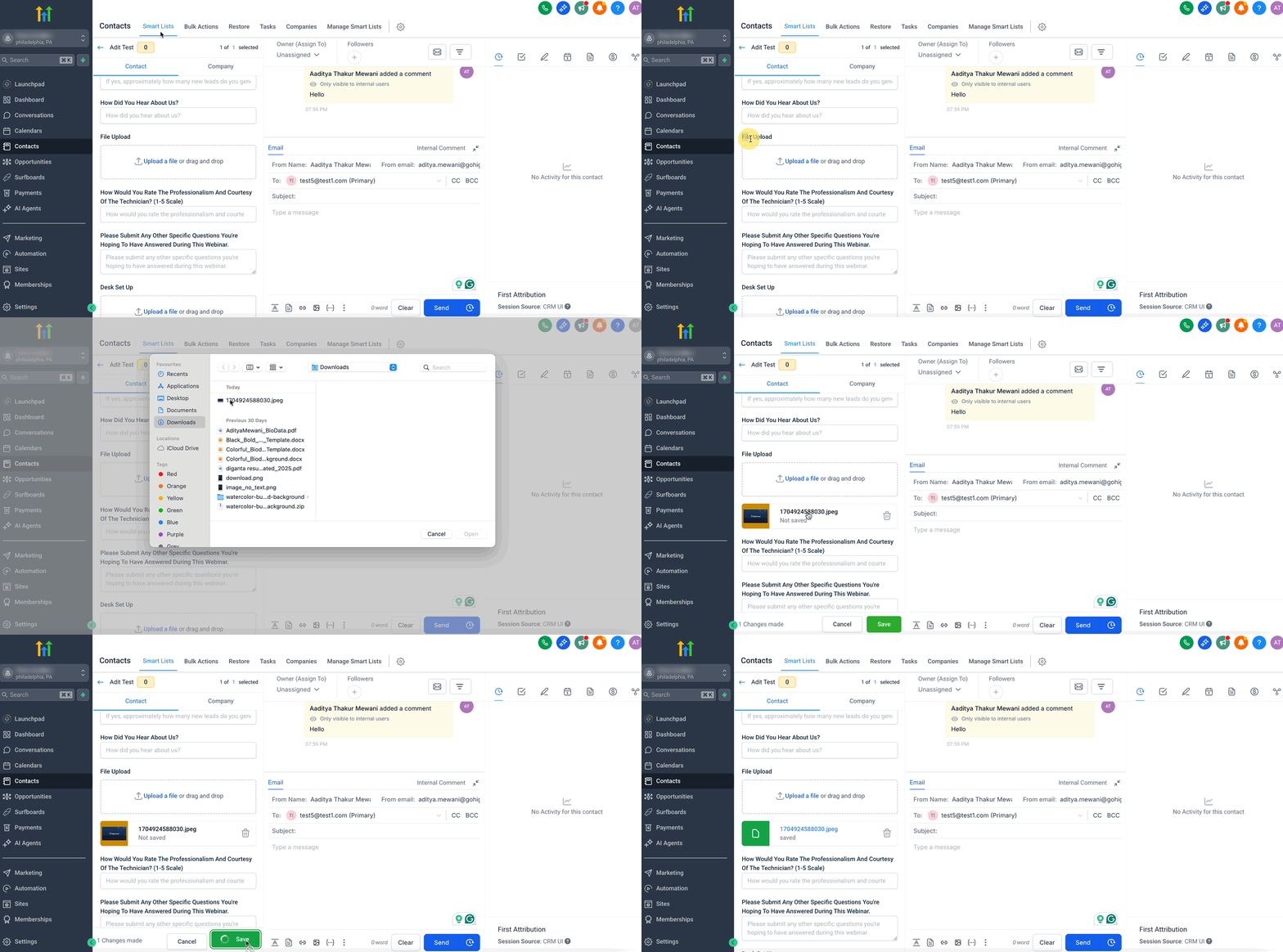
- Scroll to the Custom Fields section of the contact’s profile and locate the file upload field.
- Click Upload File, select a file from your device, and confirm the upload to store the file within the contact’s profile.
Managing Your Files
Section titled “Managing Your Files”After uploading a file to the custom field, you can manage it directly from the Contact’s profile:
- View: Click on the file link in the custom field to open and review it.
- Delete: Remove the file from the field or replace it by uploading a new one. In case of accidental deletion, an Undo option will appear immediately, allowing you to restore the file quickly and effortlessly.