
Category Queue
A category queue is a powerful tool to automatically plan and cycle your evergreen content. By grouping previously published or future content under a specific category, you can instruct the system to continuously publish posts from that category. Instead of scheduling posts individually, the system cycles through the entire queue of category posts, and once it reaches the end, it resets and starts again.
Key Benefits of Category Queues
Section titled “Key Benefits of Category Queues”- Automated Evergreen Scheduling: Set your categorized content to cycle consistently without needing to manually reschedule each individual post.
- Re-use Published & Future Content: Easily repurpose previously successful posts while automatically including upcoming content tagged to the same category.
- Priority Control: Actively prioritize newer content to push it to the front of the queue, keeping your social feed fresh.
- Custom Scheduling Blocks: Define specific days and time slots for each queue, ensuring your evergreen posts go live exactly when your audience is most active.
- Future-Proof Content Planning: Enable the “Future Posting” feature to seamlessly integrate brand-new posts into your ongoing cycling strategy.
[!TIP] Category Queue Public API
If you need to manage Category Queues programmatically for custom workflows or integrations, you can use the Category Queue Public API. Authenticate with your Location API key or an OAuth token to fetch categories, create/update queues, and programmatically schedule posts.
How to Set Up a Category Queue
Section titled “How to Set Up a Category Queue”Before starting, ensure you have a list of published posts properly tagged into a category, which will be utilized to form the new queue.
Step 1: Initialize the Queue
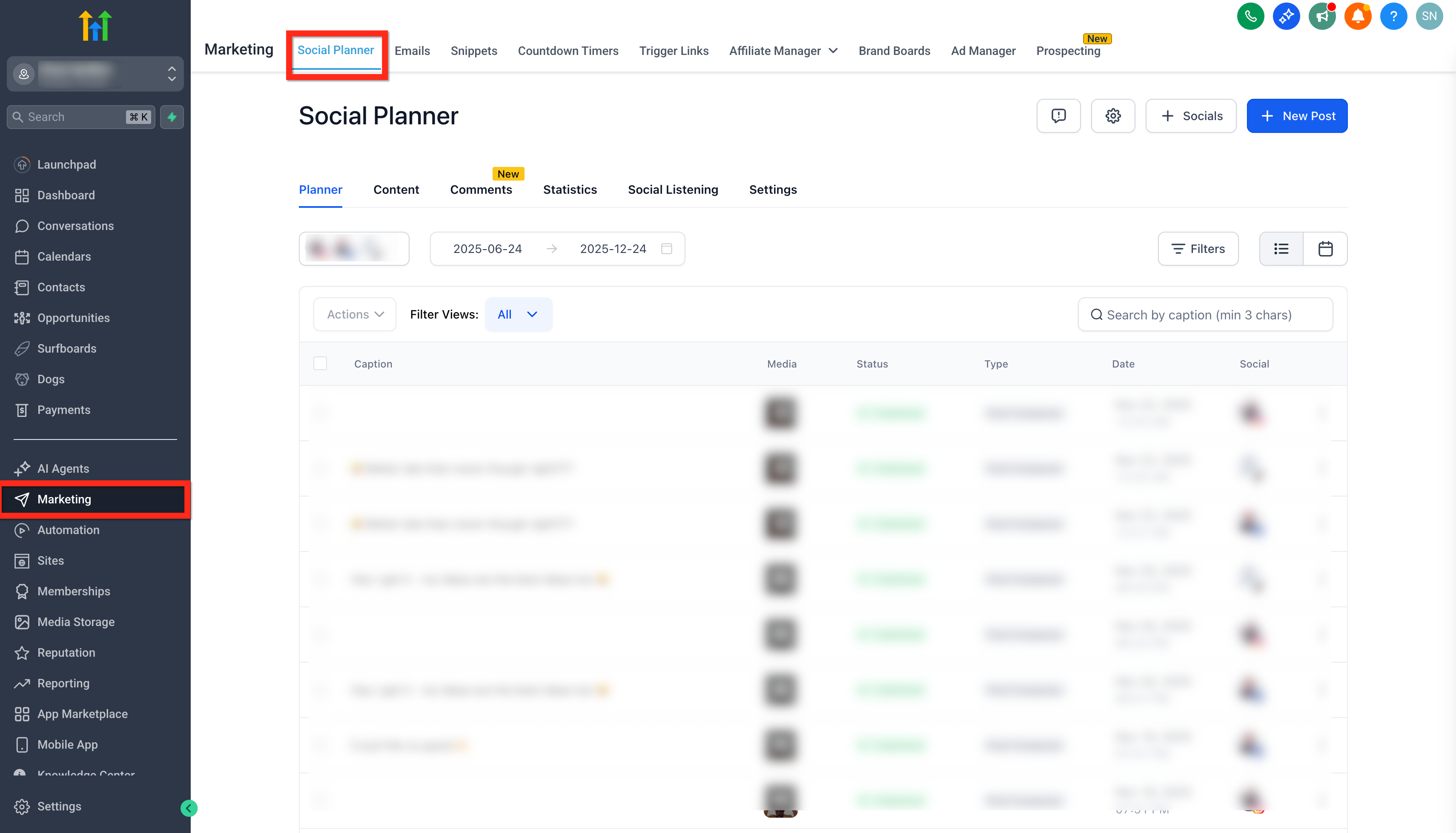
Section titled “Step 1: Initialize the Queue”- Log in to your sub-account.
- Go to Marketing > Social Planner.
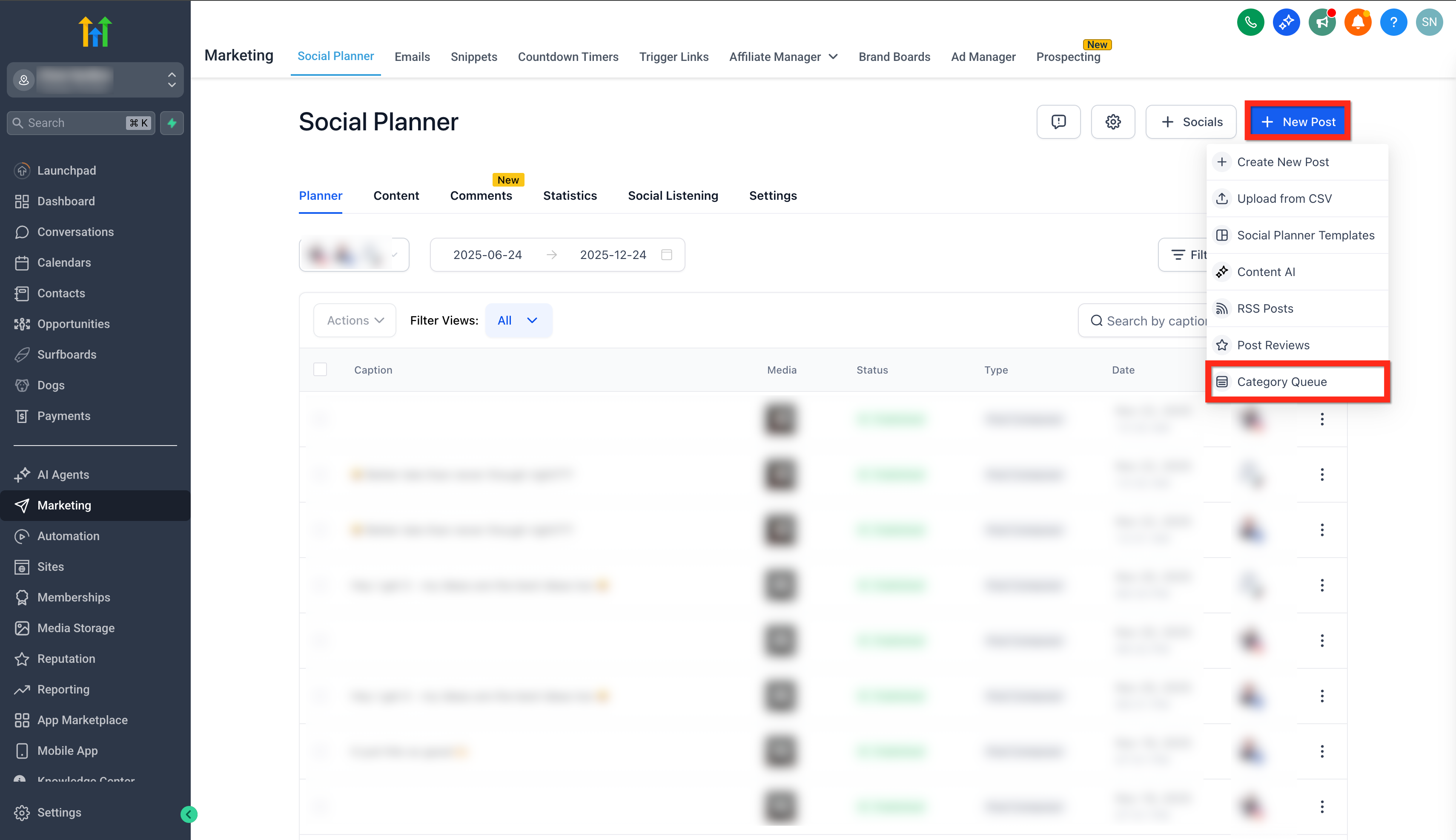
- Click the + New Post button and select Category Queue.
Step 2: Select and Configure the Category
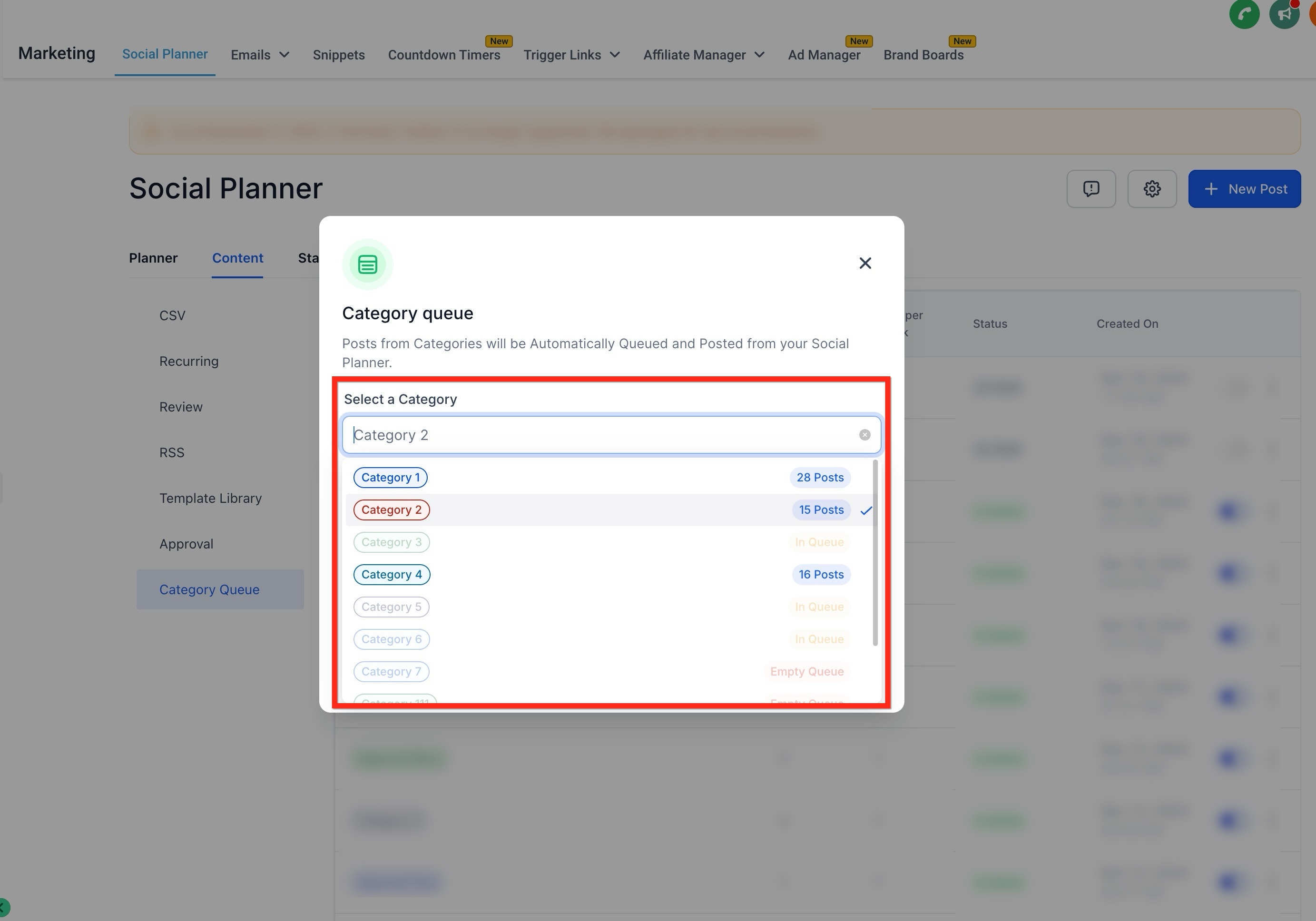
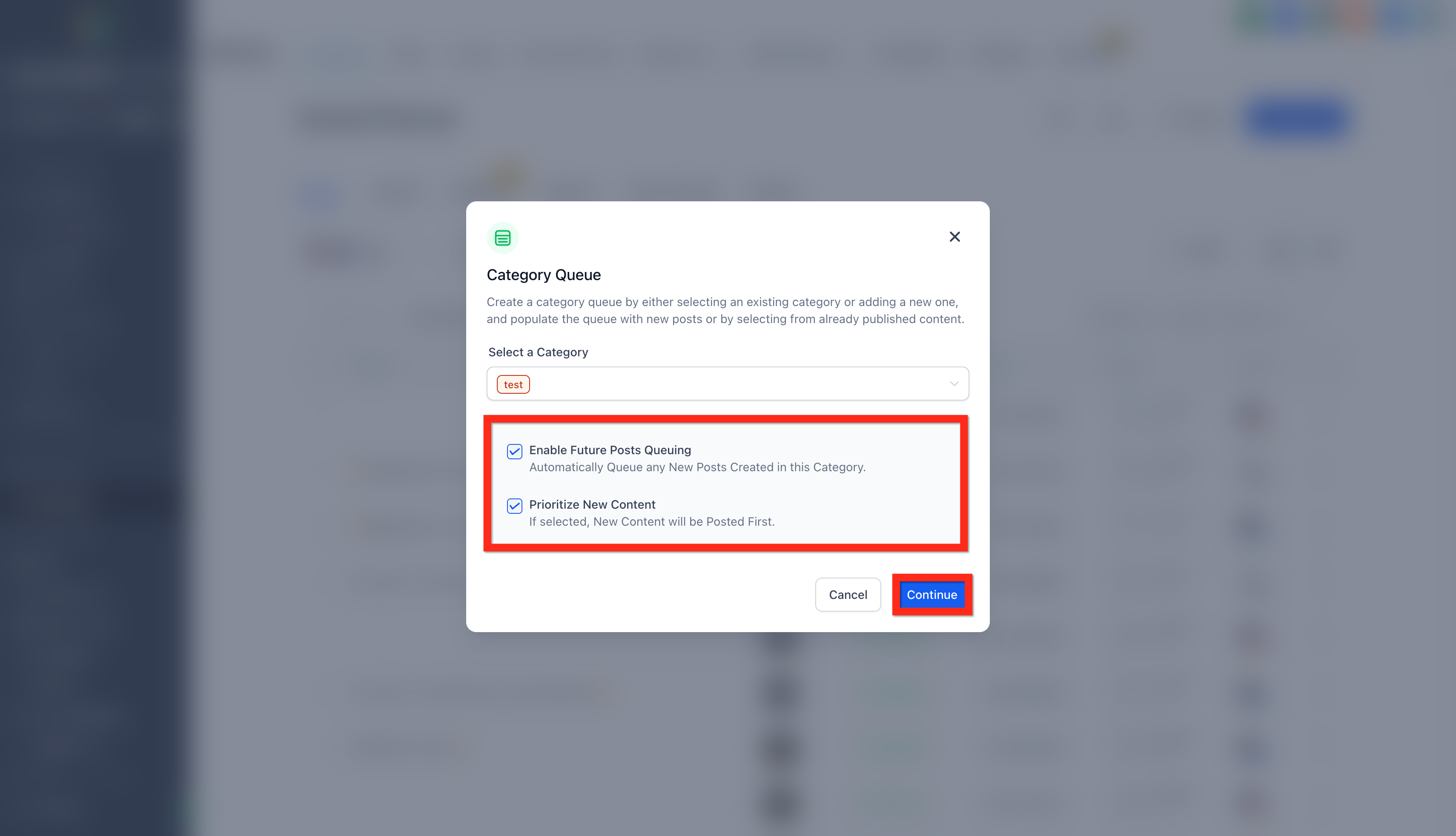
Section titled “Step 2: Select and Configure the Category”- Choose an existing Category from the dropdown, or add a new one by typing its name.
- Configure your posting preferences:
- Future Posting: Adds any upcoming content tagged to this category directly into the queue.
- Prioritize Content: Forces new content to the very front of the queue to be published first.
- Click Continue.
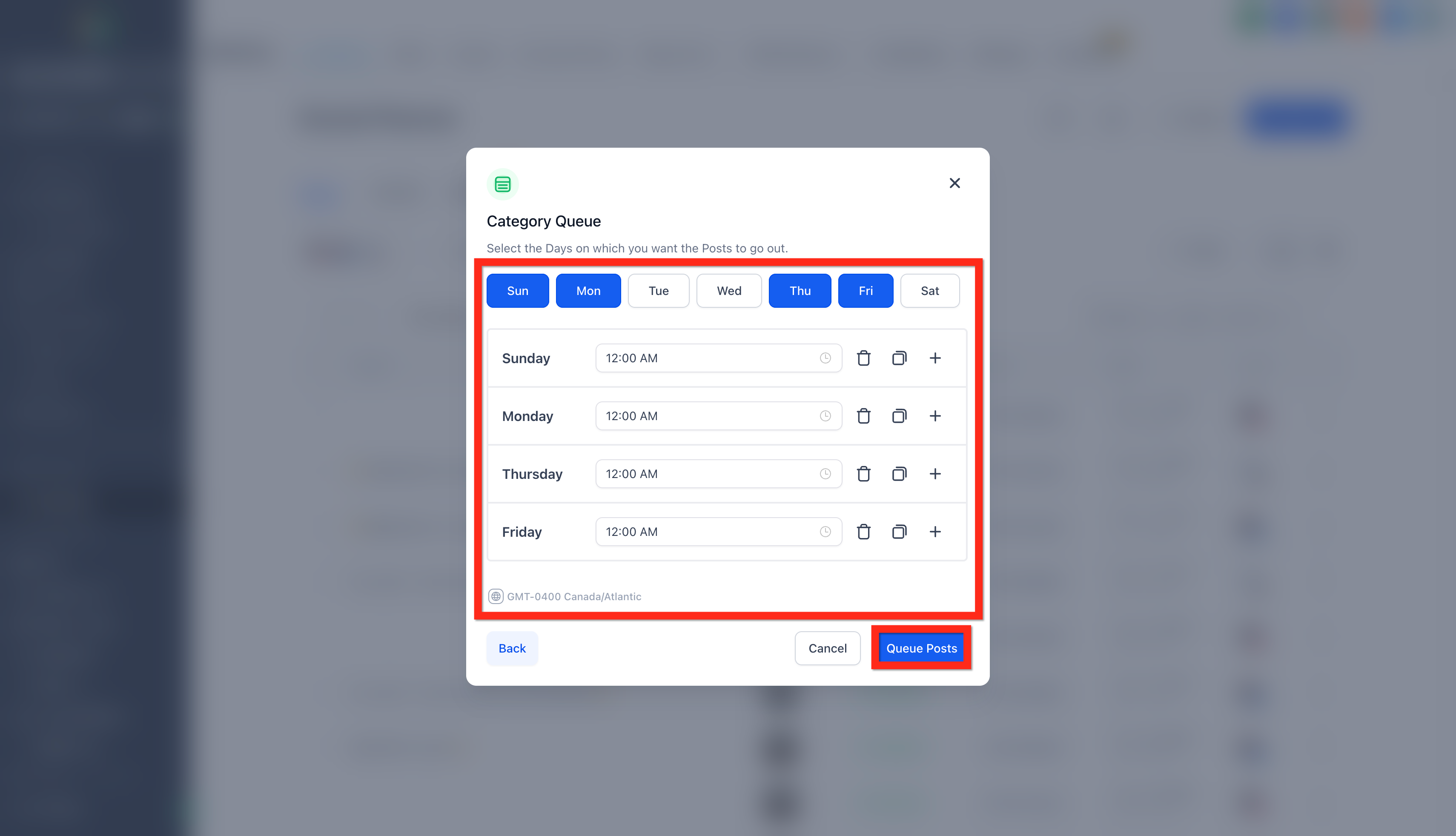
Step 3: Set the Posting Schedule
Section titled “Step 3: Set the Posting Schedule”Select your preferred delivery days and times. Once your timeslots are defined, click Queue Posts.
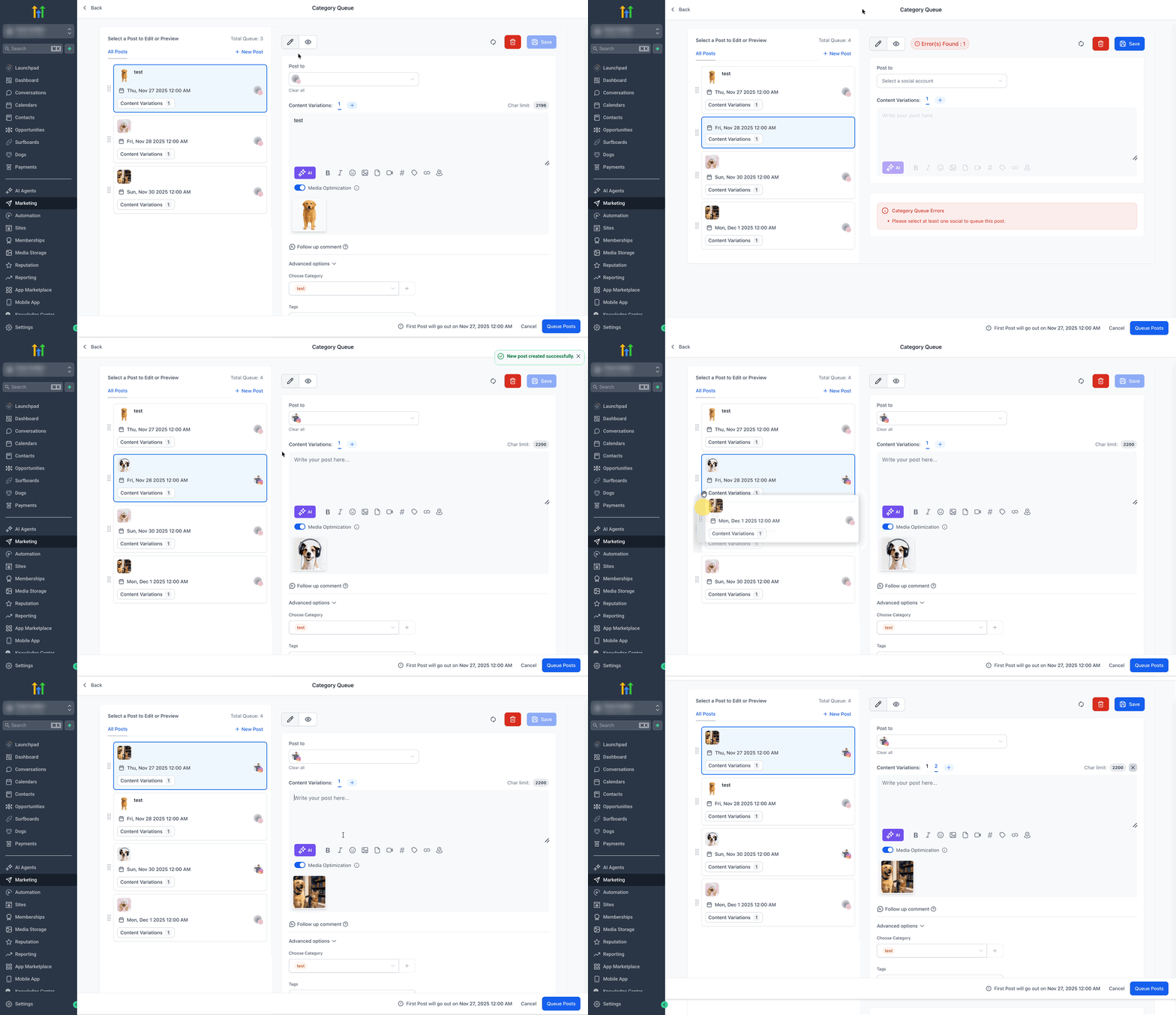
Step 4: Review and Edit the Queue
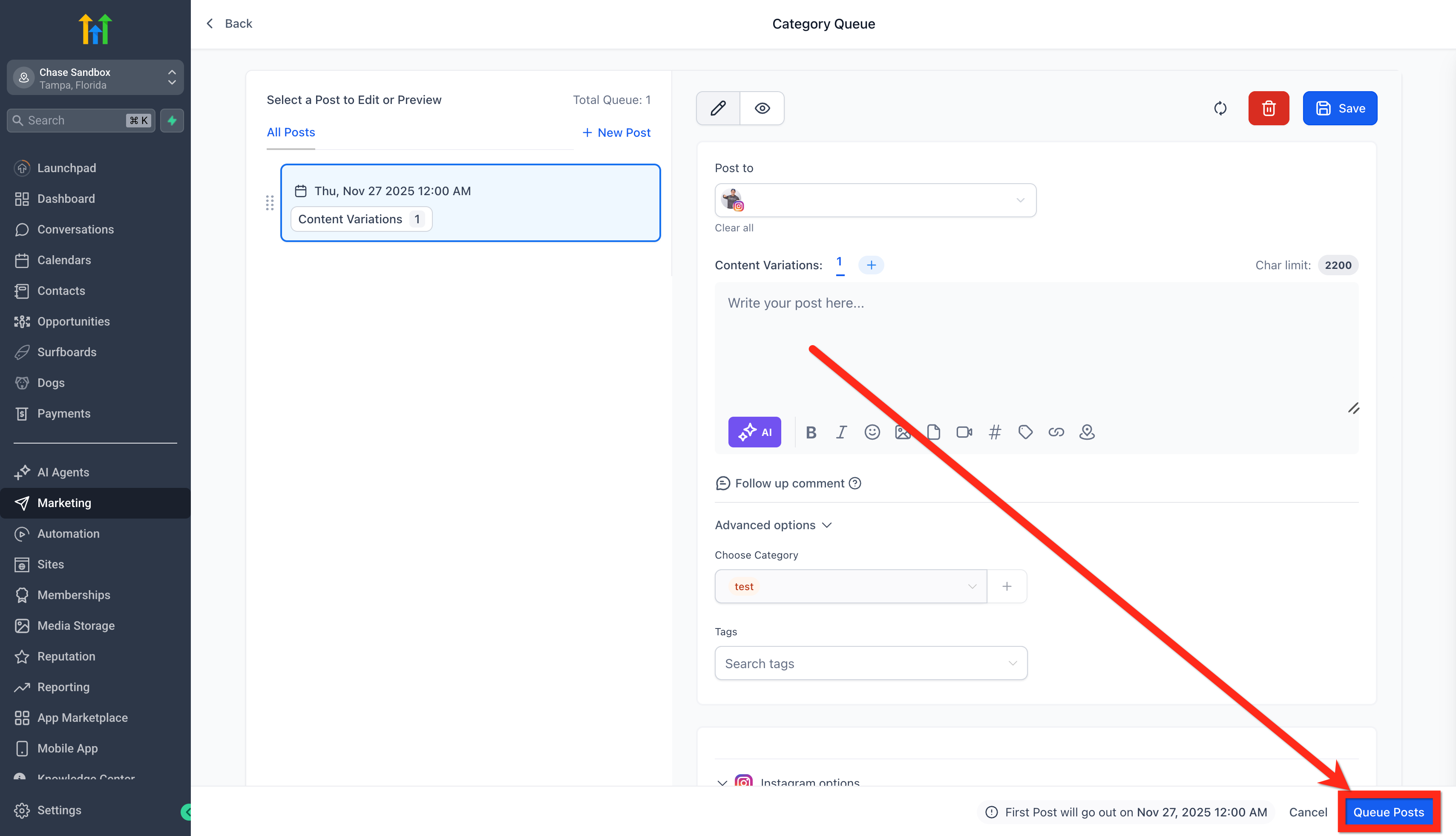
Section titled “Step 4: Review and Edit the Queue”You will be prompted to review your queue. Here you can edit the media or text of any included posts.
- Click on New Post to manually insert a fresh post into the queue at any sequence position.
- You can add multiple variations of a post to shuffle formatting and keep the content unique upon recycling.
- Fix any warnings or errors identified by the system cautions.
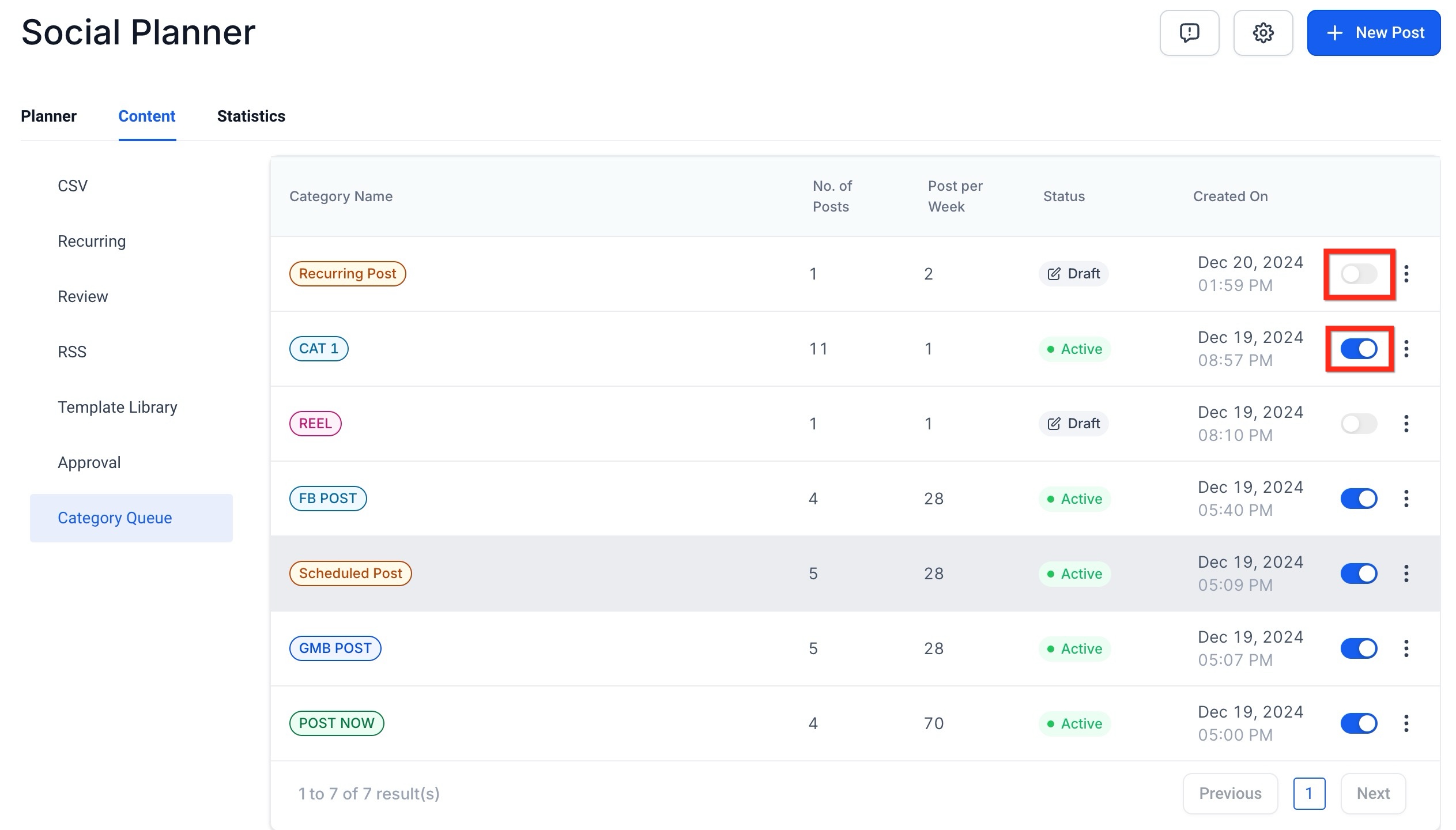
Once ready, click the Queue Post button to finalize the schedule. Alternatively, you can use the actions menu to Save as Draft, Pause, Resume, or Reset the queue at any time from the content tab.
How to Edit an Existing Category Queue
Section titled “How to Edit an Existing Category Queue”You can safely edit, reorder, reschedule, and control how new posts are added to a queue without having to delete and rebuild it from scratch.
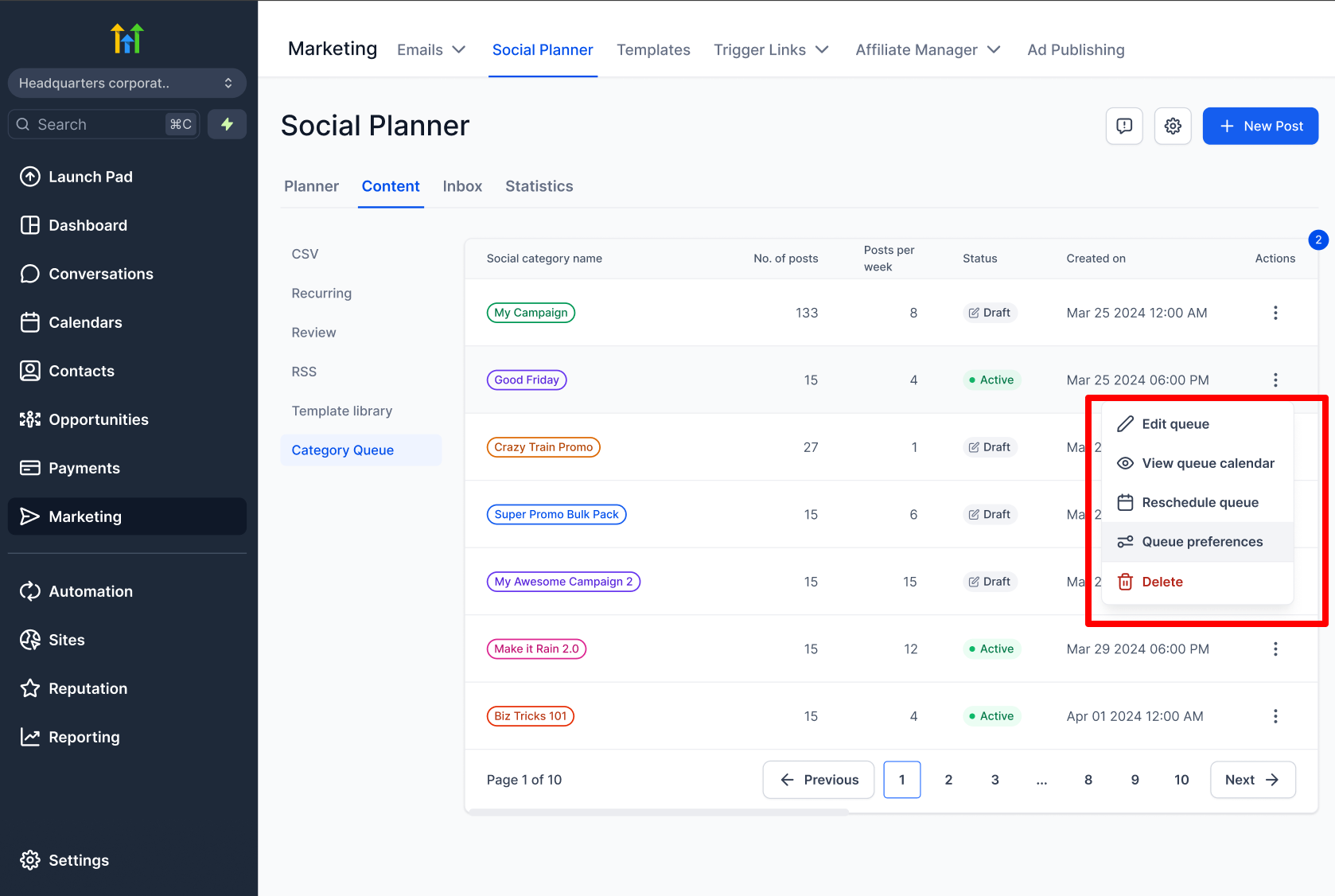
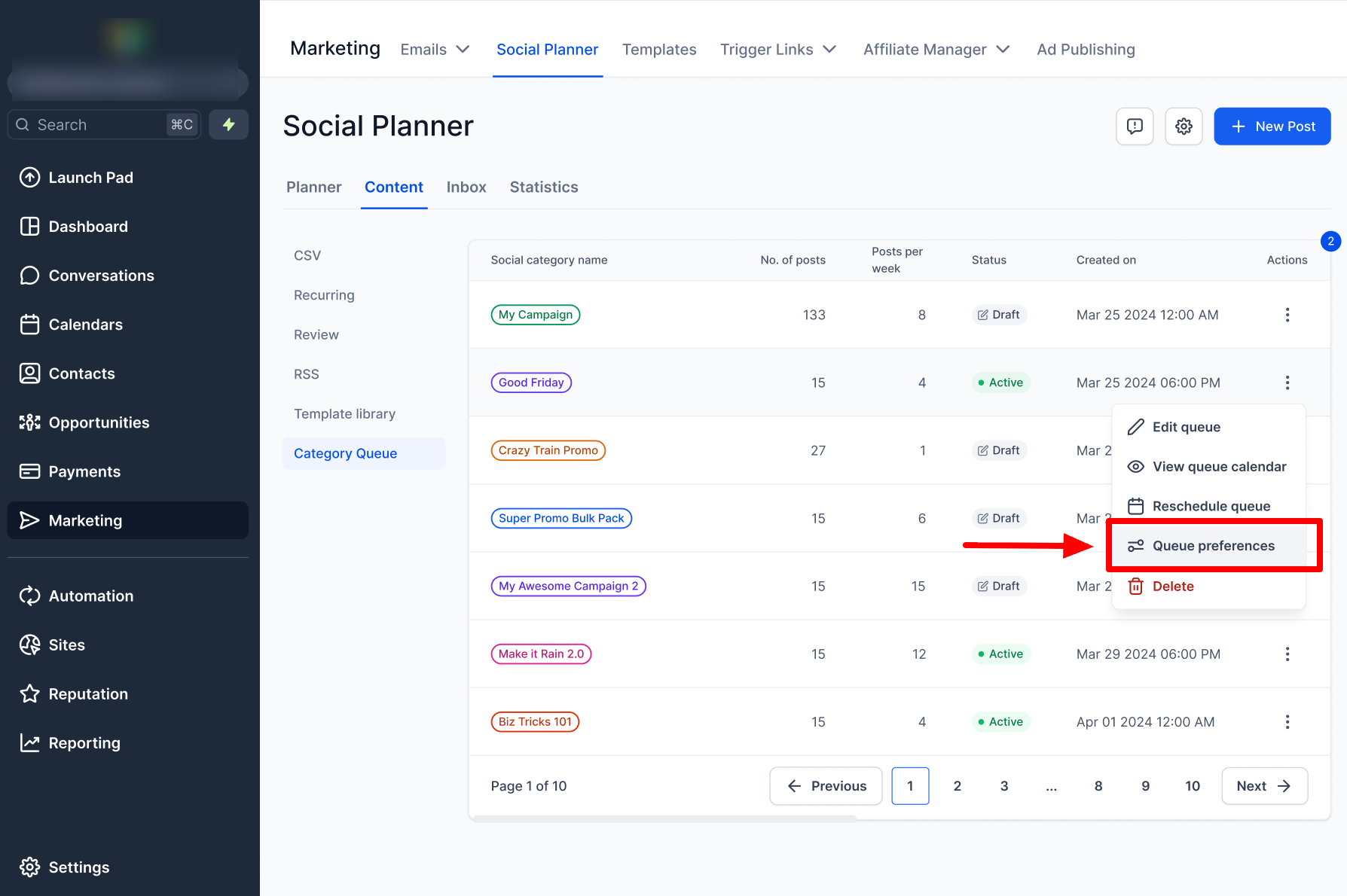
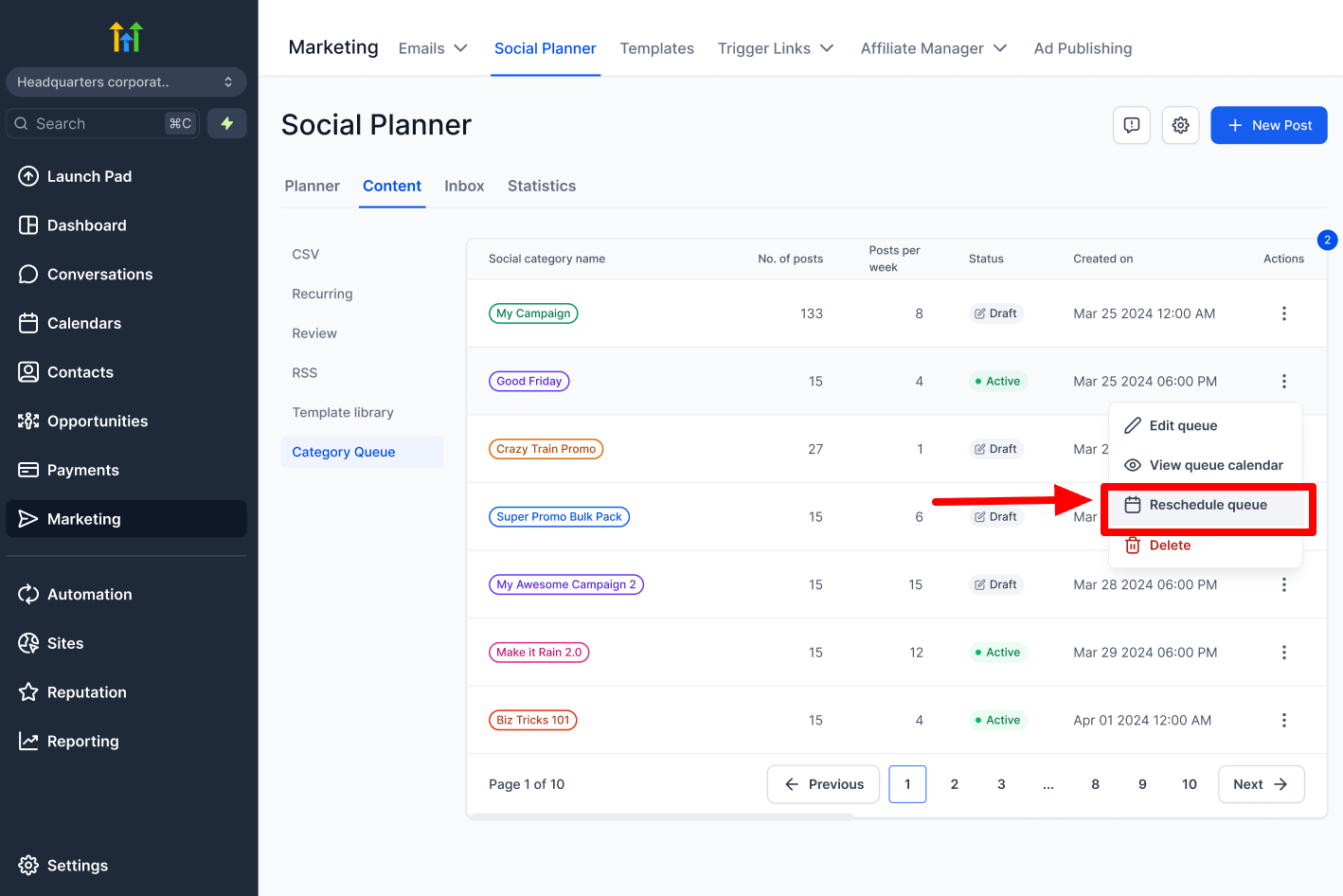
Locate your active Category Queue, click the 3-dot menu, and explore the following editing options:
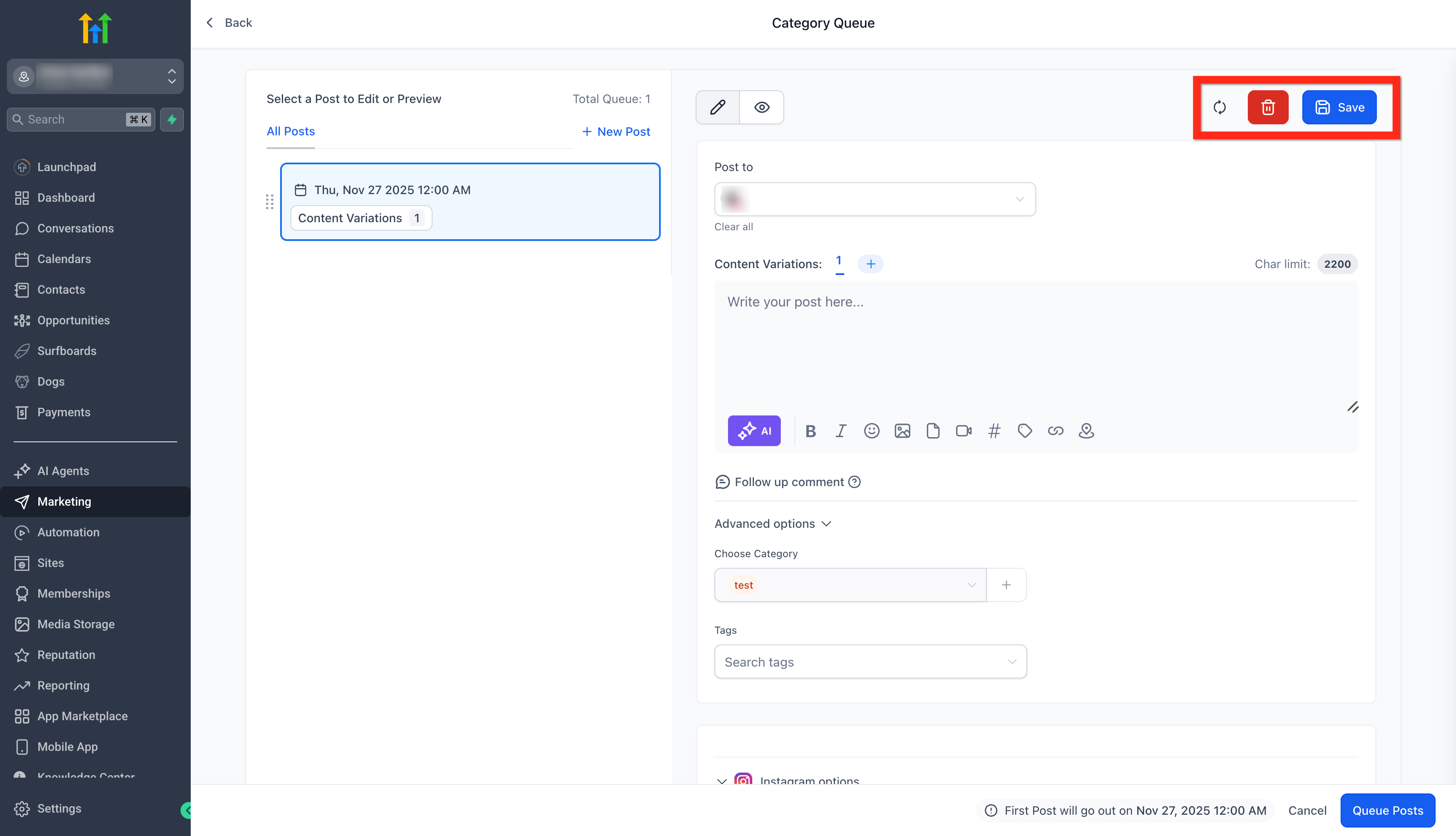
1. Edit Category Queue
Section titled “1. Edit Category Queue”Update the core details of an existing queue:
- Modify post details, captions, and media.
- Adjust the posting frequency and individual timeslots.
- Use drag-and-drop to visually reorder your posts.
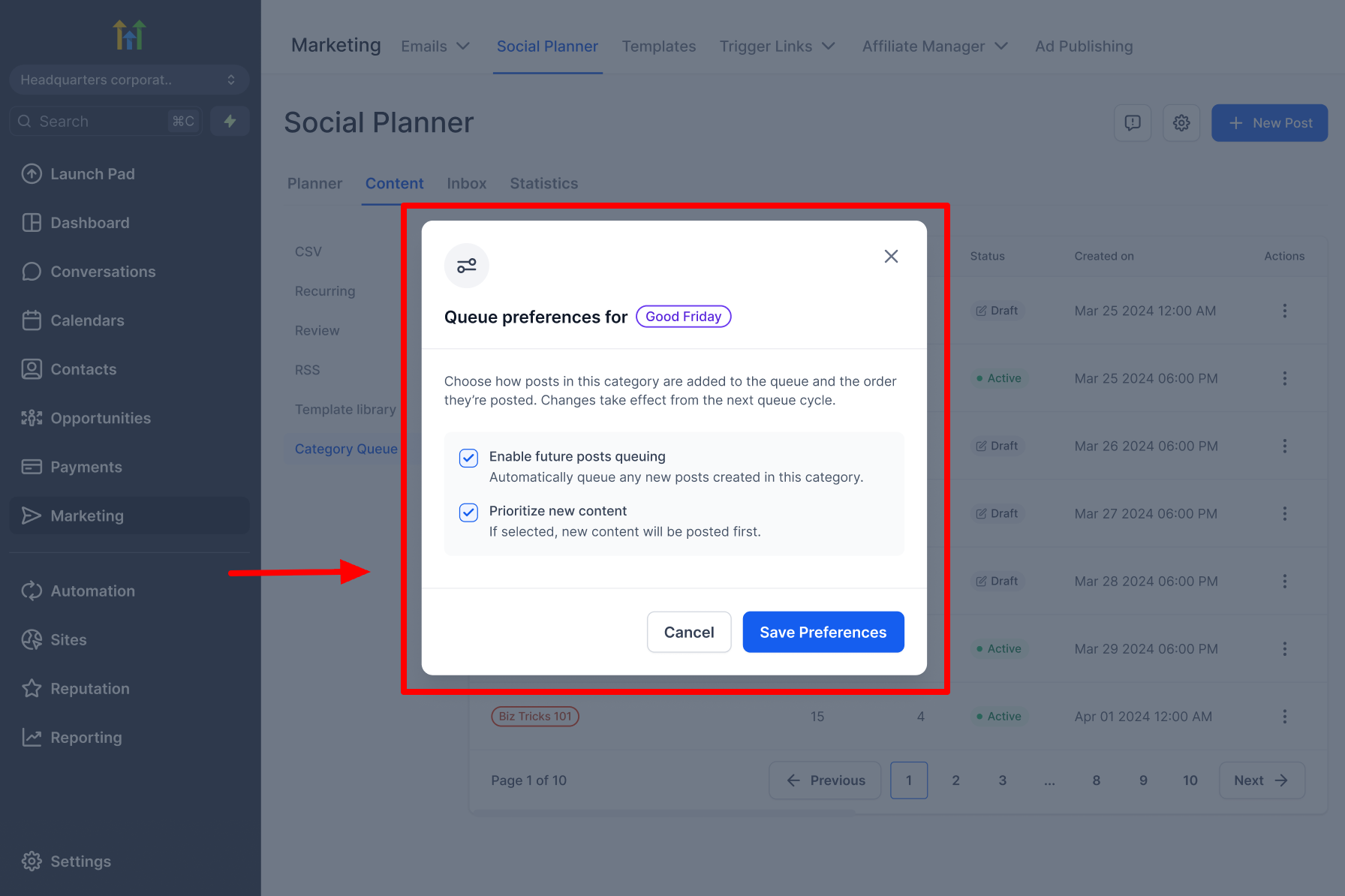
2. Queue Preferences
Section titled “2. Queue Preferences”Control where entirely new posts are placed:
- Prioritize New Content (Checked): The post skips the line and goes to the top.
- Prioritize New Content (Unchecked): The post is added to the back of the queue.
3. View Queue Calendar
Section titled “3. View Queue Calendar”Visually map out your queue to identify gaps or heavy posting days via the Calendar View (Weekly or Monthly format).
4. Reschedule the Entire Queue
Section titled “4. Reschedule the Entire Queue”If a broader marketing campaign shifts, you can move the entire queue to start on a new date using the smart rescheduling picker. The system will auto-adjust all posts according to your frequency rules. (Note: Rescheduling a single standalone post within a queue via the calendar is not supported).
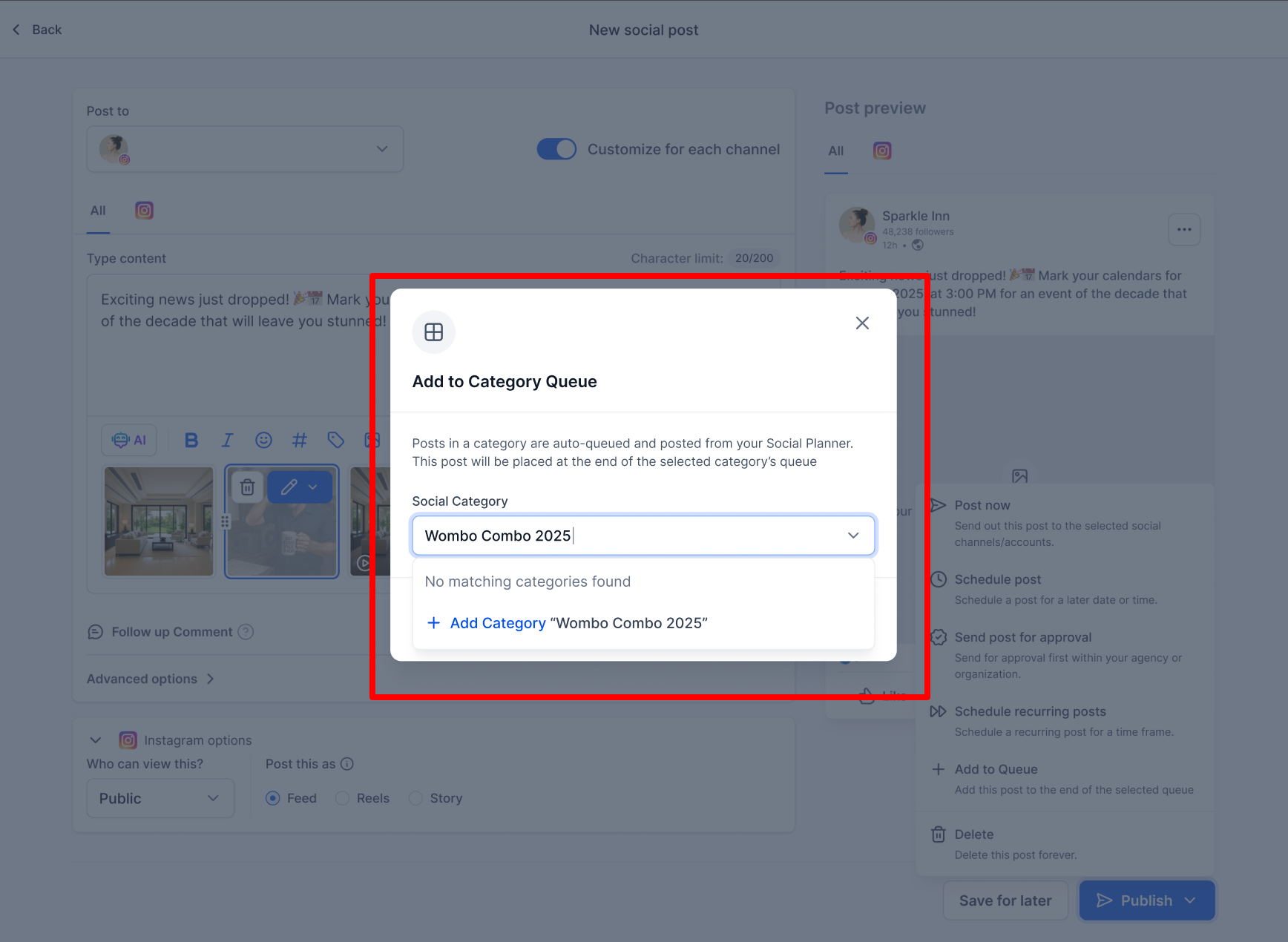
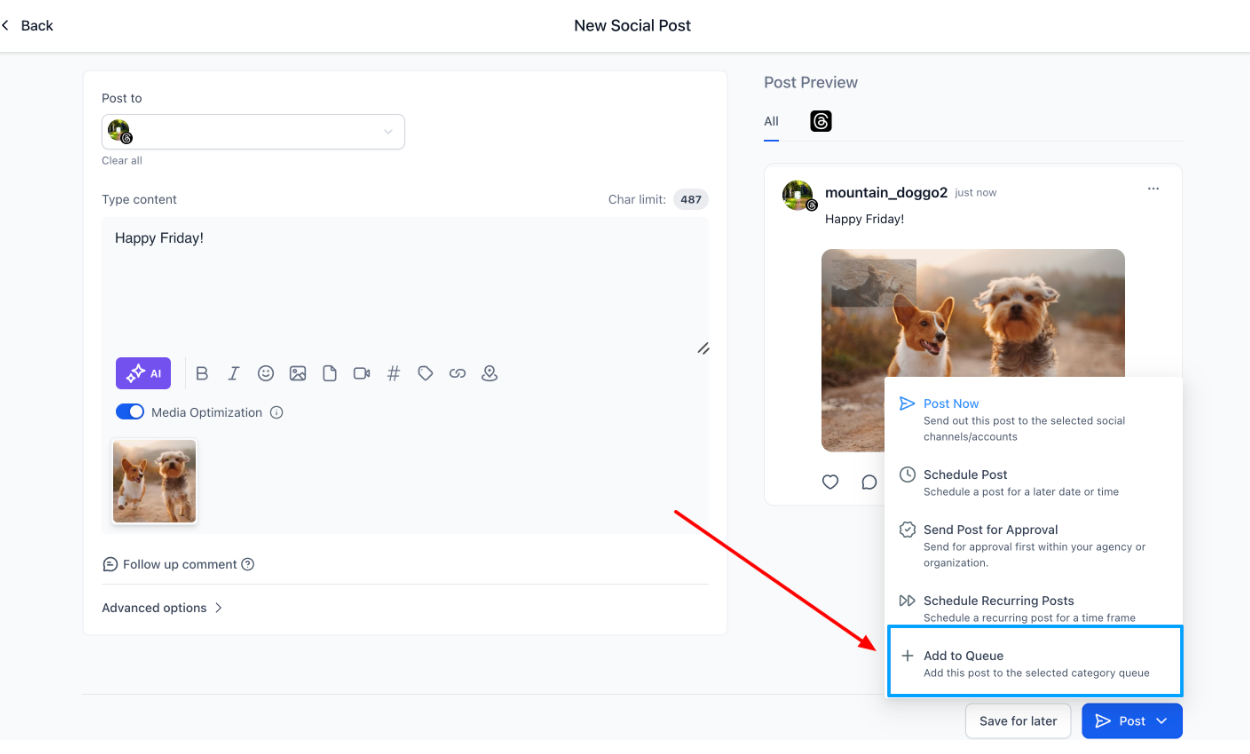
5. Add Posts Directly from the Composer
Section titled “5. Add Posts Directly from the Composer”While composing a standard post, you can send it directly into an active Category Queue using the options at the bottom of the composer.
(See screenshots below for examples of the calendar views, error resolution, and settings panel overview).

Important Pointers
Section titled “Important Pointers”- The content of previously published posts can be fully edited or updated during the creation of the category queue without affecting the original historical post.
- You can confirm a category’s queue status directly in your Settings. Go to Marketing > Social Planner > Settings > Categories to view active badges.
- You can safely pause/resume queues whenever it fits your content cycle.
Frequently Asked Questions
Section titled “Frequently Asked Questions”Q: How can I ensure future posts are automatically added to the queue?
Select the “Enable Future Posting” option during queue creation. Check “Prioritize Content” if those new posts should immediately jump to the front of the line.
Q: Can the category queue be edited to update scheduled dates and times?
Yes. Use the Edit Category Queue action to update standard timeslots, or use Reschedule Entire Queue to shift the entire block to a new start date.
Q: How do I add entirely new posts to an active queue?
Go to Queue → New Post, write your content, optionally create variations, and then move the post to your desired position in the active sequence.
Q: Can I add multiple text/media variations to a single post?
Yes! Variations automatically rotate and shuffle to keep your cycled content appearing fresh and unique across the network.