
Managing Multiple Emails in Contacts
Our platform allows you to associate multiple email addresses—up to 11—with a single contact profile. This is especially helpful for contacts who use different email addresses for personal, business, or project-based communication. You can store these addresses in one place and assign a primary address for all outbound messaging, helping you keep your communications centralized and accurate.
Key Benefits of Managing Multiple Emails
Section titled “Key Benefits of Managing Multiple Emails”Managing multiple emails for a single contact streamlines communication and prevents duplicate entries in your CRM.
- Maintain multiple email addresses under one unified contact profile.
- Assign one primary email address for all outbound communication.
- Store secondary email addresses for future support or tracking.
- Import multiple emails for a contact using CSV imports.
- Merge duplicate contacts and retain all associated email addresses automatically.
How to Add Additional Email Addresses
Section titled “How to Add Additional Email Addresses”Sometimes, a contact may use multiple email addresses for different purposes. Our platform allows you to store up to 11 email addresses per contact, ensuring that all relevant emails are accessible within a single profile. You can manually add up to 10 additional emails per contact.
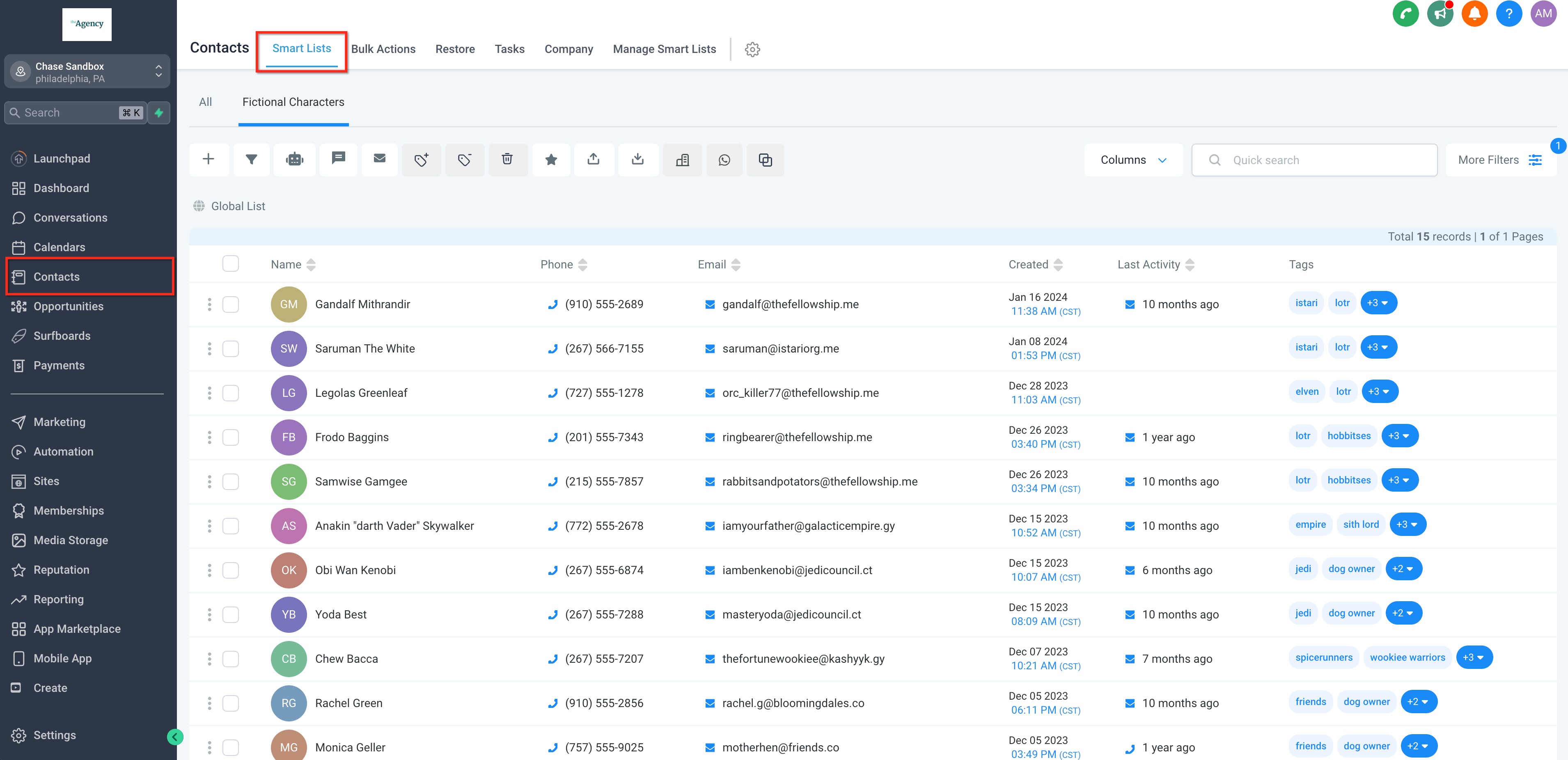
Step 1: Open a Contact Profile
Section titled “Step 1: Open a Contact Profile”Navigate to the Contacts module and click on an individual contact to open their profile details.
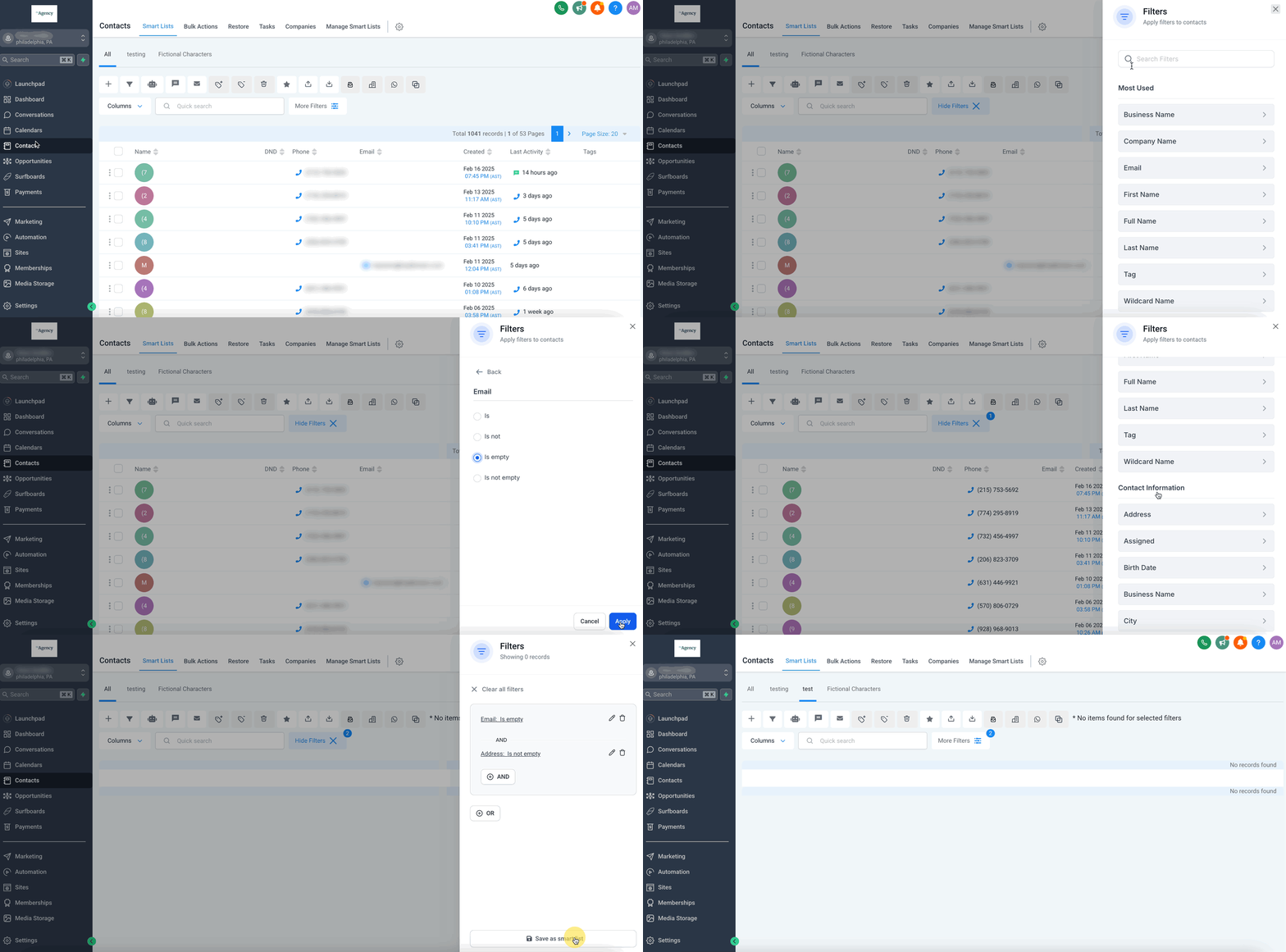
Step 2: Scroll to the Email Address Field
Section titled “Step 2: Scroll to the Email Address Field”Click the Contact tab inside their profile and scroll down to locate the Email Address field.
Step 3: Add the New Email
Section titled “Step 3: Add the New Email”Click + Add Another Email, enter the new email address, and click Save Changes.
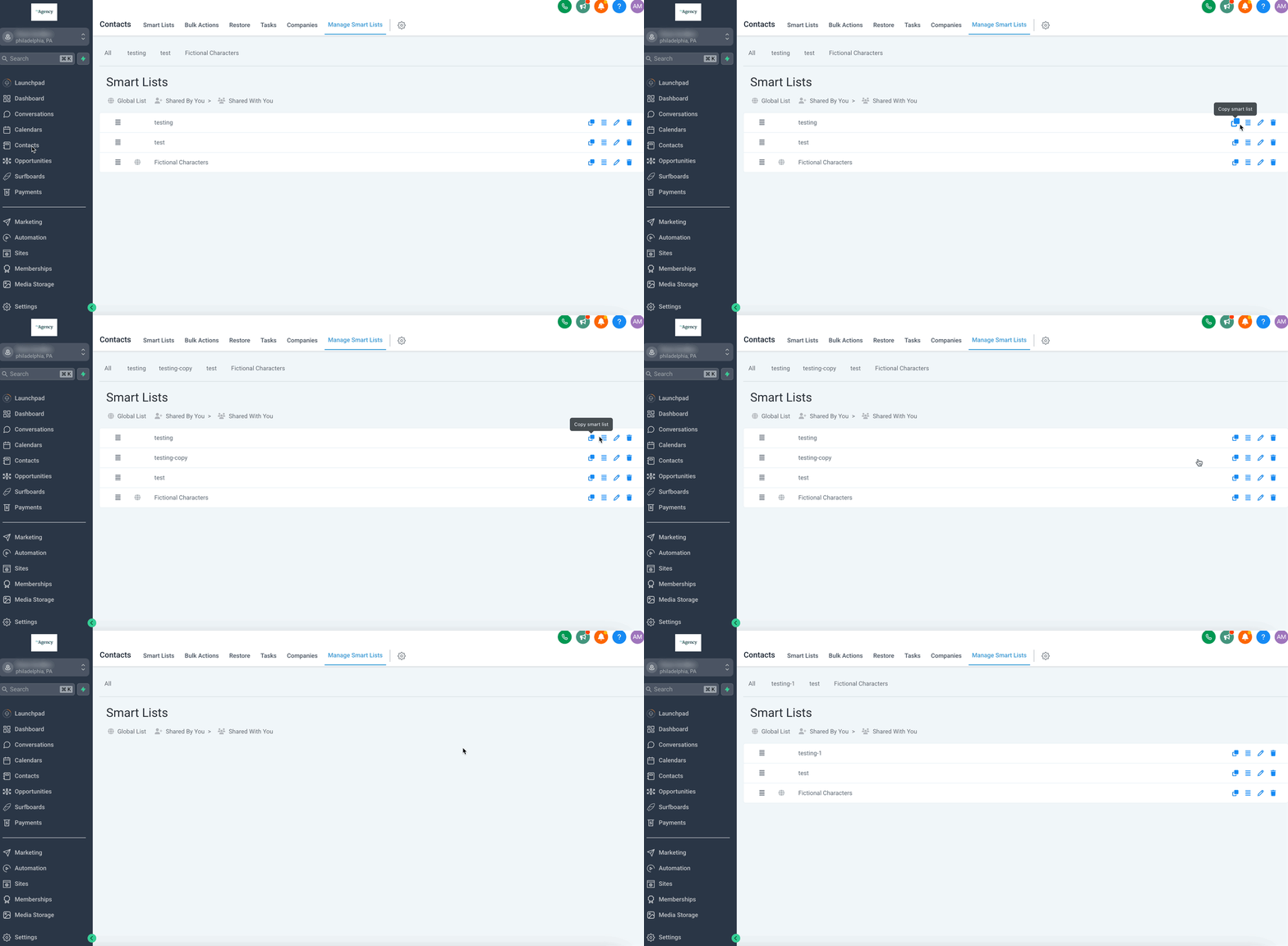
Note: You can add up to 10 additional email addresses (for a total of 11, including the primary). The Add Email button will disappear after the maximum limit is reached.
Selecting the Primary Email Address
Section titled “Selecting the Primary Email Address”While you can associate multiple email addresses to a contact, only one email can be designated as the Primary Email for outbound communications.
To set or change the primary email address:
- Scroll to the Email Address section within the contact profile.
- Click the Star icon next to the specific email address you want to designate as primary.
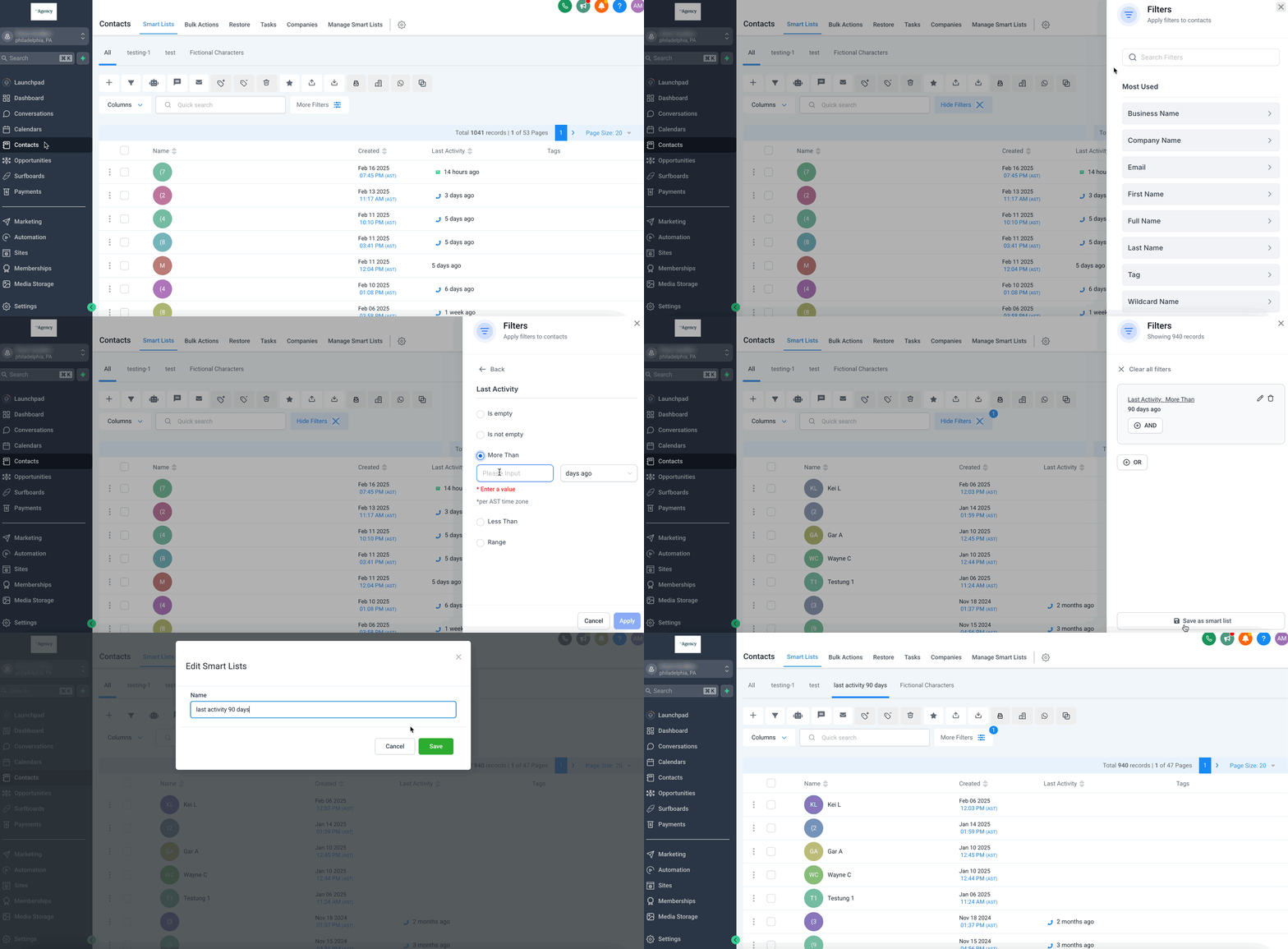
Important: The primary email will be used by default for all email campaigns, automations, and manual outbound emails. Secondary email addresses remain stored and may be used for future email communication support or historical tracking.