
Contacts - Export as CSV Upgrade
The Contact Export system has been upgraded from a browser-based tool to a scalable backend service. Instead of waiting for a CSV to download in the foreground, your export job is queued on our servers, processed in parallel, and tracked in real time from the Bulk Actions dashboard.
This allows you to continue working uninterrupted while the system handles the heavy lifting. Once complete, a ready-to-download file appears in Bulk Actions and remains available for 30 days.
Key Benefits of the Export Upgrade
Section titled “Key Benefits of the Export Upgrade”- Work Uninterrupted: Exports run asynchronously, so there is no UI blocking. You can navigate away and continue your work.
- Scales to Big Data: Higher reliability and fewer failures, even when processing multi-million-row datasets.
- Real-time Visibility: Track exactly how many records have been processed from the Bulk Actions page.
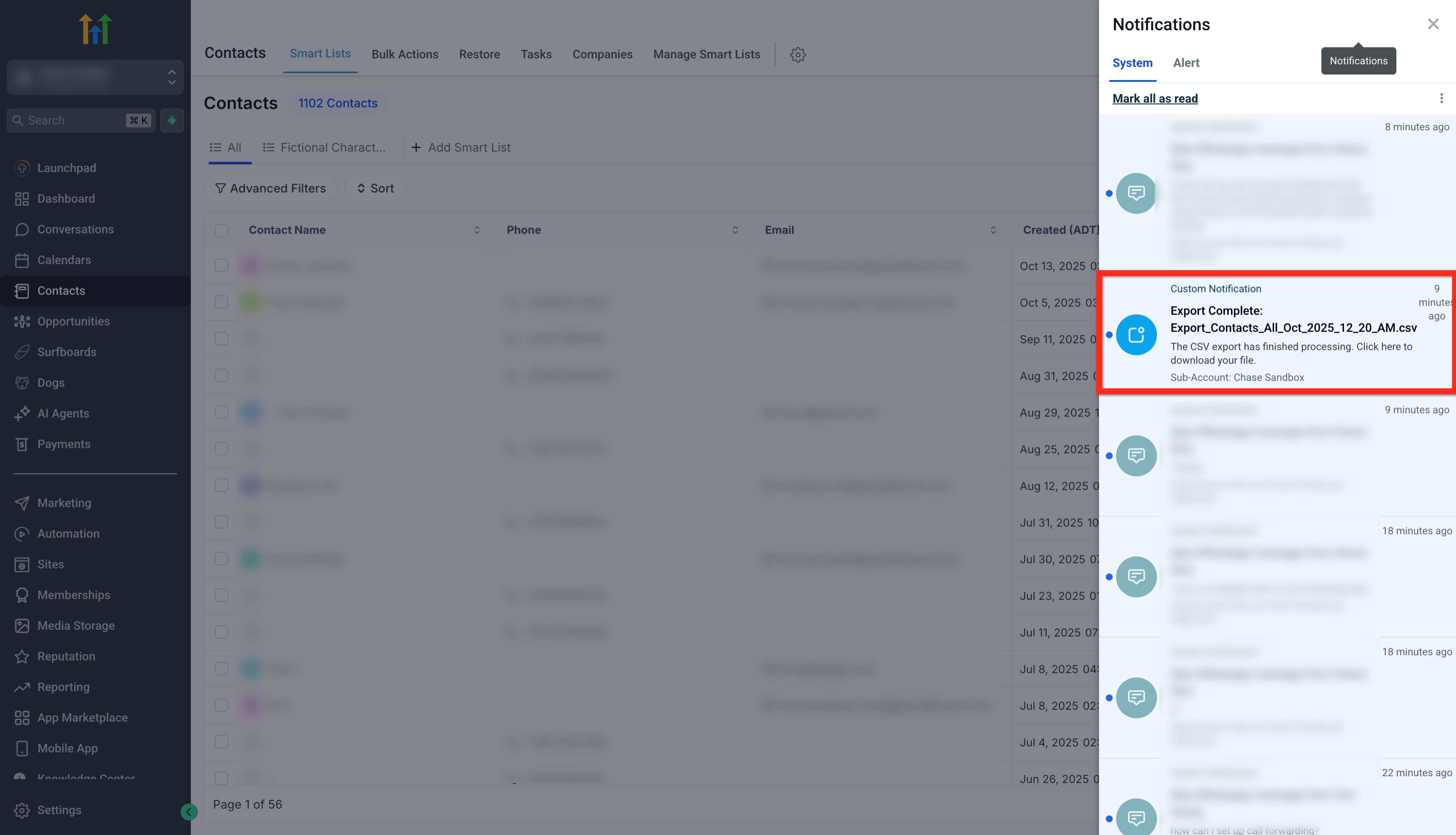
- Hands-free Alerts: Get a push notification the moment your file is ready—no need for manual checks.
- Built-in Retention: Your files are stored securely in the cloud for 30 days, protecting against accidental local loss.
- Controlled Access: Only users with Admin level permissions can initiate and download exports, supporting security compliance.
Why Export Your Contacts?
Section titled “Why Export Your Contacts?”Exporting your database into a CSV file is essential for several core business use cases:
- CRM Migration: Moving your database to a different platform or consolidated storage.
- Marketing & Outreach: Preparing targeted lists for external email or SMS campaign providers.
- Data Backup & Security: Maintaining a secure, offline copy of your vital contact records.
- Team Collaboration: Sharing specific segments or lead lists with partners or colleagues.
- Analytics & Reporting: Using spreadsheet tools to generate deeper insights and custom reports.
Prerequisites and Limitations
Section titled “Prerequisites and Limitations”- File Format: All exports are generated in standard CSV format, compatible with Excel, Google Sheets, etc.
- Note Truncation: Large notes (exceeding 255 characters) may be truncated in the exported CSV.
- History Logs: Exports include profile data and custom fields but do not include historical automation logs (e.g., sent emails/SMS).
- Permissions: Only Admin Users can export contacts. If the option is missing, please contact your account administrator.
How to Export Contacts as a CSV
Section titled “How to Export Contacts as a CSV”Step 1: Navigate to the Contacts Page
Section titled “Step 1: Navigate to the Contacts Page”Head to the Contacts module in your dashboard and click on the Smart Lists tab.
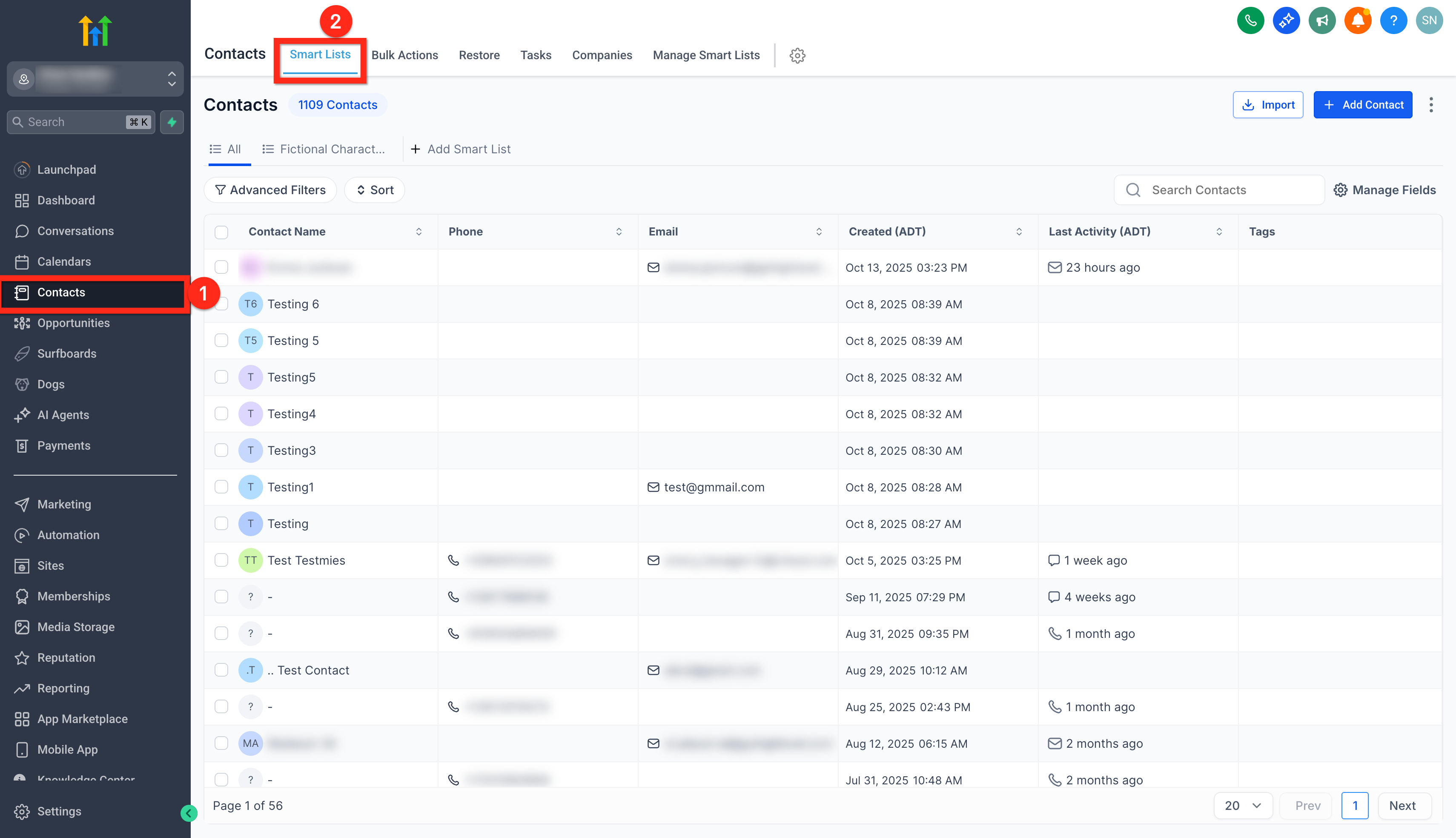
Step 2: Selecting Contacts for Export
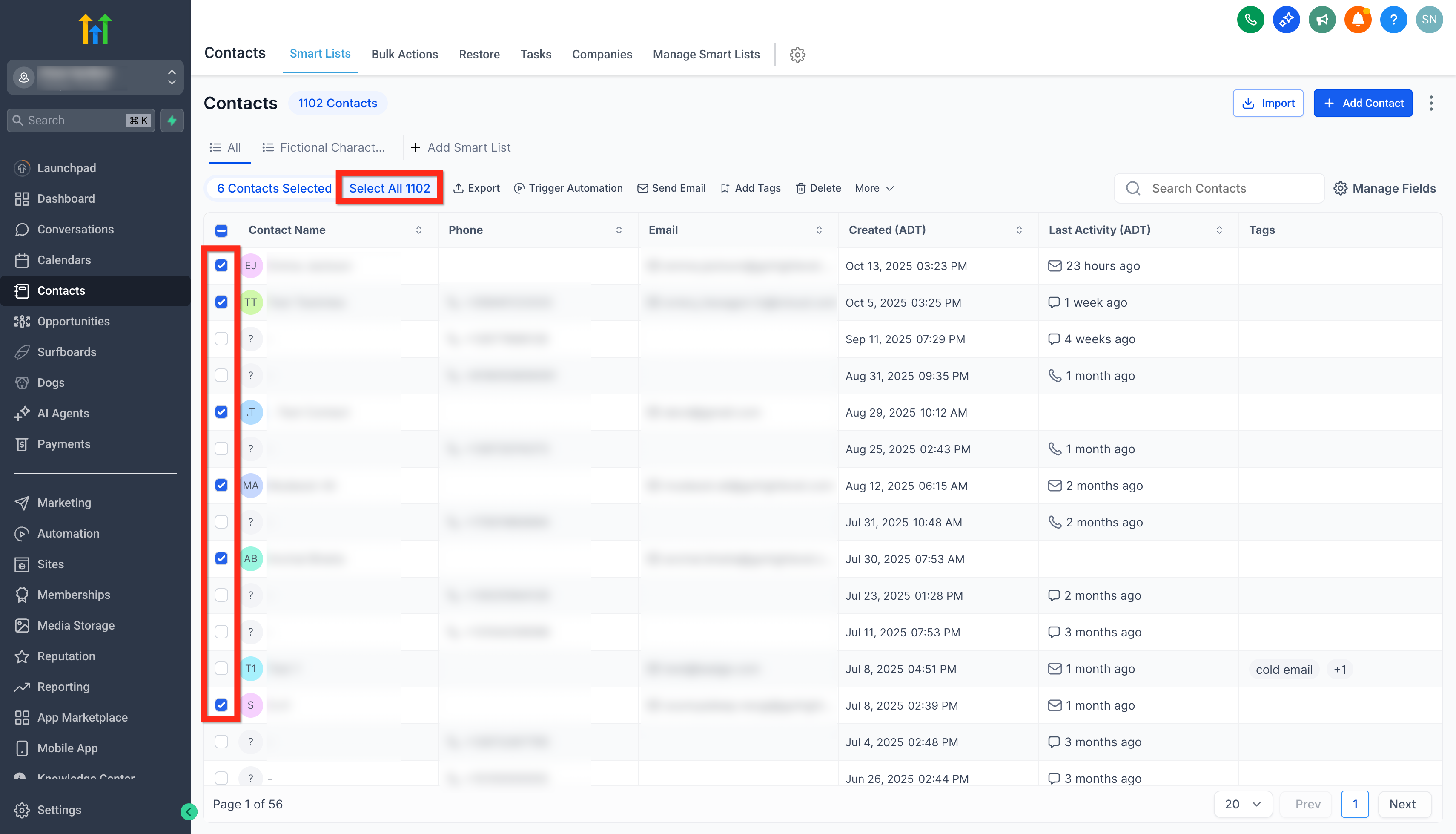
Section titled “Step 2: Selecting Contacts for Export”Use Advanced Filters to refine your selection if needed. Check the boxes next to specific contacts, or click the master checkbox at the top left and select “Select All Contacts” to export your entire database.
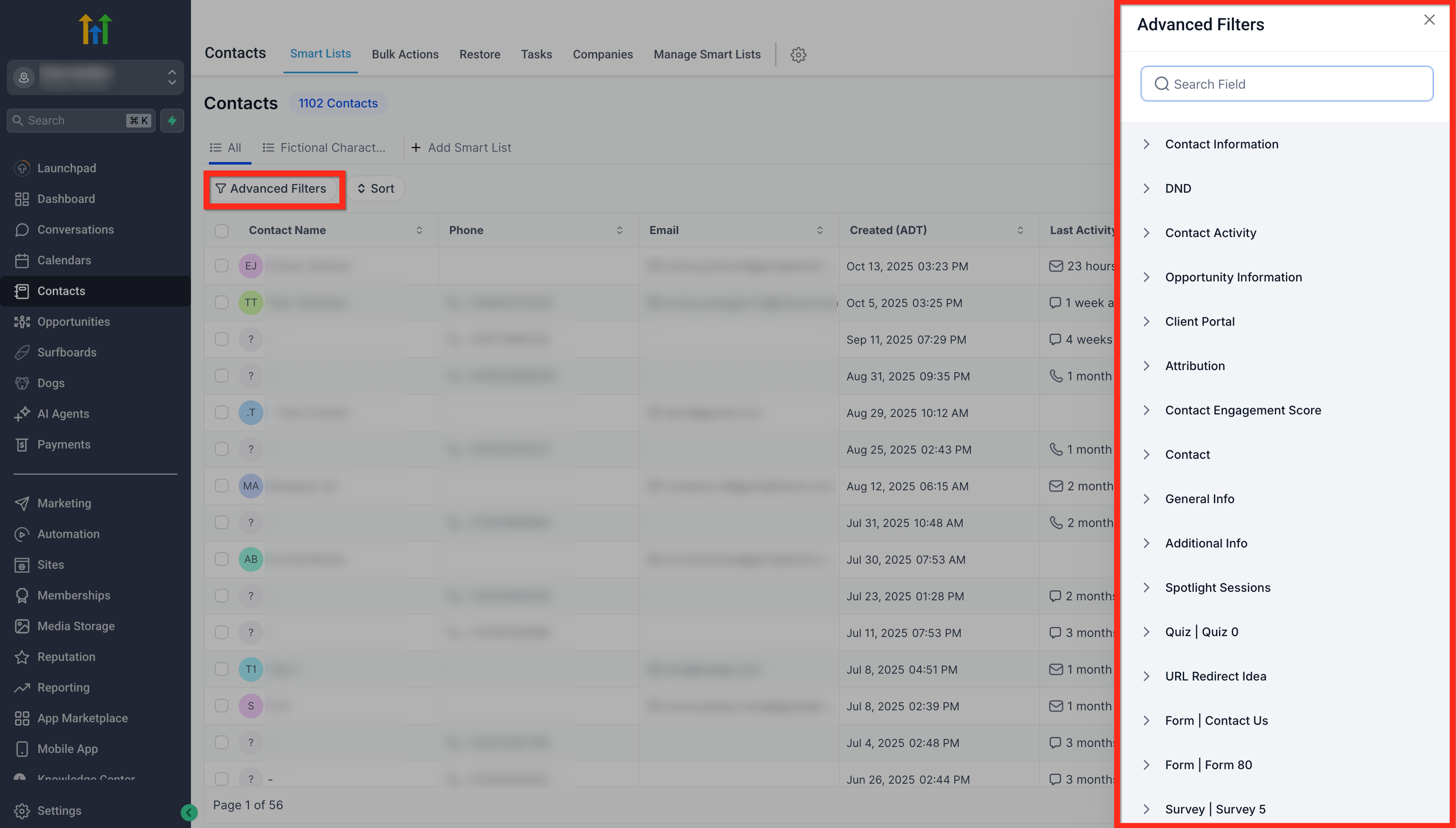
Step 3: Customize Fields (Optional)
Section titled “Step 3: Customize Fields (Optional)”The CSV will only contain the columns that are currently visible in your table view.
- Click the Manage Fields button.
- Check or uncheck boxes to include or exclude specific data columns.
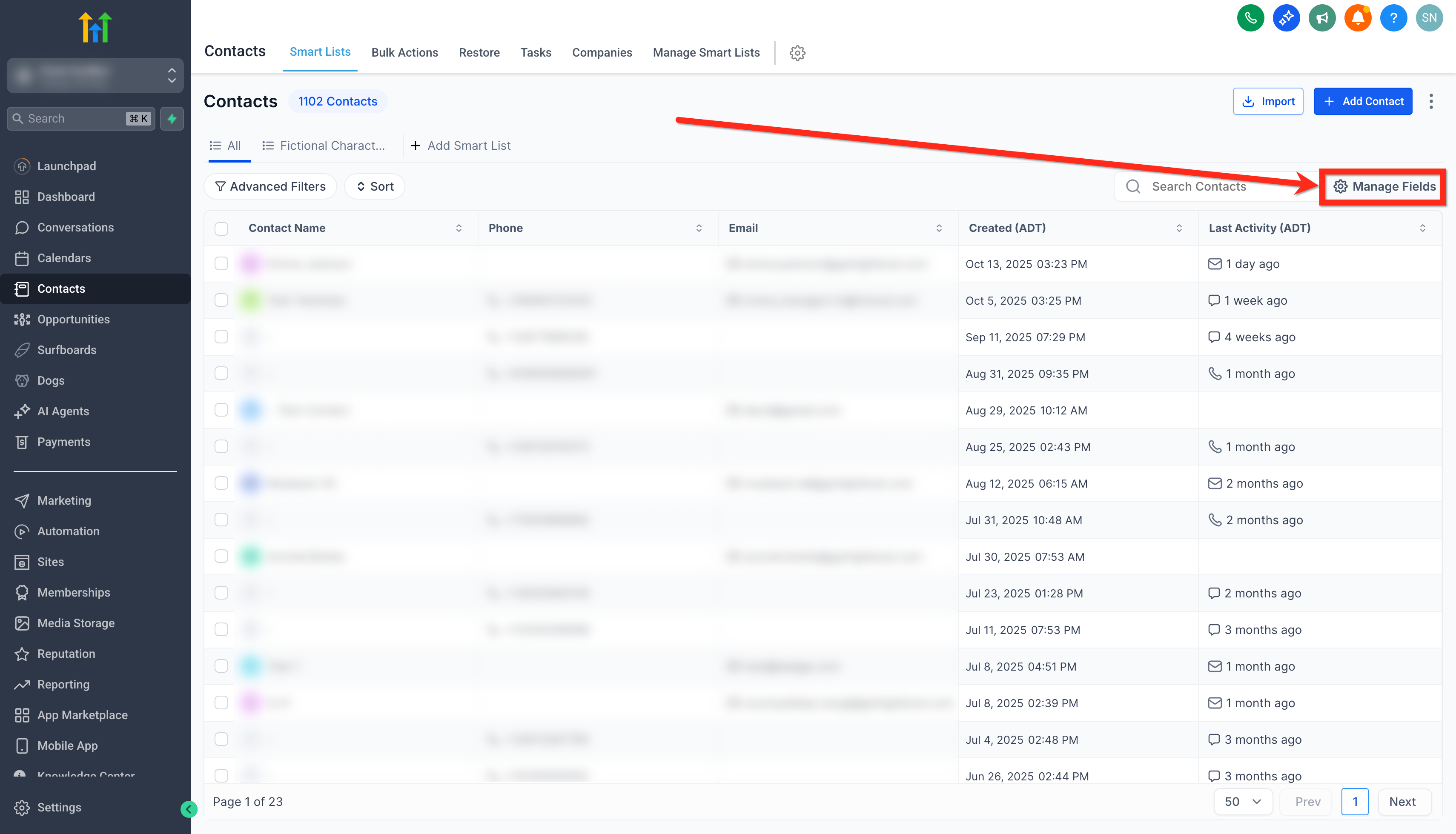
Step 4: Initiate the Export
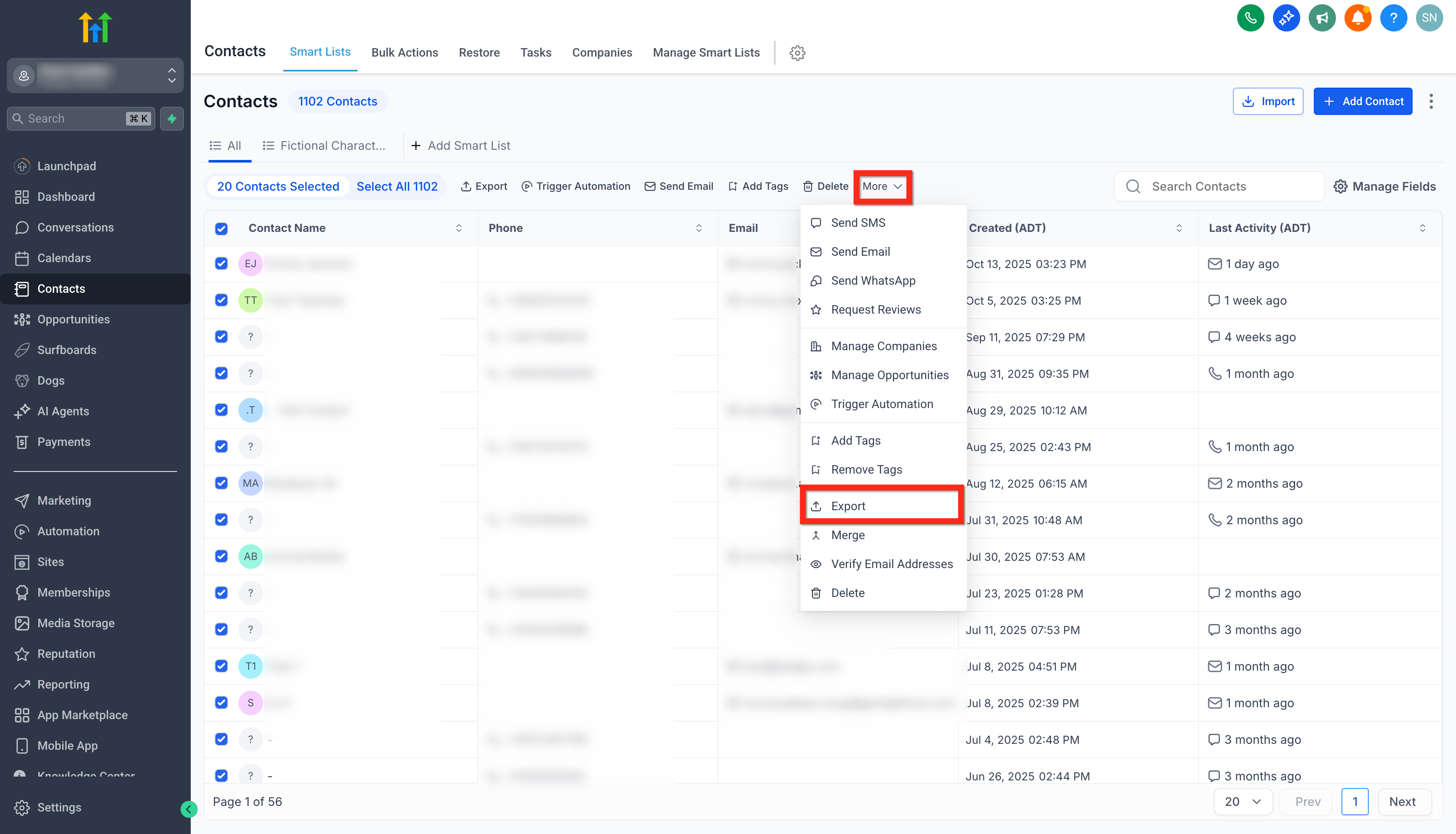
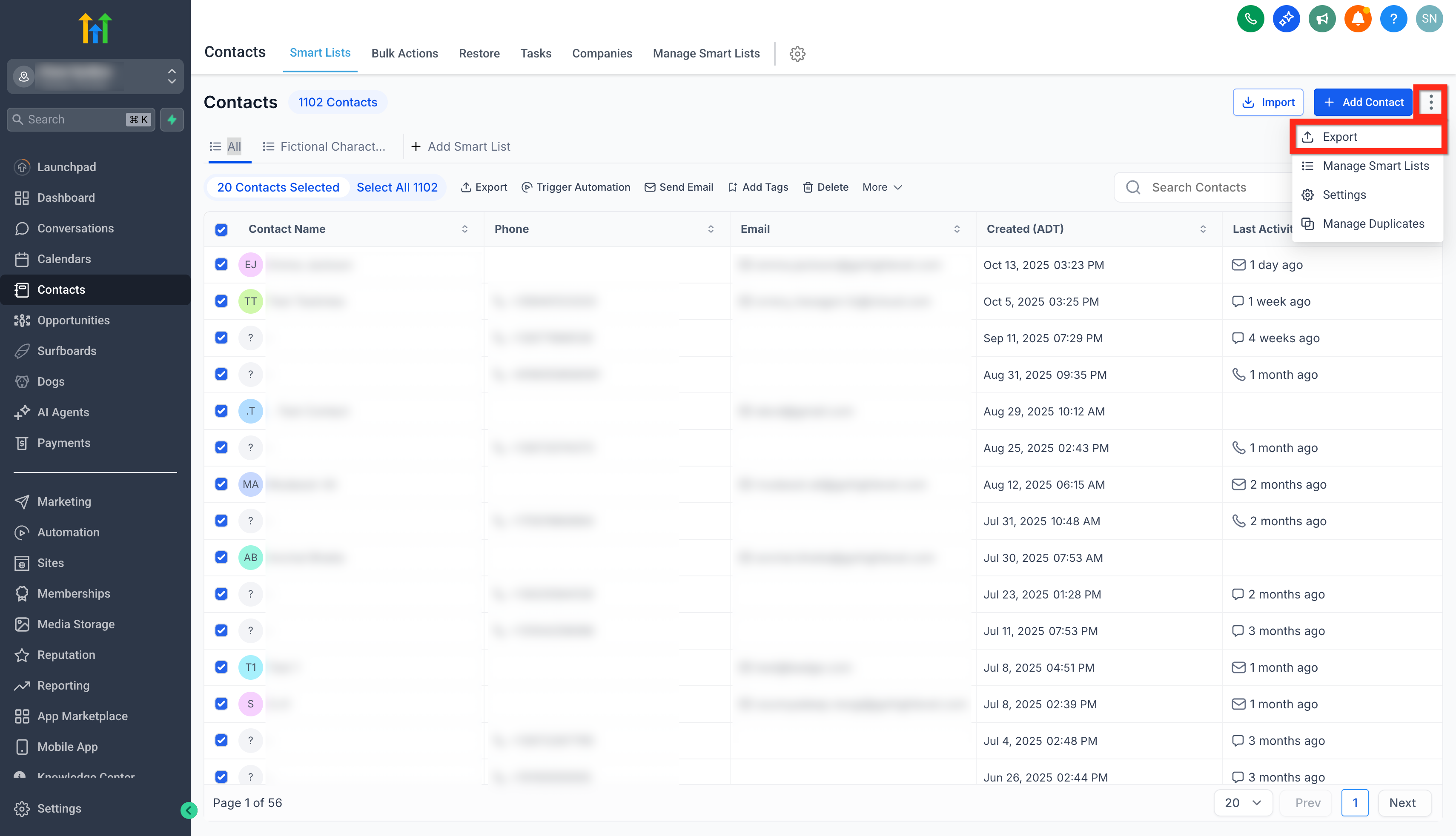
Section titled “Step 4: Initiate the Export”Click More in the top action bar and select Export. Alternatively, you can click the three dots (ellipsis) next to the “Add Contact” button and select Export.
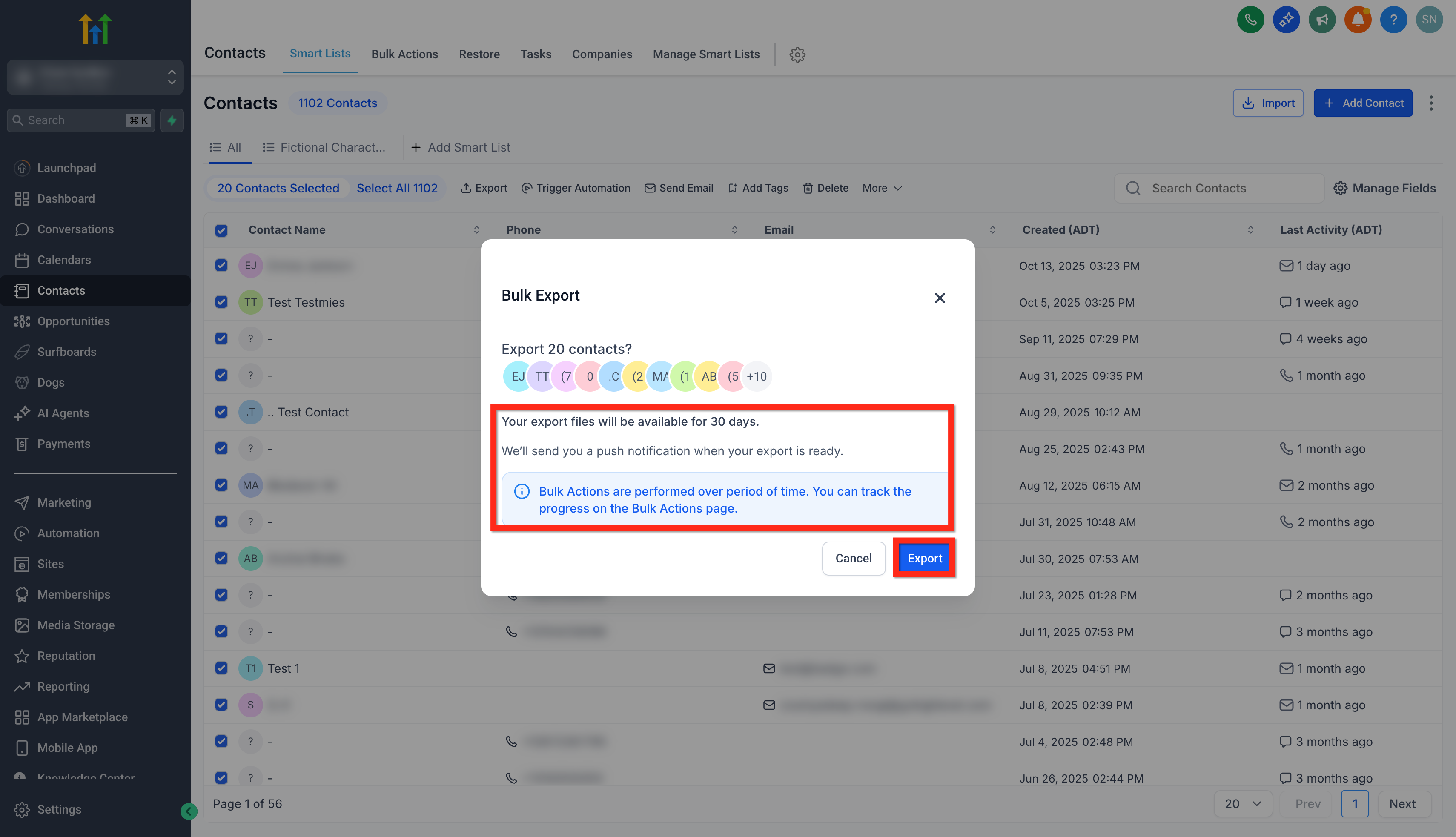
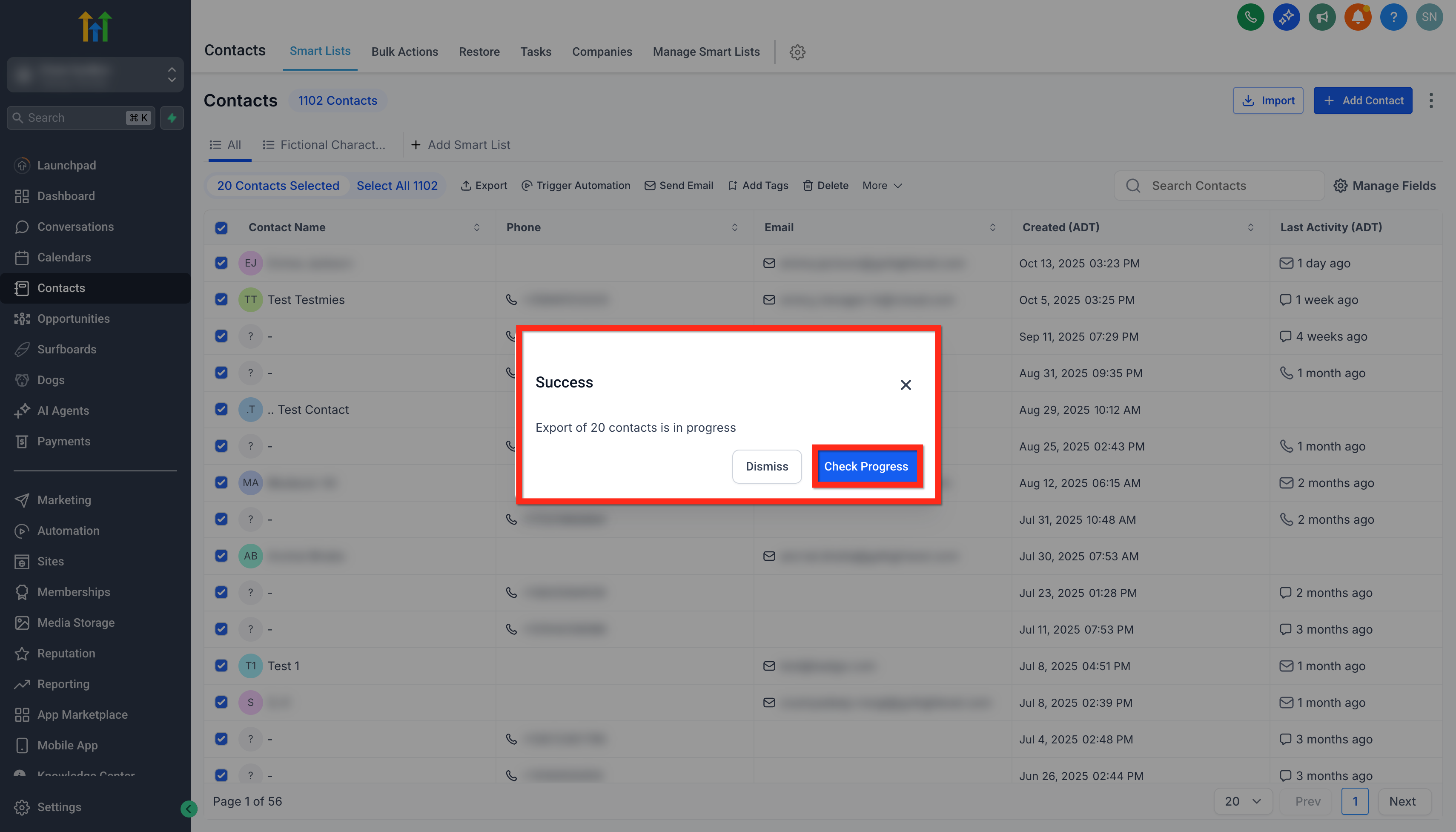
Confirm your selection in the modal and click Export. You will see a success message, and you can click Check Progress to view the status in Bulk Actions.
Step 5: Downloading from Bulk Actions
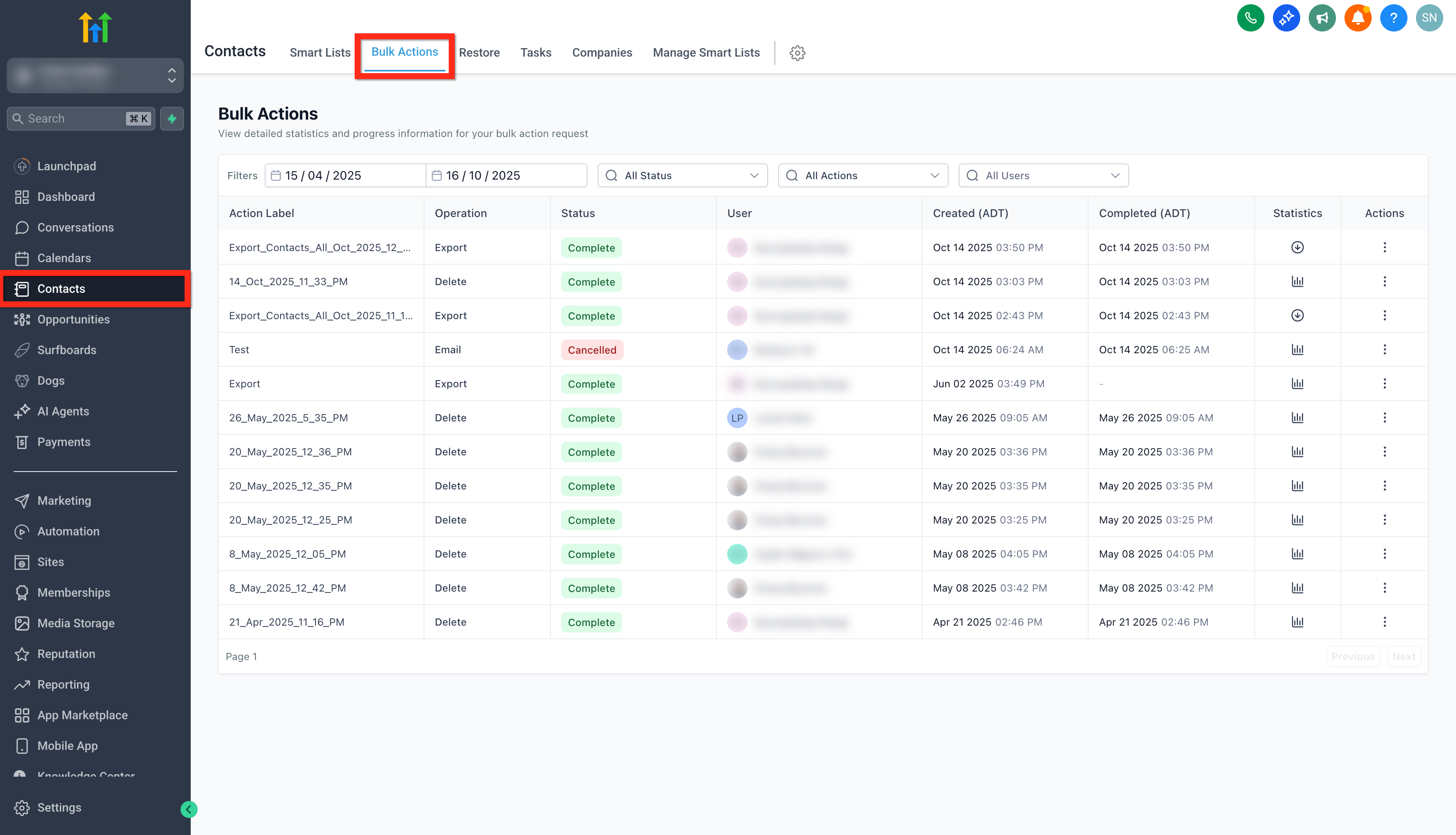
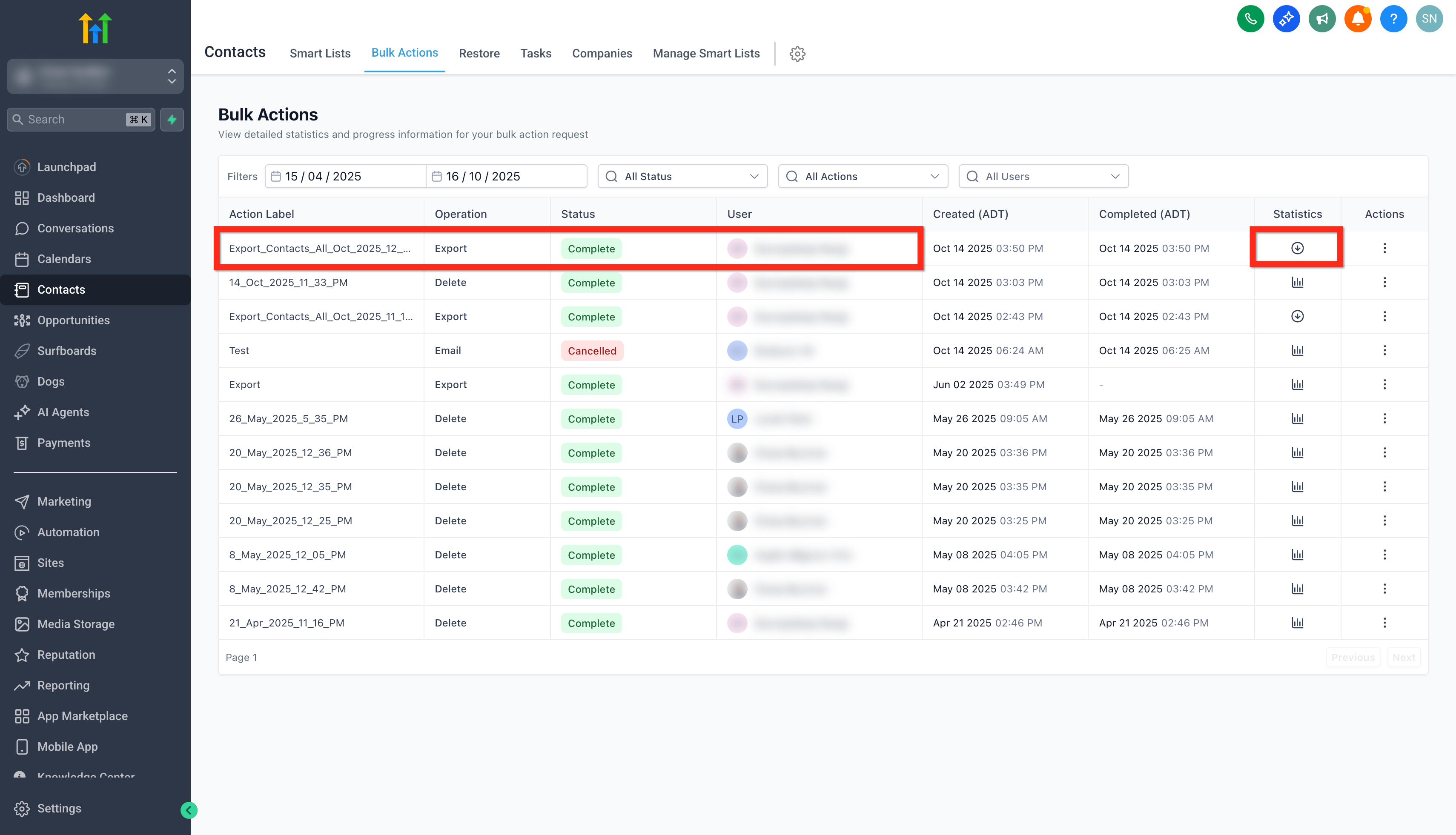
Section titled “Step 5: Downloading from Bulk Actions”Navigate to Contacts > Bulk Actions. Locate your export row (Operation: Export), wait for the status to show Complete, and click the Download (Down Arrow) icon.
Frequently Asked Questions
Section titled “Frequently Asked Questions”Q: Where will the file be downloaded to? Once you click the download icon in Bulk Actions, the file is saved to your device’s local storage (usually your “Downloads” folder).
Q: Can I export only specific data fields? Yes. Use the “Manage Fields” button to customize your table columns before exporting. The CSV will reflect exactly what you see on your screen.
Q: What happens if a contact’s latest note exceeds 255 characters? Only the latest note (up to 255 characters) is included. If the note is longer, it will be truncated to fit the limit.
Q: Can I export contacts from multiple accounts or locations simultaneously? No. You must export contacts separately for each individual sub-account or location. You can then combine the CSV files manually in a spreadsheet application.
Q: Is it possible to schedule automatic exports of contact data? This feature is not available currently. All exports must be initiated manually by a user.
Q: Who can download exported files? Only Admin-level users (such as Workspace or Location Admins) can initiate and download completed exports from the Bulk Actions dashboard.
Q: How long are exported files available? Export files remain available for 30 days. After this period, the file is disabled and deleted from our cloud storage for security.
Q: How do I import the exported .csv file into another platform? Most platforms have an import tool. Simply follow their mapping instructions to link our CSV columns to their system fields.