How to connect to your Google My Business Location(s)
Google My Business (GMB) is one of the most reliable platforms to manage your localized online presence. Providing authentic, up-to-date details directly to your audience helps build trust, foster personalized relationships, and ultimately drive more foot traffic and engagement to your business.
How to Connect Your Google My Business Profile
Section titled “How to Connect Your Google My Business Profile”Connecting your location allows you to manage GMB posts directly alongside your other social campaigns.
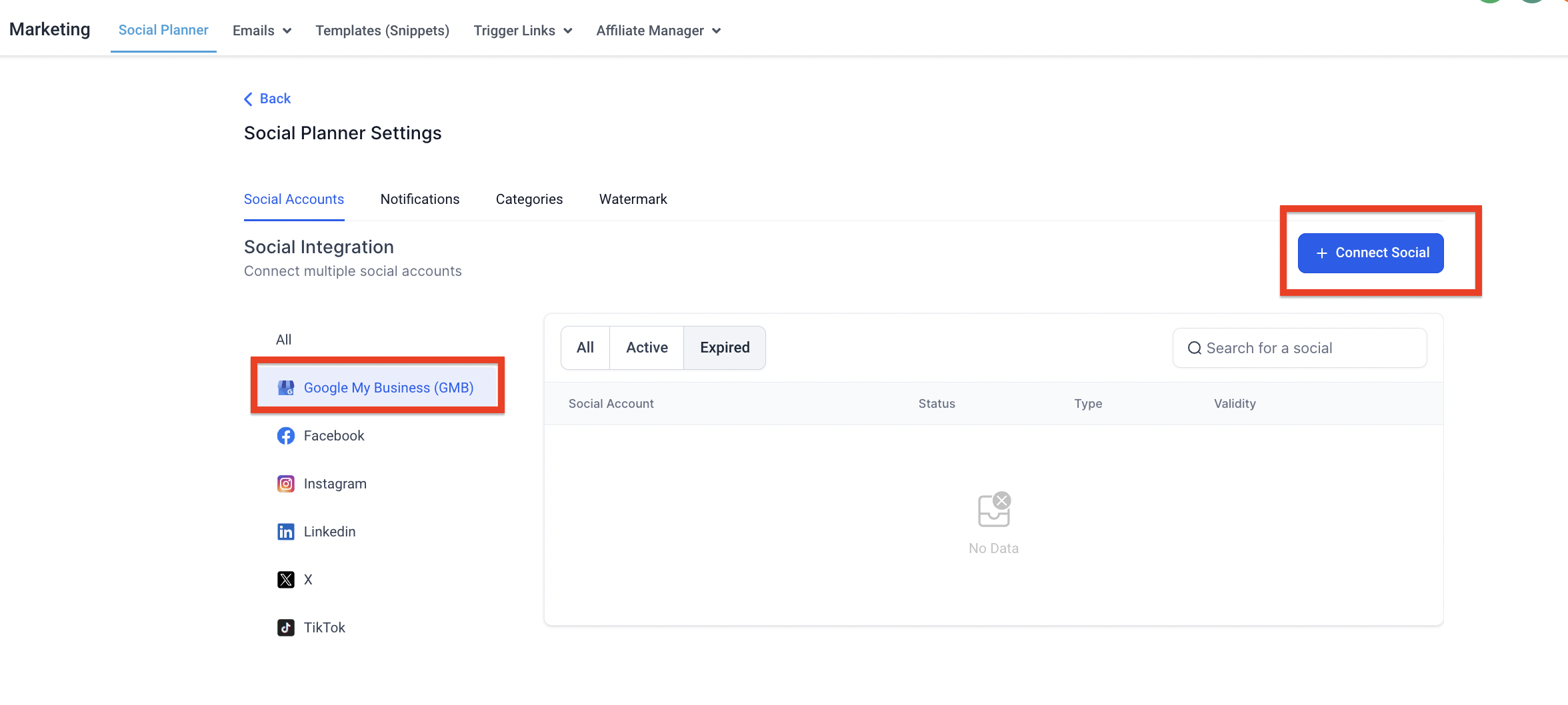
Step 1: Go to Social Planner Settings
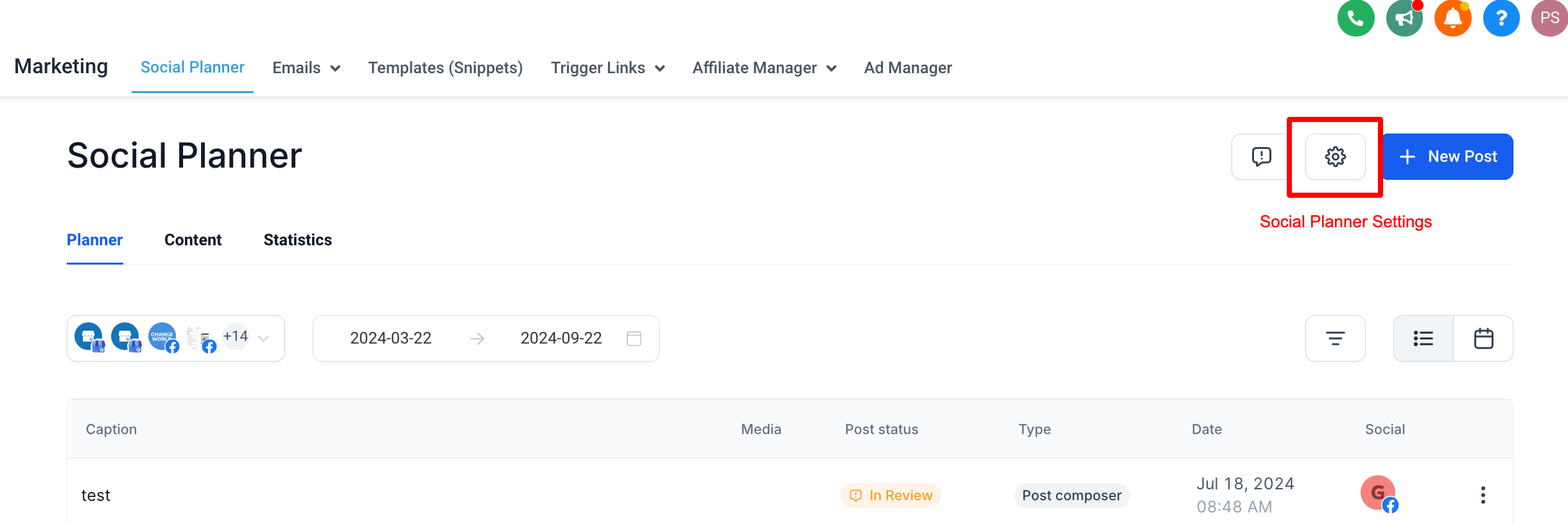
Section titled “Step 1: Go to Social Planner Settings”Navigate to your Marketing module and open the Social Planner. In the top right corner of the planner, click the gear icon to open your Settings.
Step 2: Connect a New Google My Business Location
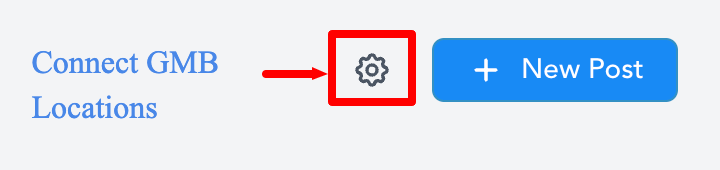
Section titled “Step 2: Connect a New Google My Business Location”Within the integrations table, find the Google My Business row and click on Connect a new Google My Business location to begin the process.
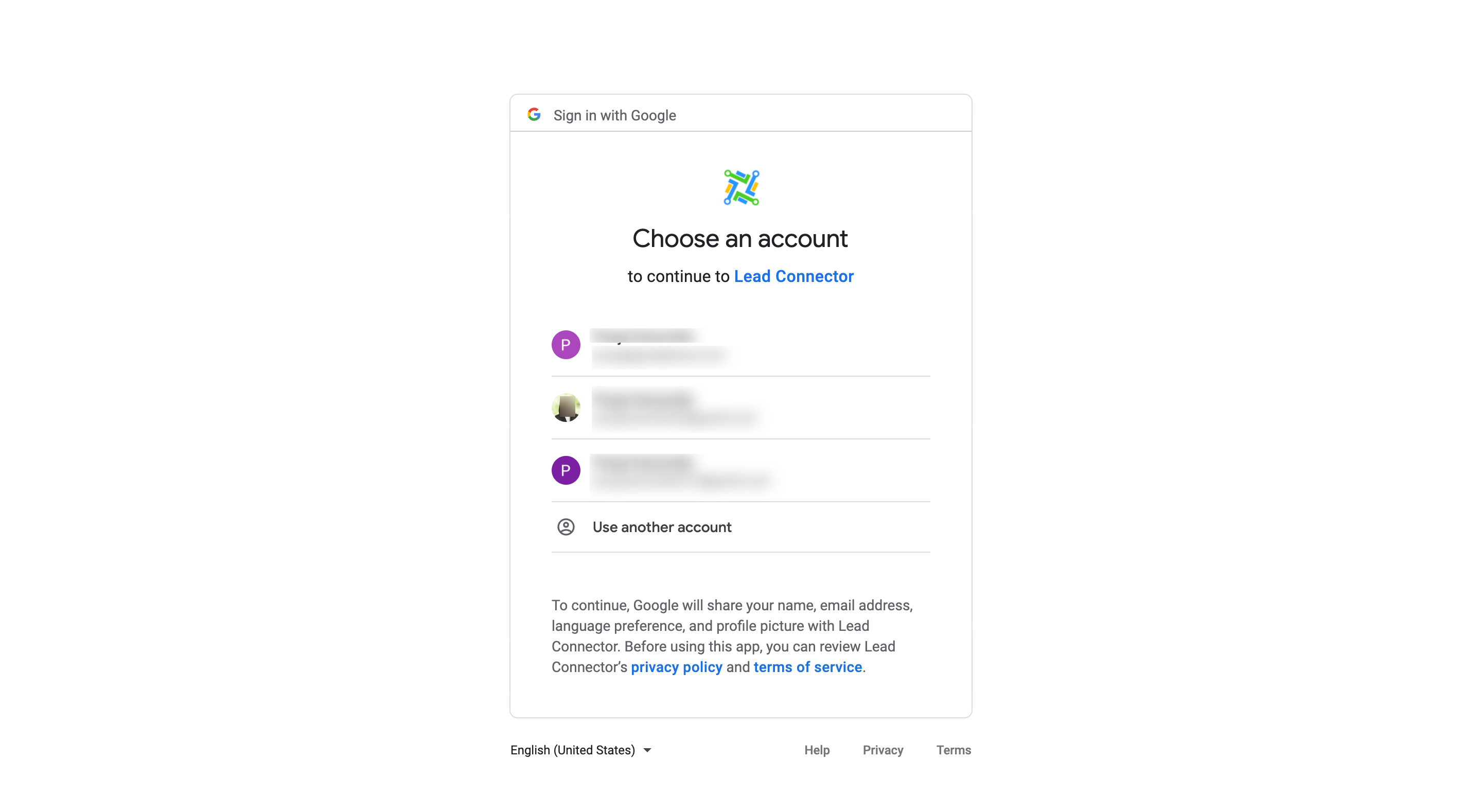
Step 3: Grant Permissions to Your Google Account
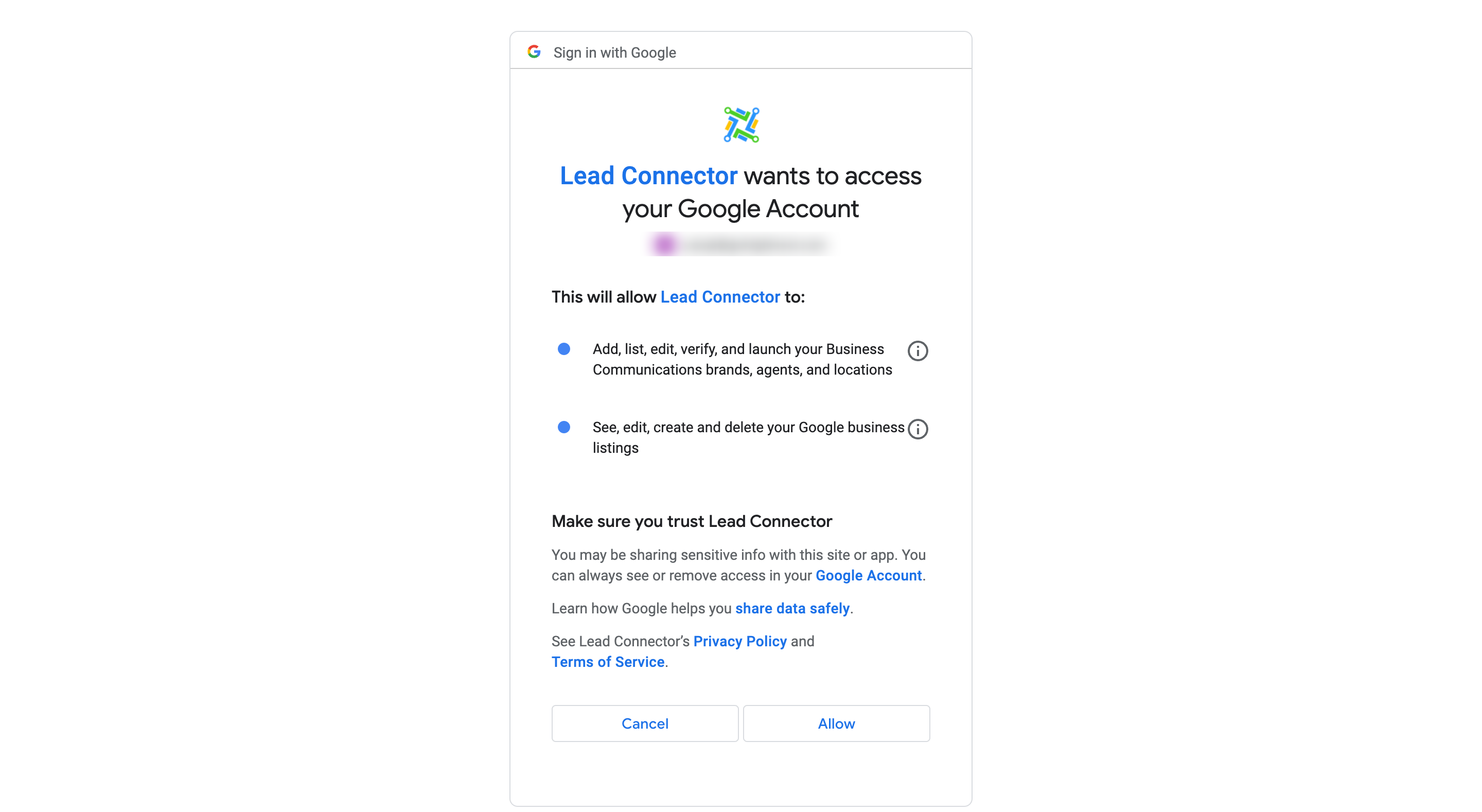
Section titled “Step 3: Grant Permissions to Your Google Account”You will be redirected to an authorization screen. Choose the primary Gmail account that holds the administrative rights to the GMB locations you wish to connect. You must grant the required permissions for the system to fetch and manage your listings.
Step 4: Choose the GMB Locations to Connect
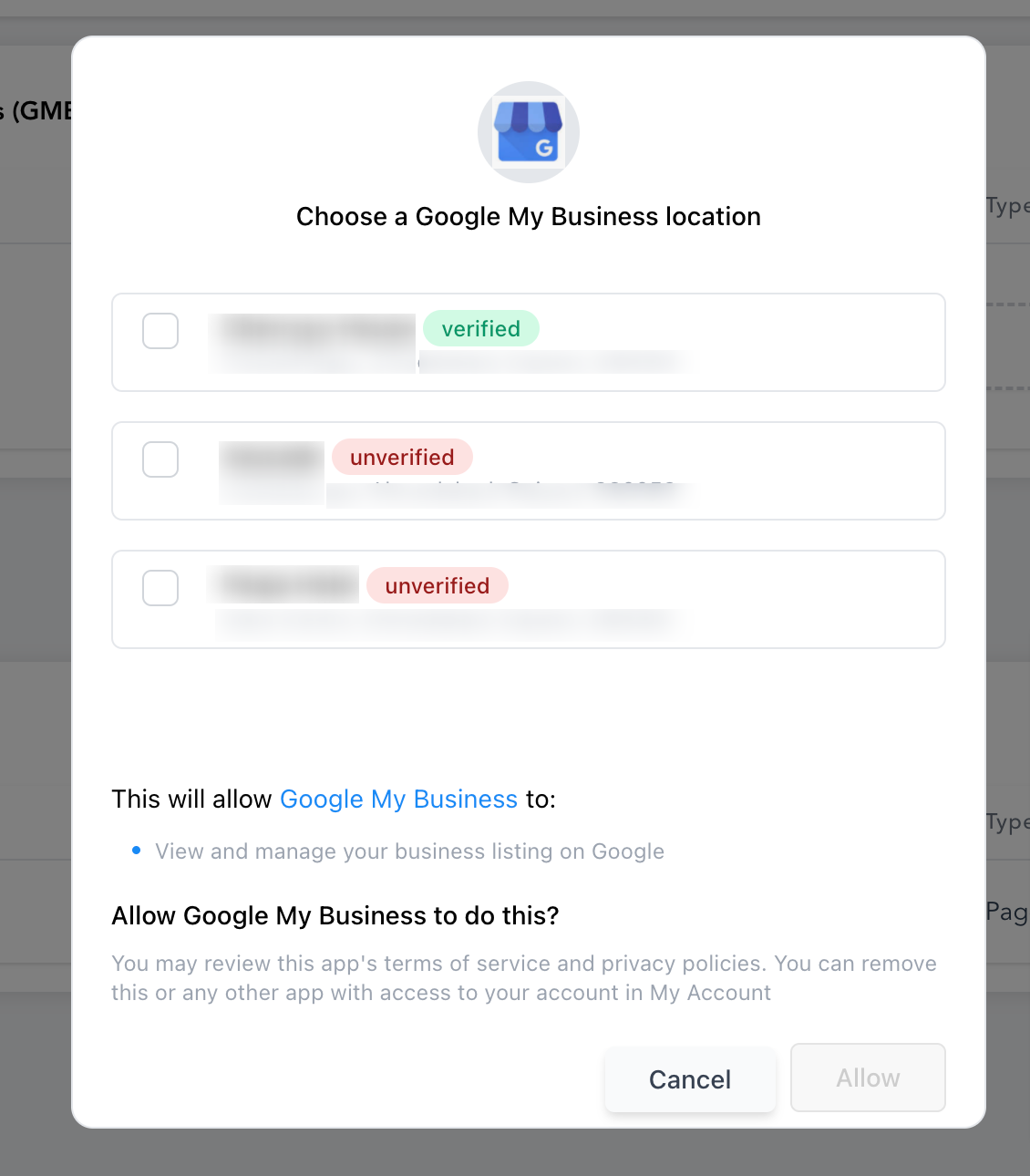
Section titled “Step 4: Choose the GMB Locations to Connect”Once authorized, the system will display the local profiles tied to that Google account. Select the locations you want to manage within the Social Planner.
[!NOTE] Important Limitations to Keep in Mind:
- Duplicate Connections: If a GMB location has already been integrated by you or another admin, attempting to add it again will prompt a “Location already added” message.
- Franchise/Chain Limitations: If the associated Google account manages more than 10 locations simultaneously, you will receive an error stating: “This location belongs to a chain. The Local Post API is disabled for this location.” Google restricts third-party publishing APIs for large chains.
(Use screenshots below to visualize the location selection and final connection view)