
How to Create Equipment
Setting up equipment allows you to manage shared physical resources such as therapy tables, exam chairs, projectors, or other service-related tools used during appointments. By linking equipment to calendars, you can prevent double bookings and keep scheduling organized.
Table of Contents
Section titled “Table of Contents”- What is Equipment?
- Key Benefits of Equipment
- How to Set Up Equipment
- Editing or Deleting Equipment
- Frequently Asked Questions
What is Equipment?
Section titled “What is Equipment?”Equipment refers to shared tools, devices, or physical resources used when delivering services. These resources can be connected to calendars and availability settings to help prevent scheduling conflicts.
This helps ensure only available equipment is booked and improves day-to-day operational efficiency.
Key Benefits of Equipment
Section titled “Key Benefits of Equipment”Using equipment in your scheduling setup can help you:
- Prevent double bookings for shared resources
- Assign equipment to specific calendars or services
- Automate equipment availability during scheduling
- Reduce manual coordination
- Improve team efficiency and service consistency
- Manage shared resources across multiple locations
How to Set Up Equipment
Section titled “How to Set Up Equipment”Creating equipment helps ensure that scheduling logic respects actual resource availability.
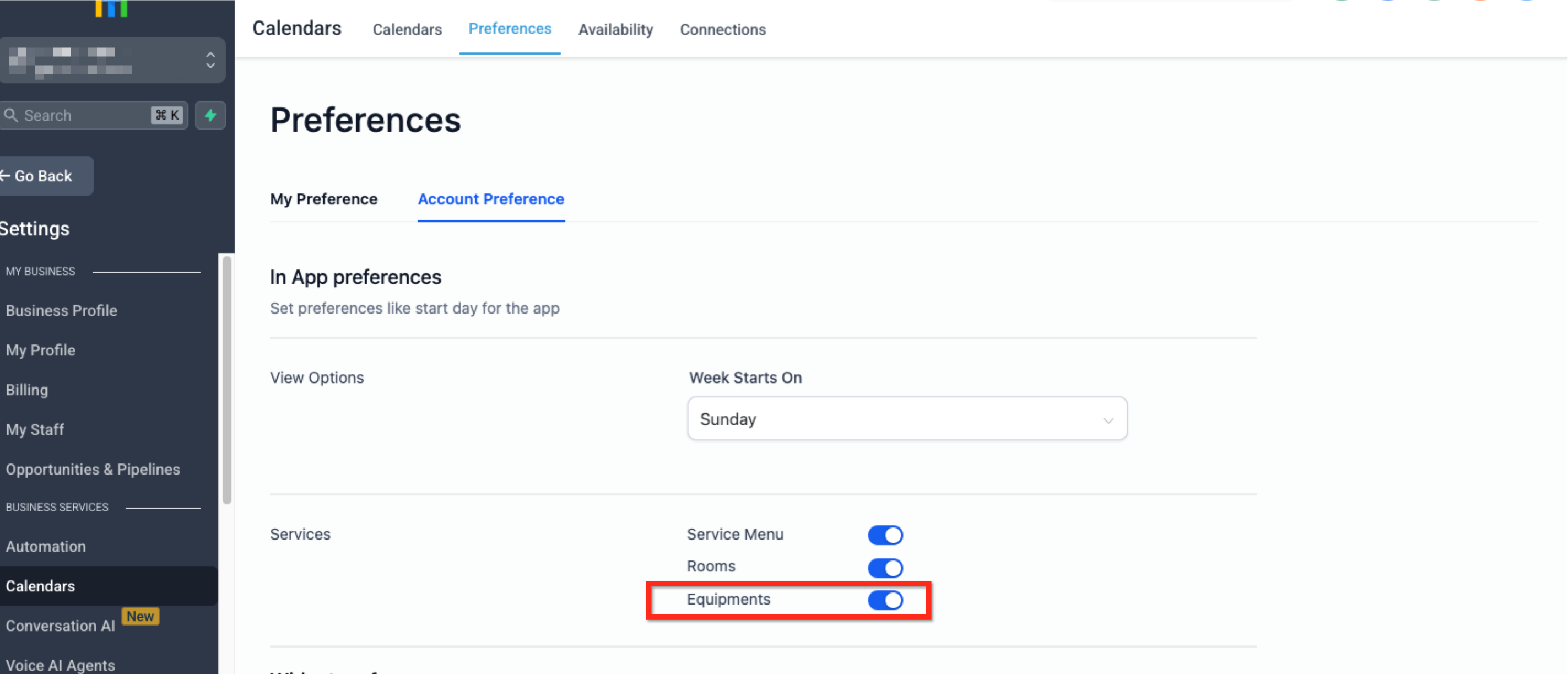
Step 1: Enable Equipment
Section titled “Step 1: Enable Equipment”- Go to Settings > Calendar Settings
- Open the Preferences tab
- Open the Account Preference section under Preferences
- In the Services section, turn on the Equipments toggle
Step 2: Create Equipment
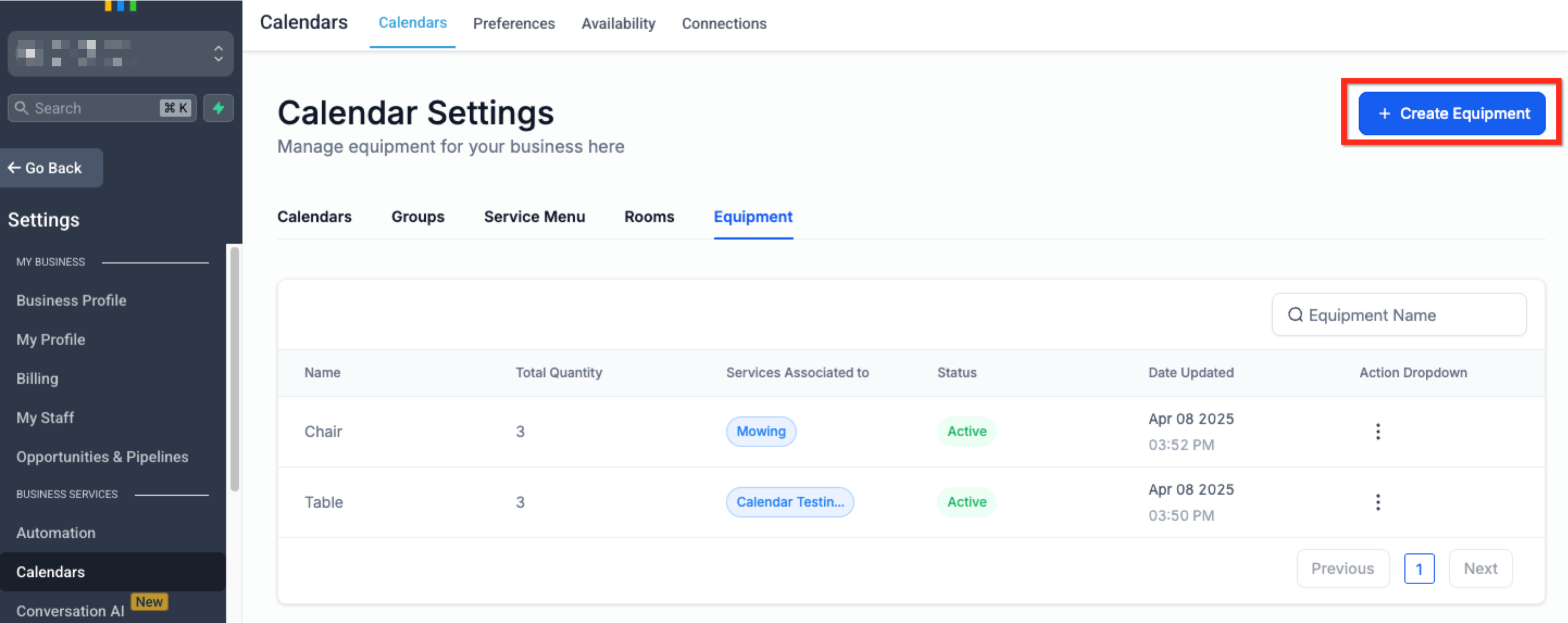
Section titled “Step 2: Create Equipment”- Return to the Calendars tab in Calendar Settings
- Open the Equipment tab
- Click Create Equipment in the upper-right corner
Step 3: Provide Equipment Details
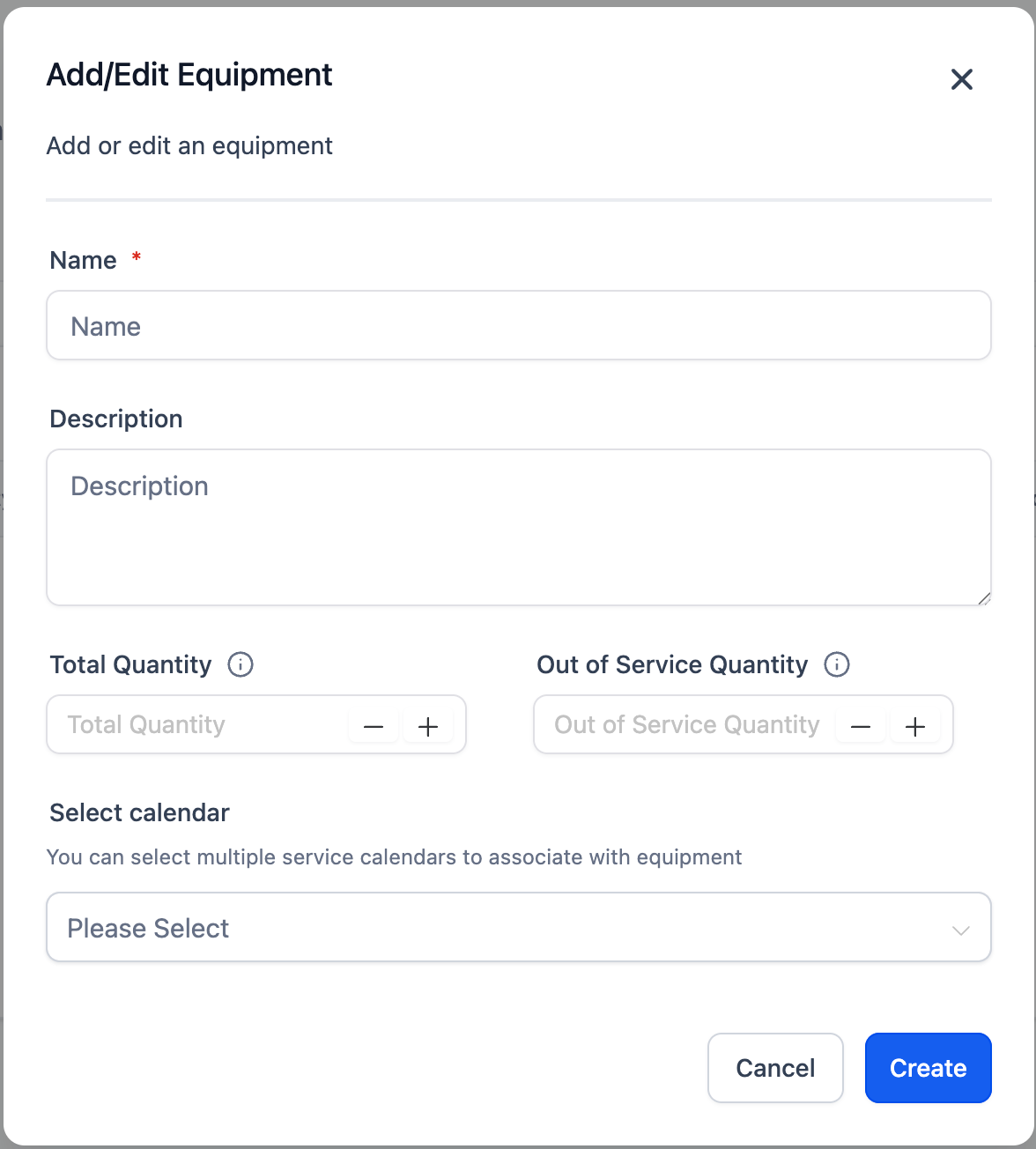
Section titled “Step 3: Provide Equipment Details”Enter the required equipment details:
- Equipment Name: Enter a unique name for the equipment
- Description: Add a short explanation of what the equipment is used for
- Total Quantity: Enter the total number of available units
- Out of Service Quantity: Enter how many units are currently unavailable, under repair, or out of service
- Select Calendar: Choose the calendars that should be associated with this equipment
Once finished, click Create.
Editing or Deleting Equipment
Section titled “Editing or Deleting Equipment”Keeping your equipment list updated helps maintain accurate scheduling and avoid resource conflicts.
To edit or delete equipment:
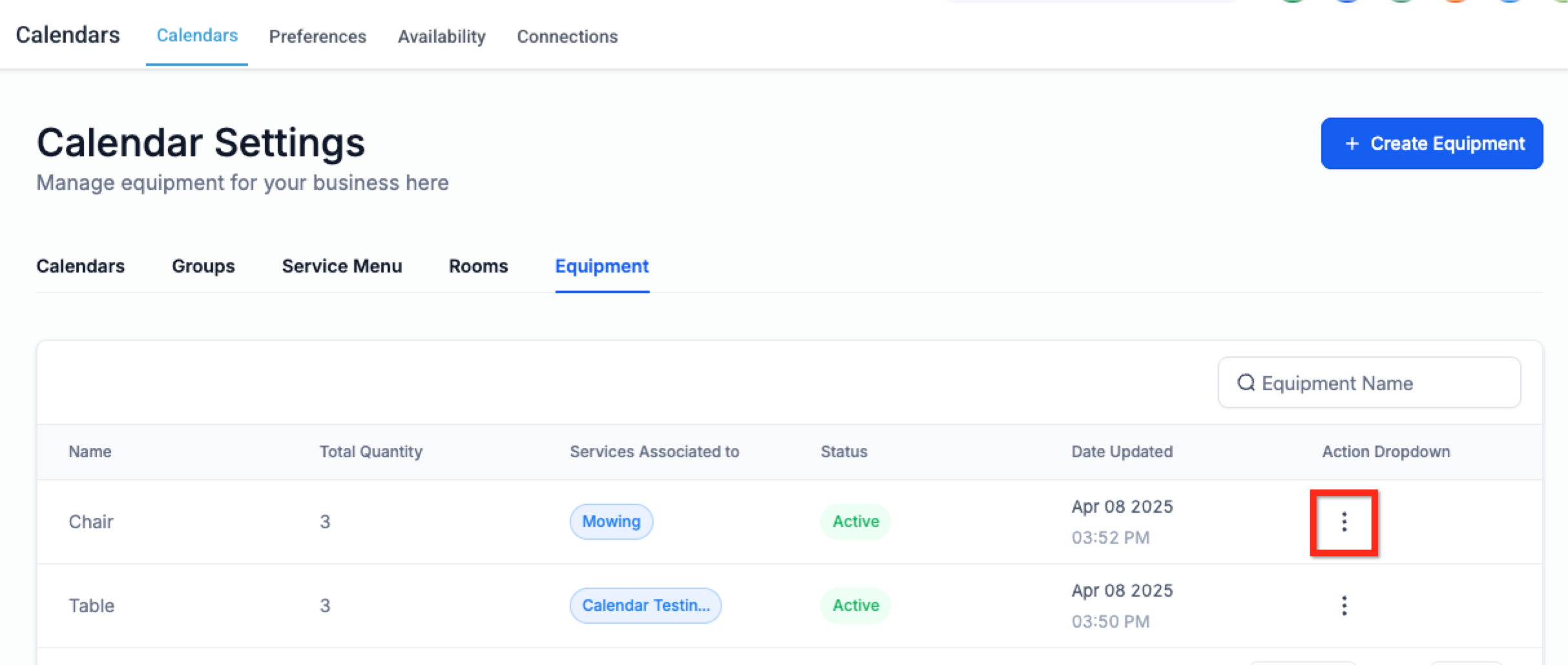
- Go to Settings > Calendar Settings
- Open the Equipment tab
- Click the 3-dot menu next to the equipment item
- Select Edit to update it or Delete to remove it
- Save your changes if you edited the record
Frequently Asked Questions
Section titled “Frequently Asked Questions”Q: What is the difference between Rooms and Equipment?
A: Rooms are physical spaces such as offices or studios. Equipment refers to tools or resources such as chairs, machines, or tables. Both can be scheduled as resources.
Q: Can equipment be assigned to more than one calendar?
A: Yes. Equipment can be linked to multiple calendars, but it can only be used when it is available.
Q: How do I add multiple versions of the same equipment?
A: Create one equipment item and set the quantity. For example, if you have three identical therapy tables, create one item and set the quantity to 3.
Q: What happens if I delete equipment that is in use?
A: Deleting equipment may remove the availability restrictions tied to it, so it is best to review connected calendars before deleting it.
Q: Can I generate reports for equipment usage?
A: There is no native equipment usage report, but appointments connected to resources can be reviewed manually through calendars.