
Connecting LinkedIn Profile and Business Pages to Social Planner
Integrating LinkedIn allows you to connect your personal profiles or professional business pages directly to the Social Planner. Once connected, you can seamlessly schedule, publish, and manage your LinkedIn posts right from your marketing dashboard. It streamlines your social engagement, saves time, and improves overall content visibility.
Key Benefits of Connecting LinkedIn
Section titled “Key Benefits of Connecting LinkedIn”Connecting your LinkedIn account offers powerful capabilities to boost your social media strategy:
- Schedule and publish posts to LinkedIn profiles or pages directly.
- Manage multiple accounts across various social platforms in one centralized place.
- View real-time connection status and token validity to maintain reliable uptime.
- Easily reconnect or refresh your access if network permissions expire.
- Control user access and viewing permissions for collaborative teams.
Configuring the LinkedIn Integration
Section titled “Configuring the LinkedIn Integration”[!IMPORTANT] Before you begin the setup, make sure you have admin access to the specific LinkedIn Page you want to connect.
The integration token generated by LinkedIn is valid for approximately 60 days. After this period, you will see a “Reconnect” prompt in your dashboard to renew access. If an active connection fails due to altered permissions, the account will display a “Permissions Missing” status. Simply follow the setup steps again to reauthorize the connection successfully.
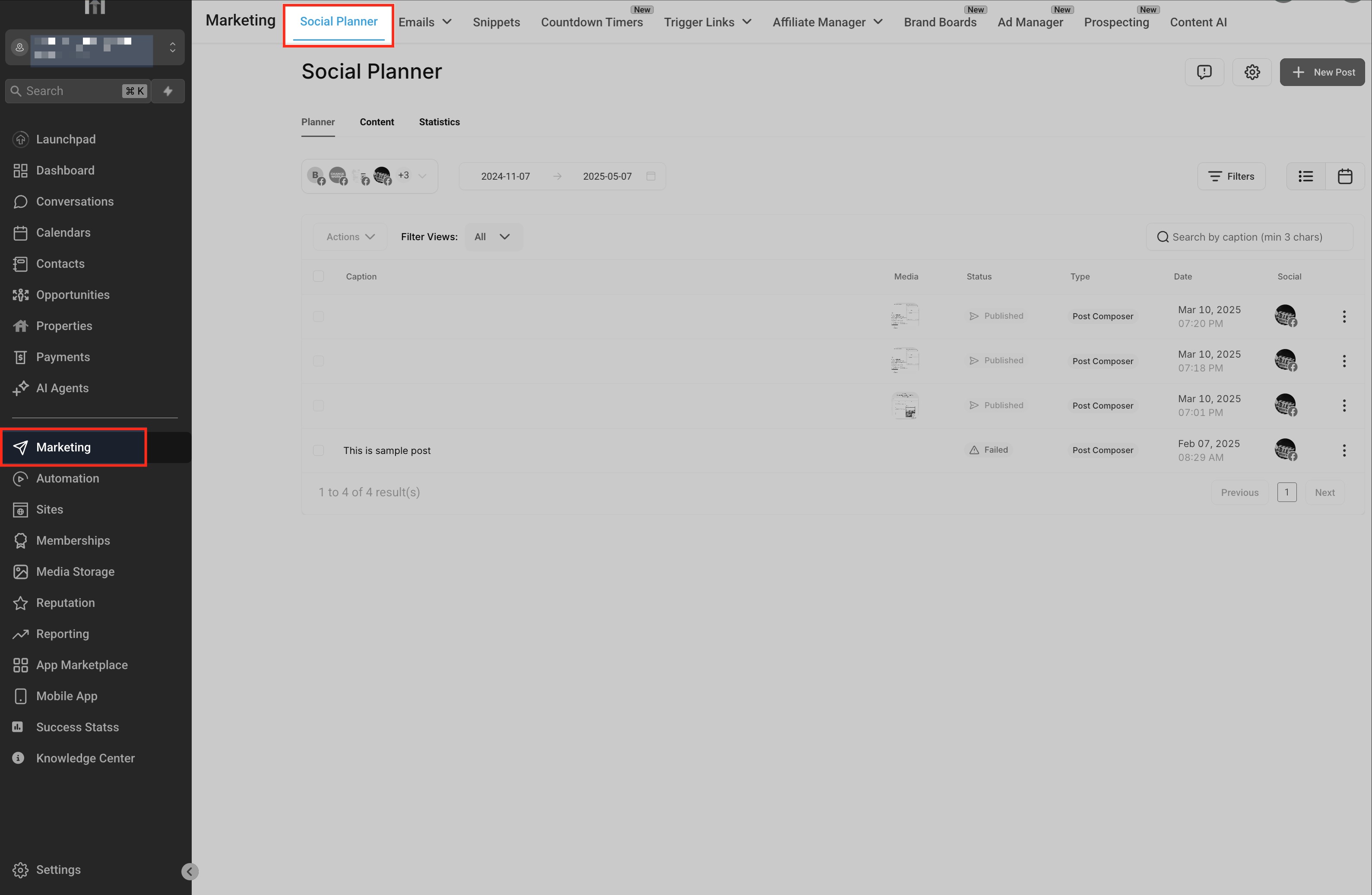
Step 1: Navigate to the Social Planner
Section titled “Step 1: Navigate to the Social Planner”From the left sidebar, go to Marketing > Social Planner. This is the primary dashboard where you manage all scheduled content across connected platforms.
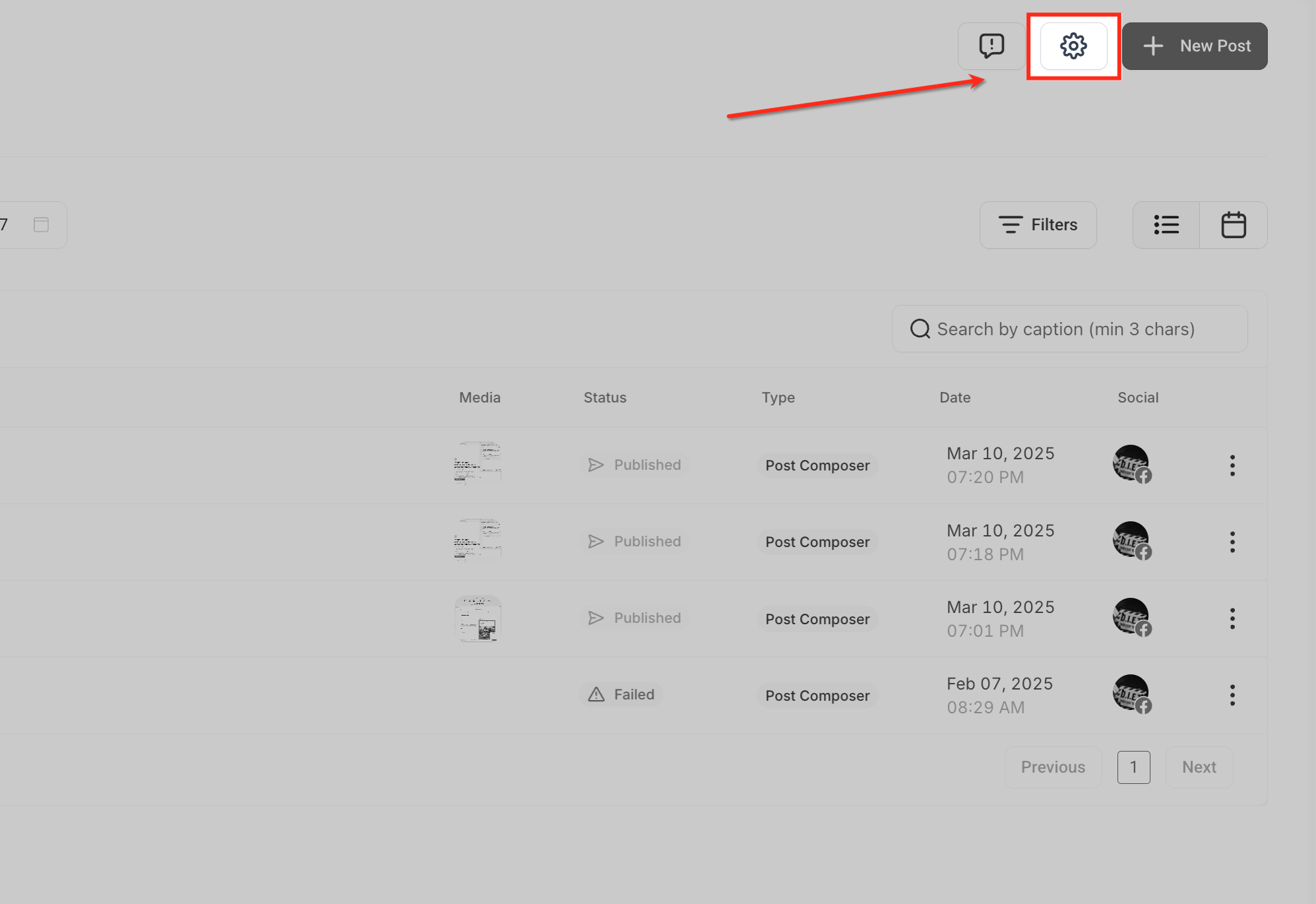
Step 2: Open Social Planner Settings
Section titled “Step 2: Open Social Planner Settings”Click the gear icon in the upper-right corner to open your Social Planner settings.
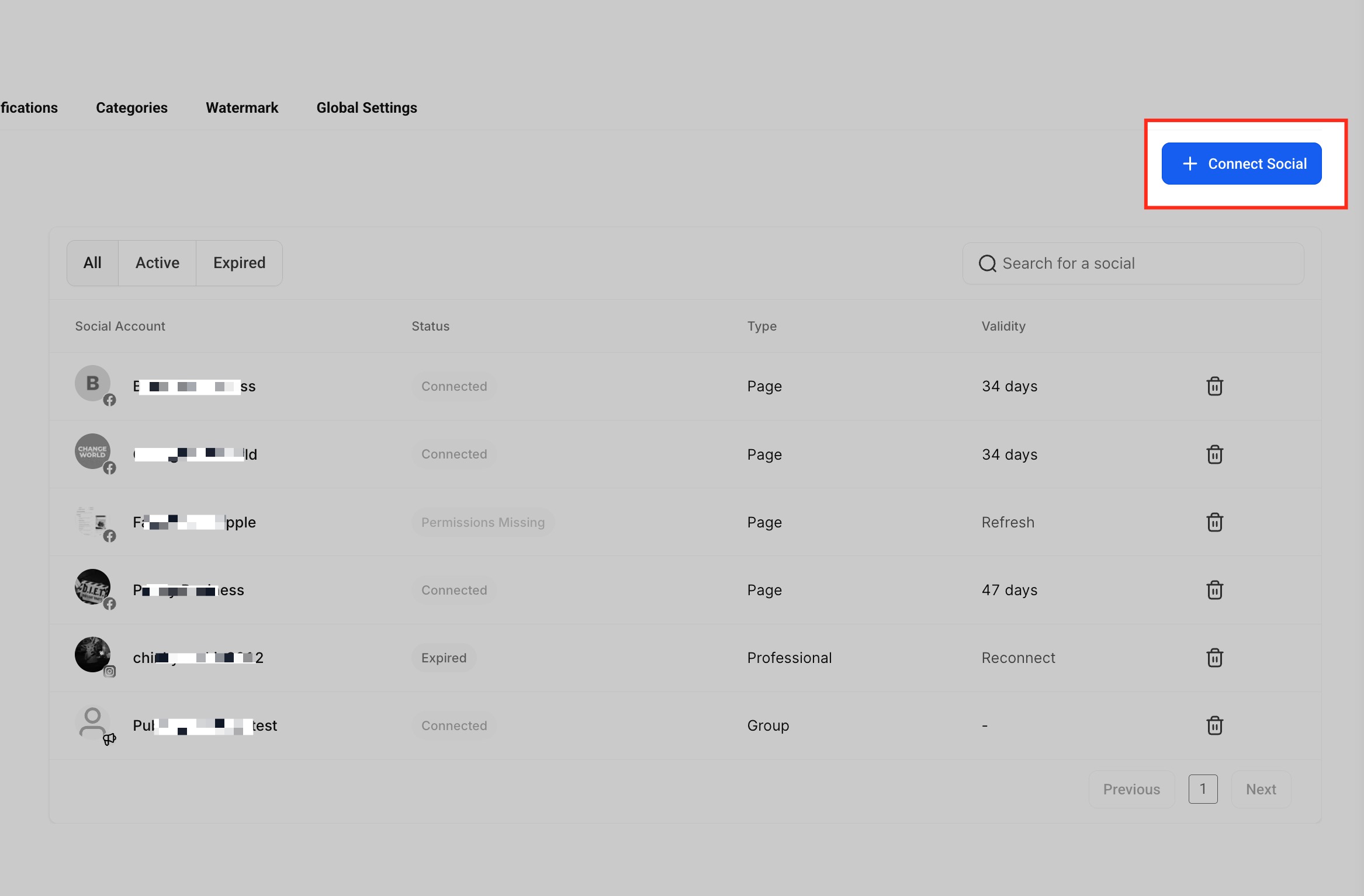
Step 3: Click “Connect Social”
Section titled “Step 3: Click “Connect Social””In the Social Accounts tab, click the + Connect Social button to begin linking your LinkedIn account.
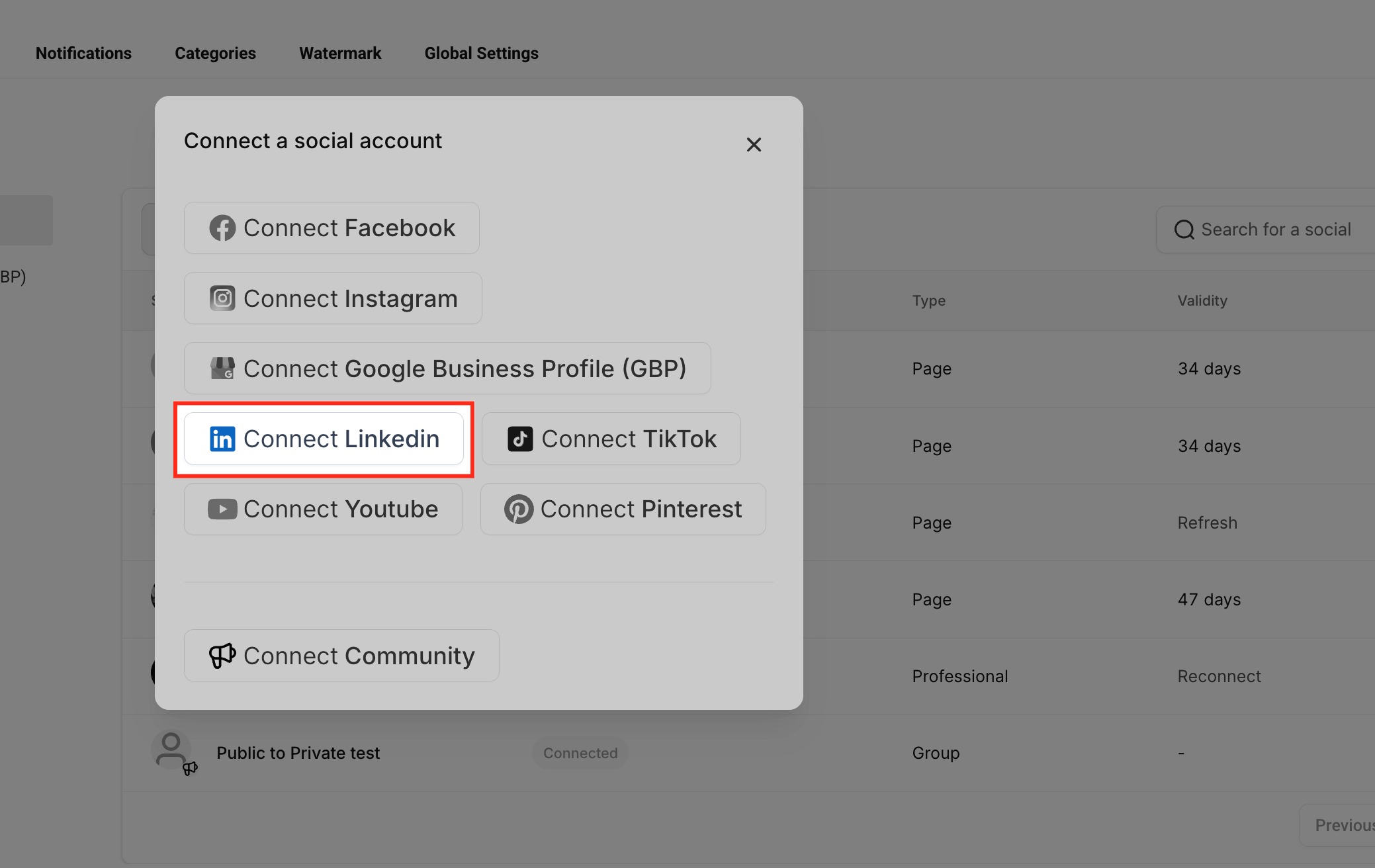
Step 4: Select LinkedIn
Section titled “Step 4: Select LinkedIn”A popup will display all the available network integrations. Click Connect LinkedIn.
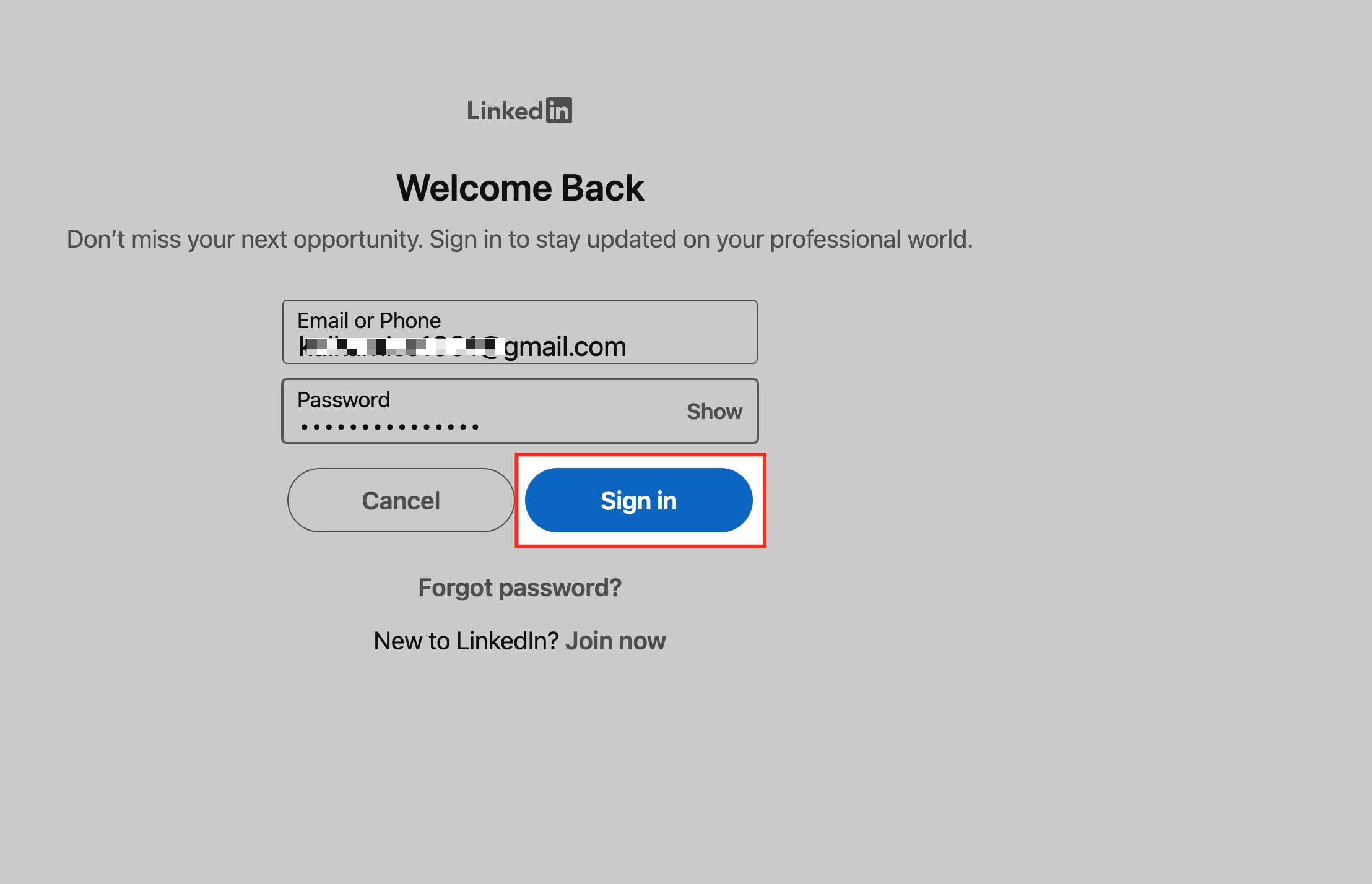
Step 5: Log In to LinkedIn
Section titled “Step 5: Log In to LinkedIn”You will be securely redirected to the LinkedIn login screen. Enter your standard LinkedIn credentials and click Sign In.
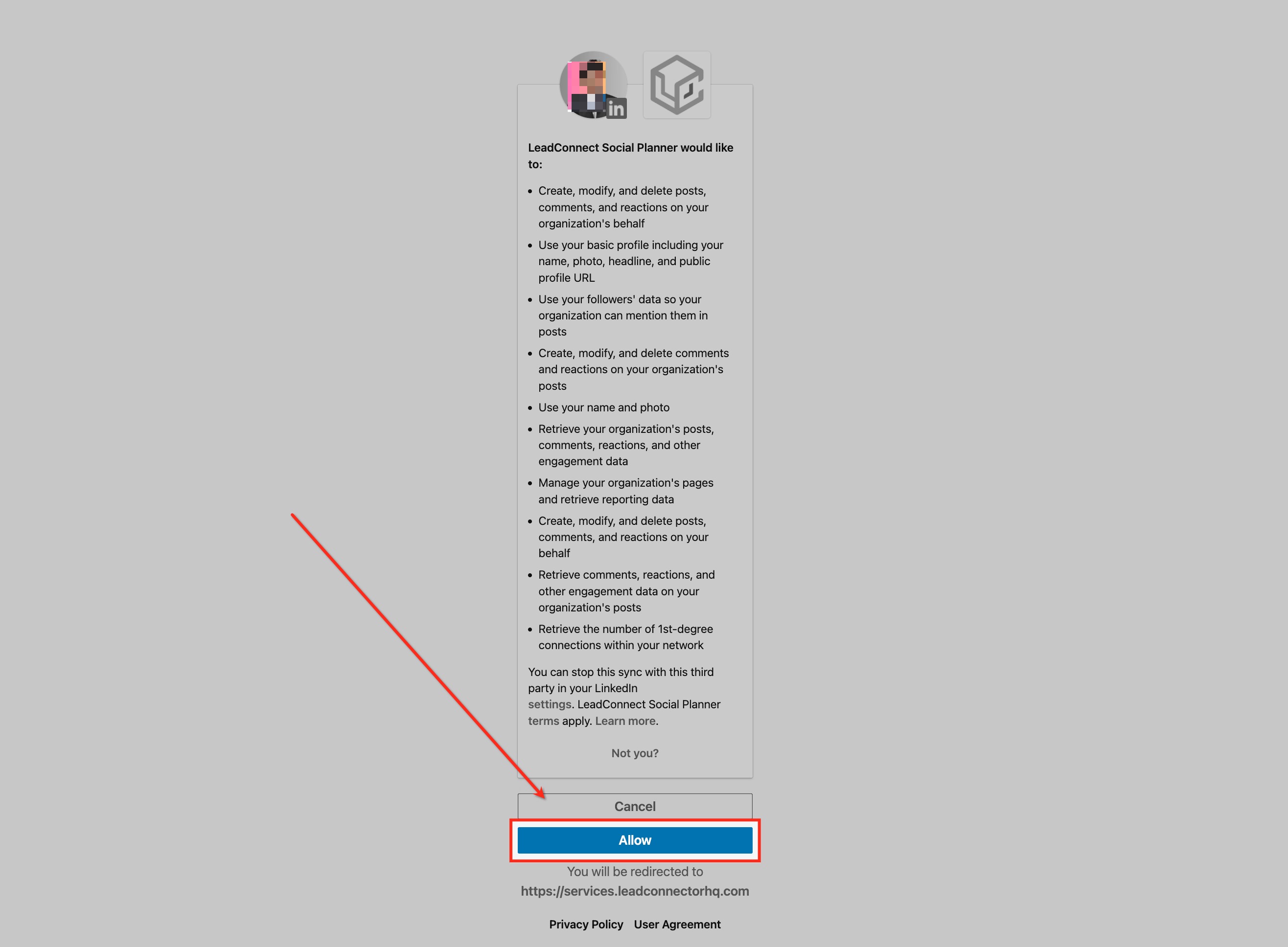
Step 6: Grant Permissions
Section titled “Step 6: Grant Permissions”LinkedIn will ask you to authorize access to your account for our application context. Click Allow to proceed.
[!NOTE] If you are connecting an account for advertising integrations, ensure your LinkedIn login has Super Admin or Campaign Manager access to the specific ad account. Otherwise, the account will not correctly associate later in the platform.
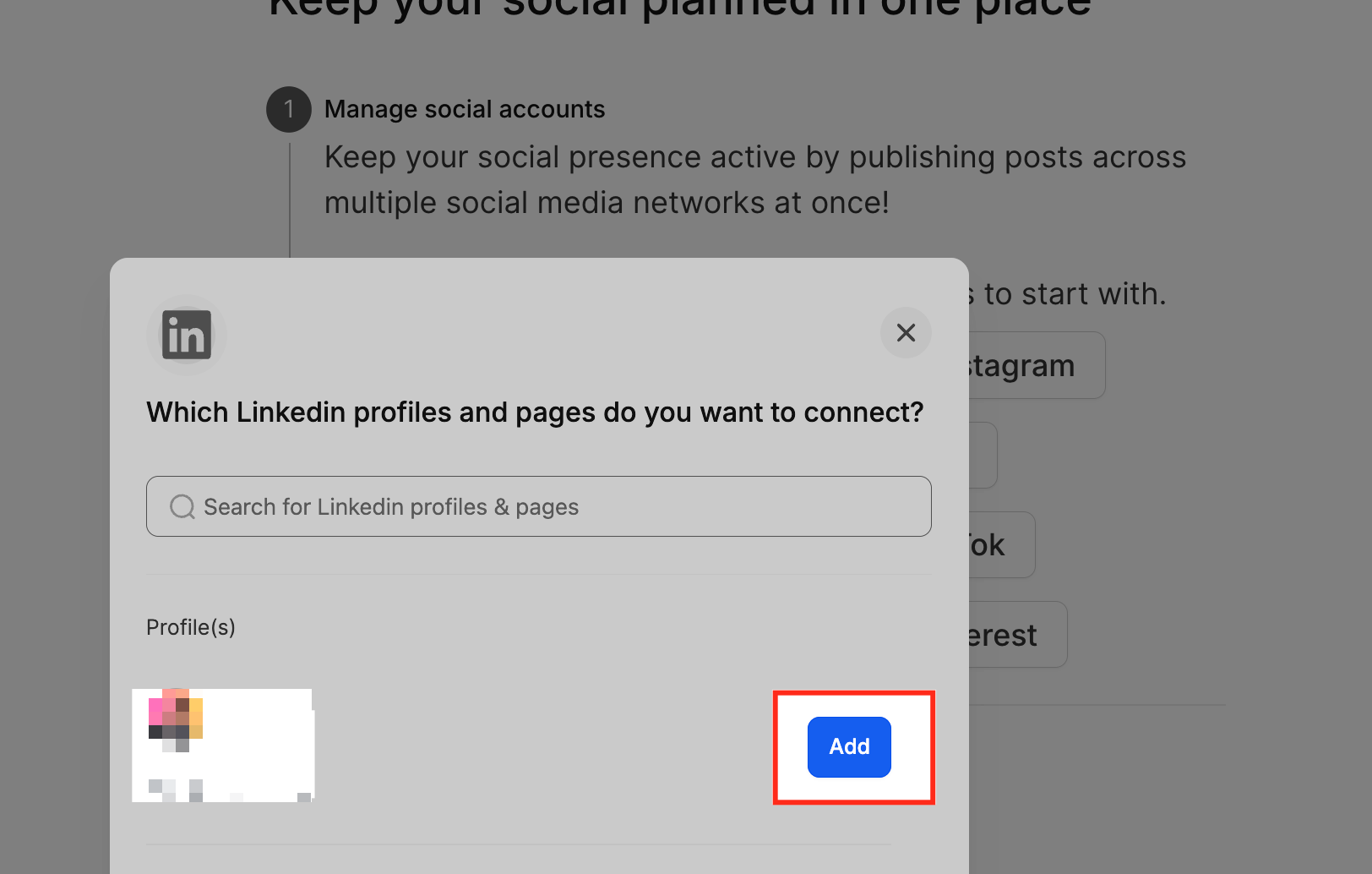
Step 7: Choose LinkedIn Profile or Page
Section titled “Step 7: Choose LinkedIn Profile or Page”After granting access, the system will list the applicable profiles. Select the personal LinkedIn profile or business page you want to connect and click Add.
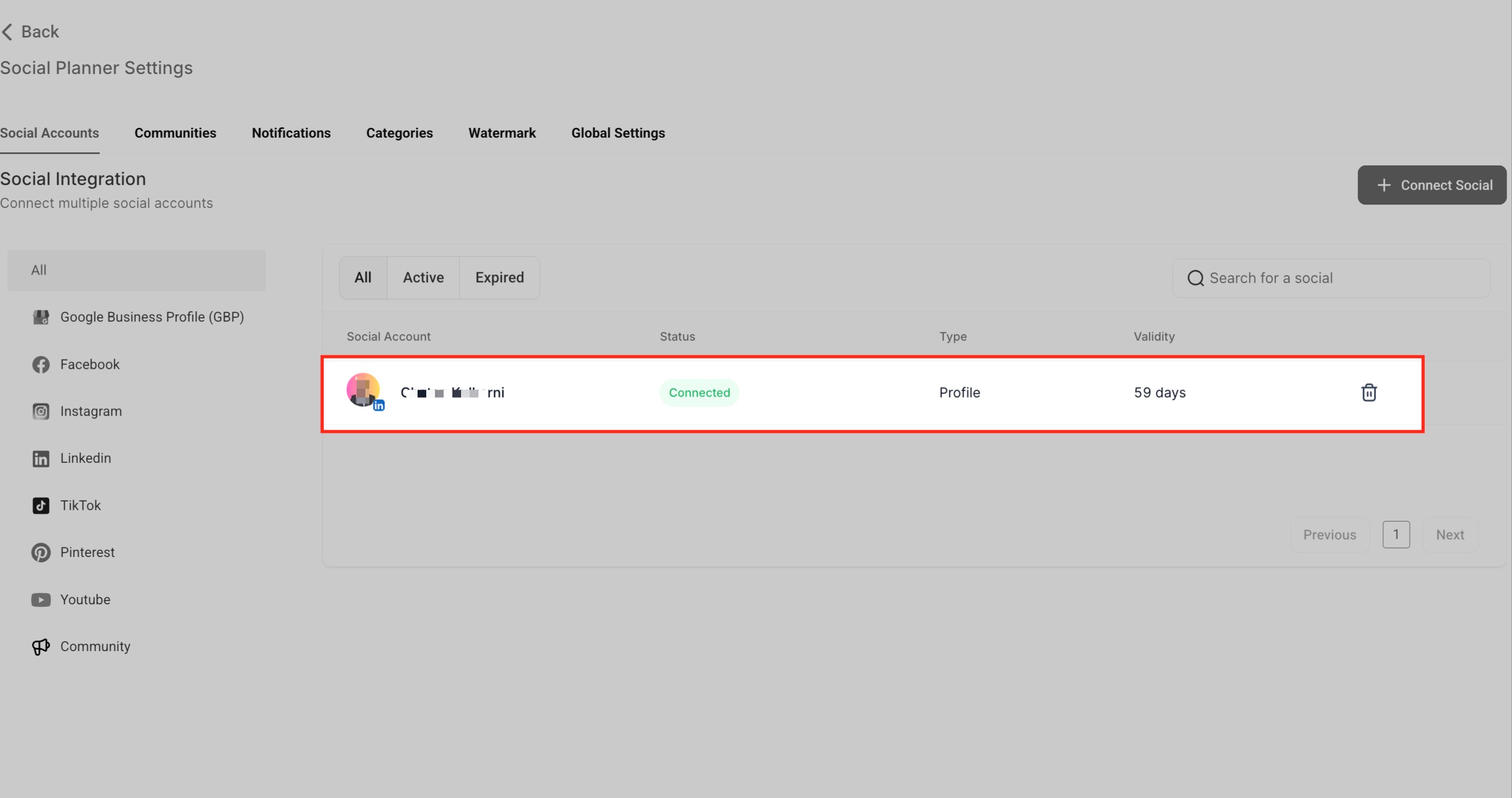
Step 8: Connection Confirmation
Section titled “Step 8: Connection Confirmation”Once added, the account will display as Connected within your Social Accounts table, along with its account type and current token validity period.
(Suggestion: If you don’t see an ad account after a successful connection, check that the account is actively running (not archived or suspended) and ensure you have accepted LinkedIn’s Marketing Developer Terms inside Campaign Manager.)
Frequently Asked Questions
Section titled “Frequently Asked Questions”Q: Can I connect both a LinkedIn profile and a business page at the same time?
Yes, the Social Planner allows you to connect multiple LinkedIn accounts—both personal profiles and business pages—as long as you possess the required admin permissions for each.
Q: What happens if my LinkedIn connection expires?
When the integration token reaches its 60-day limit, you will see a “Reconnect” prompt in the Social Accounts tab. Click it to quickly reauthorize access via LinkedIn.
Q: Why does it say “Permissions Missing” for my page?
This usually means your connected LinkedIn account does not have sufficient admin rights on the page, or certain permissions were not granted during authorization. Simply click reconnect and ensure full access is toggled on. If you are troubleshooting an ad account, verify your user role in LinkedIn Campaign Manager.
Q: Can I schedule LinkedIn posts for both personal and company pages?
Yes. During the post creation process, you can select exactly which connected profile or business page you want to publish the content to.
Q: Is there a limit to how many LinkedIn accounts I can connect?
While there is no fixed technical limit in the integration itself, the number of accounts you can manage should align with your specific subscription tier limits.