
Importing Opportunities via CSV
Importing opportunities in bulk allows you to rapidly populate your sales pipelines. Whether you are migrating from another CRM or starting a new campaign, the CSV import tool ensures your deals are set up accurately and linked to the correct contacts.
Prerequisites for Importing Opportunities
Section titled “Prerequisites for Importing Opportunities”Before you begin, ensure your file meets these standards:
- Format: Must be a CSV (.csv) file.
- Size: Keep files under 30MB.
- Header: The first row must contain column headers that match system fields.
- Admin Access: You must have Admin permissions to perform imports.
How to Access the Opportunity Import Tool
Section titled “How to Access the Opportunity Import Tool”Navigate to Opportunities from the left-hand menu, then click the Import button in the top-right corner. This leads to the unified import wizard.
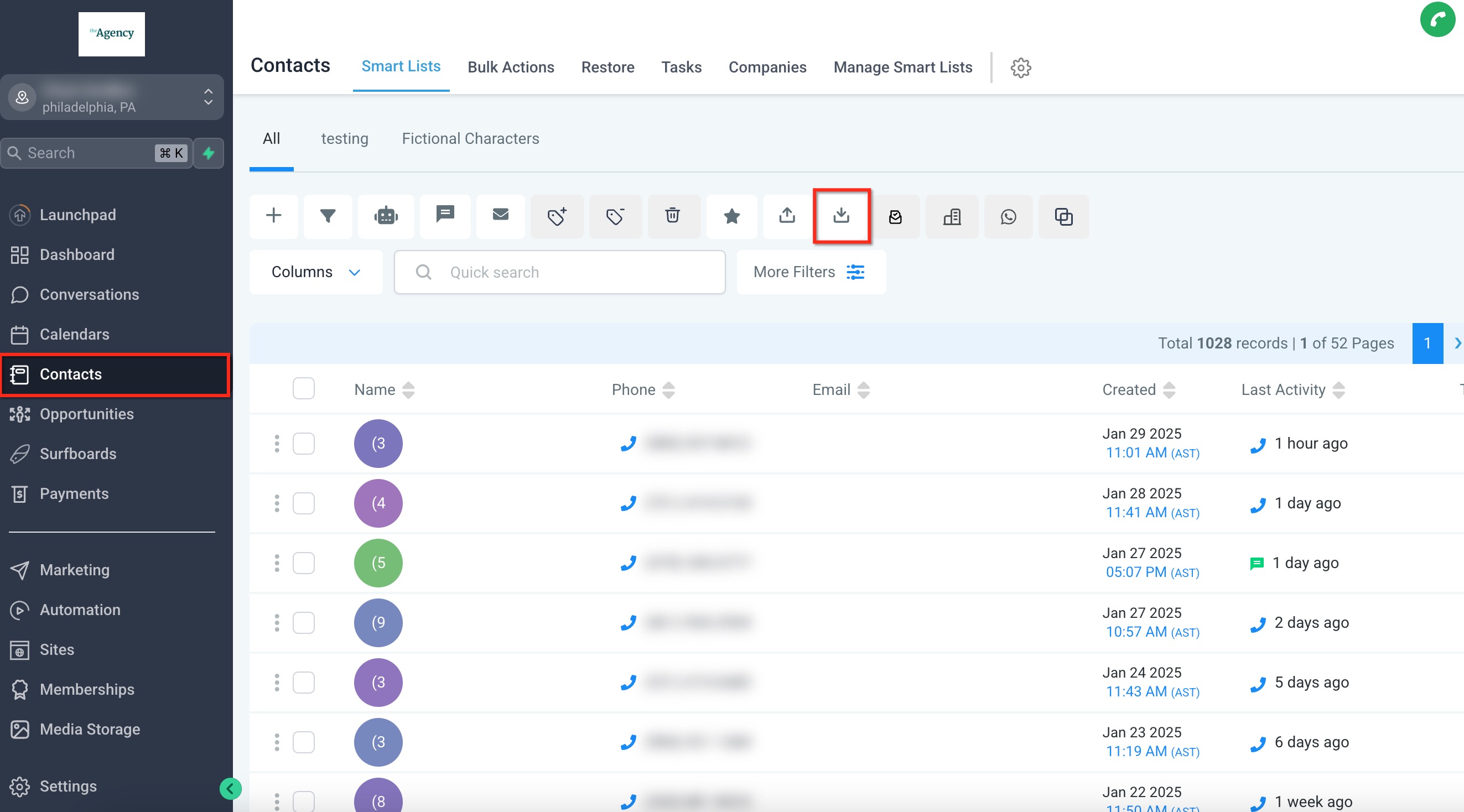
Importing Both Contacts & Opportunities
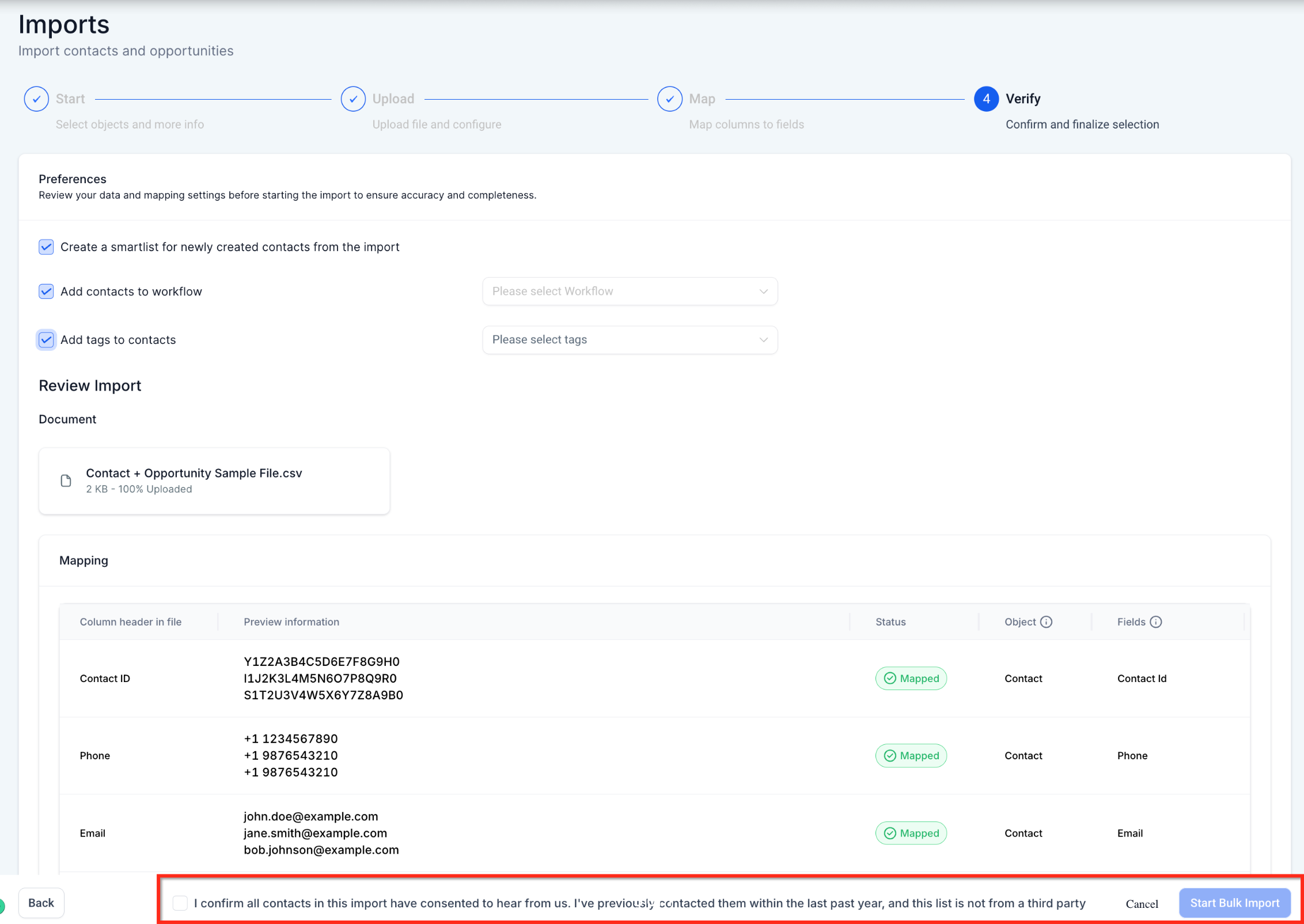
Section titled “Importing Both Contacts & Opportunities”If your CSV contains both contact details and opportunity data on the same line, the system will automatically map and link them during the import process. This creates the contact record and the deal associated with it in one step.
Key Mapping Rules:
Section titled “Key Mapping Rules:”- Filter by Default: The system matches existing records by Email, then Phone.
- Don’t Update Empty Values: Use this setting to prevent blank CSV cells from overwriting existing data in your CRM.
- Mandatory Fields: Ensure required fields like Pipeline and Stage are mapped correctly.
Tracking Your Import
Section titled “Tracking Your Import”All opportunity imports are tracked in the Bulk Actions dashboard. You can monitor progress, view statistics, and download error logs if any rows fail to process.
Frequently Asked Questions
Section titled “Frequently Asked Questions”Q: Can I update existing opportunities via CSV? A: Yes. During the import setup, choose the “Update Only” or “Create & Update” option to refresh existing deal data.
Q: Where do I see the results of my import? A: Navigate to Contacts > Bulk Actions. Both contact and opportunity imports appear in this unified dashboard.
Q: What if my import fails? A: Open the Show Stats link on your import job in the Bulk Actions tab. You can download a detailed error log to see exactly which rows failed and why.