
Adding Multiple Phone Numbers for a Contact
The Multiple Phone Numbers feature enables you to store up to 11 phone numbers for a single contact. Each number can be assigned specific labels (e.g., Mobile, Work, Home), and one number can be marked as the primary number. This flexibility is ideal for tracking clients, leads, or vendors who utilize multiple lines of communication.
Key Benefits of Managing Multiple Phone Numbers
Section titled “Key Benefits of Managing Multiple Phone Numbers”Maintaining several phone numbers for a contact guarantees that your communication remains effective and well-organized:
- Store up to 11 unique phone numbers per contact.
- Assign meaningful labels to each number for clarity.
- Designate a primary number to prioritize outgoing communication.
- Easily update or remove outdated numbers.
- Improve accuracy across workflows and automated campaigns.
- Ideal for complex sales cycles, support teams, vendor management, and personal records.
Managing Multiple Phone Numbers
Section titled “Managing Multiple Phone Numbers”Adding, labeling, and organizing a contact’s phone numbers can be handled directly from their profile record.
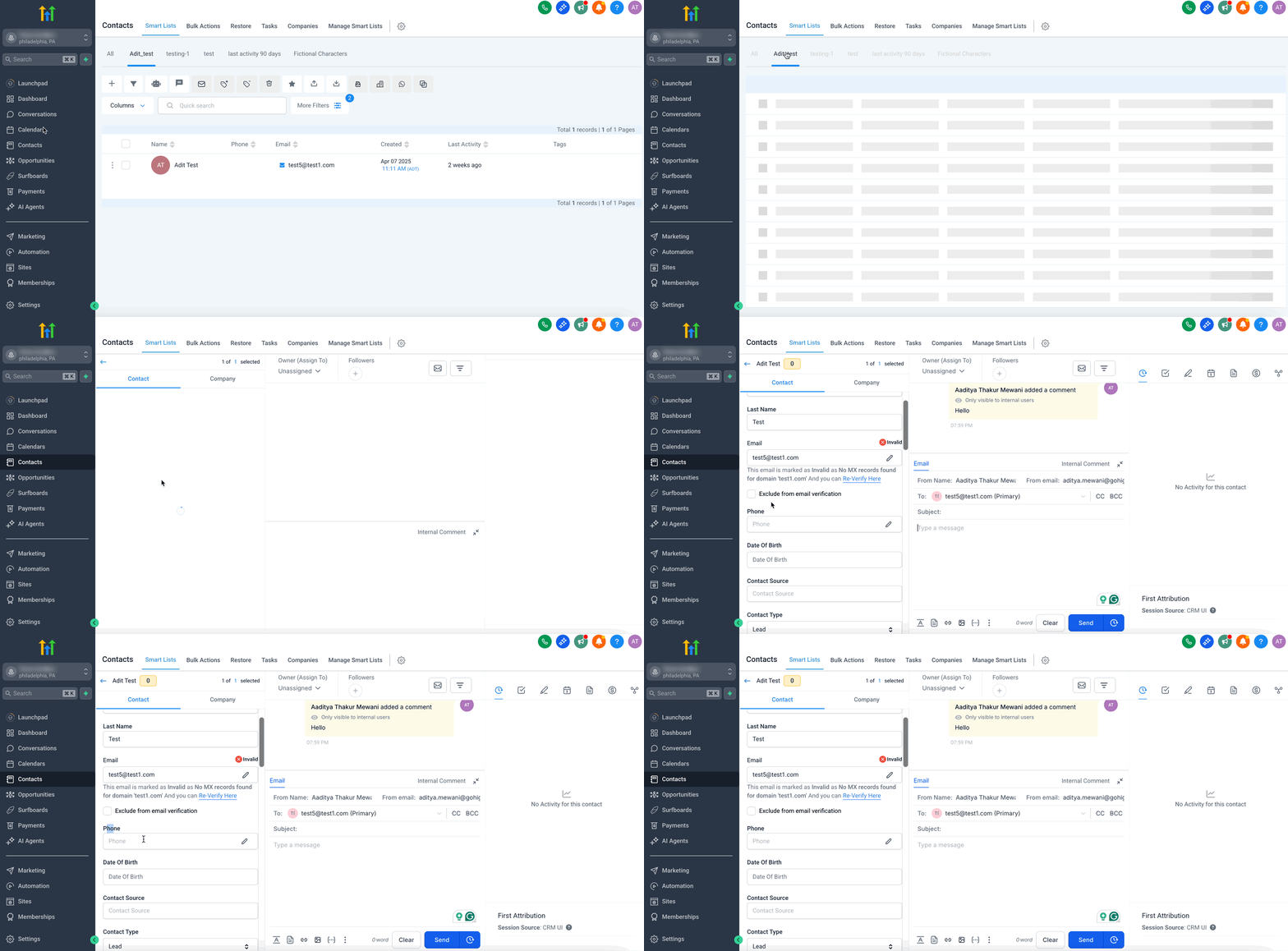
Step 1: Navigate to the Contacts tab
Section titled “Step 1: Navigate to the Contacts tab”In your workspace dashboard, navigate to the Contacts tab and click on an existing contact (or create a new contact entirely) to access the Phone numbers section.
Step 2: Click “+ Add Phone Number”
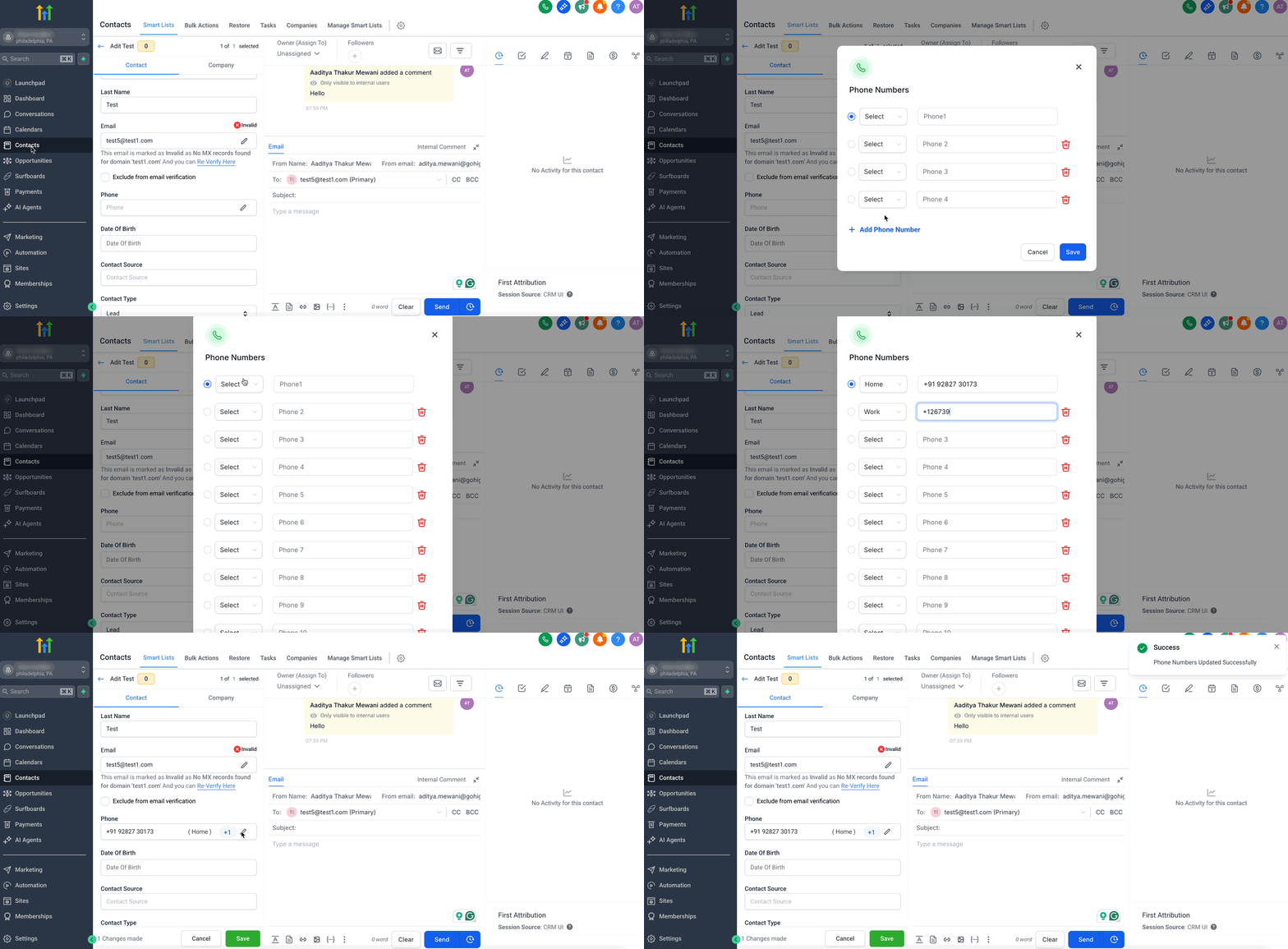
Section titled “Step 2: Click “+ Add Phone Number””From the phone block, click the + Add Phone Number option. Here, you can enter up to 10 additional, secondary phone numbers and select an appropriate label (Mobile, Home, Work, etc.). You can also check the Primary box on any number to set it as the main calling priority for that individual.
Editing or Removing Phone Numbers
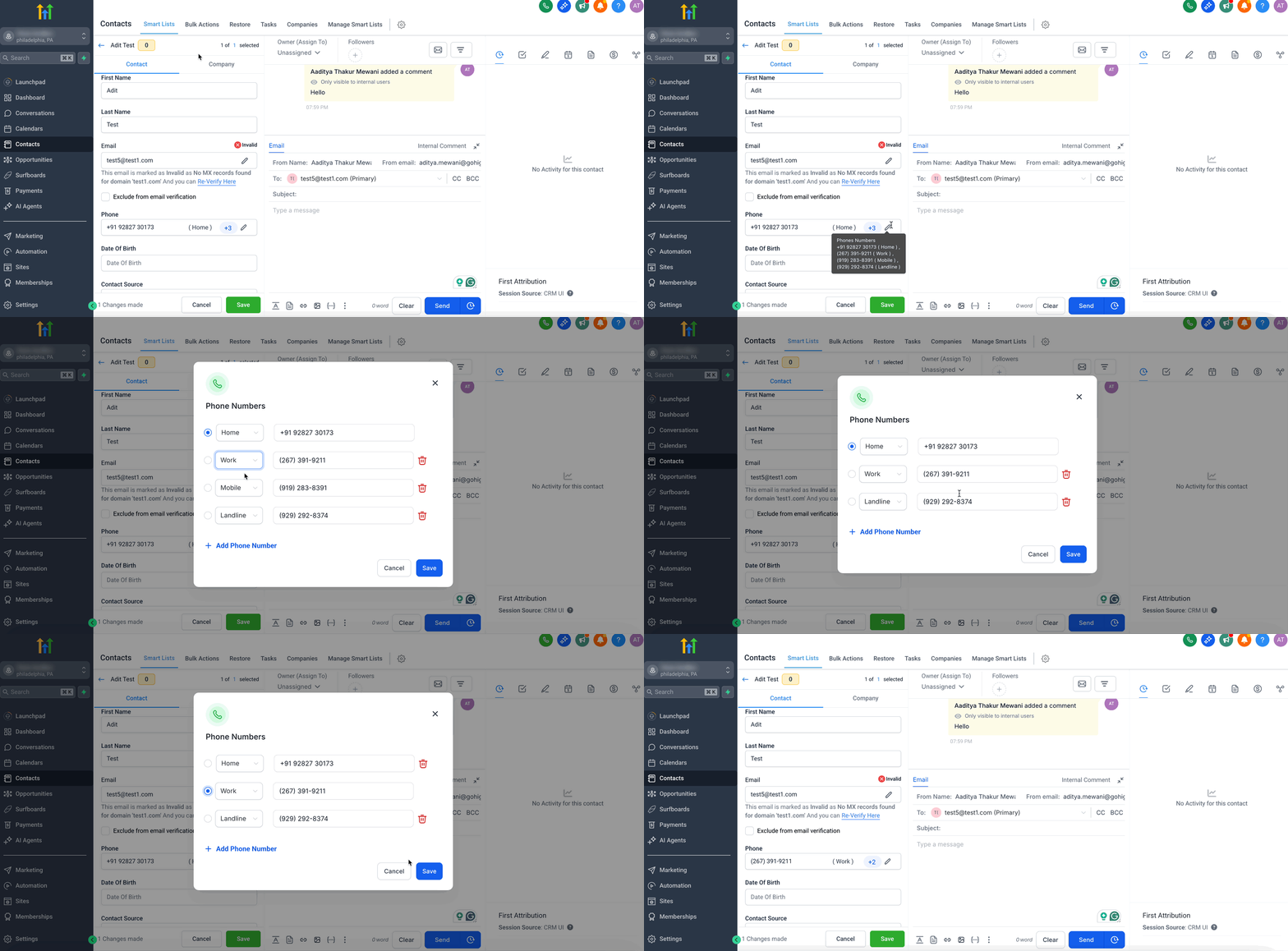
Section titled “Editing or Removing Phone Numbers”To keep your contact records clean and accurate, you should routinely update or delete old phone numbers as needed.
- Click the Edit (pencil) icon next to a number to change the digits or a label.
- Click the Trash icon to remove a number entirely.
- Remember, only one number can have the Primary status at any given time.
Use Cases for Multiple Phone Numbers
Section titled “Use Cases for Multiple Phone Numbers”Managing several phone numbers is an incredibly useful asset for various real-world scenarios:
- Sales: Teams can dial multiple numbers to increase the likelihood of reaching active leads faster.
- Support: Agents can ensure they have backup contact options in critical situations.
- Agencies: Maintain both personal and professional contact tracks for a single individual.
- Vendors/Partners: Track separate numbers for different departments (e.g., billing lines vs. operational offices).
- Emergency Readiness: Save backup numbers to ensure you can always contact critical partners.