Social Planner - How to Add Multiple Watermarks
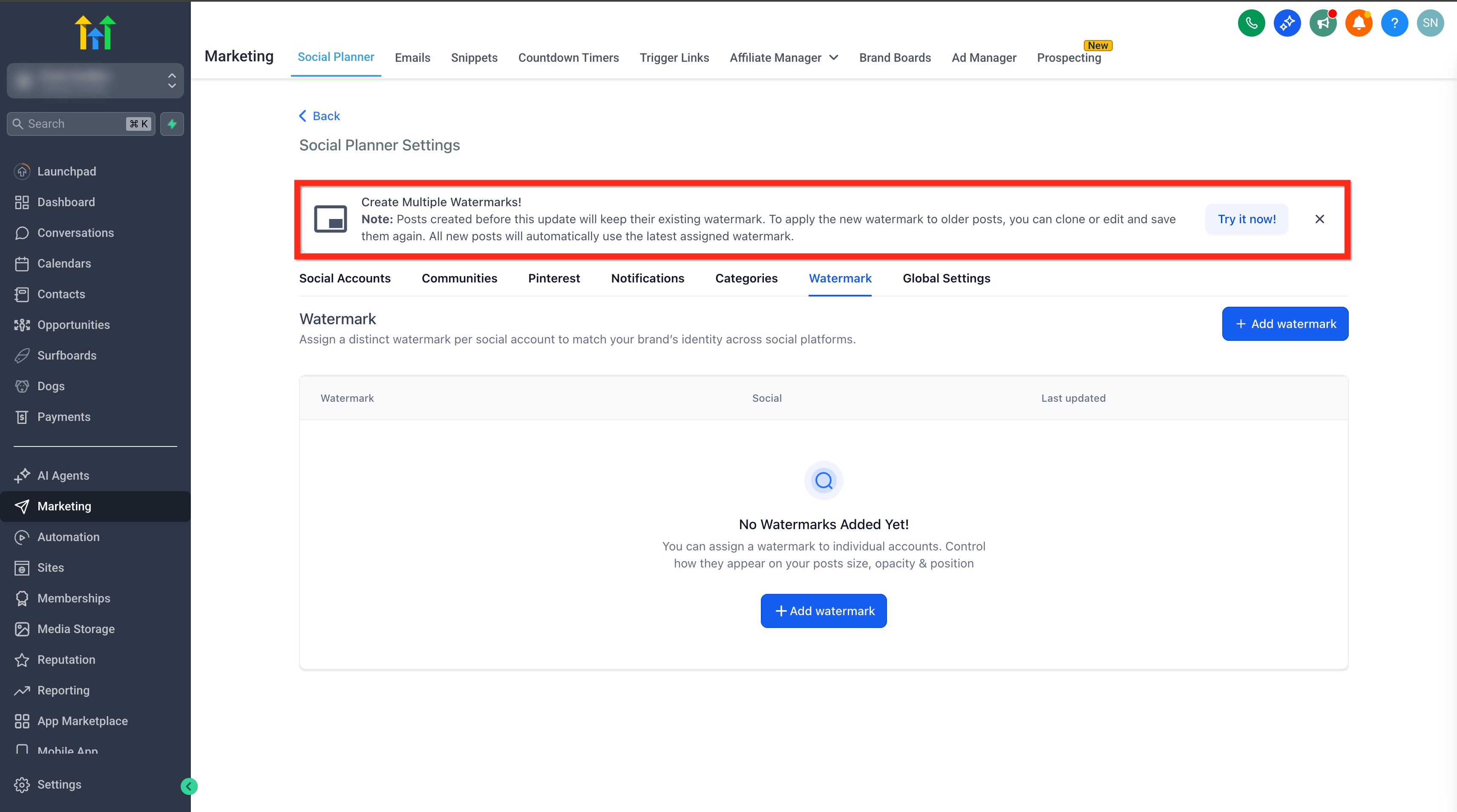
A watermark is a visible, often translucent, design, logo, or text superimposed onto a digital image. The Social Planner allows you to upload multiple watermarks and selectively assign them to your connected social accounts. Instead of enforcing a single global watermark, you can designate specific branding for each account automatically at publish time. This is especially useful for teams managing multiple distinct brands simultaneously.
Key Benefits of Using Watermarks
Section titled “Key Benefits of Using Watermarks”- Ownership and Copyright Protection: Including a username, logo, or other identifying information makes it more difficult for others to claim your content as their own.
- Brand Recognition: Consistently placing a logo or brand name on images establishes a reliable online presence.
- Deterrence Against Unauthorized Use: Potential infringers are less likely to steal or share content that is clearly marked with another brand’s identification.
- Professionalism: Watermarks add a level of polish, crucial for photographers, artists, and creatives wanting to showcase their work cleanly.
- Promotion and Marketing: A strategically placed watermark (e.g., a website URL or social handle) directs viewers back to your online presence or to a specific campaign.
- Personalization: The specific design and placement of a watermark act as a creative element that enhances overall visual appeal.
How to Upload & Manage Watermarks
Section titled “How to Upload & Manage Watermarks”Step 1: Go to Settings
Section titled “Step 1: Go to Settings”- Log in to your account.
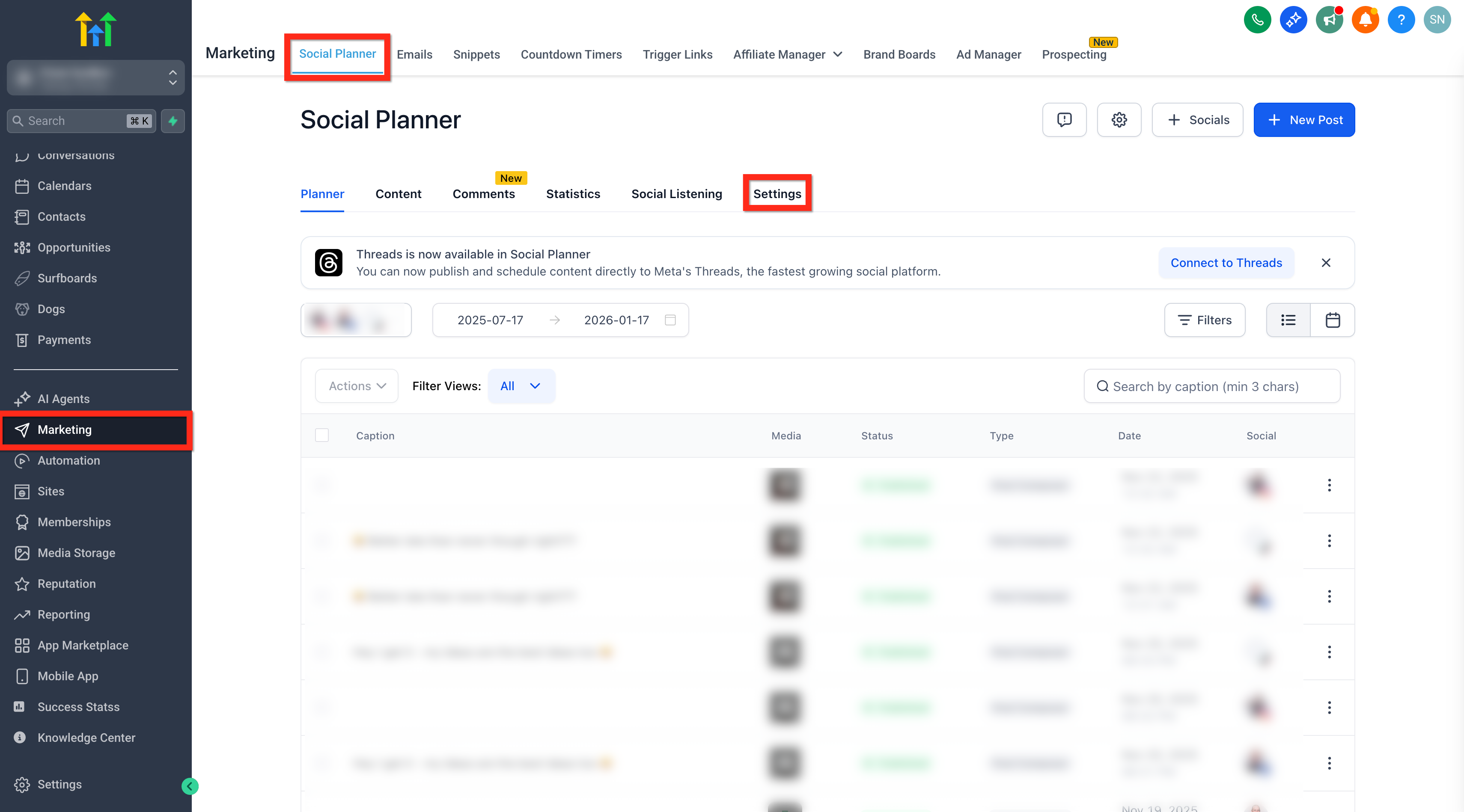
- Navigate to Marketing → Social Planner → Settings.
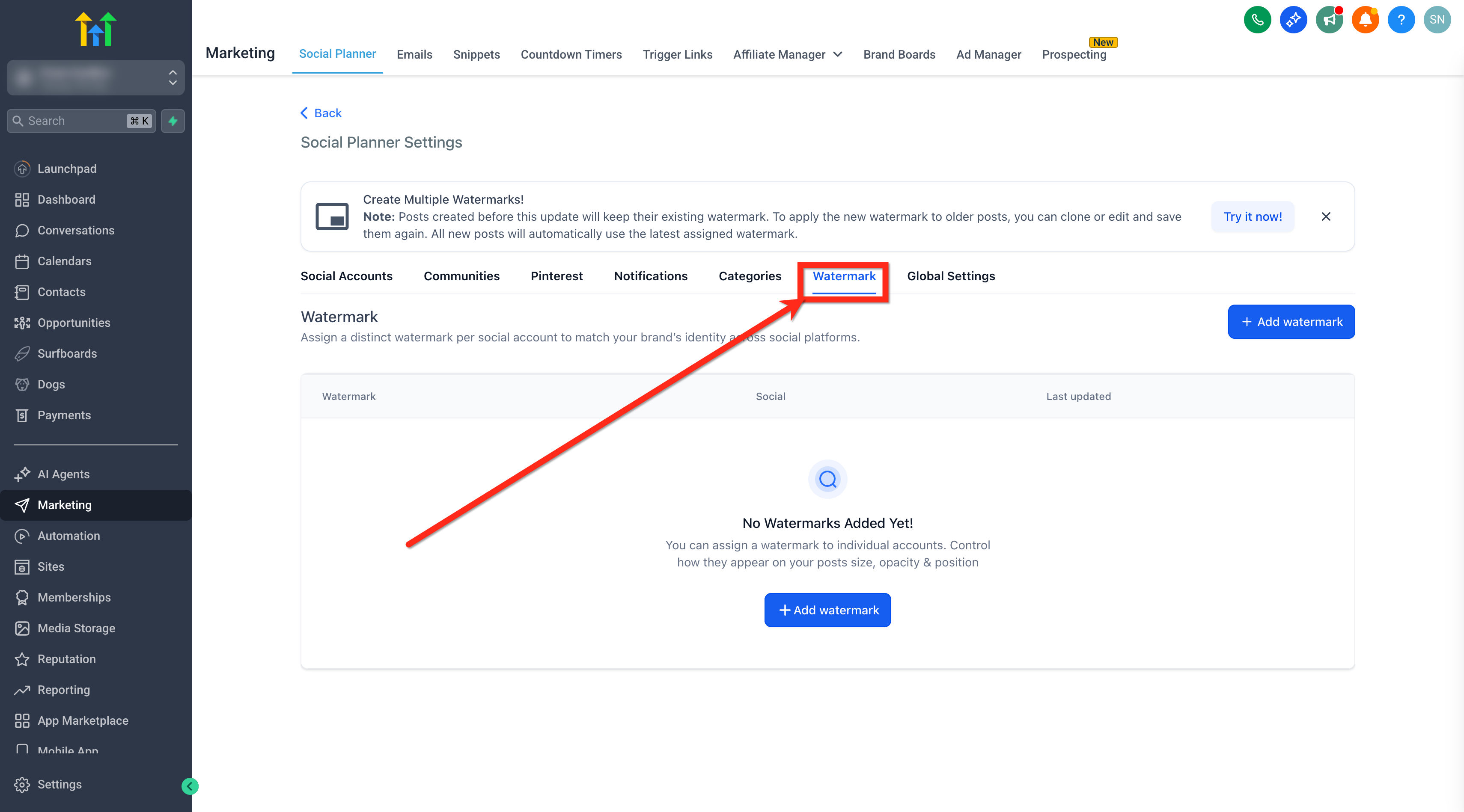
- Click on the Watermark tab.
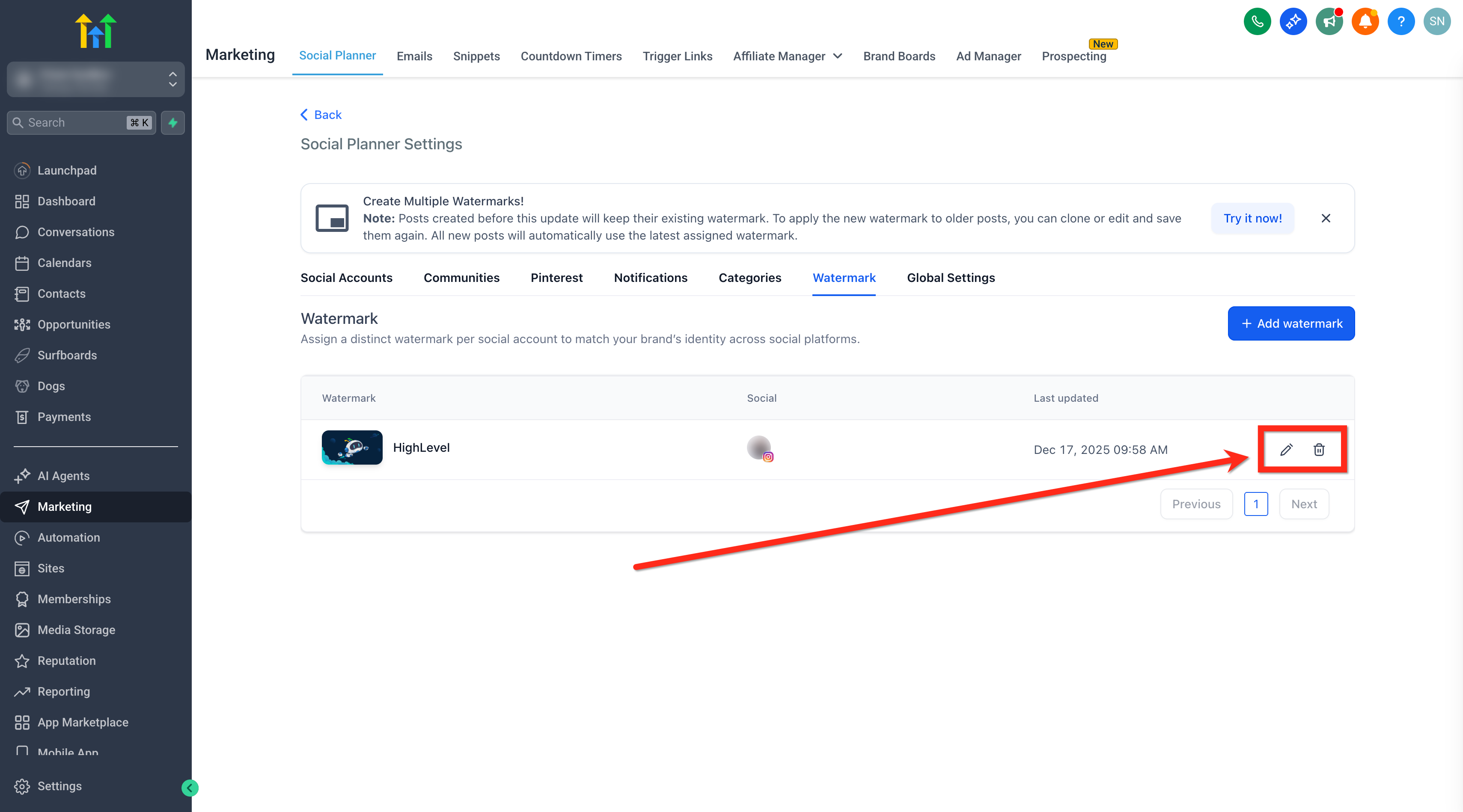
If you haven’t added a watermark yet, you will see a prompt to create one. If you previously had a global watermark assigned, it will automatically appear in your list view assigned to “All Socials”. You can edit this setup and assign it explicitly to specific accounts.
Step 2: Upload a Watermark
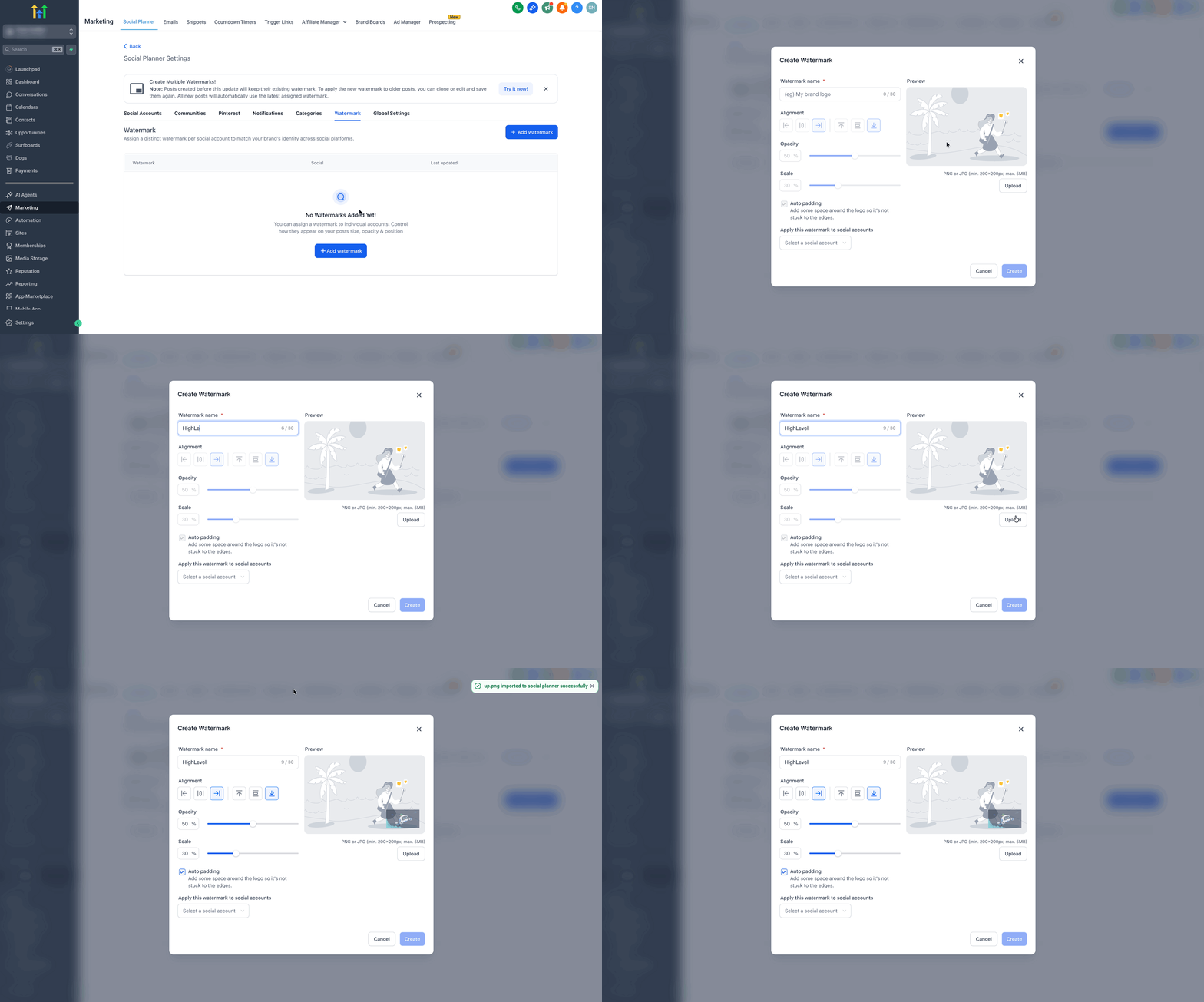
Section titled “Step 2: Upload a Watermark”- Click on the + Add Watermark button.
- Give your watermark a recognizable name for easy identification.
- Upload your file. Supported formats are PNG or JPG (min. 200x200px, max. 5MB).
Step 3: Edit Watermark Properties
Section titled “Step 3: Edit Watermark Properties”Once uploaded, use the editor interface to customize how the watermark displays on your content:
- Connect its Alignment.
- Adjust the Opacity for desired translucency.
- Use the Scale slider to resize the watermark correctly over images.
- Use the Auto Padding option to comfortably add more space around the logo.
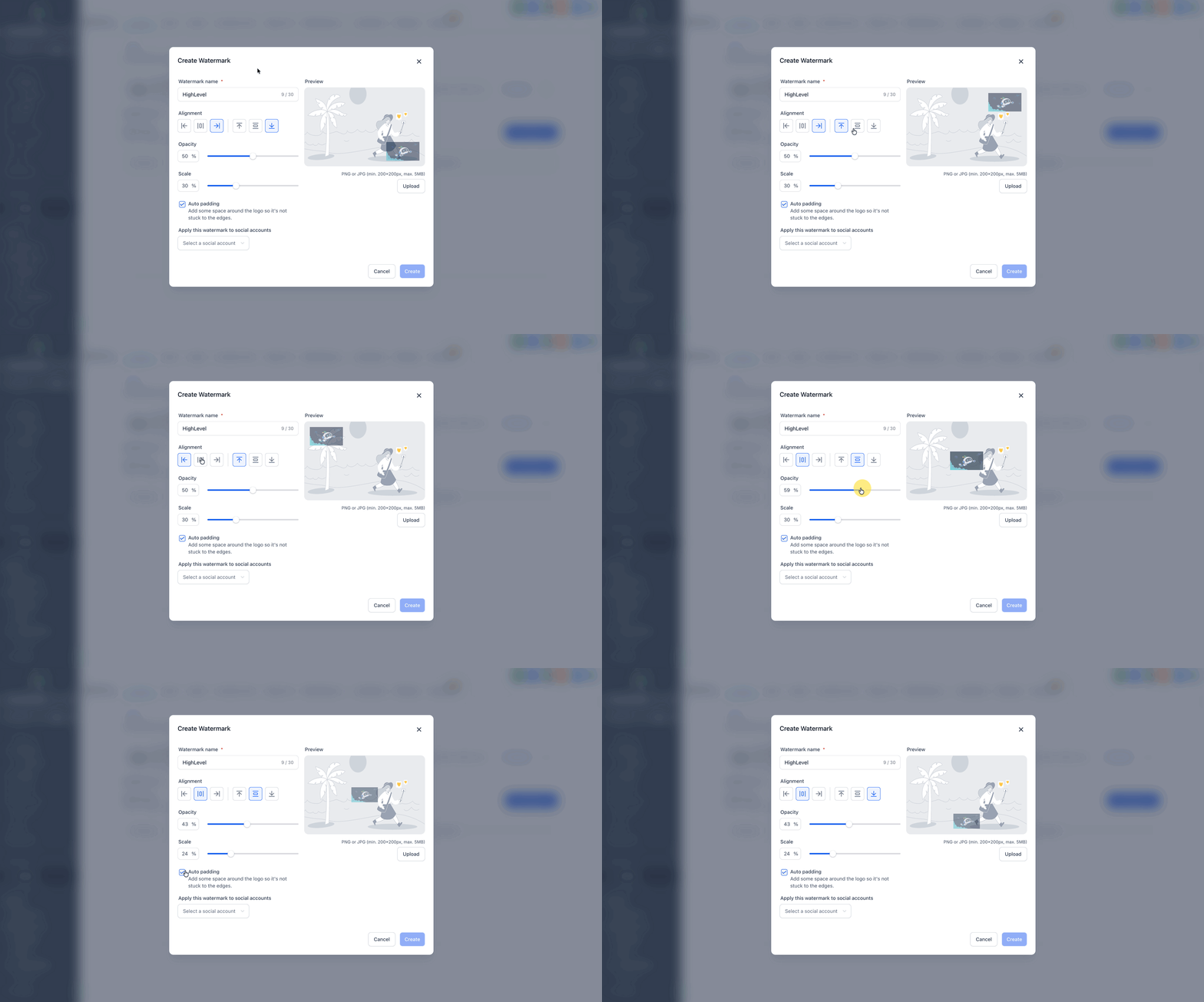
Step 4: Select Accounts and Create
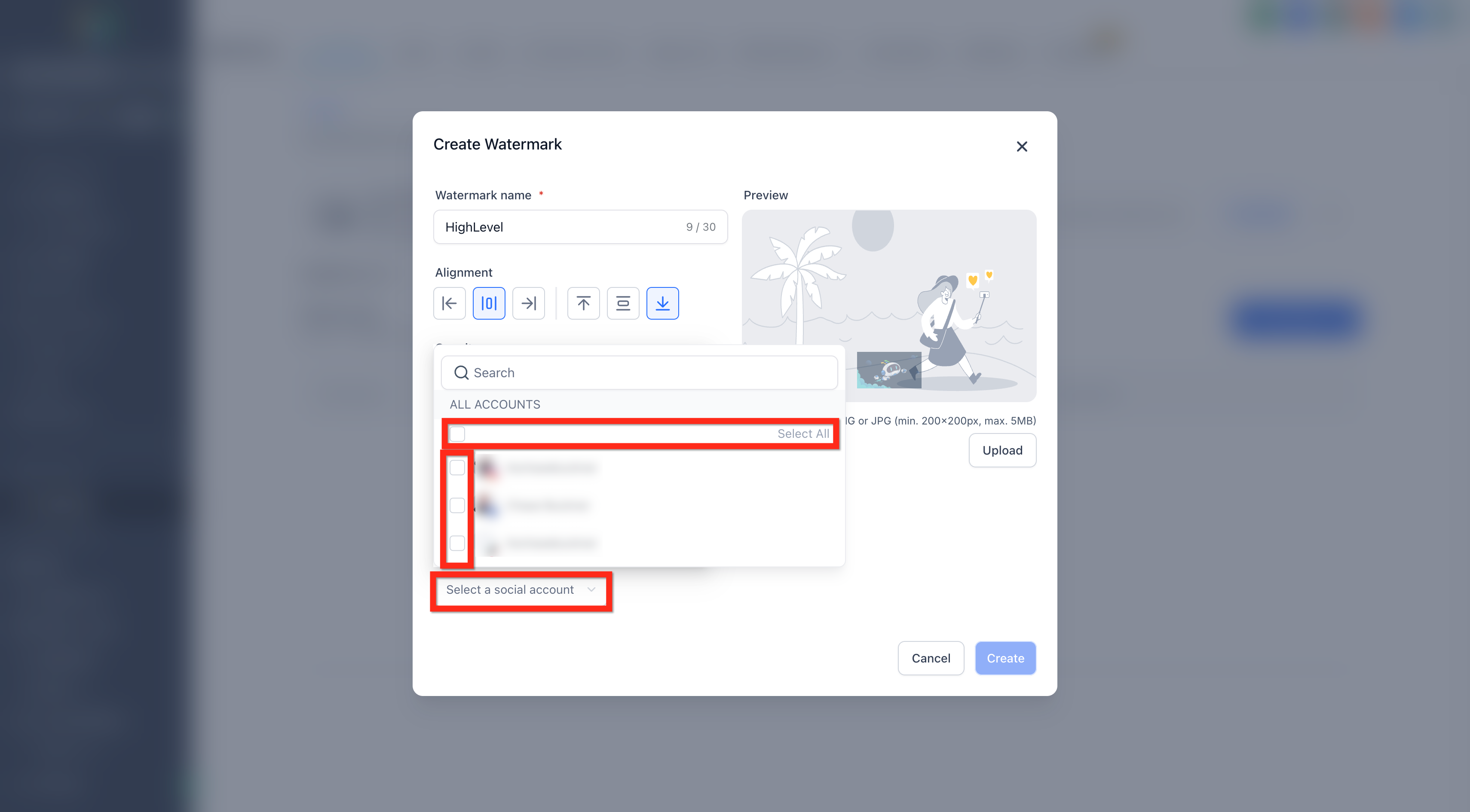
Section titled “Step 4: Select Accounts and Create”Select exactly which social media accounts you want this specific watermark applied to (you can select particular single accounts, or “All”). Finally, click the Create button.
Step 5: Manage Uploaded Watermarks
Section titled “Step 5: Manage Uploaded Watermarks”From the main Watermark list view, you can:
- View all configured watermarks.
- Edit (rename, adjust settings, or replace) an existing watermark.
- Delete a watermark entirely.
Important Notes
Section titled “Important Notes”[!NOTE]
- Immediate Application: New posts created after assigning a watermark will use the latest configuration.
- Editing Older Posts: When cloning or editing older posts, you will temporarily see the original non-watermarked image. The new watermark will only apply after saving the post.
- Category Queues/Automations: Automated posts and category queues will seamlessly adopt the new assigned watermark starting from the next scheduled post.
- Unsupported Formats: Watermarking is not supported for RSS posts, Review posts, or Videos (due to API restrictions).
Frequently Asked Questions
Section titled “Frequently Asked Questions”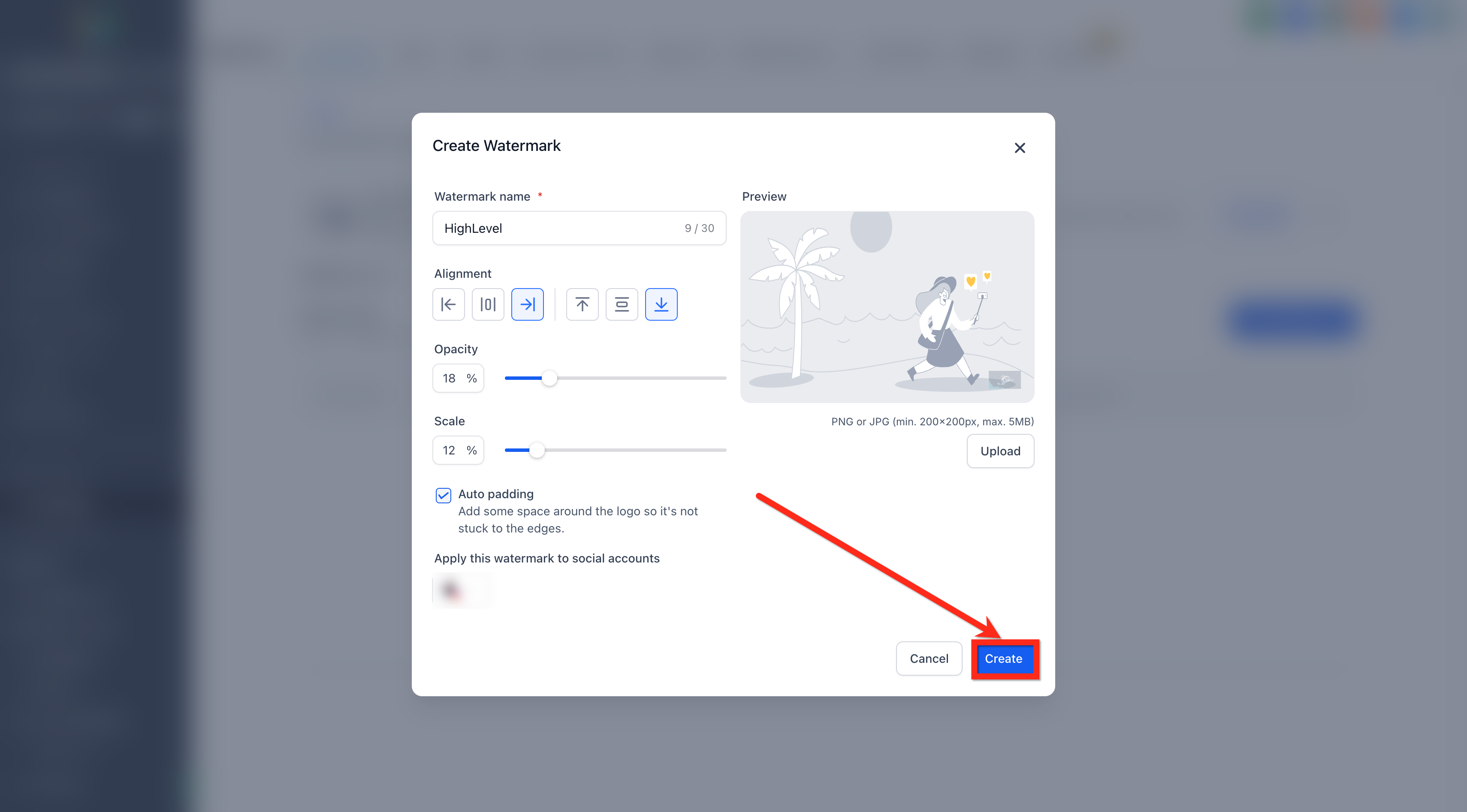
Q. Can I apply more than one watermark to the same social account?
No. Each social account can have only one assigned watermark active at a time.
Q. What happens if I delete a watermark that’s currently assigned?
Affected social accounts will silently reset to having no watermark until you assign a new one.
Q. Do watermarks apply to videos?
No. Watermarks currently only apply to supported image posts.
Q. Will changing assignments update posts already scheduled?
Changes only affect future publishes. Existing scheduled items will keep their original media generation unless you recreate or update them manually.
Q. Can RSS or Review posts use watermarks?
No. These automated sources do not support watermarking overlays.
Q. Is there a recommended file type and size?
Yes, use PNG or JPG. The image must be at least 200x200px and under a maximum file size of 5MB.
Q. How does bulk CSV scheduling decide which watermark to use?
The CSV workflow dynamically checks the per‑social assignment for each account precisely at the time the post actually publishes.