
How to Batch Schedule Email Campaigns
Batch scheduling (often referred to as batch delivery or drip mode) allows you to spread out your email campaign delivery across defined intervals. Instead of broadcasting an email to your entire audience simultaneously, you control the batch quantity, pacing frequency, and active sending windows so that delivery occurs gradually and predictably.
Key Benefits of Batch Scheduling
Section titled “Key Benefits of Batch Scheduling”- Traffic Management: Sending in timed batches avoids sudden, overwhelming resource surges to your websites, landing pages, or funnels.
- Server Load Control: Reduces potential stress on your sender’s IP and server by pacing the outgoing volume, which can heavily improve deliverability and spam scores.
- Flexible Timing: Grants granular control over batch quantities, repeat frequencies, operational days, and restricted start/end timeframes.
Pre-Sending Checklist
Section titled “Pre-Sending Checklist”Before you begin configuring a batch schedule, ensure the following steps are complete:
- You must have a finalized email template created to serve as your campaign content.
- Your sending domain must be fully verified within the system.
How to Set Up a Batch Email Campaign
Section titled “How to Set Up a Batch Email Campaign”Follow these steps within the Email Builder to queue your campaign using drip mode.
Step 1: Create an Email Campaign
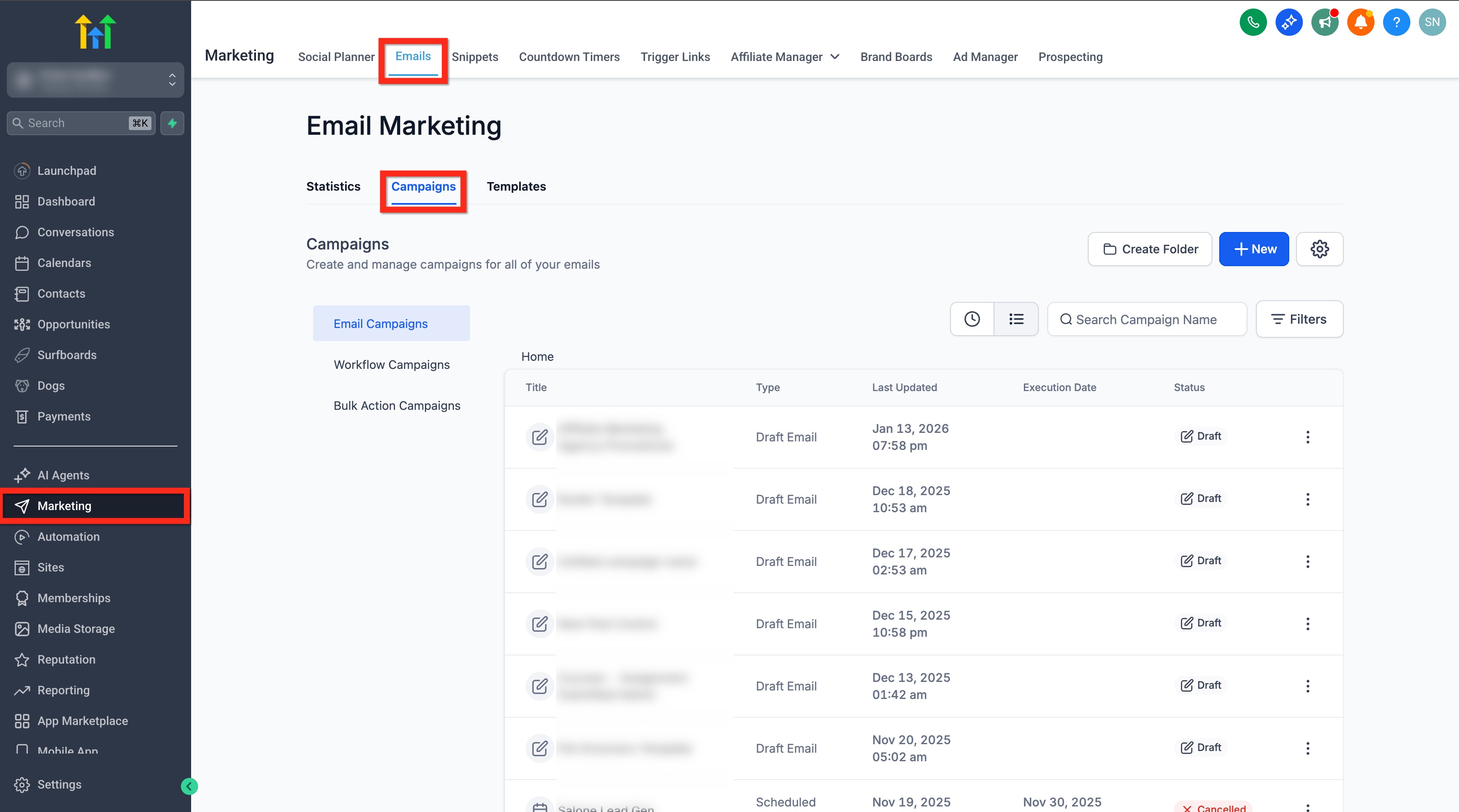
Section titled “Step 1: Create an Email Campaign”Navigate to Marketing > Email > Campaigns. From here, you can click to create a New Campaign or choose to edit an existing draft.
Step 2: Design the Email
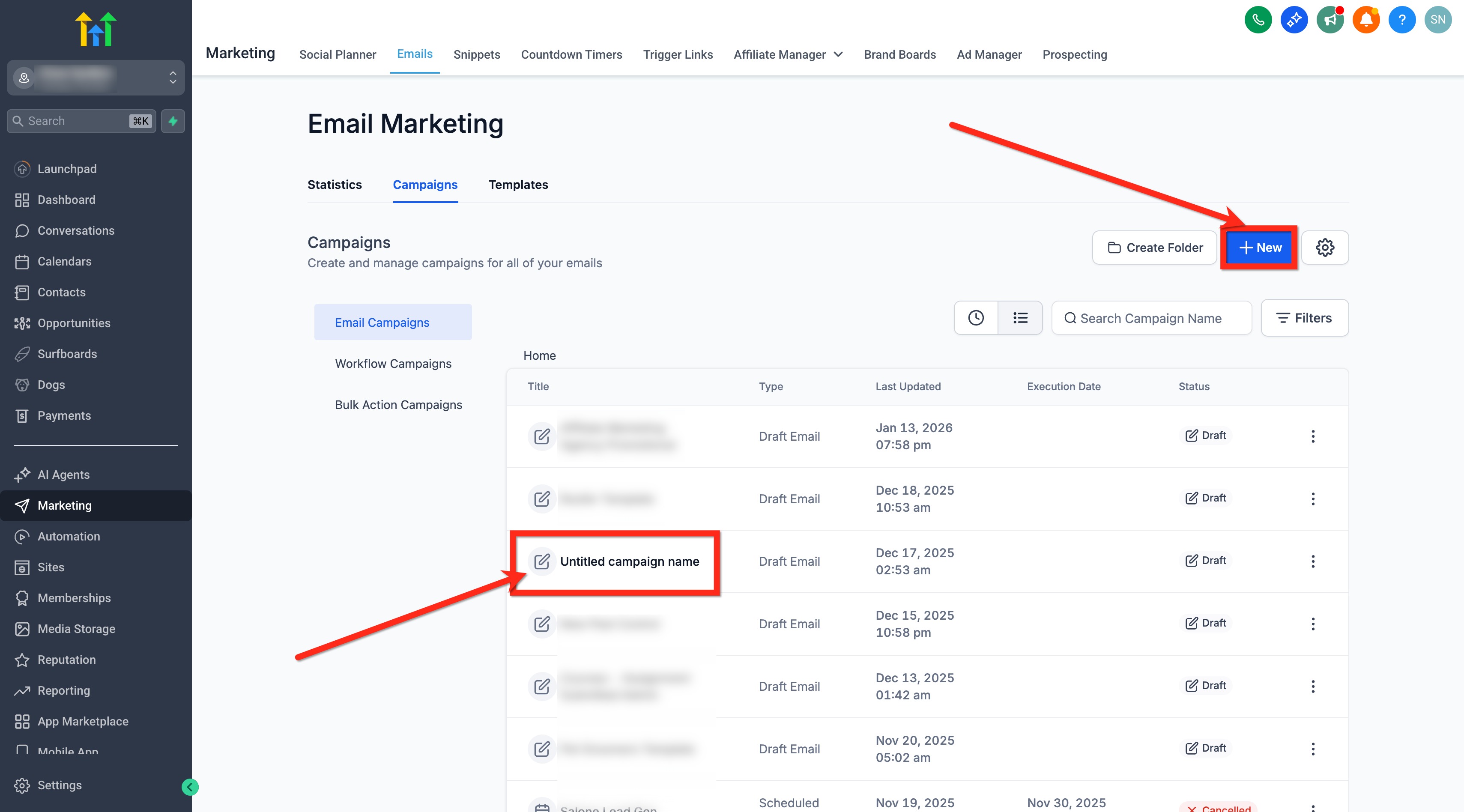
Section titled “Step 2: Design the Email”- Build your layout or select a pre-made template.
- Add your written content, images, and trackable links.
- Use the built-in Preview and Test Email functionalities to verify the layout handles desktop and mobile rendering well.
Step 3: Select Batch Schedule
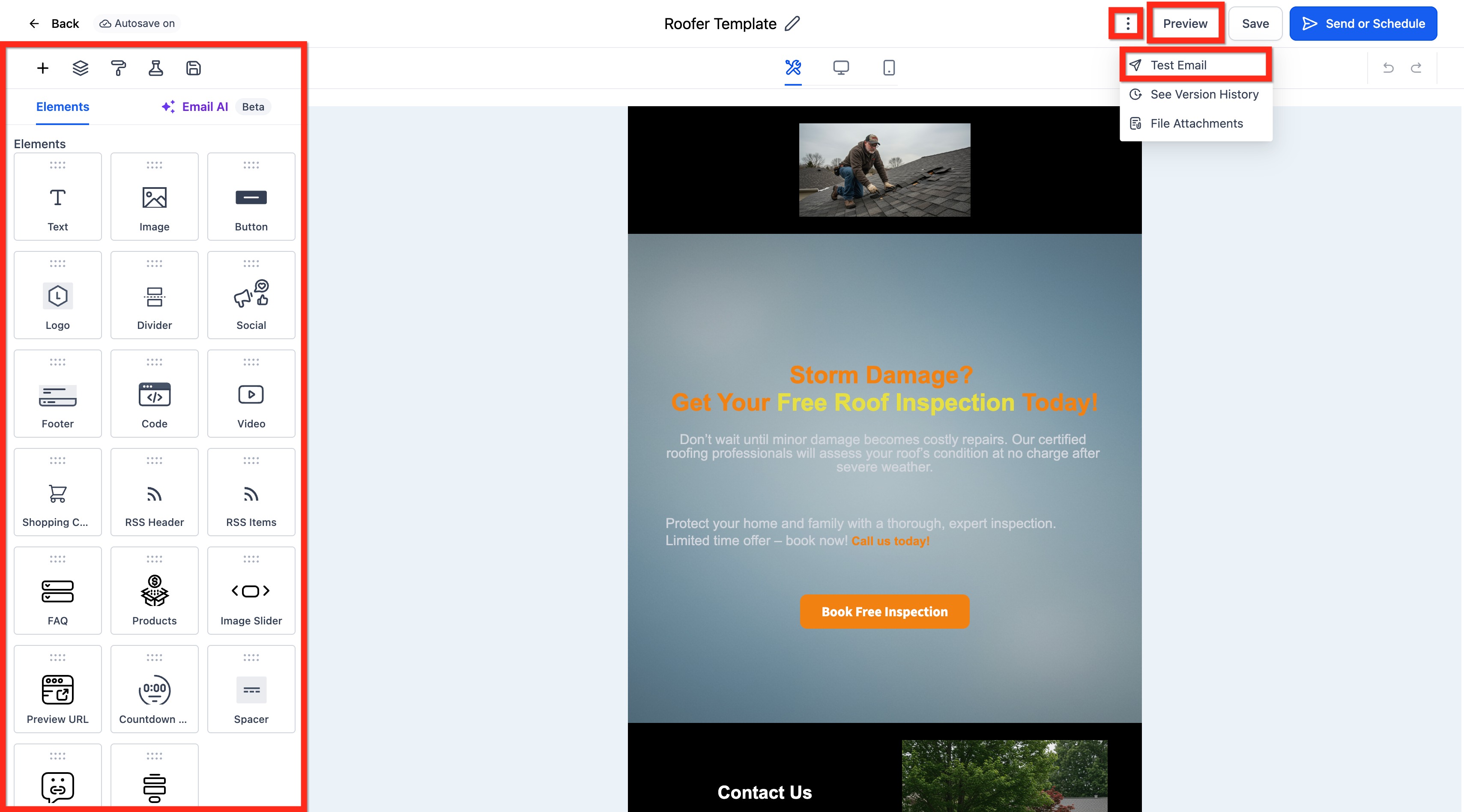
Section titled “Step 3: Select Batch Schedule”Once your design is verified, click the Send or Schedule button in the composer menu.
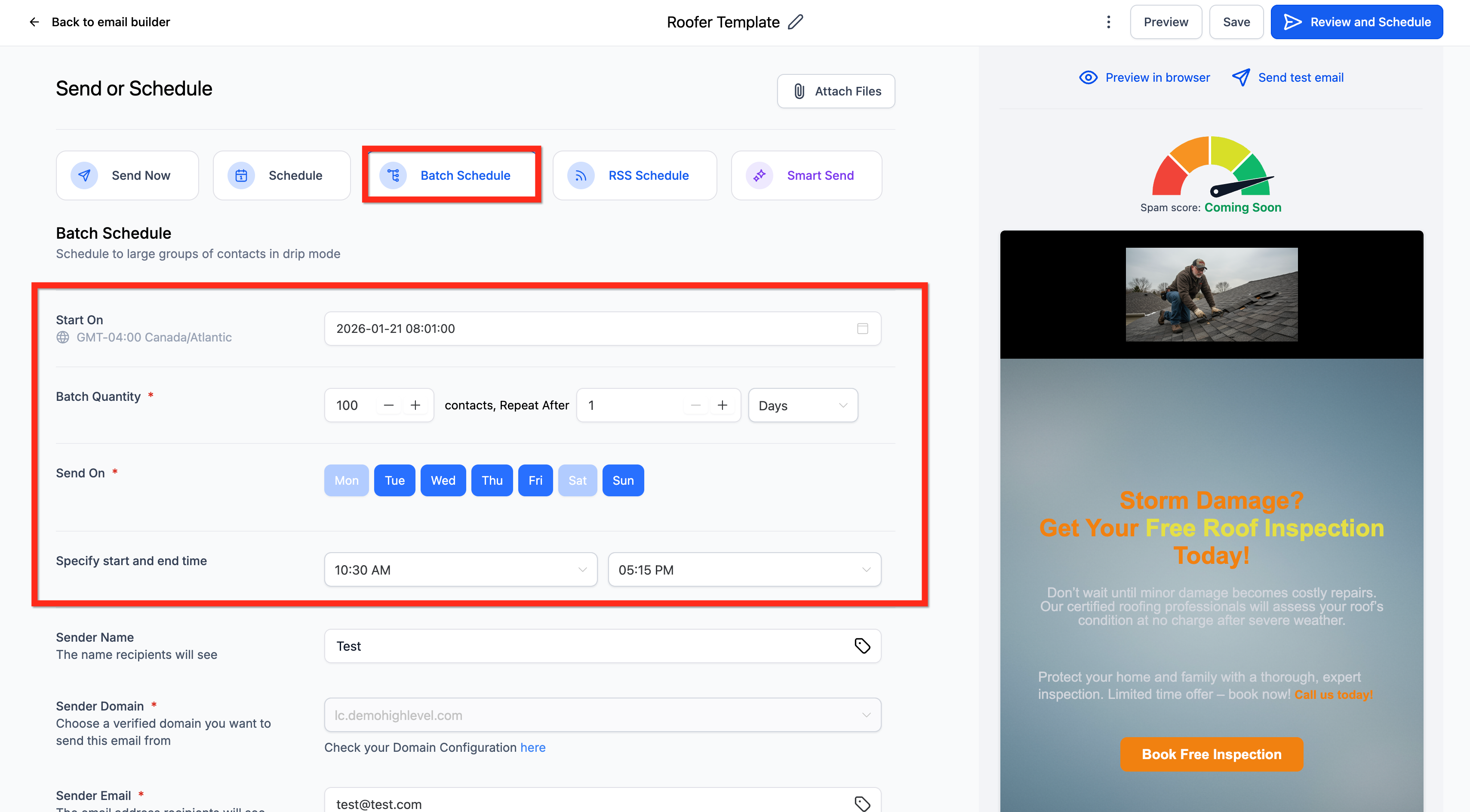
From the Sending Options list, actively select Batch Schedule and configure the properties below:
- Start Date & Time: Define exactly when the campaign should begin processing.
- Batch Quantity: Enter the volume you want processed concurrently. (Note: Batch Quantity refers to the precise number of emails sent per batch, NOT the total number of batches. For example, if you have 10,000 recipients and set the Batch Quantity to 1,000, your system will process 10 autonomous batches of 1,000 emails each).
- Repeat After: Add numerical pacing based on frequency (Days, Hours, or Minutes). (Note: Scheduling by seconds has been restricted to prevent errors. Please use 1 minute or higher).
- Active Days: Check and uncheck specific days of the week to throttle delivery blockout periods.
- Start & End Time Restrictions: Add specific daily operational hours.
[!WARNING] Time Validation Rules
- If your End time is earlier than your Start time, an inline error will appear enforcing chronological alignment.
- The application automatically handles Midnight (12:00 AM) boundary logic to prevent false errors.
- The Schedule button will remain disabled until all validation errors are properly addressed.
Step 4: Finalize Campaign Details
Section titled “Step 4: Finalize Campaign Details”Complete the standard sending procedures:
- Append a Sender Name (Optional).
- Select your verified Sender Domain.
- Enter your Sender Email.
- Finalize your Subject Line and Preview Text (Optional).
- Add your targeted Recipients via emails or smart lists.
- Click Schedule once all configurations are locked in. (Ensure you double-check your execution datetime and timezone!)
Frequently Asked Questions
Section titled “Frequently Asked Questions”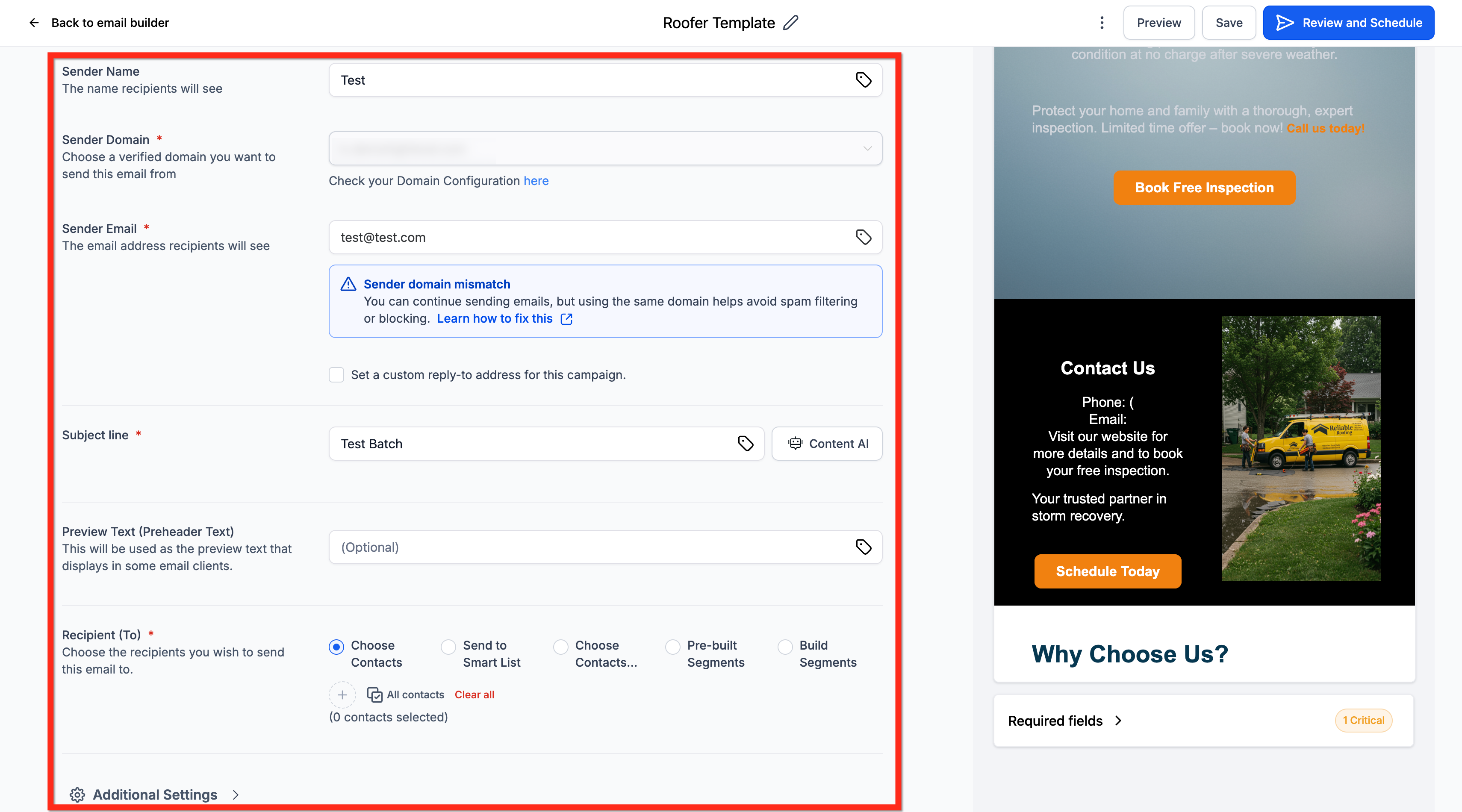
Q: Can I edit the copy of a Batch Campaign that’s currently processing? Will it affect reporting?
Yes, you can edit the copy of an ongoing Batch Schedule Campaign by clicking Update Email Content. After editing, please ensure you click save. The system attempts to inject your updated copy for the next execution sequence before hitting the server. It will not disrupt your total statistics.
Q: Can I reschedule an active/queued batch campaign?
rescheduling is possible for Simple Schedule, Batch Schedule, and RSS configurations up to one hour (60 minutes) ahead of the next execution cycle. Find the campaign in the list, use the Reschedule Campaign quick action, update the specifics, and save the settings.
Q: What are the system rate limits when using Drip Mode?
To ensure optimized delivery processing, standard frequency throttle limits apply:
- 30 sec - 1 min frequencies: ~1,000 messages processed per minute
- 5 min frequencies: ~4,999 messages processed per minute
- 6 min - 10 min frequencies: ~5,000 messages processed per minute
- Above 10 min frequencies: ~10,000 messages processed per minute
Q: What are the general rate limits for non-batch (“Add All at Once”) sending?
- < 10k contacts: Processes ~15k contacts per hour
- 10k - 50k contacts: Processes ~6k contacts per hour
- 50k - 70k contacts: Processes ~3k contacts per hour
- > 70k contacts: Processes ~1.5k contacts per hour