
Advanced Filters in Smart Lists
Advanced Filters allow you to narrow Smart List results using specific rules tied to contact fields and related data. This makes it easier to build targeted lists based on contact details, engagement, communication settings, opportunity data, and more.
Each filter is built using three main parts: a field, an operator, and a value. The available operators depend on the field you select. For example, a date field will support date-based operators, while a number field will support comparison operators.
Key Benefits of Advanced Filters
Section titled “Key Benefits of Advanced Filters”- Precise Segmentation: Narrow contact lists using specific field values, operators, and conditions.
- Better List Accuracy: Match contacts more reliably by choosing operators that fit the selected field type.
- Faster List Building: Use searchable filters to quickly find the fields you need.
- Flexible Filtering: Work with date, string, number, status, opportunity, and DND-related data.
- Cleaner Contact Management: Find missing values, invalid statuses, and other records that need review.
- Safe Outreach Targeting: Use DND and status-based filters to build more compliant communication lists.
How To Setup Advanced Filters in Smart Lists
Section titled “How To Setup Advanced Filters in Smart Lists”Applying Advanced Filters correctly helps return more relevant contacts and makes Smart Lists easier to manage. Choosing the right field, operator, and value is the key to getting reliable results.
-
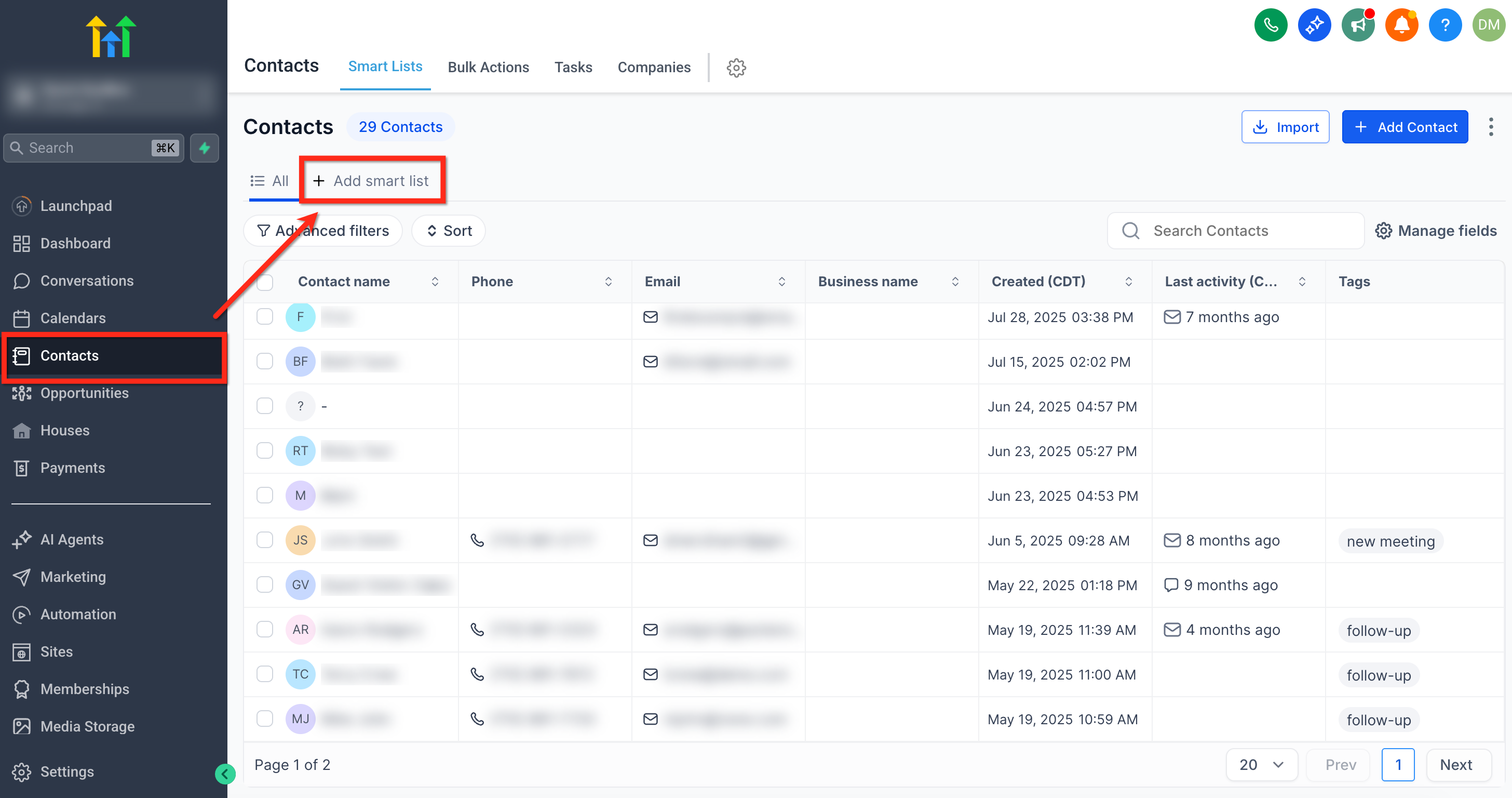
Go to Contacts then click + Smart List.
-
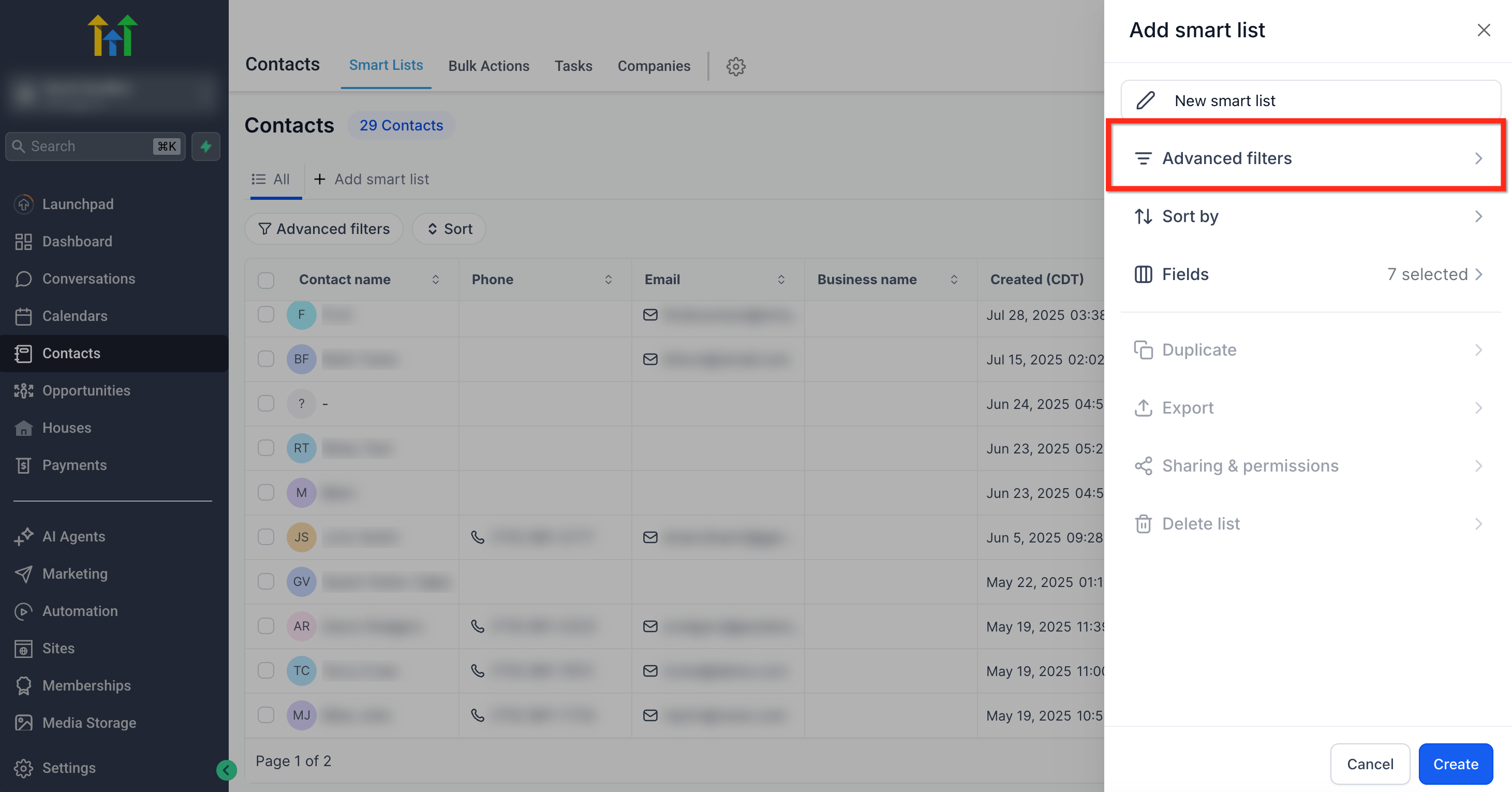
Click Advanced Filters.
-
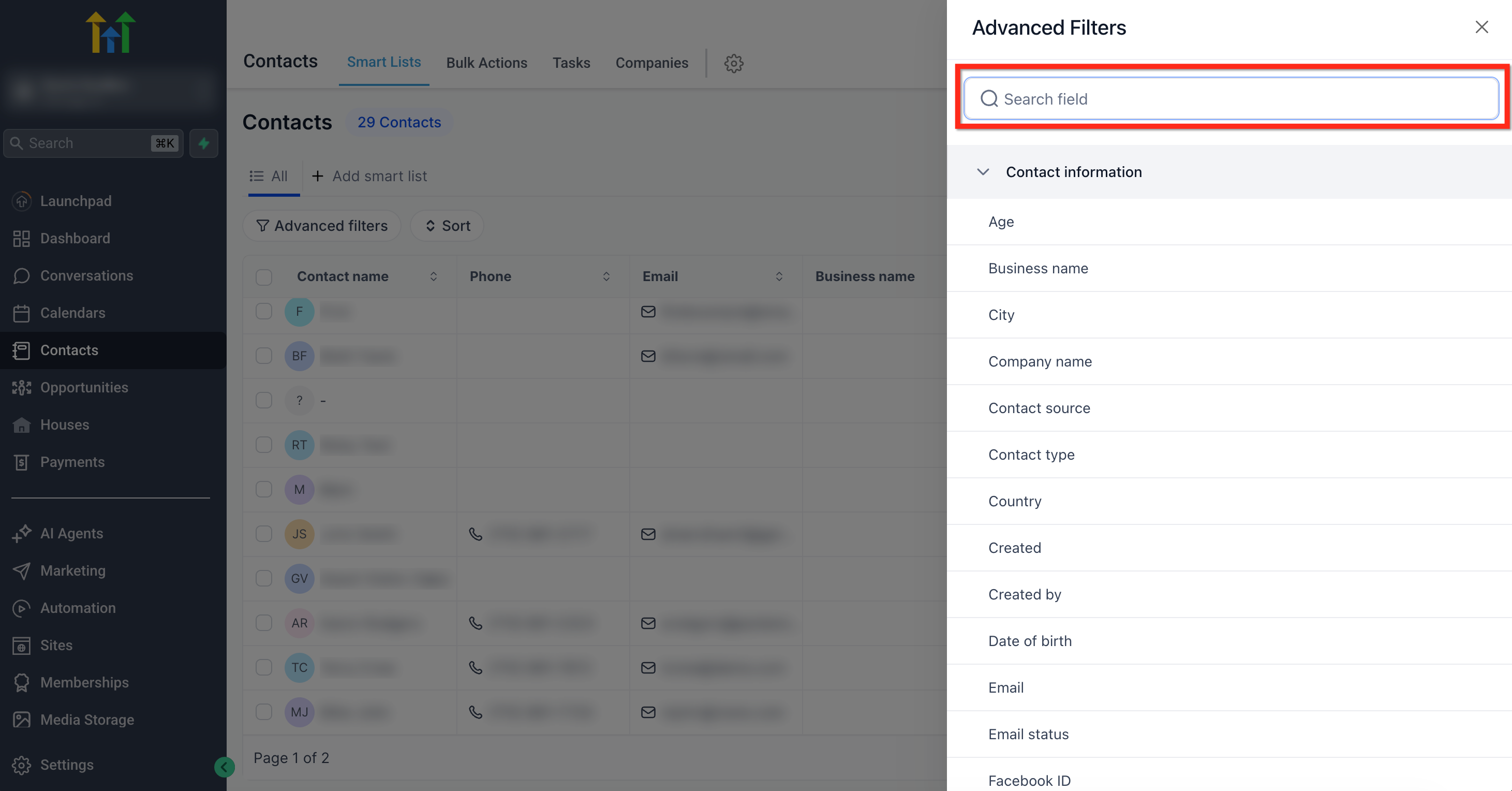
Search for and select the field you want to use.
-
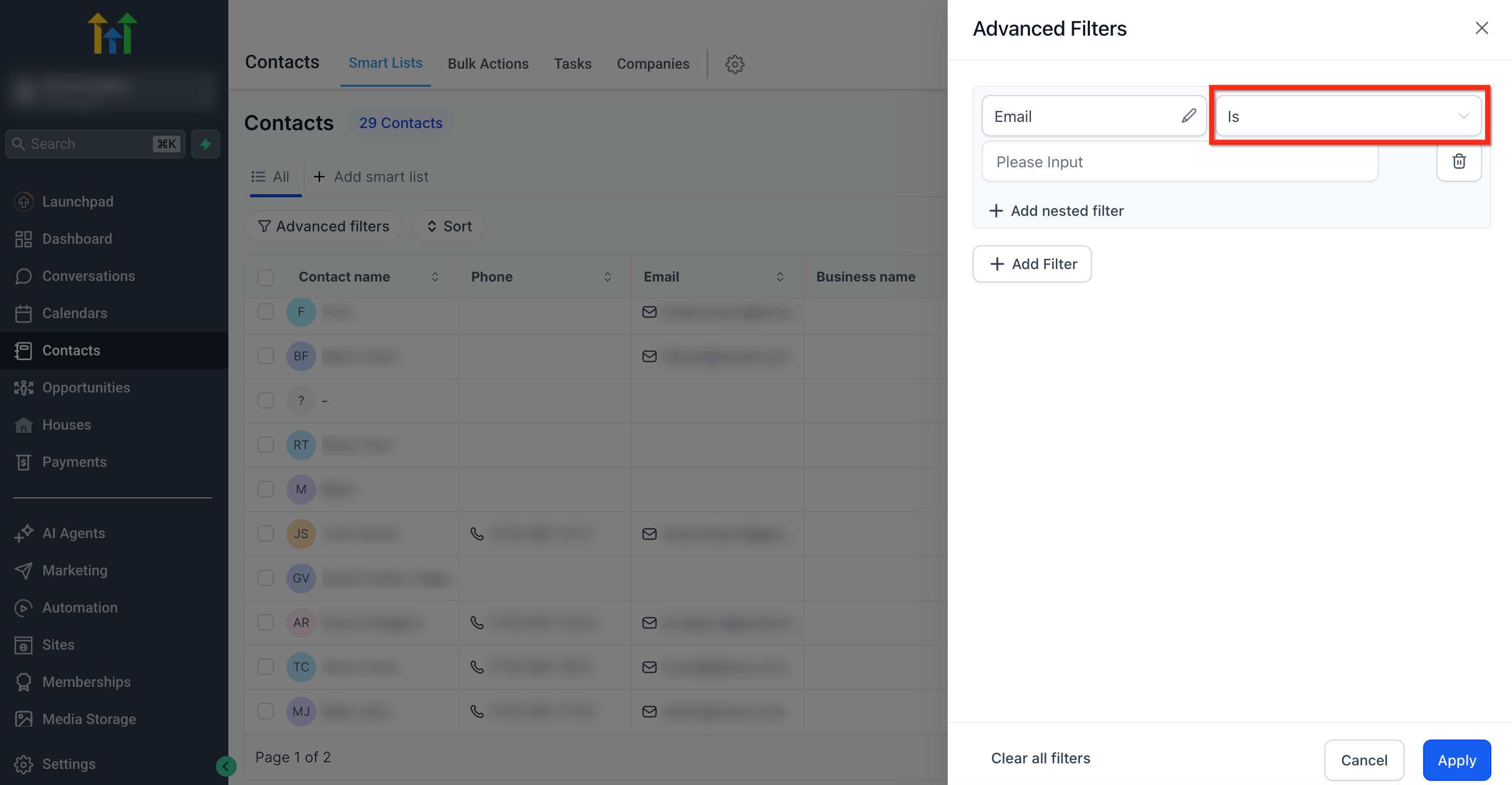
Choose the operator that matches the type of segmentation you are looking for.
-
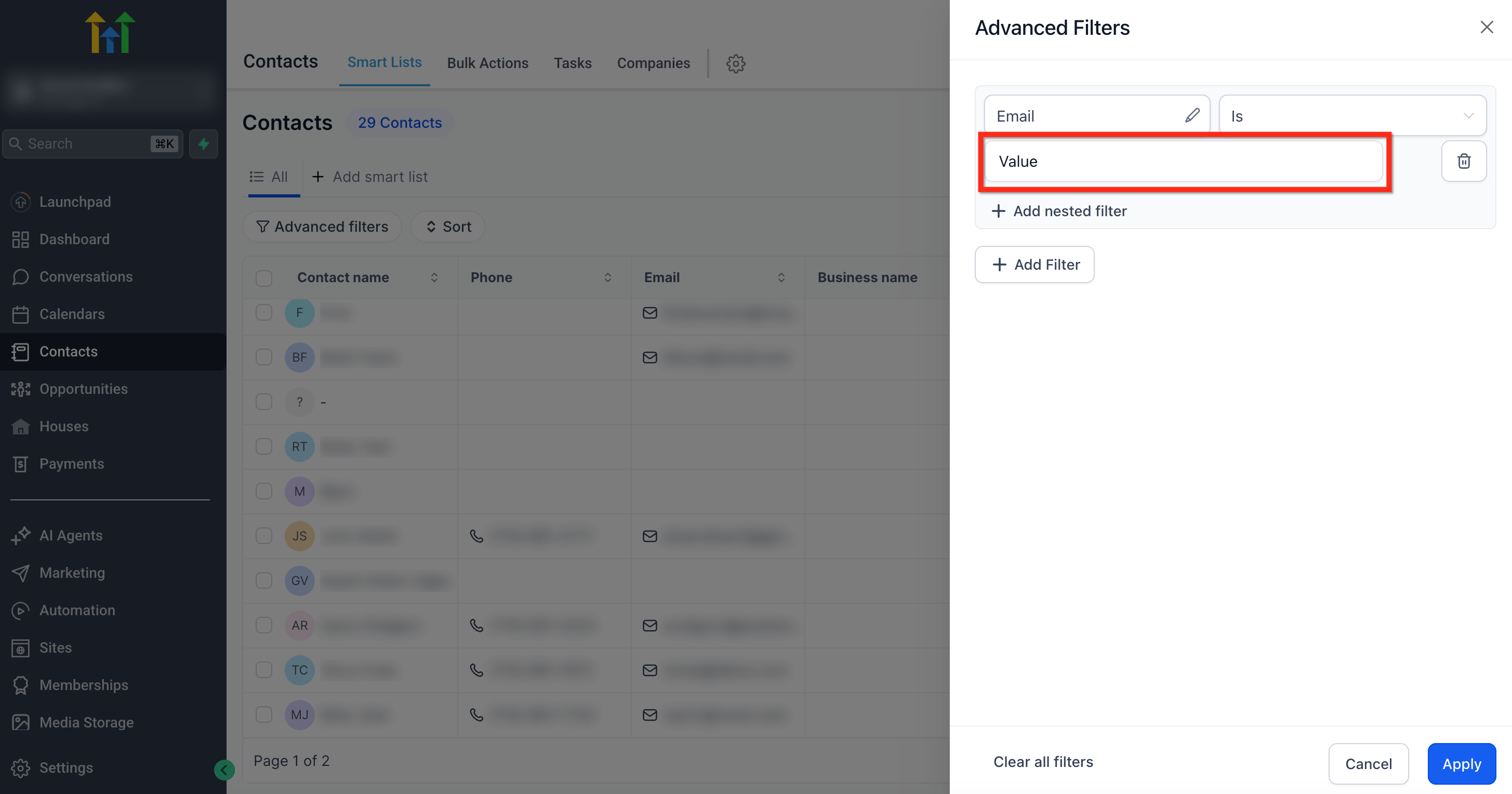
Enter or select the value.
-
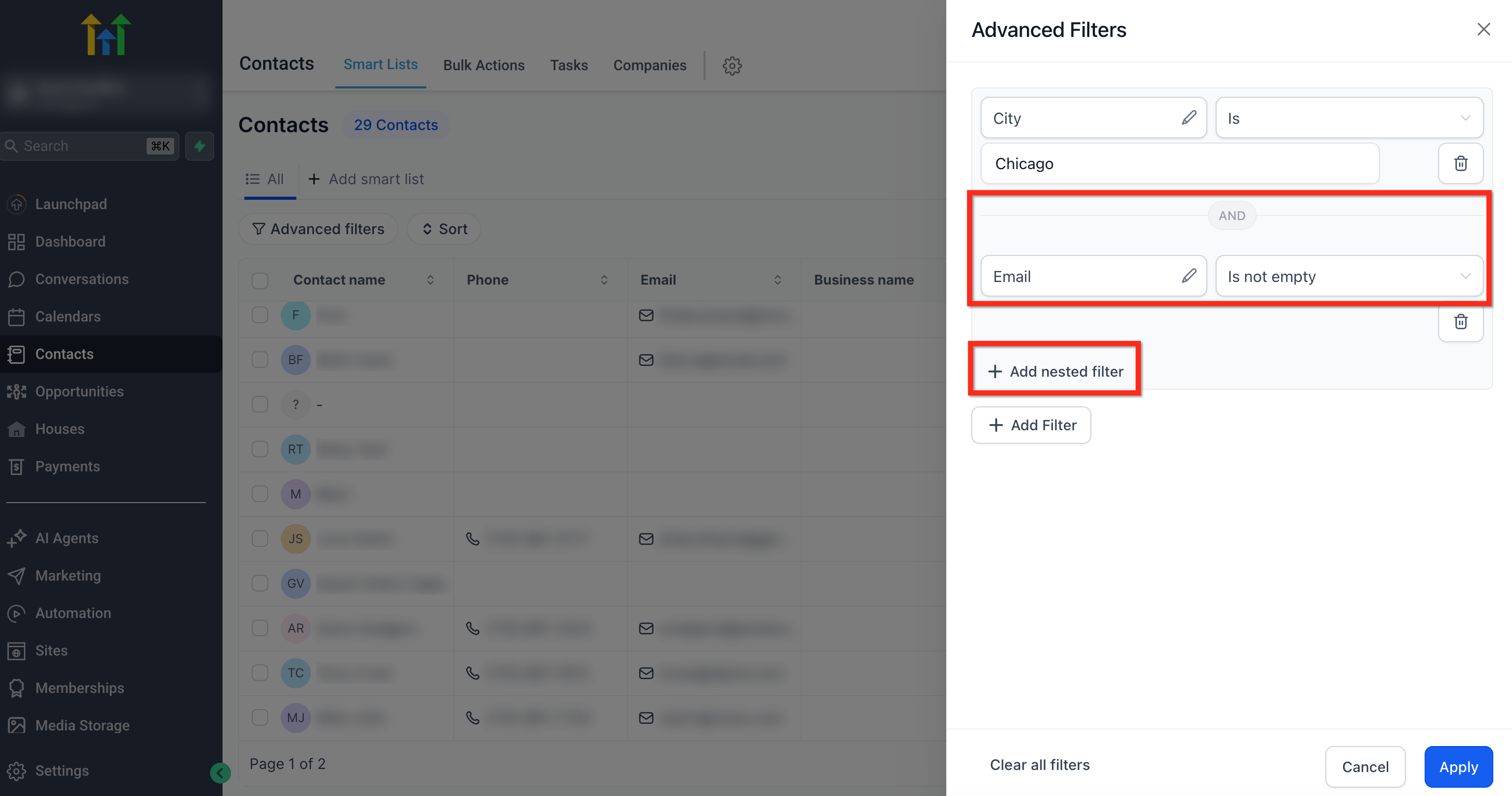
Click + Add Nested Filter to add another condition that must also be true for the contact to stay in the Smart List. Use this when you want to apply AND logic.
-
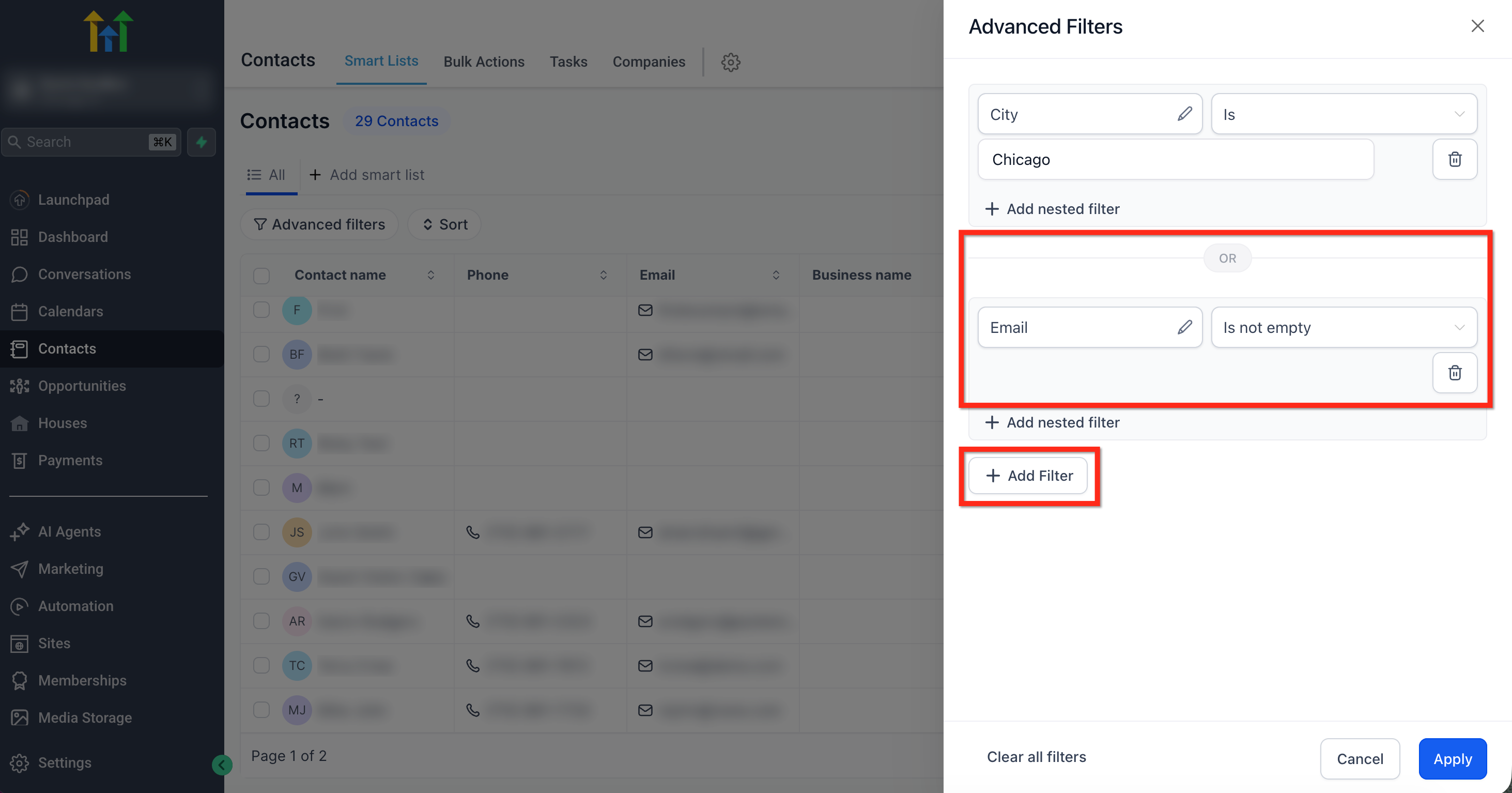
Click + Add Filter to add another possible condition the contact can match to be included in the Smart List. Use this when you want to apply OR logic.
-
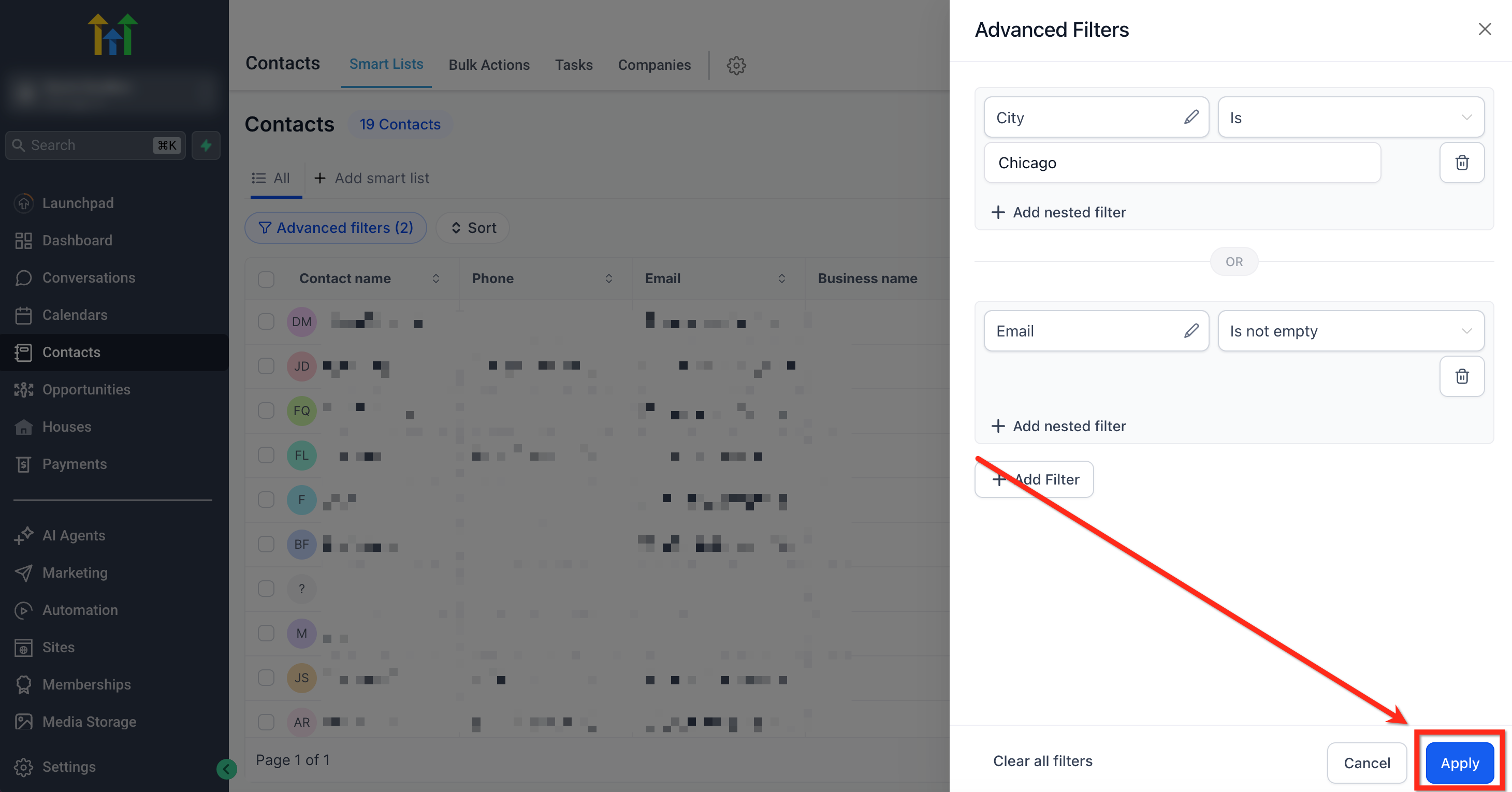
Click Apply.
Filter Types Explained
Section titled “Filter Types Explained”Date Filters
Section titled “Date Filters”Date filters help you segment contacts using exact dates, relative timeframes, and rolling date conditions. These filters are useful for finding recent activity, upcoming events, and recurring date-based milestones. Date-based filters can be applied to fields that store a date or date-and-time value.
| Filter Setting | Meaning | Example Input | Contacts That Will Match |
|---|---|---|---|
| Is → Today | Action occurred today | 11 Mar | Any matches on 11 Mar |
| Is → Tomorrow | Scheduled for tomorrow | 12 Mar | Any matches on 12 Mar |
| Is → Yesterday | Action occurred yesterday | 10 Mar | Any matches on 10 Mar |
| Is → This Week | Within the current week | 9–15 Mar | Any action within this week |
| Is Not → Today | Excludes actions happening today | 11 Mar | Any action except today |
| Is → Between | Matches range of dates | 1 Mar - 7 Mar | Any action within the selected period |
| Is Empty | No date record exists | - | Contacts missing this date |
Best Practices for Date Filters:
- Use In the Last to identify recent engagement.
- Use More Than to identify inactive contacts.
- Use Between for historical reports.
- Use Is Empty to find leads without recorded dates or appointments.
DND Filters
Section titled “DND Filters”DND (Do Not Disturb) filters help you identify whether communication restrictions are enabled for a contact. These filters are especially useful for building compliant outreach lists and excluding contacts who should not receive messages on specific channels.
| Filter Setting | Meaning | Contacts That Will Match |
|---|---|---|
| Enabled | Contact has DND enabled | Contacts who opted out of the selected channel. |
| Disabled | Contact does not have DND enabled | Contacts who have not opted out of the selected channel. |
String (Text) Filters
Section titled “String (Text) Filters”String filters help you match contacts based on names, labels, IDs, attribution values, communication details, and other text-based information.
| Filter Setting | Meaning | Example Input |
|---|---|---|
| Is | Matches one selected value | Chicago |
| Is Not | Excludes one selected value | Chicago |
| Contains | Matches text that appears anywhere in the field value | New York |
| Does Not Contain | Excludes text that appears anywhere in the field value | New York |
| Is any of | Matches one or more listed values | Chicago, London |
Numeric Filters
Section titled “Numeric Filters”Numeric filters help you segment contacts based on measurable values such as scores, counts, and other number-based data.
| Filter Setting | Meaning | Example Input |
|---|---|---|
| Equal To | Matches one selected number | 100 |
| Does Not Equal | Excludes one selected number | 100 |
| Between | Matches a numeric range | 90 - 100 |
| Greater Than | Matches values above a threshold | 90 |
| Less Than | Matches values below a threshold | 90 |
| Is Empty | Finds contacts where the field does not contain a value | - |