
Importing and Editing Mailchimp Email Templates in the Design Editor
This guide explicitly explains how to quickly import your existing Mailchimp email templates into the platform’s powerful Design Editor, effectively allowing you to edit them visually without needing to deal with raw HTML code. You’ll specifically learn how the native import process works natively, and exactly how the system intelligently converts rigid Mailchimp layouts into fluid, fully editable content blocks.
What is the Template Import Feature?
Section titled “What is the Template Import Feature?”Importing a Mailchimp email template essentially allows you to natively bring your pre-designed Mailchimp layouts directly into our Design Editor environment. Instead of arduously starting from scratch, you can safely reuse your carefully existing designs and comfortably edit them visually utilizing the intuitive drag-and-drop interface.
When you dynamically import a template via URL, the system automatically parses and recognizes the core structure of your Mailchimp design—such as global headers, structured images, and rich text blocks—and actively converts them into natively editable components. This makes it incredibly easy to quickly customize body content, seamlessly adjust layouts, and securely maintain your overall brand consistency without formally needing to write or edit source code.
Key Benefits of Importing Templates
Section titled “Key Benefits of Importing Templates”- Seamless Template Reuse: Effortlessly bring your existing email designs directly into the platform without manually rebuilding them from scratch.
- Visual, No-Code Editing: Safely modify and extensively personalize your functional emails strictly using the intuitive drag-and-drop Design Editor—no active coding required.
- Consistent Branding Across Platforms: Continuously maintain your brand’s holistic look and feel by explicitly reusing explicitly familiar layouts, customized fonts, and exact color schemes from your legacy templates.
- Faster Campaign Creation: Actively save major time by transforming structurally pre-designed templates seamlessly into functional editable versions, immediately ready for quick customization and rapid launch.
How to Import and Customize Templates
Section titled “How to Import and Customize Templates”Follow these straightforward steps to safely carry your Mailchimp content entirely over into the visual editor block ecosystem.
1. Access the Email Templates Section
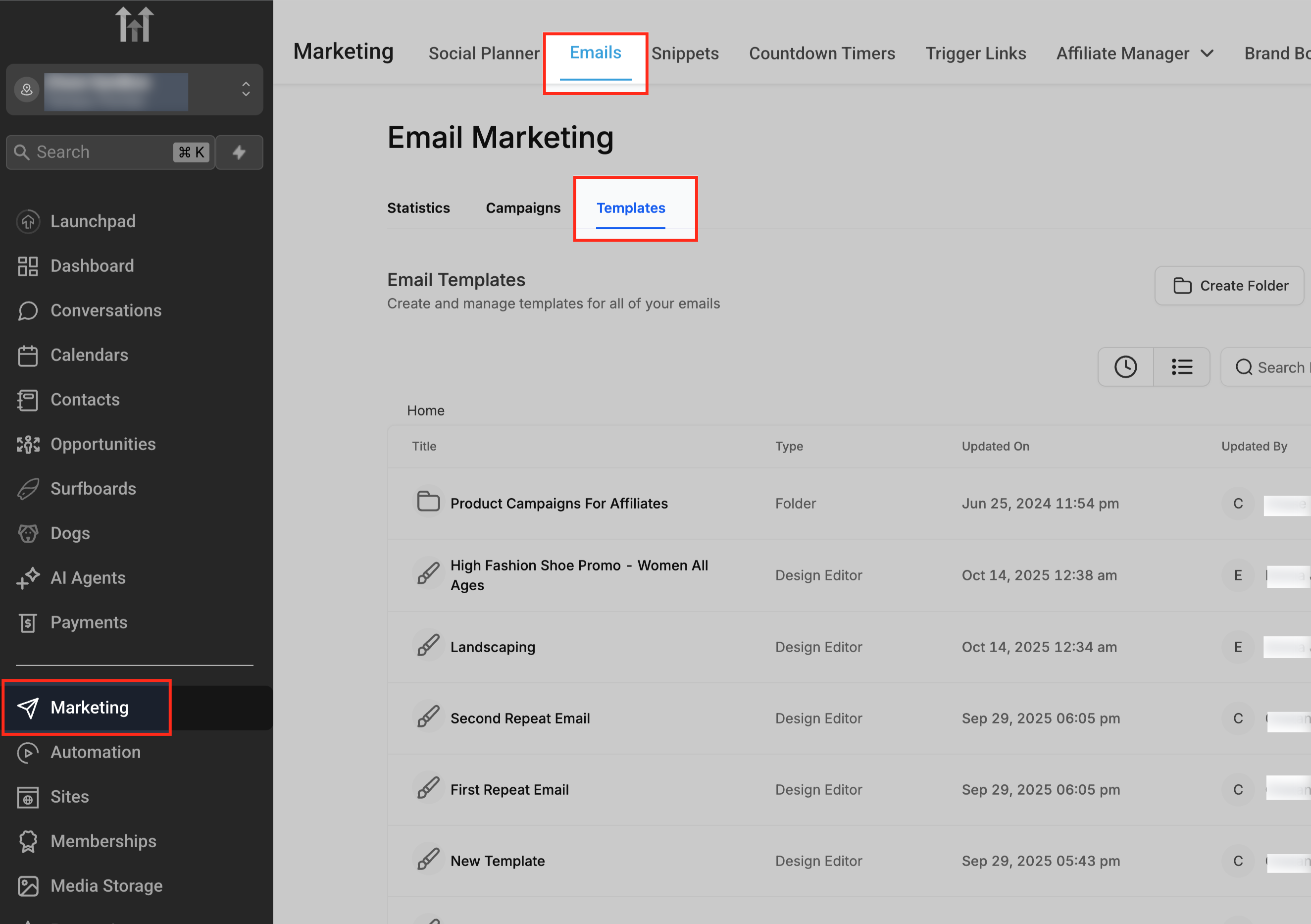
Section titled “1. Access the Email Templates Section”Go to Marketing → Emails → Templates directly from the left global navigation menu. This broad section securely lists all your existing email templates and broadly gives you central access to selectively create new ones using multiple different functional methods.
2. Start a New Import
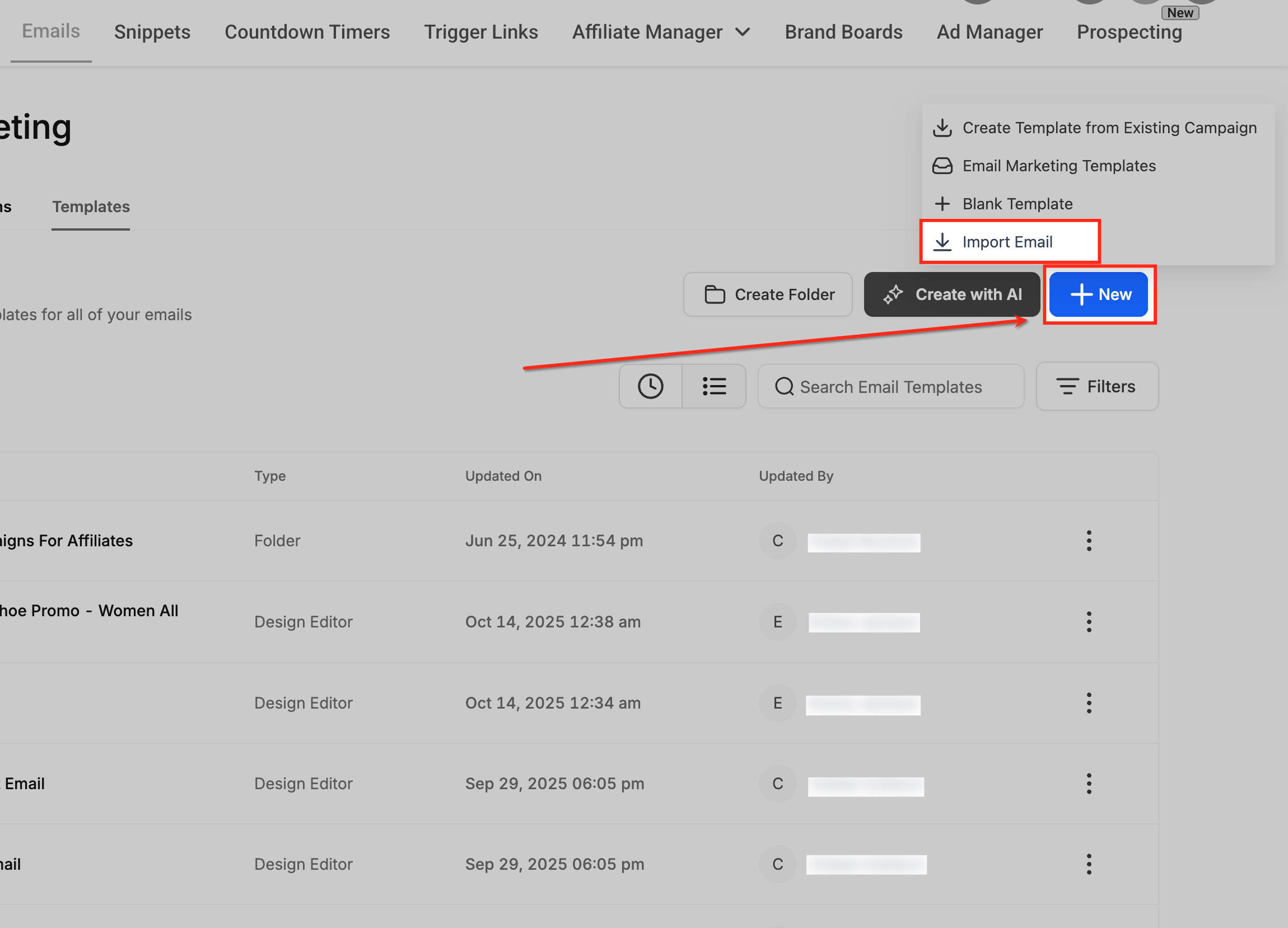
Section titled “2. Start a New Import”Click the New button explicitly positioned on the top right, and physically select Import Email directly from the resulting dropdown menu. This specific option actively allows you to bring in rich email templates strictly from external legacy providers like Mailchimp.
3. Choose Mailchimp as the Target Source
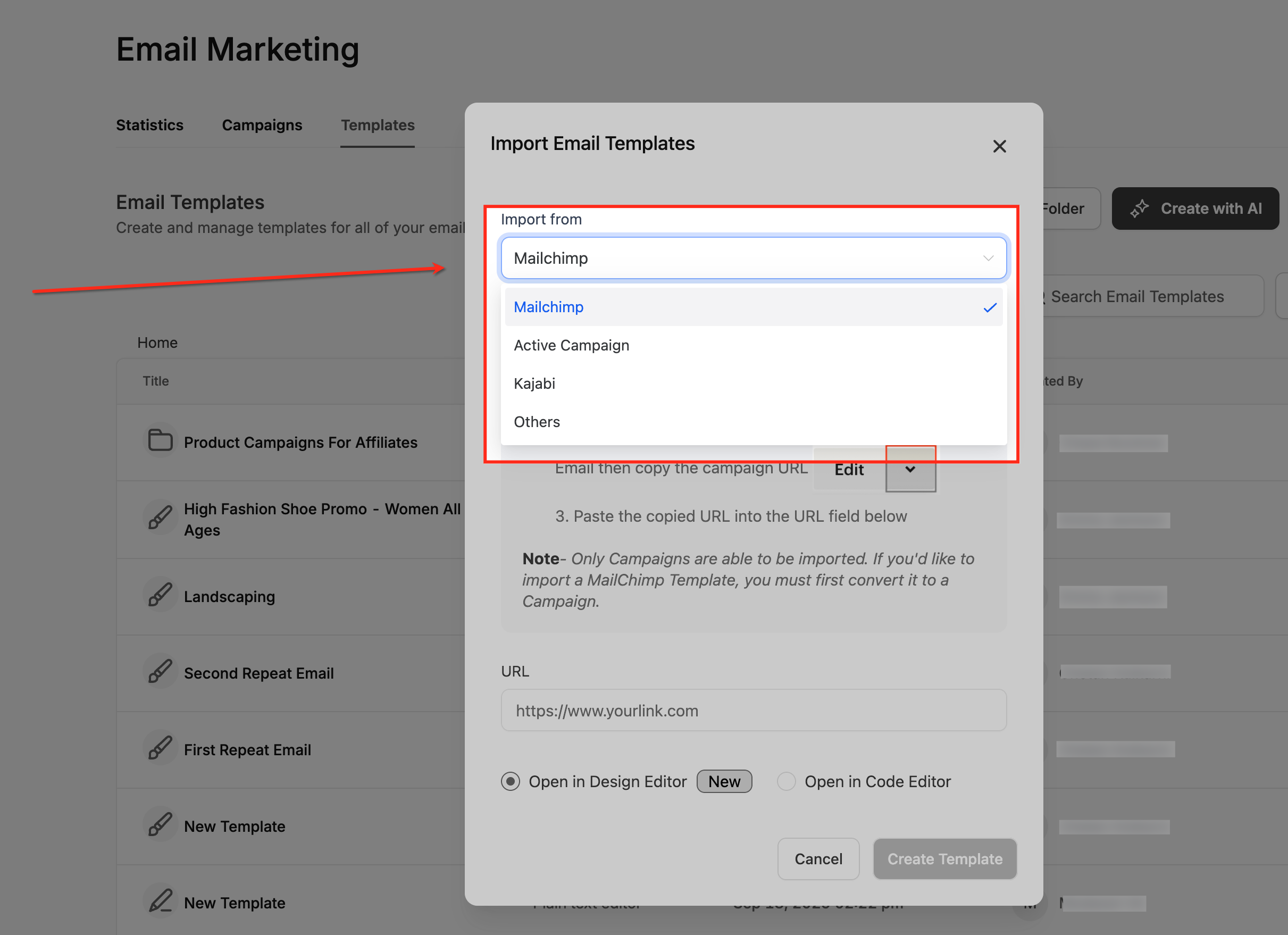
Section titled “3. Choose Mailchimp as the Target Source”In the functional Import Email Templates popup UI, explicitly open the Import from dropdown UI and deliberately choose Mailchimp. This definitively tells the system to actively prepare for securely parsing and intelligently importing the macro campaign layout explicitly from your legacy Mailchimp architecture.
4. Add the External Campaign URL
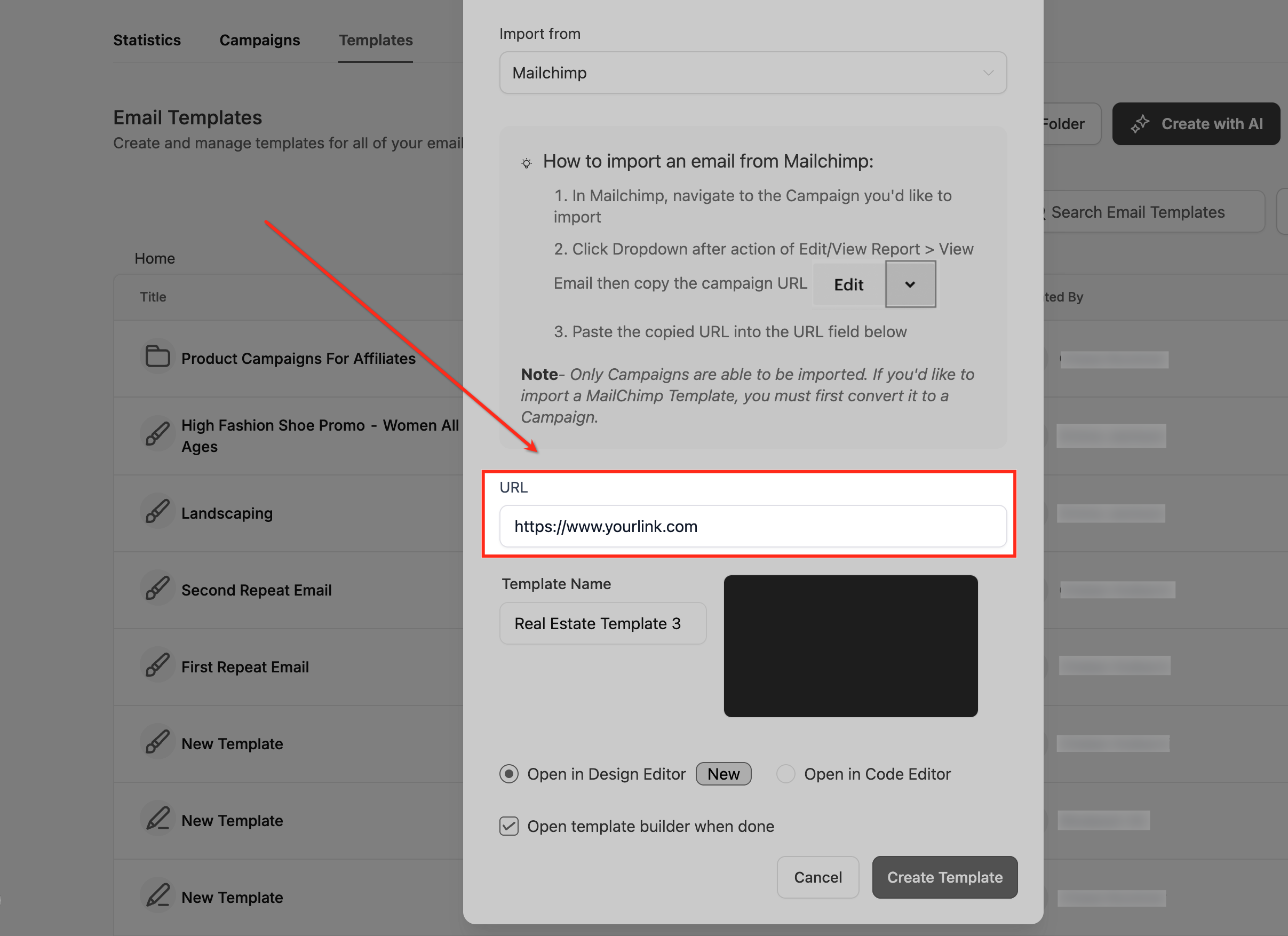
Section titled “4. Add the External Campaign URL”Navigate to your Mailchimp account, actively copy the specific campaign URL you want, and explicitly paste it definitively into the URL field. This unique public URL explicitly allows our system parser to securely fetch and cleanly recreate the macro structure of your Mailchimp campaign for native editing.
5. Enter a Final Template Name
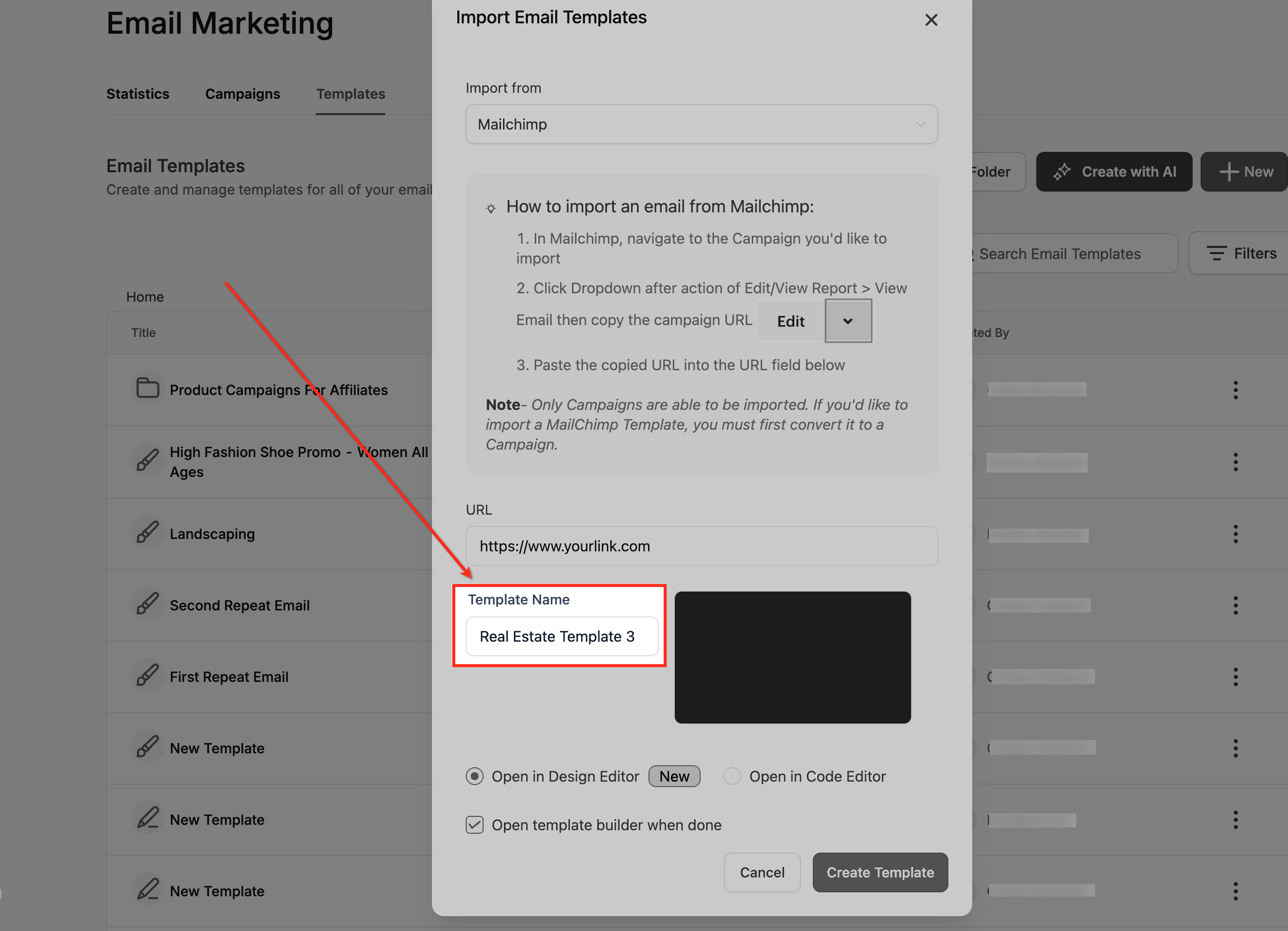
Section titled “5. Enter a Final Template Name”In the unified Template Name text field, logically give your officially imported template a clear, highly recognizable name. This will explicitly make it significantly easier to successfully find and physically edit later from your primary searchable list of active templates.
6. Open in the Design Editor
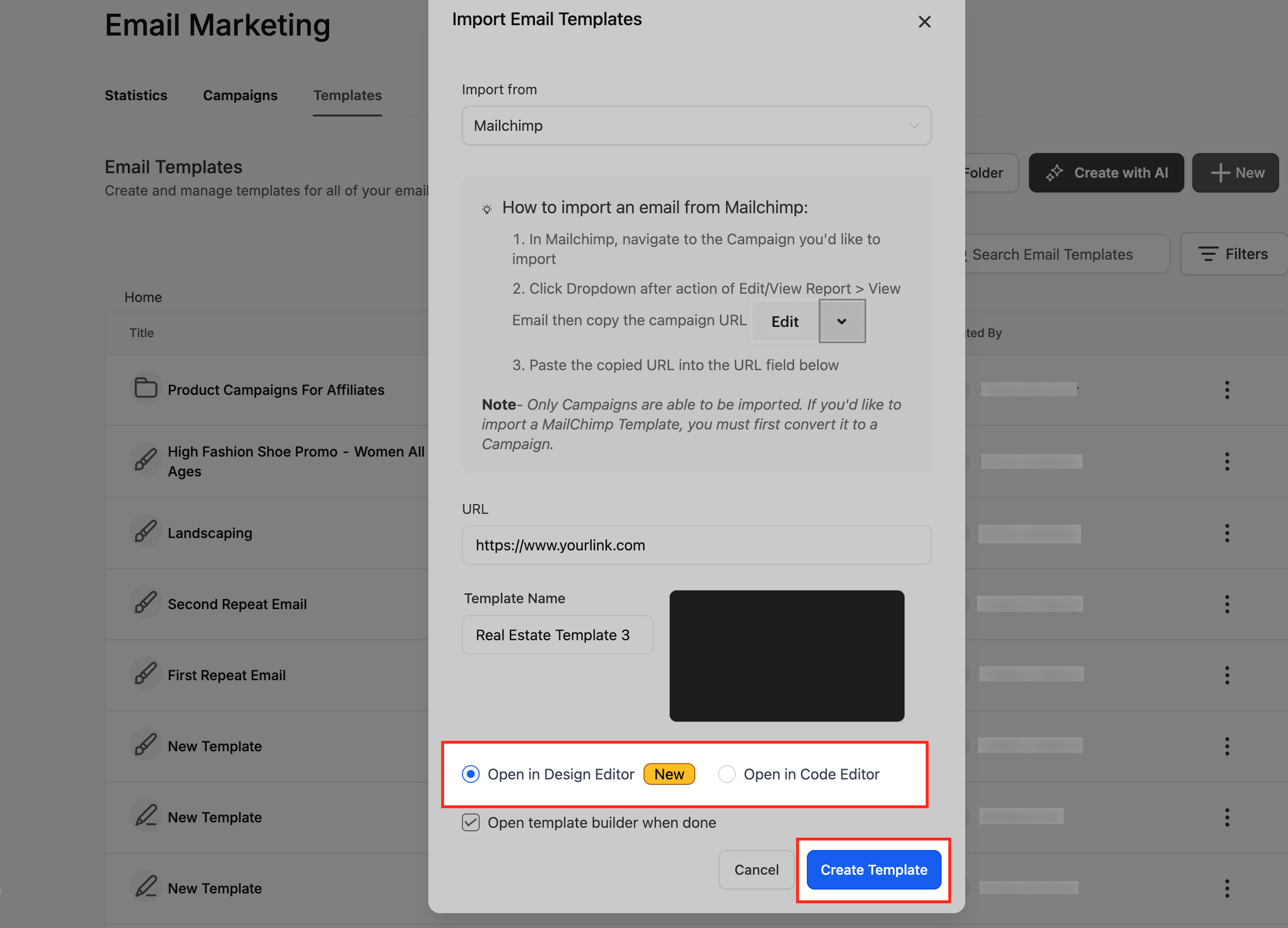
Section titled “6. Open in the Design Editor”Select the Open in Design Editor toggle parameter, then physically click Create Template. Your Mailchimp template will automatically open securely in the visual Design Editor, perfectly converted and flawlessly ready for drag-and-drop structural customization and physical content updates.
Frequently Asked Questions
Section titled “Frequently Asked Questions”Q: What precisely happens if my legacy Mailchimp template fundamentally doesn’t visually appear correctly natively in the Design Editor after importing?
If your formally imported template seemingly appears noticeably misaligned or completely missing blocks, it’s most commonly because explicitly certain highly Mailchimp-specific proprietary HTML code structures essentially aren’t currently fully compatible organically with the modern Design Editor’s clean block-based layout mechanics. In such rare cases, you can rapidly switch directly to the Code Editor to explicitly review the legacy HTML and make deep manual coding adjustments. For mathematically best conversion results, strictly ensure your older Mailchimp campaign explicitly uses structurally standard HTML and inline legacy CSS before initial importing.
Q: Can I natively import Mailchimp templates that heavily use dynamic content code, rich merge tags, or complex conditional logic rules?
Highly proprietary Mailchimp-specific merge tags and deeply dynamic content logic rules natively aren’t automatically translated safely into exact matching equivalents globally during raw file import. The visual HTML structure itself will perfectly import, but the underlying dynamic logic routing natively must be explicitly reconfigured manually strictly using native Custom Values or dynamic variables once the raw template framework is securely inside the Design Editor.
Q: Does the native import tool actively store or functionally access my actual internal Mailchimp account login credentials?
No. The native import system logic effectively relies solely and exclusively on the globally public campaign browser URL that you literally pasted actively into the portal. It explicitly doesn’t require, utilize, or securely store native Mailchimp credentials, secret passwords, or external API core keys. The system explicitly only functionally reads the flat HTML surface layout rendering of the manually provided URL.
Q: What’s the specific operational difference exactly between importing a Mailchimp “Campaign” format natively versus explicitly an internal “Template”?
Active Mailchimp generated campaigns can technically be forcefully imported directly via their live share URL string. However, if you explicitly want to safely import a saved Mailchimp system template, you’ll structurally first absolutely need to properly create a live testing campaign actively using that core template centrally in Mailchimp ecosystem, and explicitly then selectively copy its structurally specific campaign URL form. Strictly only natively active campaigns actually inherently contain a fully shareable URL physical structure format that the system logic import tool can physically parse and securely process seamlessly.